
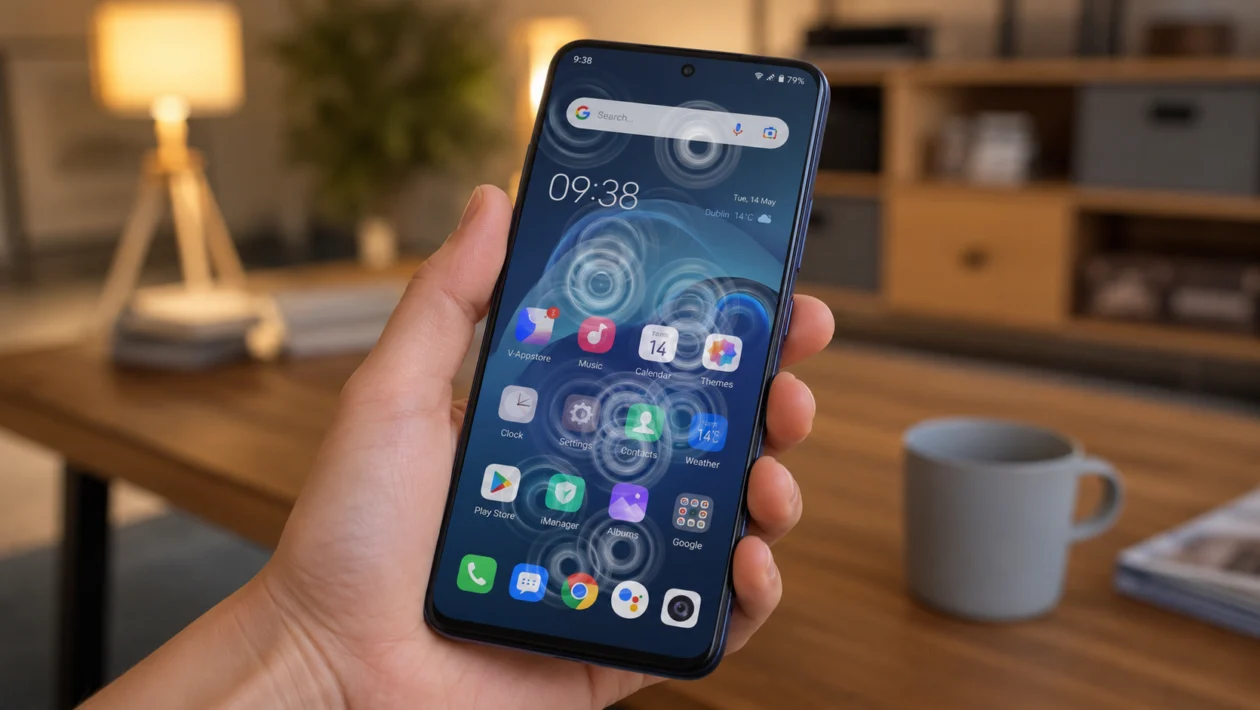
If your vivo Y60 is touching the screen by itself, opening apps, typing random letters, or swiping without your finger on the display, the phone may be having a ghost touch issue.
Ghost touches can happen because of dirt on the screen, moisture, a bad screen protector, a tight case, a faulty charger, software bugs, third-party apps, or display damage. It does not always mean the screen needs replacement, so start with the simple checks first.
Quick answer
To fix a vivo Y60 with ghost touches, clean the screen, remove the case and screen protector, restart the phone, update the system, and test the phone without the charger connected. If the ghost touches only happen while charging, stop using that charger or cable.
If the screen still taps by itself after basic checks, boot into Safe Mode, remove recently installed apps, reset settings, or back up your data and perform a factory reset. If the issue continues after a reset, the display or touch panel may need service.
vivo Y60 ghost touch diagnostic table
| Symptom | Likely cause | What to check first |
|---|---|---|
| Screen taps by itself while charging | Faulty charger, cable, power outlet, or grounding issue | Try the original charger and another wall outlet |
| Ghost touches after applying screen protector | Misaligned, thick, cracked, or poor-quality screen protector | Remove the protector and test again |
| Random touches after getting wet | Moisture on screen, case, port, or under protector | Dry the phone fully before use |
| Touches happen only in one app | App bug or overlay problem | Update or uninstall the app |
| Ghost touches after installing an app | Third-party app conflict | Boot into Safe Mode |
| Screen behaves badly after update | Temporary system or app issue | Restart, update apps, monitor again |
| Touches happen after a drop | Display or digitizer damage | Visit a vivo service center |
| Screen taps near the edges | Tight case, lifted protector, or display damage | Remove case and protector |
| Phone gets hot and touches randomly | Heat, charger issue, heavy app, or hardware issue | Cool the phone and close heavy apps |
| Ghost touches continue after reset | Possible screen hardware fault | Get professional repair |
Why your vivo Y60 has ghost touches
Your vivo Y60 may have ghost touches because the touch layer is receiving false input. In plain English, the phone thinks someone is touching the screen even when no one is.
Common causes include:
- Dirty or oily screen
- Wet fingers or moisture on the display
- Cracked or lifted screen protector
- Tight phone case pressing the screen edges
- Faulty charger or USB cable
- Static electricity
- Overheating
- Buggy apps
- Software update problems
- Display or touch panel damage
Start with the fixes below in order. Do not jump straight to a factory reset unless the basic checks fail.
1. Clean the screen and your hands
Start with the obvious one because it fixes more cases than people expect.
Oil, dust, sweat, lotion, water, and pocket lint can confuse the touch layer. If the screen is dirty, your vivo Y60 may register taps that are not really there.
Here is what to do:
- Turn off the phone.
- Remove the case if it covers the screen edges.
- Wipe the display with a clean microfiber cloth.
- Dry your hands before touching the screen.
- Turn the phone back on and test it again.
Do not use too much liquid. Do not spray cleaner directly on the phone. If you need to dampen the cloth, use only a small amount and keep liquid away from the charging port, speaker, and buttons.
2. Remove the screen protector
A bad screen protector can cause ghost touches, especially if it is cracked, lifting near the edges, trapping moisture, or pressing unevenly on the display.
This is common after:
- Applying a cheap tempered glass protector
- Dropping the phone
- Using a protector that does not fit the vivo Y60 properly
- Getting water or dust under the protector
- Using a thick privacy glass protector
Remove the screen protector and test the phone for a few hours.
If the ghost touches stop, the phone is probably fine. Replace the protector with one that fits the vivo Y60 properly and does not press against the case.
3. Remove the phone case
Some cases press against the edges of the display. This can trigger random touches, especially if the case is too tight, warped, or not designed for the exact vivo Y60 body.
Take the case off and use the phone without it for a while.
Check for ghost touches when:
- Typing
- Swiping home screens
- Opening apps
- Scrolling in social media apps
- Charging the phone
If the issue disappears, the case is likely the problem. Use a case that does not press on the display edges or lift the screen protector.
4. Restart your vivo Y60
A restart can clear temporary software glitches, stuck background processes, and display input bugs.
To restart your vivo Y60:
- Press and hold the Power button.
- Tap Restart.
- Wait for the phone to turn back on.
- Test the screen again.
If the ghost touches started suddenly, this should be one of the first fixes you try.
A restart will not delete your files, photos, apps, or settings.
5. Stop using the phone while charging
If your vivo Y60 only has ghost touches while plugged in, the charger or cable may be the cause.
This is one of the biggest clues.
Unplug the phone and check whether the ghost touches stop. Then test with:
- A different charging cable
- A different power adapter
- A different wall outlet
- The original vivo charger, if available
Avoid cheap or damaged chargers. A bad charger can create unstable touch behavior while the phone is plugged in.
If the screen works normally when unplugged, stop using the charger that triggers the problem.
6. Update the phone software
Software updates can fix bugs, improve stability, and correct touch-related problems after a system issue.
To check for updates on your vivo Y60:
- Open Settings.
- Tap System update.
- Check for available updates.
- Install the update if one is available.
- Restart the phone after updating.
Make sure the battery is charged before updating. Use Wi-Fi if the update file is large.
If ghost touches started after a recent update, do not panic right away. Restart the phone, update your apps, and monitor it for 24 to 48 hours. Sometimes the phone needs time to settle after a major update.
7. Update or remove problem apps
Some ghost touch problems are not really display problems. A buggy app can cause random screen behavior, pop-ups, overlays, keyboard issues, or frozen touch input.
Check whether the issue happens everywhere or only inside one app.
If it happens in one app:
- Open Google Play Store.
- Tap your profile icon.
- Tap Manage apps and device.
- Update the app.
- Restart the phone.
If the app still causes problems, uninstall it temporarily.
Pay attention to apps installed shortly before the ghost touches started. Screen filter apps, floating button apps, cleaners, launchers, keyboard apps, and apps with overlay permission can sometimes interfere with normal touch behavior.
8. Boot into Safe Mode
Safe Mode helps you check whether a downloaded app is causing the ghost touches. In Safe Mode, third-party apps are temporarily disabled.
The exact steps can vary by vivo software version, but you can usually try this:
- Press and hold the Power button.
- When the power menu appears, press and hold Power off.
- Tap Safe Mode if the option appears.
- Wait for the phone to restart.
- Test the screen.
If ghost touches stop in Safe Mode, one of your installed apps is probably causing the issue.
Uninstall recently installed apps one by one, then restart normally and test again.
Start with apps that use:
- Screen overlays
- Floating windows
- Accessibility permissions
- Keyboard customization
- Auto-clicking
- Game boosters
- Screen dimming
- Cleaning or battery optimization
If Safe Mode does not appear on your vivo Y60, use the phone normally and remove recently installed apps manually.
9. Reset all settings
If the screen still behaves strangely, reset the phone settings before doing a full factory reset.
This can help if a display, accessibility, gesture, or system setting is causing the issue.
On many vivo phones, you can check:
- Open Settings.
- Tap System management.
- Tap Backup & reset.
- Look for Reset all settings.
- Confirm the reset.
The wording may vary depending on your Funtouch OS version.
Resetting all settings is different from erasing all data. It usually resets system settings, network settings, and preferences, but your photos and personal files should remain. Still, check the warning screen before confirming.
This step is useful when the issue started after changing settings and you cannot remember what changed.
10. Back up your data and factory reset the phone
Use this only after trying the easier fixes.
A factory reset erases your phone and returns it to its default state. This can fix deep software problems, but it will remove your apps, files, photos, messages, and accounts from the device.
Before resetting:
- Back up your photos and videos.
- Sync contacts.
- Save important files.
- Check that you know your Google account password.
- Charge the phone.
To factory reset your vivo Y60:
- Open Settings.
- Tap System management.
- Tap Backup & reset.
- Tap Erase all data or Factory data reset.
- Follow the on-screen instructions.
After the reset, test the screen before reinstalling all your apps.
If the ghost touches return immediately even before you restore apps, the issue is likely hardware-related.
When to visit a vivo service center
You should visit a vivo service center if:
- The ghost touches continue after a factory reset
- The phone was dropped
- The display is cracked
- The screen has lines, flickering, dead zones, or discoloration
- The ghost touches happen even when the phone is not charging
- The screen reacts badly in the same area every time
- The phone got wet recently
- The issue is getting worse
At that point, the display, digitizer, connector, or internal hardware may need inspection.
Do not open the phone yourself unless you have proper repair tools and experience. A damaged display cable, battery puncture, or poor replacement part can make the problem worse.
How to prevent ghost touches on your vivo Y60
To reduce the chance of ghost touches happening again:
- Keep the screen clean and dry.
- Use a good screen protector that fits properly.
- Avoid tight cases that press the display.
- Use a reliable charger and cable.
- Do not use the phone with wet hands.
- Keep the phone away from extreme heat.
- Update apps and system software regularly.
- Avoid unknown auto-clicker, cleaner, or screen overlay apps.
- Visit a service center after drops or water exposure.
FAQ
Why is my vivo Y60 touching by itself?
Your vivo Y60 may touch by itself because of a dirty screen, moisture, bad screen protector, tight case, faulty charger, software bug, third-party app, or display hardware damage.
Can a charger cause ghost touches on vivo Y60?
Yes. If ghost touches happen only while charging, the charger, cable, adapter, or wall outlet may be causing unstable touch input. Try another charger and stop using the one that triggers the issue.
Will factory reset fix vivo Y60 ghost touch?
A factory reset can fix ghost touches if the cause is software-related. It will not fix a damaged screen, faulty touch panel, loose display connection, or hardware issue.
