
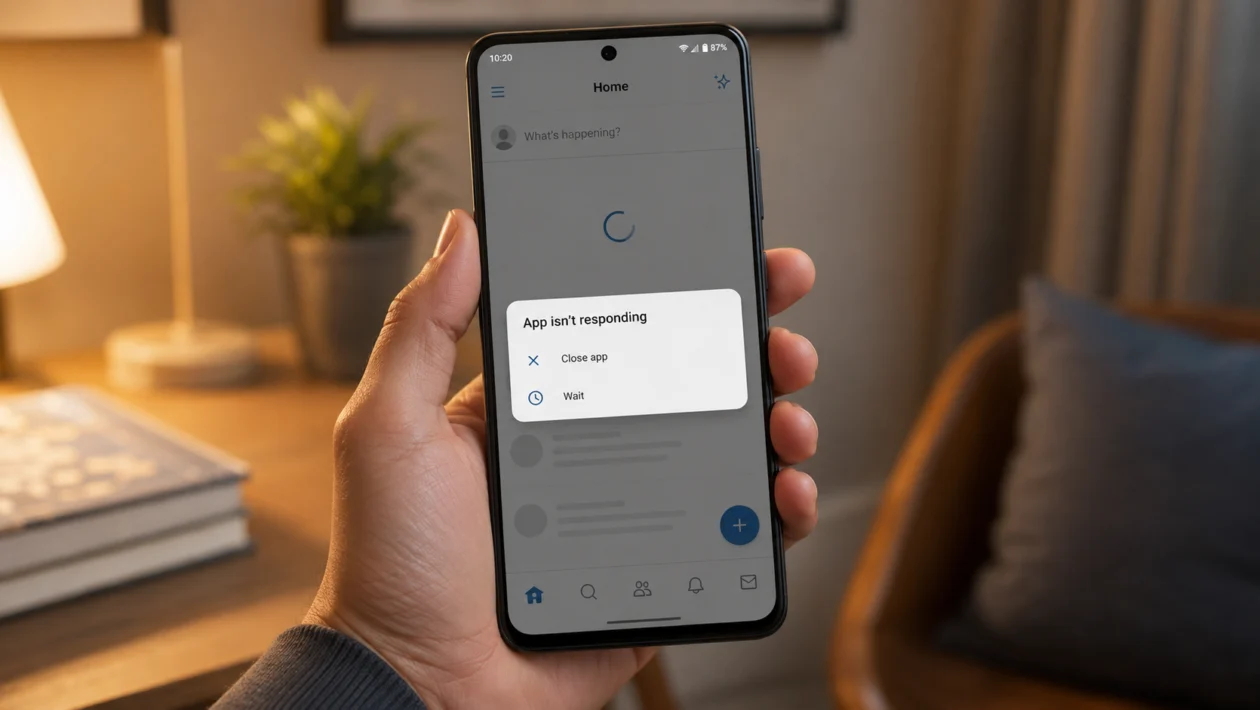
If apps keep freezing on your vivo Y60, the phone can feel slow even when nothing looks wrong. You open TikTok, Facebook, Messenger, YouTube, Chrome, Camera, or a banking app, then the screen stops responding, the app hangs, or you see an “App isn’t responding” message.
This does not always mean the phone is damaged. Most app freezing problems come from low storage, too many background apps, outdated apps, app cache issues, unstable updates, weak internet, permission conflicts, or software bugs.
Start with the simple fixes first. Close background apps, restart the phone, update the app, then move to cache, storage, safe mode, and reset options only if the problem continues.
Quick answer
If your vivo Y60 apps are freezing, restart the phone first. Then open Settings > Apps, choose the app that keeps freezing, and clear its cache. After that, update the app from Google Play Store or V-Appstore and check if your phone has enough storage.
If many apps freeze at once, check storage, close background apps, update the system software, and test the phone in Safe Mode. If the freezing started after installing one specific app, remove that app and test the phone again.
vivo Y60 apps freezing diagnostic table
| Symptom | Likely cause | What to check first |
|---|---|---|
| One app keeps freezing | App bug, cache issue, or outdated app | Clear cache and update the app |
| All apps freeze randomly | Low storage, low RAM, or system issue | Restart and free up storage |
| Apps freeze after update | App or system compatibility issue | Update apps and phone software |
| Games freeze or lag | High performance load or background apps | Close apps and lower game settings |
| Apps freeze on mobile data | Weak signal or unstable connection | Switch to Wi-Fi and test again |
| Apps freeze when opening | Corrupted app data | Clear cache or reinstall the app |
| Phone freezes with apps open | Too many background tasks | Use recent apps screen and close unused apps |
| App freezes after login | App server, account, or permission issue | Check internet and app permissions |
| Freezing happens in Safe Mode | Possible system or hardware issue | Backup and contact vivo support |
| App works after reinstalling | App data was likely corrupted | Keep the app updated |
Why apps freeze on the vivo Y60
Apps may freeze on your vivo Y60 when the phone runs out of usable memory, an app has corrupted cache data, storage is nearly full, or the app is not updated for your current Android or Funtouch OS version.
Common causes include:
Too many apps running in the background
Low internal storage
Outdated apps
Outdated phone software
Corrupted app cache or app data
Poor internet connection
Battery saver restricting app activity
App permissions not set correctly
Buggy app update
Apps installed from unofficial sources
vivo also recommends closing background apps, making sure apps are downloaded from official channels, updating the phone and apps, clearing app data, reinstalling the app, or contacting support if the issue continues.
1. Restart your vivo Y60
Start with a restart. It is simple, but it often fixes temporary app problems.
Press and hold the Power button.
Tap Restart.
Wait for the phone to turn back on.
Open the app again.
Check if it still freezes.
A restart clears temporary system glitches and closes stuck background processes. It will not delete your photos, apps, messages, or files.
2. Close background apps
Apps can freeze when the phone is trying to keep too many things open at once.
Swipe up from the bottom of the screen and hold.
Look at your recent apps.
Swipe away apps you are not using.
Open the problem app again.
You can also use the phone’s speed-up or cleanup shortcut if it appears in the control center or phone manager tools.
This is useful if the vivo Y60 freezes after switching between apps, opening games, using social media, or running several apps at the same time.
3. Update the app that keeps freezing
If only one app freezes, update that app first.
Open Google Play Store.
Tap your profile icon.
Tap Manage apps and device.
Tap Updates available.
Update the app that keeps freezing.
Also check V-Appstore if the app came from vivo’s app store.
App updates can fix freezing, crashing, login bugs, scrolling problems, camera problems inside apps, and compatibility issues after system updates.
4. Clear the app cache
Cache files help apps load faster, but bad cache can make an app freeze or stop responding.
Open Settings.
Tap Apps.
Tap App manager or See all apps.
Choose the app that keeps freezing.
Tap Storage.
Tap Clear cache.
After clearing cache, open the app again and test it.
5. Clear app data if cache does not work
Clear app data only if clearing cache did not help. This can reset the app, sign you out, or remove offline files inside that app.
Open Settings.
Tap Apps.
Tap App manager or See all apps.
Choose the problem app.
Tap Storage.
Tap Clear data or Clear storage.
Confirm the action.
Before doing this, back up anything important inside the app.
Use this fix for apps that freeze immediately after opening, freeze after login, or keep showing the same error even after restarting the phone.
6. Free up storage space
Apps can freeze when your vivo Y60 is low on internal storage. The phone needs free space for app updates, temporary files, photos, videos, downloads, and system processes.
Open Settings.
Tap Storage.
Check how much space is available.
Delete files you no longer need.
Remove unused apps.
Move photos or videos to cloud storage or a computer.
Clear large downloads from messaging apps.
Try to keep a few gigabytes free if possible. A phone with nearly full storage may lag, freeze, fail to update apps, or become slow when opening the camera, gallery, browser, or social media apps.
7. Update your vivo Y60 software
If several apps freeze, check for a system update.
Open Settings.
Tap System update.
Download and install any available update.
Restart the phone after updating.
A system update can improve stability, app compatibility, security, and performance. It can also fix bugs that appeared after a previous update.
After a major update, the phone may feel slightly busy for a while because apps and background services are being refreshed. Use the phone normally and check again after several hours.
8. Check app permissions
Some apps freeze when they cannot access the permission they need. This can happen with camera apps, messaging apps, navigation apps, banking apps, video apps, and file manager apps.
Open Settings.
Tap Apps.
Choose the app that freezes.
Tap Permissions.
Allow the permissions the app needs.
For example:
Camera apps may need Camera, Microphone, Photos, and Location.
Messaging apps may need Contacts, Photos, Camera, and Notifications.
Navigation apps may need Location.
Banking apps may need Phone, Camera, or Biometric access.
Do not allow permissions that look unnecessary. Only enable what the app needs to work properly.
9. Uninstall and reinstall the problem app
If one app keeps freezing after updates and cache clearing, reinstall it.
Touch and hold the app icon.
Tap Uninstall.
Restart your vivo Y60.
Open Google Play Store or V-Appstore.
Install the app again.
Sign in and test it.
This gives the app a clean start. It can fix damaged app files, failed updates, and broken settings inside the app.
Only reinstall apps from official sources such as Google Play Store, V-Appstore, or the app developer’s official website. Apps from unknown APK sites can freeze, crash, show ads, or create security risks.
10. Test your vivo Y60 in Safe Mode
Safe Mode helps you check whether a downloaded app is causing the freezing problem. In Safe Mode, third-party apps are temporarily disabled.
Press and hold the Power button.
Touch and hold Power off if the Safe Mode option appears.
Tap Safe Mode.
Wait for the phone to restart.
Test basic phone functions.
If the vivo Y60 works normally in Safe Mode, one of your downloaded apps is probably causing the issue. Restart the phone to exit Safe Mode, then uninstall recently installed apps one by one.
Start with apps you installed right before the freezing began. Also check cleaner apps, battery saver apps, launcher apps, VPN apps, antivirus apps, modded apps, and apps downloaded outside official stores.
If apps still freeze even in Safe Mode, the issue may be deeper. Back up your files and contact vivo support or visit an authorized service center.
What to do if apps still freeze
If your vivo Y60 still freezes after all 10 fixes, do these before getting the phone checked:
Back up your photos, videos, contacts, and important files.
Write down when the freezing happens.
Check if it happens with one app or all apps.
Take a screenshot of any error message.
Make sure your phone software is updated.
Contact vivo support or visit an authorized vivo service center.
Do not factory reset the phone unless you have already backed up your data. A reset can help with deep software problems, but it removes personal files and settings from the device.
FAQs
Why does my vivo Y60 keep freezing when I open apps?
Your vivo Y60 may freeze when opening apps because of low storage, bad app cache, outdated apps, too many background apps, or a software bug. Start by restarting the phone, updating the app, and clearing the app cache.
Why does only one app freeze on my vivo Y60?
If only one app freezes, the problem is usually with that app. Update it, clear its cache, check its permissions, or reinstall it from Google Play Store or V-Appstore.
Why do games freeze on my vivo Y60?
Games can freeze because they use more memory, graphics power, storage, and internet data than normal apps. Close background apps, lower game graphics settings, update the game, and use a stable Wi-Fi connection.
