
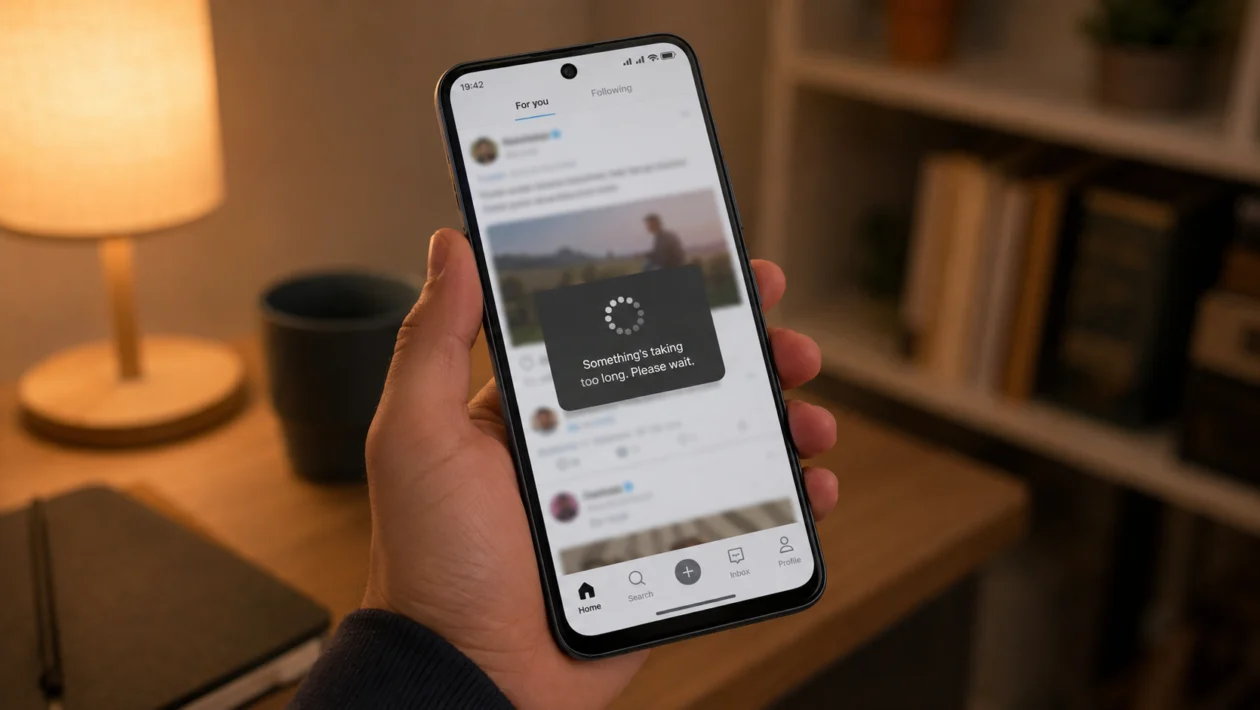
If your vivo Y60 feels slow when opening apps, swiping between screens, pulling down notifications, or switching between recent apps, the problem is usually caused by background apps, low storage, cache buildup, heavy animations, power-saving settings, or a recent software issue.
UI lag does not always mean the phone is faulty. The vivo Y60 is designed as a budget-friendly Y-series phone, so it can slow down if too many apps are running, storage is nearly full, or the system is trying to manage background activity.
Start with the simple fixes first. Close unused apps, restart the phone, clean storage, update the system, then adjust the settings that affect smoothness.
Quick Answer
To fix UI lag on the vivo Y60, restart the phone, close apps running in the background, clean junk files using iManager, update Funtouch OS, and remove apps you rarely use.
Then check storage, app cache, animation speed, refresh rate, power-saving mode, and background app activity. If the lag started after an update, use the phone normally for 24 to 48 hours after updating all apps before doing a reset.
vivo Y60 UI Lag Diagnostic Table
| Symptom | Likely Cause | What to Check First |
|---|---|---|
| Home screen feels slow | Too many background apps | Recent apps screen |
| Apps open slowly | Low storage or app cache | iManager and app storage |
| Scrolling is choppy | Display or refresh rate settings | Display settings |
| Lag happens after update | System and apps re-optimising | Software and app updates |
| Phone lags while gaming | Background apps or power saving | Battery and Ultra Game Mode |
| Keyboard feels delayed | Keyboard app cache | App info for keyboard |
| Lag happens only in one app | App bug or corrupted cache | Clear that app’s cache |
| Phone freezes often | Storage, RAM pressure, or system bug | Storage and restart |
| Lag gets worse when battery is low | Battery saver limiting performance | Power saving mode |
| Lag continues after all fixes | Deeper software or hardware issue | Backup and reset |
Why Is My vivo Y60 Lagging?
Your vivo Y60 may lag because the phone is running too many tasks at once. Common causes include:
Too many apps open in the background
Low internal storage
App cache buildup
Outdated apps
Outdated Funtouch OS software
Power-saving mode reducing performance
Heavy home screen widgets
Too many notifications syncing
High animation effects
A buggy third-party app
A recent system update
Storage or system file issues
The best fix depends on when the lag happens. If the whole phone feels slow, start with system-wide fixes. If only one app is lagging, focus on that app first.
1. Restart Your vivo Y60
Start with a restart. It is simple, but it often fixes temporary lag.
A restart clears stuck background processes, refreshes memory, and stops apps that may be slowing down the phone.
To restart your vivo Y60:
- Press and hold the Power button.
- Tap Restart.
- Wait for the phone to turn back on.
- Use the phone normally for a few minutes.
- Check if swiping, scrolling, and opening apps feel smoother.
This will not delete your files, photos, apps, or settings.
Try this first if the lag started suddenly.
2. Close Apps Running in the Background
Too many open apps can make the vivo Y60 feel slow, especially when switching between apps or returning to the home screen.
To close background apps:
- Open the Recent apps screen.
- Swipe away apps you are not using.
- Tap Clear all if available.
- Open only the app you need.
- Check if the phone responds faster.
This helps when the phone slows down after using social media, camera, video apps, shopping apps, or games.
Do not clear everything all the time if you switch between the same apps often. But if the phone feels stuck or heavy, closing background apps is a good quick fix.
3. Clean Junk Files With iManager
vivo phones usually include iManager, which can clean junk files, cache, and unnecessary temporary data.
To clean storage with iManager:
- Open iManager.
- Tap Space cleanup or Cleanup.
- Wait for the scan to finish.
- Review the suggested files.
- Tap Clean.
This can help if your vivo Y60 has been used for a while and has built up cache from apps, videos, downloads, and temporary files.
You should also check your storage manually. If the phone is almost full, UI lag becomes more likely.
Try to keep at least 10% to 15% of your internal storage free.
4. Clear Cache for Laggy Apps
If only one app feels slow, do not reset the whole phone. Clear that app’s cache first.
This is useful for apps like TikTok, Facebook, Instagram, Chrome, YouTube, Shopee, Lazada, Messenger, WhatsApp, and mobile games.
To clear app cache on vivo Y60:
- Open Settings.
- Tap Apps.
- Tap App manager or See all apps.
- Choose the app that is lagging.
- Tap Storage or Storage and cache.
- Tap Clear cache.
Clearing cache removes temporary files. It should not delete your account or personal files.
Avoid tapping Clear storage unless you are ready to reset that app. Clear storage can remove app settings, login data, downloaded files, or local app data.
5. Update Funtouch OS and Your Apps
Software bugs can cause lag. App updates can also fix slow scrolling, freezing, crashing, and battery-heavy background activity.
To update your vivo Y60 software:
- Open Settings.
- Tap System update.
- Check for available updates.
- Download and install the update if available.
- Restart the phone after updating.
To update apps:
- Open Google Play Store.
- Tap your profile icon.
- Tap Manage apps and device.
- Tap Update all.
If your phone has V-Appstore, check app updates there too.
If the UI lag started after a software update, give the phone some time. After a major update, the system may re-index files, update apps, and adjust background processes. Use it normally for 24 to 48 hours before doing bigger fixes.
6. Turn Off Power Saving Mode
Power saving mode can reduce performance to save battery. That is useful when your battery is low, but it can also make the phone feel slower.
If your vivo Y60 lags when opening apps or switching screens, check whether power saving is turned on.
To turn it off:
- Open Settings.
- Tap Battery.
- Turn off Battery saver or Low power mode.
- Restart the phone.
- Test the phone again.
This is especially important before gaming, video editing, video calls, or multitasking.
If the lag happens only when the battery is low, this is probably the cause.
7. Remove Apps You Rarely Use
Unused apps can still take storage, send notifications, sync in the background, and run services you do not notice.
To remove apps:
- Open Settings.
- Tap Apps.
- Choose an app you rarely use.
- Tap Uninstall.
- Repeat for apps you do not need.
Focus on apps that:
You installed recently
You rarely open
Send too many notifications
Run in the background
Use location often
Take a lot of storage
Duplicate another app you already use
After uninstalling several apps, restart the phone and check if the UI feels smoother.
This fix helps more than most people expect.
8. Reduce Animations
Animations make the phone feel more polished, but they can also make a budget phone feel slower.
If your vivo Y60 feels delayed when opening apps, going home, or switching screens, reducing animations may make the UI feel faster.
To reduce animations:
- Open Settings.
- Tap About phone.
- Tap Build number several times until Developer options are enabled.
- Go back to Settings.
- Open System or More settings.
- Tap Developer options.
- Find Window animation scale, Transition animation scale, and Animator duration scale.
- Set each one to 0.5x.
You can also turn them off, but 0.5x usually feels better because the phone stays smooth without looking too abrupt.
Be careful inside Developer options. Do not change settings you do not understand.
9. Check Display Refresh Rate Settings
The vivo Y60 is reported to have a high refresh rate display, but the exact smoothness you feel can depend on display settings, app support, and battery mode.
To check display smoothness settings:
- Open Settings.
- Tap Display and brightness.
- Look for Screen refresh rate or similar wording.
- Choose the smoother option if available.
- Test scrolling on the home screen and in apps.
A higher refresh rate can make scrolling look smoother, but it may use more battery. If battery life matters more, use the default or smart switching option.
If your phone feels choppy only in one app, that app may not support the same smooth refresh behavior as the home screen.
10. Back Up and Reset the Phone
Use this only after trying the other fixes.
A reset can help if the lag is caused by corrupted settings, old system files, broken app data, or a software problem that normal cleanup cannot fix.
Before resetting, back up your photos, videos, contacts, messages, files, and app data.
To reset your vivo Y60:
- Open Settings.
- Tap System or More settings.
- Tap Backup and reset.
- Choose Erase all data or Reset phone.
- Follow the on-screen instructions.
This will delete data from the phone, so do not do it without a backup.
After the reset, install only the apps you actually use. Do not restore every old app immediately. Test the phone first, then reinstall apps slowly.
What to Do If the vivo Y60 Still Lags
If your vivo Y60 still has UI lag after all 10 fixes, check for these signs:
The phone freezes even after a reset
The screen stops responding often
The phone gets hot while doing simple tasks
Apps crash repeatedly
Storage shows errors
The lag started after dropping the phone
The phone restarts by itself
At that point, it may not be a simple settings issue. It could be a deeper software problem, storage issue, or hardware fault.
FAQ
How do I make my vivo Y60 faster?
Restart the phone, close background apps, clean junk files with i Manager, remove unused apps, update Funtouch OS, and turn off power saving mode. If the phone still feels slow, reduce animations and clear cache for apps that lag.
Why does my vivo Y60 lag when opening apps?
This usually happens because of background apps, low storage, app cache, outdated apps, or power-saving mode. If only one app opens slowly, clear that app’s cache and update it.
Does clearing cache delete my files?
Clearing cache usually removes temporary app files only. It should not delete your photos, videos, or account. But Clear storage is different. That can reset the app and remove local app data.
