
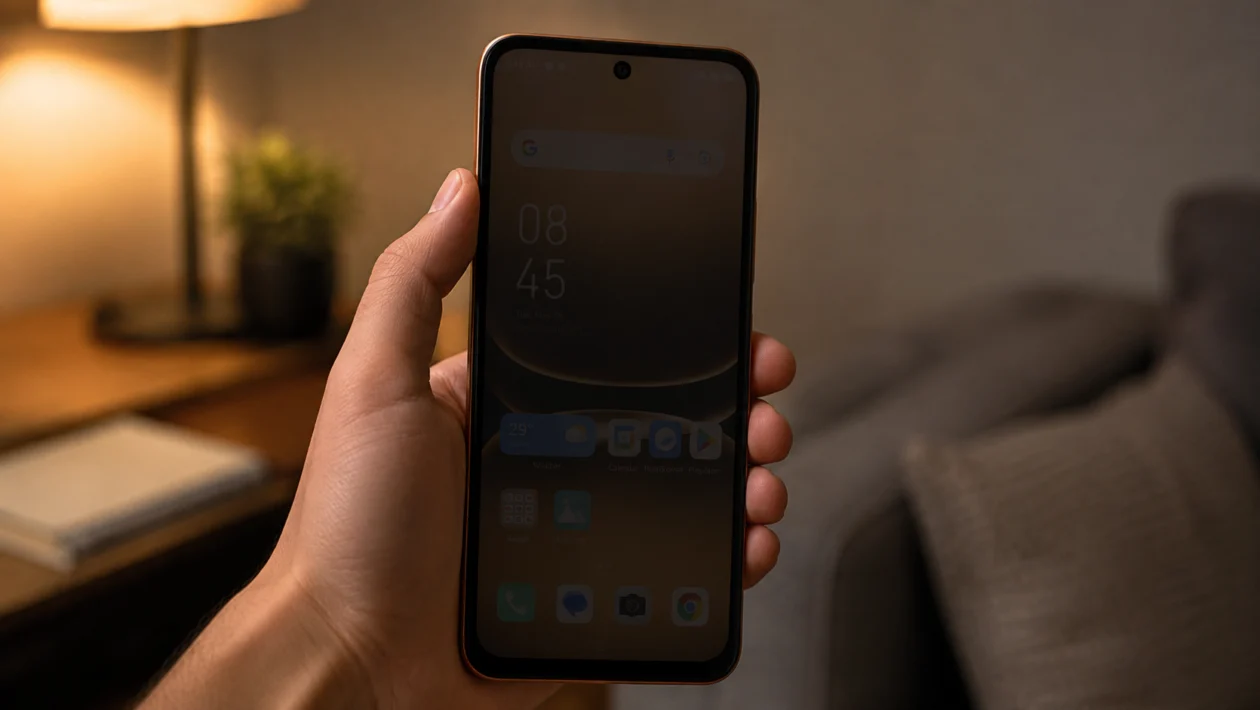
If your Infinix Smart 20 screen keeps dimming, it can make the phone annoying to use, especially when watching videos, reading messages, gaming, or using the phone outdoors.
Screen dimming does not always mean the display is damaged. Most of the time, it is caused by brightness settings, adaptive brightness, battery saver, screen timeout, eye care mode, overheating, or an app controlling the screen brightness.
The Infinix Smart 20 uses an LCD display, so brightness changes can be more noticeable in sunlight, low battery mode, or when the phone is trying to reduce power use. Start with the easy settings first before assuming it is a hardware problem.
Quick answer
If your Infinix Smart 20 screen is dimming by itself, go to Settings > Display & brightness and turn off Adaptive brightness or automatic brightness. Then increase the brightness manually and check if Battery Saver, Ultra Power Saving Mode, Eye Care Mode, or screen timeout is causing the display to lower brightness.
If the screen only dims inside one app, check that app’s brightness settings. If it dims when the phone gets hot, let the phone cool down before using it again.
Infinix Smart 20 screen dimming diagnostic table
| Problem | Likely cause | What to check first |
|---|---|---|
| Screen dims by itself | Adaptive brightness | Settings > Display & brightness |
| Screen gets dark after a few seconds | Screen timeout | Display > Screen timeout |
| Screen dims when battery is low | Battery Saver or Ultra Power Saving | Settings > Battery |
| Screen looks yellow or dull | Eye Care Mode | Display > Eye Care |
| Screen dims while gaming | Game mode, heat, or battery saver | Game settings and phone temperature |
| Screen dims in one app only | App brightness control | Video, reader, or browser app settings |
| Screen dims outdoors | Auto brightness or low display brightness | Manual brightness slider |
| Screen dims after update | Software bug or changed settings | Restart and update apps |
| Screen stays dark even at full brightness | Display or sensor issue | Safe mode or service center |
| Screen flickers and dims | Possible hardware issue | Contact Infinix or Carlcare support |
Why does my Infinix Smart 20 screen keep dimming?
Your Infinix Smart 20 screen may keep dimming because the phone is automatically adjusting brightness, saving battery, reducing heat, or following display settings you may not notice.
Common causes include:
Adaptive brightness
Low brightness level
Battery Saver
Ultra Power Saving Mode
Eye Care Mode
Short screen timeout
Overheating
A video, reading, or gaming app controlling brightness
Software bugs after an update
A faulty display sensor or screen issue
The best fix depends on when the dimming happens. Use the 10 solutions below in order.
1. Turn off Adaptive Brightness
Adaptive brightness is usually the first setting to check. It automatically changes screen brightness based on surrounding light. That sounds helpful, but it can also make the screen dim when you do not want it to.
- Open Settings.
- Tap Display & brightness.
- Look for Adaptive brightness, Auto brightness, or a similar option.
- Turn it off.
- Move the brightness slider higher manually.
Now use the phone normally for a few minutes. Open the apps where the screen usually dims and check if the brightness stays stable.
This is the most likely fix if the screen keeps getting darker indoors, under shade, or when you move between bright and dark places.
2. Increase the brightness manually
Sometimes the phone is not broken. The brightness level is just too low, and the display becomes harder to see when lighting changes.
- Swipe down from the top of the screen.
- Find the brightness slider.
- Drag it to the right.
- Turn off auto brightness if it keeps lowering again.
You can also go to Settings > Display & brightness and adjust the slider there.
If your Infinix Smart 20 becomes easier to see after increasing brightness manually, the issue is probably a setting, not the screen itself.
3. Turn off Battery Saver or Ultra Power Saving Mode
Battery saving modes can reduce brightness to make the battery last longer. This is useful when your battery is low, but it can make the screen look too dim.
- Open Settings.
- Tap Battery.
- Turn off Battery Saver.
- Turn off Ultra Power Saving Mode if it is enabled.
- Check the screen again.
You should also swipe down the Quick Settings panel and check if a battery saver shortcut is turned on.
If your screen only dims when the battery is low, this is normal behavior. The phone is trying to reduce power use. Keep Battery Saver off when you need full brightness.
4. Check Screen Timeout settings
If the screen dims after a few seconds of no touch, your screen timeout may be too short. Android phones often dim the screen shortly before turning it off.
- Open Settings.
- Tap Display & brightness.
- Tap Screen timeout.
- Choose a longer time, such as 1 minute, 2 minutes, or 5 minutes.
This fix is useful if the screen dims while you are reading, checking a recipe, watching something without touching the screen, or using the phone as a reference.
Do not set the timeout too long if you want to save battery. A long timeout keeps the screen on longer.
5. Turn off Eye Care Mode
Eye Care Mode can make the screen look warmer, duller, or less bright. Some users think the screen is dimming, but the phone is actually changing the color tone to reduce blue light.
- Open Settings.
- Tap Display & brightness.
- Look for Eye Care, Eye Comfort, or Reading Mode.
- Turn it off.
- Check if the screen looks brighter and clearer.
Also check if Eye Care Mode has a schedule. It may turn on automatically at night, which can make the screen look darker in the evening.
If you like using Eye Care Mode, keep it on but adjust the intensity so the display does not look too dim.
6. Restart your Infinix Smart 20
A restart can fix temporary display glitches, stuck background processes, and app issues that affect brightness.
- Press and hold the power button.
- Tap Restart.
- Wait for the phone to turn back on.
- Use the phone normally.
- Check if the screen still dims.
This will not delete your photos, apps, files, or messages.
Restarting is worth trying if the dimming started suddenly, especially after installing an app, changing settings, or updating the phone.
7. Check if one app is causing the screen to dim
Some apps control brightness on their own. Video players, ebook readers, camera apps, browsers, games, and social media apps may change brightness while you use them.
Test this:
- Open the app where the screen dims.
- Check the app’s settings.
- Look for brightness, night mode, reading mode, power saving, or video enhancement settings.
- Turn off any app-level brightness control.
- Test the screen again.
If the problem only happens in one app, the Infinix Smart 20 display is probably fine. The app is likely controlling brightness.
For example, a video app may lower brightness during playback. A reading app may use a night theme. A game booster may reduce brightness to control heat or battery drain.
8. Let the phone cool down
Your Infinix Smart 20 may dim the screen when it gets hot. This can happen during gaming, video calls, charging, hotspot use, long camera recording, or outdoor use under direct sunlight.
Do this first:
- Stop gaming or recording.
- Close heavy apps.
- Remove the phone case for a few minutes.
- Move the phone away from direct sunlight.
- Do not use the phone while charging if it is hot.
- Wait until the phone cools down.
Once the phone cools, check if the display returns to normal brightness.
If the screen only dims when the phone is hot, the dimming may be a protection behavior. The phone is trying to manage heat.
9. Update your phone software and apps
A software bug can cause brightness problems. App updates can also fix display behavior inside specific apps.
To update your phone:
- Open Settings.
- Scroll to System or System update.
- Tap Software update.
- Download and install any available update.
To update apps:
- Open the Google Play Store.
- Tap your profile icon.
- Tap Manage apps and device.
- Tap Update all.
After updating, restart the phone.
If the screen dimming started after a recent update, give the phone a little time after restarting. Then check brightness, battery saver, Eye Care Mode, and app settings again because updates can sometimes change or reset display behavior.
10. Test in Safe Mode or contact support
If none of the fixes work, test whether a downloaded app is causing the issue. Safe Mode starts the phone with only basic system apps, which makes it easier to check if a third-party app is the problem.
- Press and hold the power button.
- Touch and hold Power off if the Safe Mode option appears.
- Tap Safe Mode.
- Check if the screen still dims.
The exact Safe Mode steps may vary depending on your Infinix software version.
If the screen works normally in Safe Mode, a downloaded app may be causing the problem. Remove recently installed apps one by one, then restart the phone normally.
If the screen still dims in Safe Mode, or if the display is dark even at full brightness, the issue may be hardware-related. Contact Infinix support or visit a Carlcare service center for inspection.
When should you get the screen checked?
Get your Infinix Smart 20 checked if:
The screen stays dark even at full brightness
The brightness slider does not change anything
The display flickers before dimming
The screen dims after a drop or water exposure
The phone overheats often
The problem continues in Safe Mode
Only part of the screen looks dim
The screen turns black but the phone is still on
These signs can point to a display, sensor, software, or internal hardware problem.
FAQ
Why does my Infinix Smart 20 screen dim by itself?
Your Infinix Smart 20 screen may dim by itself because adaptive brightness, battery saver, Eye Care Mode, screen timeout, overheating, or an app is changing the brightness automatically.
How do I stop my Infinix Smart 20 from dimming?
Turn off adaptive brightness, increase the brightness manually, disable Battery Saver, turn off Eye Care Mode, and increase screen timeout. These are the most common fixes.
Why does my Infinix Smart 20 screen dim while gaming?
The screen may dim while gaming because the phone is heating up, saving battery, or using a game mode setting that lowers brightness. Let the phone cool down and check battery saver or game mode settings.
