
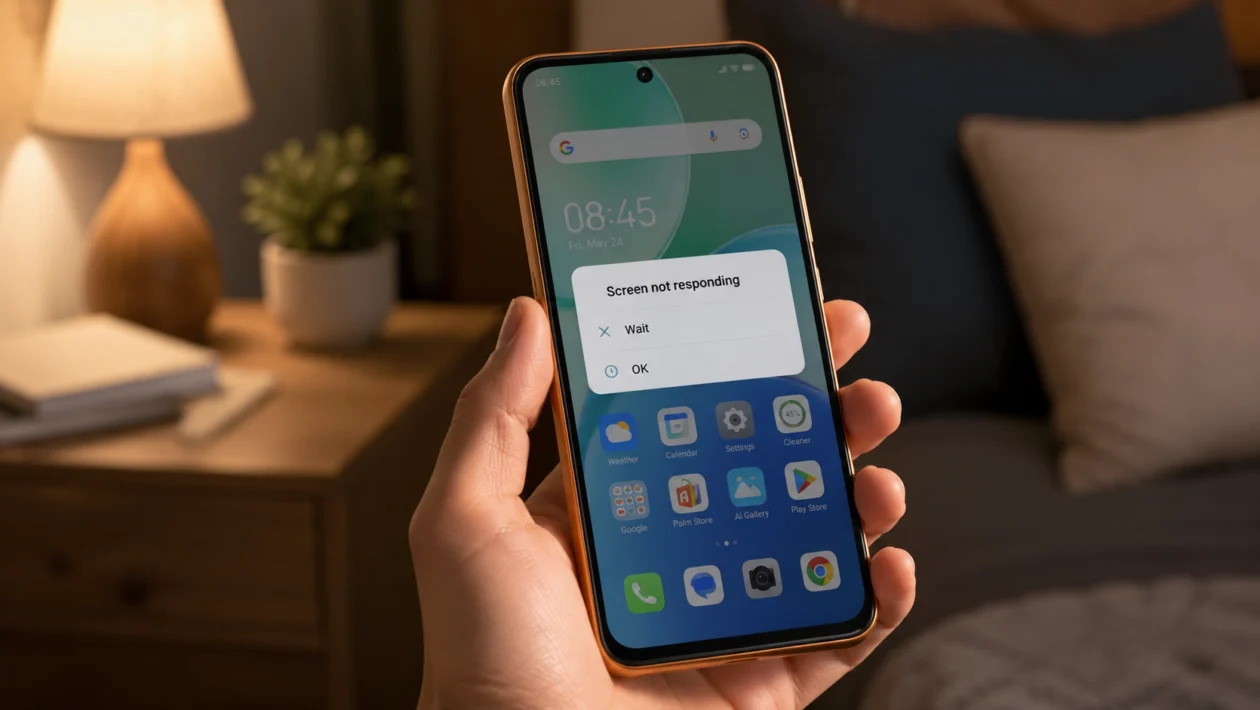
If your Infinix Smart 20 screen is not responding, the phone can feel almost unusable. You tap the screen, swipe up, enter your PIN, or try to answer a call, but nothing happens.
An unresponsive screen does not always mean the display is broken. It can happen because of a temporary system freeze, dirt or moisture on the screen, a faulty screen protector, low storage, a buggy app, overheating, software issues, or physical damage.
Start with the simple checks first. Force restart the phone, clean the screen, remove accessories, then test whether an app or system issue is causing the problem.
Quick answer
If your Infinix Smart 20 screen is unresponsive, force restart the phone first by holding the Power button and Volume Down button for about 10 seconds. If the screen responds after restarting, check for bad apps, low storage, software updates, and overheating.
If the screen still does not respond, remove the case and screen protector, clean the display, let the phone dry if it was exposed to moisture, and try Safe Mode. If the screen remains frozen after all basic fixes, the touch panel may need service.
Infinix Smart 20 unresponsive screen diagnostic table
| Symptom | Likely cause | What to check first |
|---|---|---|
| Screen frozen but buttons work | System freeze or app crash | Force restart |
| Touch works sometimes | Dirty screen, wet fingers, bad protector | Clean screen and remove protector |
| Touch stops after opening one app | Buggy app | Safe Mode or uninstall recent apps |
| Screen is slow to respond | Low storage, heavy background apps | Storage and running apps |
| Screen responds by itself | Ghost touch, moisture, damaged protector | Clean screen and remove accessories |
| Screen stopped after dropping phone | Display or digitizer damage | Service center |
| Screen not responding after update | Software bug or app conflict | Restart, update apps, wait and monitor |
| Screen black but phone vibrates | Display issue, system crash, or damage | Force restart and charge |
| Touch fails while charging | Bad charger or electrical interference | Use original or trusted charger |
| Screen fails after water exposure | Moisture under screen or ports | Power off and dry phone |
Why your Infinix Smart 20 screen is not responding
Your Infinix Smart 20 screen may stop responding when the phone freezes, the touch layer cannot read your input properly, or the software is overloaded.
Common causes include:
Dirty or oily screen
Wet fingers or moisture on the display
Faulty screen protector
Phone case pressing the edges
Temporary system freeze
App crash
Low storage
Overheating
Software update issue
Bad charger while charging
Physical or liquid damage
The Infinix Smart 20 uses a large touchscreen display, so even small things like a misaligned screen protector, sweaty fingers, or pressure from a tight case can make touch input feel unreliable.
1. Force restart your Infinix Smart 20
Start here if the screen is frozen and you cannot swipe, tap, or unlock the phone.
A force restart can clear a temporary system freeze without deleting your personal files.
Press and hold the Power button and Volume Down button together.
Keep holding them for about 10 seconds.
Release the buttons when the phone restarts or the Infinix logo appears.
Wait for the phone to boot normally.
Try swiping and tapping the screen again.
If the screen works after restarting, the issue was probably a temporary freeze or app problem.
If it freezes again later, continue with the next fixes.
2. Clean the screen and dry your fingers
Touchscreens can behave badly when the screen is dirty, oily, dusty, or wet.
Before changing settings, clean the display properly.
Turn off the phone if you can.
Remove the case.
Wipe the screen with a clean microfiber cloth.
Dry your hands completely.
Check the edges of the display for dust, oil, or sticky residue.
Turn the phone back on and test the screen again.
Do not use sharp objects, metal tools, or too much liquid on the screen. If you need moisture, lightly dampen the cloth instead of spraying cleaner directly onto the phone.
This is especially important if the screen has ghost touch, delayed taps, or random touches.
3. Remove the screen protector and phone case
A damaged, thick, cheap, or misaligned screen protector can make the Infinix Smart 20 screen feel unresponsive. A tight case can also press against the edges of the display and cause touch issues.
Remove the phone case first.
Test the screen.
If the problem continues, remove the screen protector.
Clean the display again.
Test typing, swiping, and tapping across different parts of the screen.
If touch works normally after removing the protector, replace it with a better fitting one.
This fix is worth trying if only some parts of the screen do not respond, or if the issue started after installing a new tempered glass protector.
4. Charge the phone and check the charger
Sometimes the screen becomes slow or unresponsive when the battery is extremely low. A poor charger or damaged cable can also cause touch problems while charging.
Plug the phone into a trusted charger.
Leave it charging for at least 15 to 30 minutes.
Try turning it on again.
If the screen acts strange while charging, unplug it and test the screen.
Use a different charging cable and adapter if available.
If the touchscreen only becomes unresponsive while charging, the charger may be the problem. Use the original charger or a reliable replacement from a trusted brand.
Do not keep using a charger that makes the screen flicker, heat up, or register random touches.
5. Let the phone cool down
Overheating can make the phone slow, frozen, or hard to use. This can happen after gaming, video calls, camera use, mobile hotspot, charging, or long use under direct sunlight.
Stop using the phone for a while.
Remove the case.
Unplug the charger.
Place the phone in a cool, dry area.
Do not put it in a freezer or refrigerator.
Wait 10 to 20 minutes before using it again.
Once the phone cools down, test the screen again.
If the screen becomes unresponsive only when the phone is hot, reduce heavy gaming, close background apps, avoid using the phone while charging, and keep it away from direct heat.
6. Free up storage and close heavy apps
Low storage and heavy background activity can make the Infinix Smart 20 feel slow or frozen. The screen may still work, but taps and swipes may respond late.
Open Settings.
Go to Storage.
Check how much free space is left.
Delete large videos, duplicate photos, APK files, and unused downloads.
Uninstall apps you no longer use.
Restart the phone after freeing up space.
Then close apps running in the background.
Open the recent apps screen.
Close apps you are not using.
Avoid running games, video apps, and many social apps at the same time.
This fix is useful if the screen responds, but slowly.
7. Boot into Safe Mode
Safe Mode helps you check whether a downloaded app is causing the unresponsive screen problem.
If the screen works better in Safe Mode, one of your installed apps is likely causing the issue.
Press and hold the Power button.
When the power menu appears, touch and hold Power off.
Tap Safe Mode if the option appears.
Wait for the phone to restart.
Test the touchscreen.
If that method does not work on your unit, turn off the phone. Then turn it back on and hold Volume Down when the Infinix logo appears until the phone boots.
Once in Safe Mode, test the screen for a few minutes.
If the screen works normally in Safe Mode, uninstall recently installed apps, especially launchers, screen filters, battery savers, cleaners, games, or apps downloaded outside the Play Store.
Restart the phone to exit Safe Mode.
8. Update your apps and phone software
Software bugs can cause freezing, lag, and touch problems. App updates may also fix compatibility issues that make the phone unstable.
To update apps:
Open Google Play Store.
Tap your profile icon.
Tap Manage apps and device.
Tap Update all.
Also check the Infinix app store or system app updater if available on your phone.
To check for phone updates:
Open Settings.
Go to System or Software update.
Tap Check for updates.
Install any available update.
Restart the phone after updating.
If the unresponsive screen started right after a software update, restart the phone, update your apps, and monitor it for 24 to 48 hours. Some phones may run slower while apps and system services settle after an update.
9. Reset settings without deleting your files
If the screen still responds sometimes, try resetting system settings before doing a full factory reset.
This can help if a display, accessibility, gesture, or app setting is causing touch problems.
Open Settings.
Go to System.
Tap Reset options or Backup and reset.
Choose Reset all settings if available.
Confirm the reset.
Restart the phone.
This should not delete your photos, videos, or personal files, but the exact wording can vary depending on your XOS version.
After the reset, test the touchscreen again before reinstalling apps or changing many settings.
10. Factory reset or visit a service center
Use this only after the easier fixes. A factory reset deletes your apps, files, photos, videos, accounts, and settings from the phone.
Back up your data first if the screen still works enough to do it.
Open Settings.
Go to System.
Tap Reset options or Backup and reset.
Choose Erase all data or Factory data reset.
Read the warning carefully.
Confirm the reset.
If the screen is completely unresponsive and you cannot back up your data, do not rush into a reset. Visit an authorized service center instead.
You should get the phone checked if:
The screen stopped working after a drop
The phone was exposed to water
Only one part of the screen responds
The display has lines, black spots, or flickering
The phone vibrates but the screen stays black
The screen remains unresponsive after a force restart
Touch does not work even in Safe Mode
The issue keeps returning after a reset
At that point, the problem may be the digitizer, display connector, or another hardware part.
Should you repair or replace the screen?
Repair is the better option if the phone is still in good condition, the battery is healthy, and the repair cost is reasonable.
Replacement may make more sense if the display repair costs almost as much as another budget phone, or if the device also has battery, charging, or motherboard problems.
Before paying for a repair, ask the technician to confirm whether the issue is the screen, the connector, or the mainboard. A good diagnosis matters because replacing the display will not fix a deeper board issue.
FAQ
Why is my Infinix Smart 20 screen frozen?
Your Infinix Smart 20 screen may be frozen because of a system crash, buggy app, low storage, overheating, or touch display issue. Start with a force restart, then check apps, storage, updates, and screen accessories.
How do I restart my Infinix Smart 20 if the screen is not working?
Press and hold the Power button and Volume Down button together for about 10 seconds. Release the buttons when the phone restarts or the Infinix logo appears.
Why is my Infinix Smart 20 touching by itself?
Ghost touch can happen because of moisture, a bad screen protector, a tight case, charger interference, software issues, or display damage. Clean the screen, remove the protector, change the charger, and test the phone again.
