
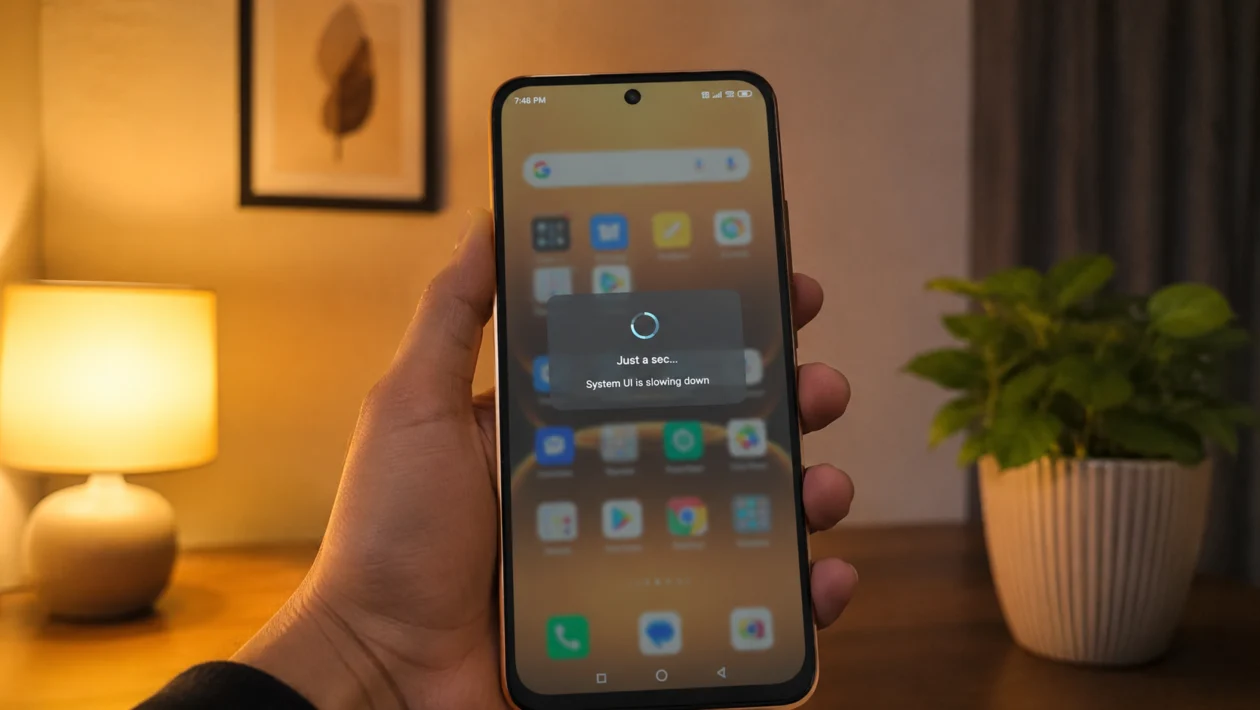
If your Infinix Smart 20 feels slow, freezes when switching apps, or takes a few seconds to respond after tapping the screen, the phone may be overloaded by background apps, low storage, cache buildup, outdated software, or heavy animations.
UI lag does not always mean the phone is damaged. The Infinix Smart 20 is an entry-level phone, so it can slow down when too many apps, files, widgets, notifications, or background services are running at the same time.
Start with the simple fixes first. Restart the phone, free up storage, clear cache, update the software, then reduce settings that make the interface feel heavier.
Quick answer
To fix an Infinix Smart 20 with UI lagging, restart the phone, close background apps, clear app cache, free up storage, uninstall unused apps, update the phone software, and reduce animations.
Go to Settings > Storage to check free space, then go to Settings > Apps to clear cache from apps that use too much storage. You should also check for updates under Settings > System > System update or Settings > About phone > System update, depending on your XOS version.
If the lag started after installing a new app, remove that app first and test the phone again.
Infinix Smart 20 UI lag diagnostic table
| Symptom | Likely cause | What to check first |
|---|---|---|
| Phone lags when opening apps | Too many background apps | Recent apps and RAM usage |
| Home screen stutters | Widgets, animations, launcher cache | Home screen widgets and launcher settings |
| Keyboard responds slowly | Keyboard cache or low memory | Keyboard app cache |
| Phone freezes during games | Heavy game, heat, or low RAM | Game settings and phone temperature |
| Lag started after update | App optimization or software bug | Restart, update apps, monitor for 24 hours |
| Lag happens when storage is almost full | Low internal storage | Settings > Storage |
| Touch feels delayed | Screen protector, app freeze, or system lag | Restart and remove problem apps |
| Lag happens online only | Weak Wi-Fi or mobile data | Network connection |
Why is my Infinix Smart 20 UI lagging?
Your Infinix Smart 20 may lag because the phone is trying to run more tasks than it can handle comfortably.
Common causes include:
- Too many apps running in the background
- Low internal storage
- App cache buildup
- Heavy games or social media apps
- Outdated phone software
- Outdated apps
- Too many home screen widgets
- Live wallpaper
- High animation effects
- Phone overheating
- Malware or suspicious apps
- A recent system update still optimizing in the background
The Infinix Smart 20 uses an entry-level chipset, so small changes can make a noticeable difference. Freeing storage, reducing background activity, and keeping the system updated usually help the most.
1. Restart your Infinix Smart 20
Start with a restart before changing deeper settings.
A restart clears temporary system issues, closes stuck background processes, and gives the phone a fresh start. If the UI suddenly became laggy, this may be enough.
- Press and hold the Power button.
- Tap Restart.
- Wait for the phone to turn back on.
- Use the phone normally for a few minutes.
- Check if the lag is gone.
This will not delete your files, apps, photos, or messages.
If the phone is frozen, press and hold the Power button for about 10 seconds until it restarts.
2. Close background apps
Too many open apps can make the Infinix Smart 20 feel slow, especially if you switch between TikTok, Facebook, Messenger, Chrome, YouTube, and games.
- Tap the Recent apps button.
- Swipe away apps you are not using.
- Tap Clear all if available.
- Open only the app you need.
- Check if the UI feels smoother.
Do not keep heavy apps running if you are not using them. Social media apps, games, shopping apps, and browsers can continue using memory in the background.
For better performance, restart the phone after clearing many apps.
3. Free up internal storage
Low storage is one of the most common reasons an Infinix Smart 20 starts lagging. Android needs free space for updates, app data, cache, downloads, and system tasks.
Check your storage:
- Open Settings.
- Tap Storage.
- Check how much free space is left.
- Delete files you no longer need.
- Move photos, videos, and documents to a memory card, computer, or cloud storage.
Try to keep at least 10% to 20% of your internal storage free.
You can delete:
- Duplicate photos
- Old videos
- WhatsApp media
- Downloaded APK files
- Offline videos
- Unused documents
- Screen recordings
- Old screenshots
4. Clear app cache
Cache files help apps load faster, but too much cache can slow the phone down. This is common with Facebook, TikTok, Instagram, YouTube, Chrome, Messenger, and shopping apps.
To clear cache:
- Open Settings.
- Tap Apps.
- Tap App management or See all apps.
- Choose a large app.
- Tap Storage.
- Tap Clear cache.
Do not tap Clear data unless you know what it does. Clear data may remove app settings, saved logins, downloads, or offline files.
Start with the apps you use most. If one app causes the lag, clear its cache first.
5. Uninstall apps you do not use
Unused apps still take storage, send notifications, run background services, and sometimes start automatically. Removing them can make the phone feel lighter.
- Open Settings.
- Tap Apps.
- Review installed apps.
- Tap an app you do not use.
- Tap Uninstall.
You can also press and hold an app icon on the home screen, then tap Uninstall if the option appears.
Remove apps that:
- You have not opened in weeks
- Show too many ads
- Claim to “boost RAM”
- Run in the background
- Duplicate features already built into the phone
- Use too much storage
Avoid installing multiple cleaner, booster, or antivirus apps. Some of them add more background activity instead of fixing lag.
6. Update your phone software
Software updates can fix bugs, improve security, and make the system more stable. If your Infinix Smart 20 started lagging because of a software issue, an update may help.
- Open Settings.
- Tap System or About phone.
- Tap System update.
- Download and install any available update.
- Restart the phone after updating.
Make sure the battery is charged before updating. Use Wi-Fi if the update is large.
If the lag started right after an update, give the phone several hours of normal use. Apps and system services may still be adjusting in the background.
7. Update your apps
Old apps can cause freezing, scrolling lag, crashes, and battery drain. Updating apps helps fix bugs and compatibility problems.
To update apps from Google Play:
- Open the Google Play Store.
- Tap your profile icon.
- Tap Manage apps and device.
- Tap Update all.
Also check the XOS app store or system apps section if your phone has built-in Infinix apps that need updates.
After updating, restart the phone and test the UI again.
If lag started after updating one app, uninstall that app temporarily and check if performance improves.
8. Reduce animations and visual effects
Animations make the phone look smoother, but they can also make an entry-level phone feel slower. Reducing animations can make taps, app switching, and screen transitions feel faster.
You may need to enable Developer options first:
- Open Settings.
- Tap About phone.
- Tap Build number several times until Developer options is enabled.
- Go back to Settings.
- Open System or Special function.
- Tap Developer options.
Then change these settings:
- Find Window animation scale.
- Set it to 0.5x or Off.
- Find Transition animation scale.
- Set it to 0.5x or Off.
- Find Animator duration scale.
- Set it to 0.5x or Off.
Be careful inside Developer options. Do not change settings you do not understand.
This does not increase the actual processor speed, but it can make the UI feel more responsive.
9. Remove live wallpaper and extra widgets
Live wallpapers, weather widgets, clock widgets, social media widgets, and news widgets can refresh in the background. That can make the home screen lag when you unlock the phone or swipe between pages.
Try this:
- Press and hold an empty area on the home screen.
- Remove widgets you do not need.
- Change live wallpaper to a normal static wallpaper.
- Keep only important shortcuts on the home screen.
- Restart the phone.
This is a good fix if the lag happens mostly on the home screen, app drawer, or lock screen.
A simple home screen is easier for the phone to load.
10. Factory reset your Infinix Smart 20
Use factory reset only after trying the fixes above. This removes your apps, files, settings, accounts, photos, videos, and downloads from the phone.
Before resetting, back up your important data.
Back up:
- Photos and videos
- Contacts
- Messages
- WhatsApp chats
- Documents
- Downloads
- Account passwords
- Authenticator app codes
To factory reset:
- Open Settings.
- Tap System.
- Tap Reset options.
- Tap Erase all data or Factory reset.
- Follow the on-screen instructions.
After the reset, install only the apps you actually need. Do not restore every old app immediately. If the lag returns after reinstalling one app, that app may be the cause.
When should you contact Infinix or Carlcare support?
Contact support if your Infinix Smart 20 still lags badly after a factory reset.
You should also get help if:
- The phone freezes every few minutes
- The screen becomes unresponsive
- The phone overheats even when idle
- Apps crash constantly
- The lag started after water damage or a hard drop
- The phone restarts on its own
- The device is still under warranty
If the lag continues after a clean reset, the issue may be hardware-related or linked to a deeper software fault.
FAQs
Why is my Infinix Smart 20 lagging?
Your Infinix Smart 20 may lag because of low storage, too many background apps, cache buildup, outdated software, heavy apps, overheating, or a recent update. Start by restarting the phone, clearing storage, and updating apps.
How do I make my Infinix Smart 20 faster?
Free up storage, uninstall unused apps, clear cache, reduce animations, remove live wallpaper, close background apps, and keep the software updated. These changes usually make the phone feel smoother.
Does clearing cache delete my photos?
No. Clearing app cache does not delete your photos, videos, or personal files. It removes temporary app files. Do not choose Clear data unless you understand what will be removed.
