
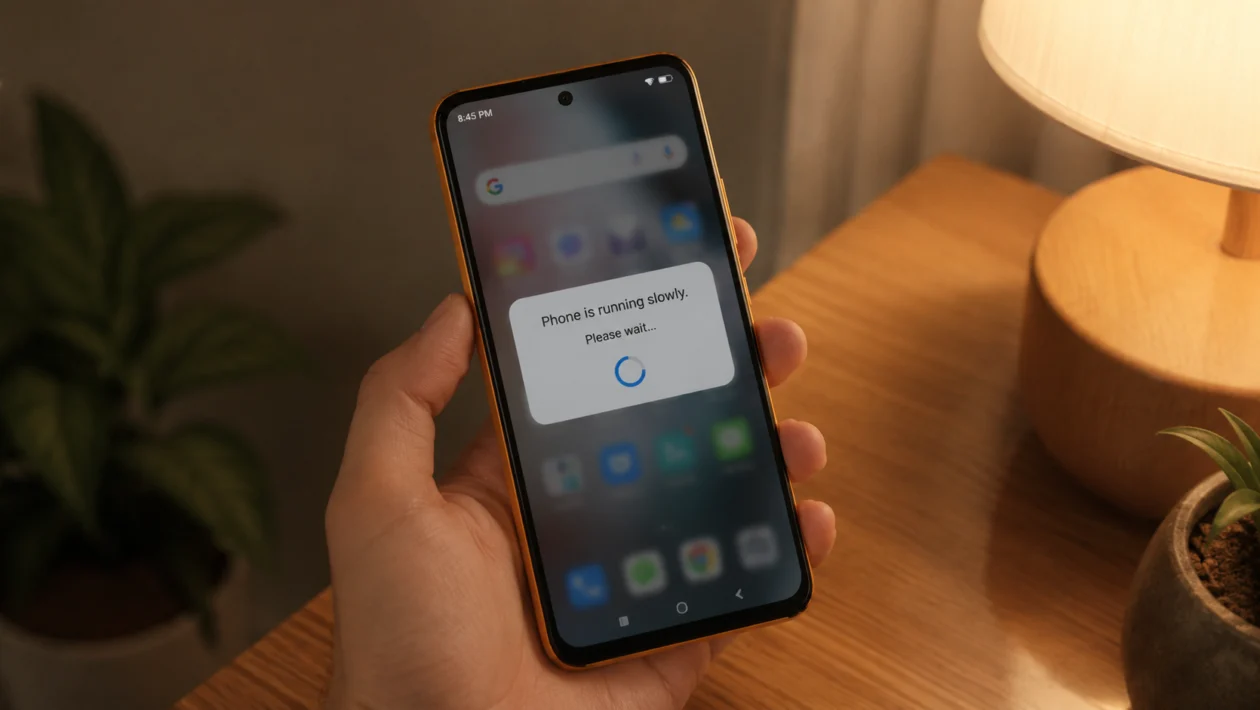
If your Infinix Smart 20 feels slow, lags when opening apps, freezes while switching screens, or takes too long to respond, the phone may not be broken. In many cases, slow performance comes from low storage, too many background apps, outdated software, heavy apps, cache buildup, or settings that make the phone work harder than it needs to.
The Infinix Smart 20 is an entry-level phone, so it works best when storage is clean, background activity is controlled, and heavy apps are kept in check. Start with the easy fixes first before trying anything more serious.
Quick answer
To fix an Infinix Smart 20 with slow performance, restart the phone, free up storage, close unused apps, clear app cache, update the phone, update your apps, remove apps you no longer use, reduce background activity, turn off animations, and use a factory reset only if nothing else works.
Infinix Smart 20 slow performance diagnostic table
| Symptom | Likely cause | What to check first |
|---|---|---|
| Phone lags when opening apps | Too many apps running or low RAM | Recent apps and background apps |
| Phone freezes often | App bug, low storage, or software issue | Storage and software update |
| Apps take too long to load | Cache buildup or outdated apps | App updates and app cache |
| Keyboard types slowly | Heavy background apps or full storage | Storage and running apps |
| Phone slows after an update | System and apps still adjusting | Restart and update apps |
| Phone slows while gaming | Limited hardware or high graphics settings | Game settings and storage |
| Phone is slow after installing apps | A recently installed app may be the cause | Remove new or suspicious apps |
| Phone heats up and lags | Heavy usage, background activity, or poor signal | Running apps and mobile data |
Why is my Infinix Smart 20 slow?
Your Infinix Smart 20 may be slow because the phone is running out of free storage, too many apps are active in the background, or one app is using more resources than normal.
Common causes include:
Low internal storage
Too many apps running at once
Outdated phone software
Outdated apps
Heavy games or social media apps
Too many notifications and background services
Cache buildup
Live wallpapers or animation effects
Weak mobile signal
A faulty or badly optimized app
Because the Smart 20 uses entry-level hardware, small performance problems can become noticeable quickly. Keeping the phone light and clean matters more on this type of device.
1. Restart your Infinix Smart 20
Start with a restart. It sounds basic, but it can fix temporary lag, frozen apps, and background processes that are stuck.
To restart your Infinix Smart 20:
- Press and hold the Power button.
- Tap Restart.
- Wait for the phone to turn back on.
- Use the phone normally for a few minutes.
- Check if the lag improves.
A restart will not delete your files, photos, apps, or messages.
This is the first thing to try if your phone suddenly became slow after using an app, playing a game, charging, or switching between many apps.
2. Free up storage space
Low storage is one of the most common reasons an Infinix Smart 20 becomes slow. When internal storage is almost full, the phone has less room to create temporary files, update apps, save cache, and run smoothly.
Go to:
Settings > Storage
Check how much space is left. If your storage is almost full, delete files you no longer need.
Start with:
Old screenshots
Duplicate photos
Large videos
Downloaded movies
Old APK files
Unused documents
WhatsApp media
Telegram downloads
TikTok drafts
Large files in the Downloads folder
Try to keep at least a few gigabytes of free space. The phone usually feels slower when storage is nearly full.
3. Close apps running in the background
If too many apps are open, your Infinix Smart 20 may lag when switching screens, typing, opening the camera, or using social media.
To close background apps:
- Tap the Recent apps button.
- Swipe away apps you are not using.
- Tap Clear all if available.
- Open only the app you need.
This helps when the phone feels slow after using Facebook, TikTok, Instagram, YouTube, Chrome, Shopee, Lazada, games, or messaging apps.
Do not keep clearing apps every few minutes. Just close apps when the phone starts to feel heavy.
4. Clear cache for slow apps
If one app is slow, crashing, or freezing, clear its cache first. Cache files are temporary files that help apps load faster, but old or broken cache can sometimes cause lag.
Go to:
Settings > Apps > App Management > Choose the app > Storage > Clear cache
Start with apps that often become heavy, such as:
Chrome
Facebook
TikTok
Instagram
YouTube
Messenger
WhatsApp
Shopee
Lazada
Games
Use clear app cache first. Do not tap Clear storage unless you understand what it does, because it may remove app data, saved settings, or login information.
5. Update your phone software
Software updates can fix bugs, improve system stability, and reduce performance problems. If your Infinix Smart 20 started lagging after a system issue, an update may help.
Go to:
Settings > System > System update
Or check:
Settings > My Phone > System update
The exact path may vary depending on your XOS version.
Before updating:
Charge the phone above 50%
Use a stable Wi-Fi connection
Back up important files
Do not turn off the phone during the update
After the update, restart the phone again. Some lag after an update is normal for a short time because the system may still be optimizing apps in the background.
6. Update your apps from the Play Store
Outdated apps can cause slow performance, battery drain, overheating, freezing, or random crashes. Updating apps can fix bugs that make your phone feel slower than it should.
To update apps:
- Open Google Play Store.
- Tap your profile picture.
- Tap Manage apps and device.
- Tap Updates available.
- Tap Update all.
Also check the XOS app store or system app updates if your phone shows them.
This is especially useful if only one app is slow. For example, if your Infinix Smart 20 only lags when using TikTok or Facebook, the problem may be the app, not the phone.
7. Uninstall apps you no longer use
Unused apps can still take storage, send notifications, run background services, and slow down the phone. Removing them is one of the easiest ways to improve performance on an entry-level device.
Go to:
Settings > Apps > App Management
Look for apps you rarely use. Remove apps that you installed once and forgot about.
Consider uninstalling:
Old games
Cleaner apps
Battery saver apps
Duplicate photo apps
Unknown APK apps
Apps you downloaded outside the Play Store
Shopping apps you no longer use
Social media apps you rarely open
Be careful with system apps. If you are not sure what an app does, do not remove it.
8. Limit background activity for heavy apps
Some apps keep working even when you are not using them. They may sync messages, track location, refresh feeds, send alerts, or download content. This can make your Infinix Smart 20 slower, especially if several apps do it at the same time.
Go to:
Settings > Battery > Battery usage
Check which apps are using the most battery. Apps using a lot of battery in the background may also be affecting performance.
Then go to:
Settings > Apps > App Management > Choose app > Battery
Choose a restricted or optimized battery setting if available.
Good apps to check include:
Facebook
Messenger
TikTok
Instagram
Snapchat
Telegram
Chrome
Games
Shopping apps
Food delivery apps
Do not restrict apps you need for important notifications, such as banking apps, work apps, or messaging apps you rely on.
9. Reduce animations and visual effects
Animations make the phone feel smoother when the hardware can handle them. On entry-level phones, they can sometimes make the phone feel slower.
You can reduce animation speed through Developer options.
To enable Developer options:
- Open Settings.
- Tap My Phone or About phone.
- Tap Build number several times until Developer options are enabled.
- Go back to Settings.
- Open Developer options.
Look for these settings:
Window animation scale
Transition animation scale
Animator duration scale
Set each one to:
0.5x
Or turn them off if you want the fastest feel.
This does not increase the phone’s actual processor speed, but it can make opening apps, switching screens, and moving through menus feel faster.
10. Factory reset your Infinix Smart 20
Use a factory reset only if the phone is still slow after trying the other fixes. This removes your apps, files, photos, accounts, and settings, then returns the phone to a clean state.
Before resetting, back up:
Photos and videos
Contacts
Messages
WhatsApp chats
Files
Passwords
Authenticator apps
Banking app access details
To factory reset:
Settings > System > Reset options > Erase all data
Or:
Settings > Backup and reset > Factory data reset
The exact path may vary by software version.
After the reset, do not reinstall every app immediately. Install only the apps you actually use. If the phone becomes slow again after installing a specific app, that app may be the problem.
When should you get the phone checked?
Get the Infinix Smart 20 checked by a service center if it still lags badly after a factory reset, freezes even with no extra apps installed, restarts on its own, overheats during light use, or becomes too slow to use normally.
Also get help if the phone was dropped, exposed to water, or repaired before. In that case, the problem may not be caused by software.
FAQ
Why is my Infinix Smart 20 lagging?
Your Infinix Smart 20 may be lagging because storage is almost full, too many apps are running, one app is using too many resources, or the phone software needs an update.
Will clearing cache delete my photos?
No. Clearing app cache usually removes temporary app files only. It should not delete your photos, videos, or personal files.
Does factory reset make Infinix Smart 20 faster?
A factory reset can make the phone faster if the slowdown is caused by software problems, bad apps, or too much clutter. It will not fix weak hardware, physical damage, or battery-related performance issues.
