
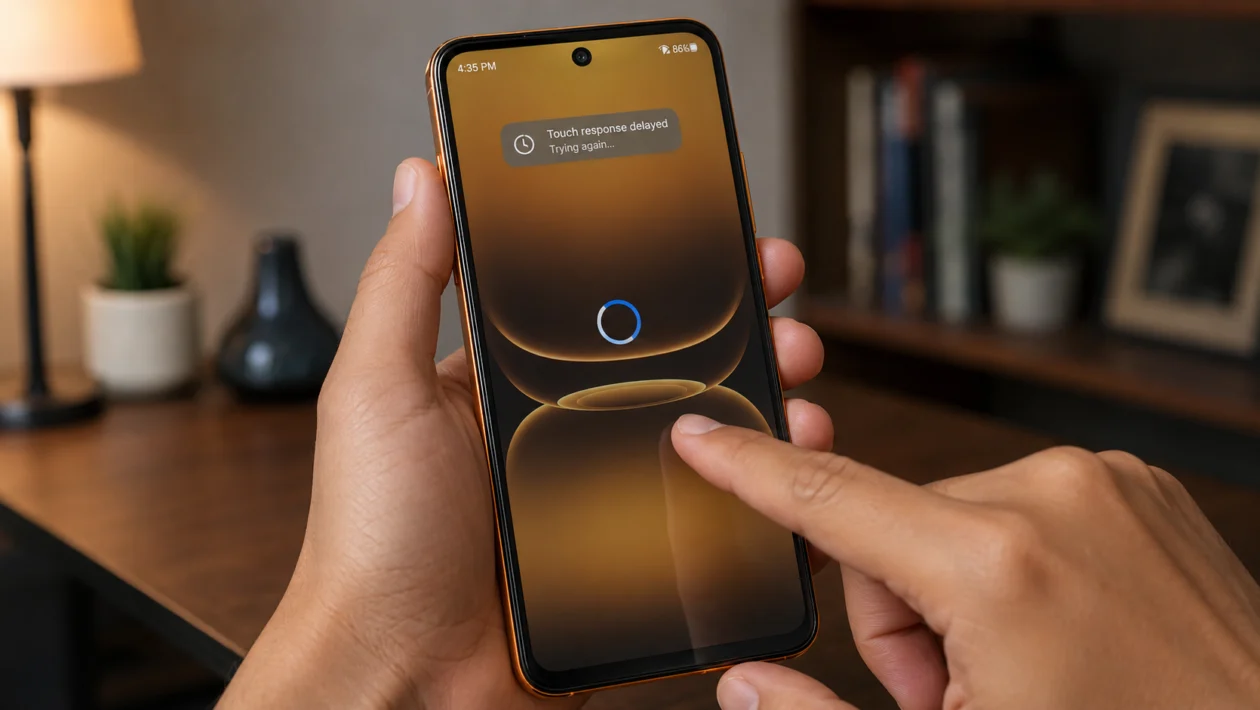
If your Infinix Smart 20 has delayed touch, the phone may feel slow even when apps are opening normally. You tap the screen, but the response comes late. You swipe, but the page moves after a short pause. Typing can also feel frustrating because letters appear a second after you press them.
Delayed touch does not always mean the screen is broken. It can happen because of a screen protector, dirty screen, wet fingers, low storage, background apps, software bugs, touch settings, overheating, or a damaged display.
Start with the simple checks first. Clean the screen, restart the phone, remove the screen protector if needed, then check storage, apps, updates, and display settings.
Quick answer
If your Infinix Smart 20 has delayed touch, restart the phone first, then clean the screen and remove any thick or damaged screen protector. After that, free up storage, close background apps, update the phone, and check whether the delay happens in all apps or only one app.
If the touch delay continues after a factory reset, the screen digitizer may be damaged and the phone should be checked by Infinix support or a repair technician.
Infinix Smart 20 delayed touch diagnostic table
| Symptom | Likely cause | What to check first |
|---|---|---|
| Touch delay happens everywhere | System lag, storage issue, software bug | Restart, storage, software update |
| Touch delay happens only while typing | Keyboard lag or app issue | Update keyboard app, clear cache |
| Touch delay happens while gaming | Performance load or overheating | Close apps, lower game settings |
| Touch delay happens after installing an app | App conflict | Uninstall recent apps |
| Touch delay happens after update | Temporary software issue | Restart, update apps, monitor |
| Touch works badly near screen edges | Screen protector or display issue | Remove protector, test screen |
| Touch is delayed when charging | Charger or electrical interference | Try another charger and cable |
| Screen taps by itself | Ghost touch, moisture, hardware issue | Clean screen, remove case, support |
| Touch delay appears after a drop | Possible digitizer damage | Service center check |
| Touch is slow when storage is full | Low storage or memory pressure | Free space and restart |
Why is my Infinix Smart 20 touch delayed?
Your Infinix Smart 20 touch may be delayed because the phone is struggling to process input quickly, or because the display is not reading your taps properly.
Common causes include:
Thick screen protector
Dirty or wet screen
Low internal storage
Too many apps running in the background
Outdated software
Buggy keyboard or launcher
Overheating
Touch sensitivity problems
Faulty charger
Damaged screen or digitizer
The best fix depends on when the delay happens. If it started after a drop, suspect hardware. If it started after installing an app, suspect software. If it only happens while gaming, the phone may be under heavy load.
Use the 10 fixes below in order.
1. Restart your Infinix Smart 20
Start with a restart. It sounds basic, but it can fix delayed touch caused by temporary system lag, stuck background apps, or a frozen process.
To restart your Infinix Smart 20:
- Press and hold the Power button.
- Tap Restart.
- Wait for the phone to turn back on.
- Use the screen normally for a few minutes.
- Check if taps and swipes respond faster.
This will not delete your photos, apps, contacts, or files.
If the touch delay disappears after restarting, the issue was probably caused by a temporary software problem.
2. Clean the screen and dry your fingers
Touchscreens can respond slowly when the screen is dirty, oily, dusty, or slightly wet. This is common if you use the phone while eating, sweating, charging, cooking, or coming from outdoors.
Do this:
- Turn off the screen.
- Remove the phone case if it touches the screen edges.
- Wipe the display with a clean microfiber cloth.
- Dry your fingers before using the phone.
- Test tapping, scrolling, and typing again.
Do not use sharp objects, alcohol-heavy liquid, or too much water on the screen.
If the touch delay happens only when your hands are wet or sweaty, the phone may not be faulty. The screen is just having trouble reading your input clearly.
3. Remove the screen protector or tempered glass
A thick, cracked, cheap, or badly installed screen protector can make the Infinix Smart 20 feel like it has delayed touch. It can also cause missed taps near the edges.
Try this:
- Check if the screen protector has bubbles, cracks, dust, or lifted corners.
- Test touch response near the corners and keyboard area.
- Remove the screen protector if the delay is obvious.
- Use the phone without it for a few minutes.
- Replace it with a thinner, better-fitting protector if touch improves.
This is especially worth trying if delayed touch started after installing new tempered glass.
If the screen works normally without the protector, the phone is fine. The accessory was the problem.
4. Close background apps
Delayed touch can happen when too many apps are open or running in the background. The phone may still register your tap, but the system responds late because memory and processor resources are busy.
To close background apps:
- Tap the Recent apps button.
- Swipe away apps you are not using.
- Tap Clear all if available.
- Reopen the app where you noticed delayed touch.
- Test the screen again.
Pay attention to apps like games, video editors, social media apps, shopping apps, browser tabs, and apps that use floating windows.
If the phone feels faster after closing apps, the issue is probably performance-related rather than a broken screen.
5. Free up storage space
Low storage can make the whole phone feel slow, including touch response. Apps may take longer to react, the keyboard may lag, and scrolling may feel delayed.
To check storage:
- Open Settings.
- Go to Storage.
- Check how much free space is left.
- Delete files you do not need.
- Remove unused apps, old videos, duplicate photos, and large downloads.
- Restart the phone after clearing space.
Try to keep at least a few gigabytes of free storage. If the phone is almost full, even simple actions can feel slow.
You can also move photos and videos to cloud storage, a memory card, or a computer before deleting them from the phone.
6. Update your phone software and apps
Software bugs can cause delayed touch, screen lag, keyboard delay, or poor scrolling. Updates can fix performance issues and improve system stability.
To update your Infinix Smart 20:
- Open Settings.
- Go to System.
- Tap System update or Software update.
- Download and install any available update.
- Restart the phone after updating.
To update apps:
- Open Google Play Store.
- Tap your profile icon.
- Tap Manage apps and device.
- Tap Update all.
Also update your keyboard app, launcher, and frequently used apps.
If delayed touch started after a recent update, give the phone a short time to settle, then update your apps. Sometimes app compatibility is the real issue, not the phone update itself.
7. Check if one app is causing the delay
If delayed touch happens only in one app, the screen may not be the problem. The app itself may be slow, outdated, overloaded, or poorly optimized.
Test this:
- Open the app where touch feels delayed.
- Try typing, scrolling, and tapping inside that app.
- Open another app, such as Settings or Messages.
- Test touch response again.
- Compare the difference.
If touch works normally in Settings but feels delayed in one app, update that app first.
You can also try:
- Open Settings.
- Tap Apps.
- Select the problem app.
- Tap Storage.
- Tap Clear cache.
- Restart the app.
Do not tap Clear data unless you understand what will be removed. Clearing data can erase app settings, login sessions, or offline files.
8. Turn off battery saver or performance-limiting modes
Battery saver can reduce background activity and performance to extend battery life. That is useful when your battery is low, but it can sometimes make the phone feel less responsive.
To check battery saver:
- Open Settings.
- Tap Battery.
- Look for Battery Saver, Power Marathon, or similar power-saving options.
- Turn off aggressive power-saving mode.
- Test touch response again.
If delayed touch happens mostly when the battery is low, charging the phone and turning off battery saver may help.
This is also worth checking if games, keyboard input, or scrolling feel slower than usual.
9. Test the phone while not charging
If your Infinix Smart 20 touch is delayed only while charging, the charger, cable, outlet, or electrical interference may be causing the problem.
Try this:
- Unplug the charger.
- Use the phone for a few minutes.
- Check if touch response improves.
- Try another cable and charger.
- Avoid using damaged, loose, or very cheap chargers.
If the screen responds normally when unplugged, stop using the charger that causes delayed touch.
A bad charger can cause ghost touch, delayed touch, or unstable screen response. It can also be unsafe, especially if the phone gets warm while charging.
10. Factory reset the phone or get the screen checked
Use this only after trying the easier fixes. A factory reset can remove software problems that cause delayed touch, but it also erases your personal data.
Before resetting:
- Back up your photos, contacts, videos, messages, and files.
- Save passwords and app login details.
- Charge the phone.
- Remove accounts only if needed for service or resale.
To factory reset:
- Open Settings.
- Go to System.
- Tap Reset options.
- Choose Erase all data or Factory data reset.
- Follow the on-screen instructions.
After the reset, test the screen before reinstalling all apps. If touch works normally at first but becomes delayed after installing certain apps, one of those apps may be causing the issue.
If delayed touch still happens after a factory reset, the problem may be hardware-related. The screen digitizer may be damaged, especially if the phone was dropped, pressed hard, exposed to liquid, or repaired before.
At that point, contact Infinix support or visit an authorized service center.
When should you get your Infinix Smart 20 checked?
Get the phone checked if:
The touch delay started after a drop
The screen has cracks or pressure marks
Touch does not work near the edges
The phone taps by itself
The delay happens even after factory reset
The screen becomes unresponsive often
The phone gets hot and touch becomes unstable
Touch delay happens with every app and every setting
A software fix can solve lag. It cannot repair a damaged digitizer.
FAQ
Why is my Infinix Smart 20 touch responding late?
Your Infinix Smart 20 touch may respond late because of system lag, low storage, a thick screen protector, background apps, overheating, software bugs, or a damaged screen digitizer.
Can a screen protector cause delayed touch?
Yes. A thick, cracked, dirty, or poorly installed screen protector can reduce touch accuracy and make taps feel delayed, especially near the keyboard and screen edges.
Why does my Infinix Smart 20 lag when typing?
Typing lag can come from the keyboard app, low storage, too many background apps, or battery saver. Update the keyboard app, clear its cache, free up storage, and restart the phone.
