
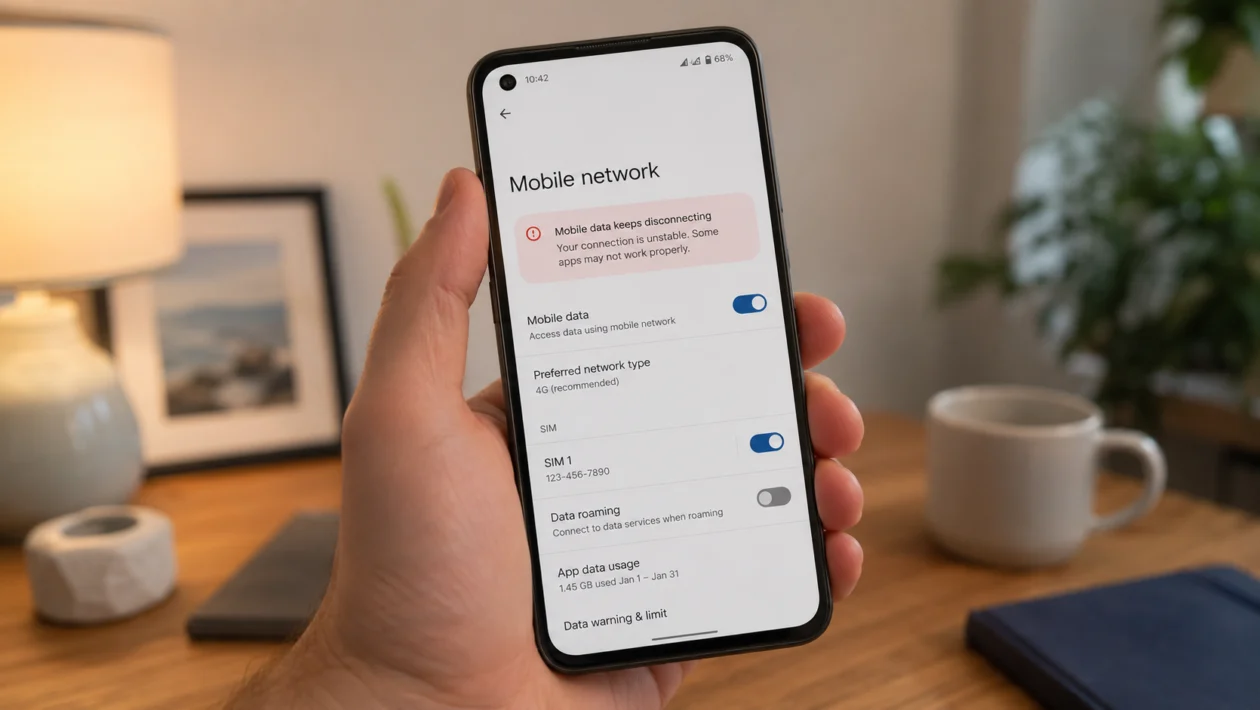
If your Asus Zenfone 10 keeps losing mobile data randomly, the problem can be hard to pin down. One minute your browser, maps, or messaging apps work normally. A few minutes later, the phone still shows signal bars, but mobile data stops loading.
This does not always mean the phone is broken. Mobile data drops can come from weak signal, unstable 5G coverage, incorrect APN settings, SIM issues, roaming settings, data limits, carrier provisioning, VPN apps, or a software glitch.
Start with the simple checks first. Toggle Airplane mode, restart the phone, check mobile data settings, then move through the deeper network fixes below.
Quick answer
If your Asus Zenfone 10 mobile data keeps randomly dropping, first turn Airplane mode on for 10 seconds, turn it off, then restart the phone.
After that, go to Settings > Network & internet > Internet, select your SIM, and check that mobile data is enabled. If the issue continues, check your APN settings, switch from 5G to 4G/LTE temporarily, remove any VPN, update the phone, and reset network settings.
If mobile data drops only in certain places, it is more likely a carrier coverage or 5G signal issue. If it drops everywhere, focus on SIM, APN, software, and network settings.
Asus Zenfone 10 mobile data dropping diagnostic table
| Symptom | Likely cause | What to check first |
|---|---|---|
| Mobile data drops in certain areas | Weak signal or unstable 5G | Test 4G/LTE only |
| Signal bars stay but apps stop loading | APN, DNS, VPN, or carrier issue | APN and VPN settings |
| Data drops after an update | Software or app conflict | Restart and update apps |
| Data works after reboot, then drops again | Background app, VPN, or network glitch | VPN, private DNS, network reset |
| Data drops on one SIM only | SIM or carrier provisioning issue | Test another SIM |
| Data drops while moving | Tower handoff or 5G switching | Use LTE temporarily |
| Data drops indoors | Poor indoor coverage | Test outside or near a window |
| Only some apps lose data | App data restriction or VPN issue | App data permissions |
| Mobile data never connects | Wrong APN or disabled mobile data | APN and SIM settings |
| Data drops after changing carrier | Unsupported bands or carrier setup | Carrier compatibility |
Why does mobile data keep dropping on the Asus Zenfone 10?
Your Asus Zenfone 10 may keep dropping mobile data because the phone is switching between weak network signals, using unstable 5G, working with incorrect APN settings, or dealing with a SIM or carrier issue.
Common causes include:
Weak mobile signal
Patchy 5G coverage
Incorrect APN settings
SIM card problems
Carrier outage or account provisioning issue
Mobile data limit or data saver settings
VPN or private DNS interference
Roaming settings
Outdated phone software
Corrupted network settings
The Zenfone 10 supports dual nano SIM and 5G, but ASUS notes that 5G and 4G band compatibility can vary by region and carrier. That matters if your phone was imported, bought unlocked, or used with a carrier that does not fully support the exact Zenfone 10 variant.
1. Toggle Airplane mode
Start here because this forces the phone to reconnect to the mobile network.
- Swipe down from the top of the screen.
- Tap Airplane mode.
- Wait 10 seconds.
- Tap Airplane mode again to turn it off.
- Wait for the mobile data icon to return.
- Open a browser and test mobile data.
This helps when the phone is stuck on a weak tower, switching between network modes, or showing signal bars without a working data session.
If mobile data comes back but drops again later, continue with the next fixes.
2. Restart your Asus Zenfone 10
A restart can clear temporary network glitches, stuck background services, and modem connection issues.
- Press and hold the Power button.
- Tap Restart.
- Wait for the phone to turn back on.
- Turn Wi-Fi off.
- Test mobile data only.
This will not delete your files, apps, photos, or settings.
If the problem started after your phone had been running for several days without a restart, this may fix it. If the issue returns, check your mobile network settings next.
3. Check mobile data is enabled for the right SIM
If you use two SIM cards, your Zenfone 10 may be using the wrong SIM for data or switching in a way that causes drops.
- Open Settings.
- Tap Network & internet.
- Tap Internet.
- Select your mobile network or SIM.
- Make sure Mobile data is turned on.
- If you use two SIMs, confirm the correct SIM is selected for mobile data.
Then turn Wi-Fi off and test again.
This is especially important if you recently changed SIM cards, added an eSIM-like carrier profile through an app, traveled, changed plans, or inserted a second SIM.
4. Switch from 5G to 4G/LTE temporarily
If mobile data drops while traveling, indoors, or in areas with weak 5G, the phone may be switching between 5G and LTE too often.
Try LTE only for a day.
- Open Settings.
- Tap Network & internet.
- Tap Internet.
- Select your SIM.
- Look for Preferred network type or Network preference.
- Choose 4G/LTE instead of 5G.
- Test mobile data in the same places where it usually drops.
If mobile data becomes stable on LTE, the issue is probably related to 5G coverage, tower switching, or carrier support in your area.
You do not have to keep 5G off forever. Use this as a test. If LTE is more reliable, switch back to 5G later when you are in a stronger coverage area.
5. Check your APN settings
APN settings tell your Zenfone 10 how to connect to your carrier’s mobile data network. If the APN is wrong, missing, or partly incorrect, mobile data may fail completely or drop randomly.
- Open Settings.
- Tap Network & internet.
- Tap Internet.
- Select your SIM.
- Tap Access point names.
- Compare the APN with your carrier’s official APN settings.
- If needed, tap the + icon to add a new APN.
- Enter the values from your carrier.
- Save the APN.
- Select the new APN.
Do not guess APN values. Use the settings from your carrier’s official support page or ask your carrier directly.
Pay close attention to:
APN name
APN type
MMSC
MMS proxy
MCC and MNC
Authentication type
APN protocol
Roaming protocol
A small typo can make data unstable. If you recently moved your SIM from another phone, changed carrier, or bought an unlocked Zenfone 10, this is one of the most important fixes to check.
6. Remove and reinsert the SIM card
A loose, damaged, dirty, or old SIM can cause random data drops.
- Turn off your Zenfone 10.
- Remove the phone case if it blocks the SIM tray.
- Use the SIM ejector tool.
- Remove the SIM card.
- Check the SIM for scratches, dirt, or damage.
- Place it back into the tray correctly.
- Insert the tray fully.
- Turn the phone back on.
- Test mobile data again.
If you have another active SIM, test it in the Zenfone 10. You can also test your current SIM in another phone.
If the same SIM drops data in multiple phones, the issue is likely the SIM or carrier account. If only the Zenfone 10 drops data, continue with the software and settings fixes.
7. Turn off VPN, Private DNS, and data-saving apps
Some VPN apps, firewall apps, ad blockers, private DNS settings, and “data saver” tools can make it look like mobile data is dropping when the network is actually connected.
Check these settings:
- Open Settings.
- Tap Network & internet.
- Tap VPN.
- Disconnect or remove your VPN temporarily.
- Go back to Network & internet.
- Check Private DNS.
- Set it to Automatic or Off for testing.
- Disable third-party firewall, ad blocker, or data-saving apps.
Now test mobile data again with Wi-Fi off.
If mobile data becomes stable after disabling a VPN or DNS setting, the phone is not the main problem. The app or DNS service may be failing when your phone switches towers or network types.
8. Check Data Saver and app data permissions
If mobile data seems to drop only in certain apps, the issue may be app-level data access instead of the whole phone connection.
- Open Settings.
- Tap Network & internet.
- Tap Data Saver.
- Turn Data Saver off temporarily.
- Go to Settings > Apps.
- Select the app that loses connection.
- Tap Mobile data & Wi-Fi if available.
- Make sure background data is allowed.
This matters for messaging apps, maps, delivery apps, banking apps, and work apps that need background data to stay connected.
If only one app is affected, update that app or clear its cache. If every app loses data at the same time, continue with the next fixes.
9. Update your phone and carrier-related apps
Software updates can fix modem stability, carrier settings, security patches, and app compatibility issues.
To update your Zenfone 10:
- Open Settings.
- Tap System.
- Tap System update.
- Install any available update.
- Restart the phone after updating.
Then update your apps:
- Open Google Play Store.
- Tap your profile icon.
- Tap Manage apps and device.
- Tap Update all.
Also update carrier apps if your mobile provider uses one for account setup, roaming, or eSIM-style activation.
If mobile data started dropping right after a system update, give the phone some time after restarting. Then update apps and test again. If the issue continues for more than a day or two, reset network settings.
10. Reset network settings
Use this when the basic fixes do not work. Resetting network settings can clear corrupted mobile, Wi-Fi, and Bluetooth configuration.
- Open Settings.
- Tap System.
- Tap Reset options.
- Tap Reset Wi-Fi, mobile & Bluetooth.
- Confirm the reset.
- Restart your phone.
- Reconnect to Wi-Fi.
- Pair Bluetooth devices again if needed.
- Test mobile data.
This does not delete your photos, videos, files, or installed apps. It will remove saved Wi-Fi networks, Bluetooth pairings, and network-related settings.
After the reset, check your APN again if mobile data still does not work properly.
When to contact your carrier
Contact your carrier if:
Mobile data drops only on your SIM
The same SIM drops data in another phone
The issue happens in one area only
Your account was recently changed
You recently switched plans
You are using roaming
Your APN settings are missing
Your Zenfone 10 is imported or unlocked
You do not see 4G, LTE, or 5G beside the signal bars
Ask your carrier to check your SIM provisioning, mobile data plan, APN, tower coverage, roaming access, and whether your Zenfone 10 variant is fully supported on their network.
When to contact ASUS support
Contact ASUS support if:
Mobile data drops with multiple SIM cards
The phone loses signal completely
The SIM tray is damaged
The phone overheats when data drops
Network settings reset does not help
The issue started after physical damage or liquid exposure
The phone cannot detect any SIM card
If possible, write down when the drops happen. Include your carrier, SIM slot used, network mode, software version, and whether the issue happens on 5G, LTE, or both.
FAQ
Why does my Asus Zenfone 10 show signal bars but no internet?
This can happen when the phone is connected to the cellular network but the mobile data session is not working. Check mobile data, APN settings, VPN, Private DNS, and carrier account status.
Should I turn off 5G on the Zenfone 10?
Turn off 5G temporarily if mobile data drops in weak coverage areas. If LTE is stable but 5G drops, the issue is likely coverage, tower switching, or carrier compatibility.
Will resetting network settings delete my files?
No. Resetting network settings does not delete your photos, apps, videos, or documents. It resets Wi-Fi, mobile, and Bluetooth settings.
