
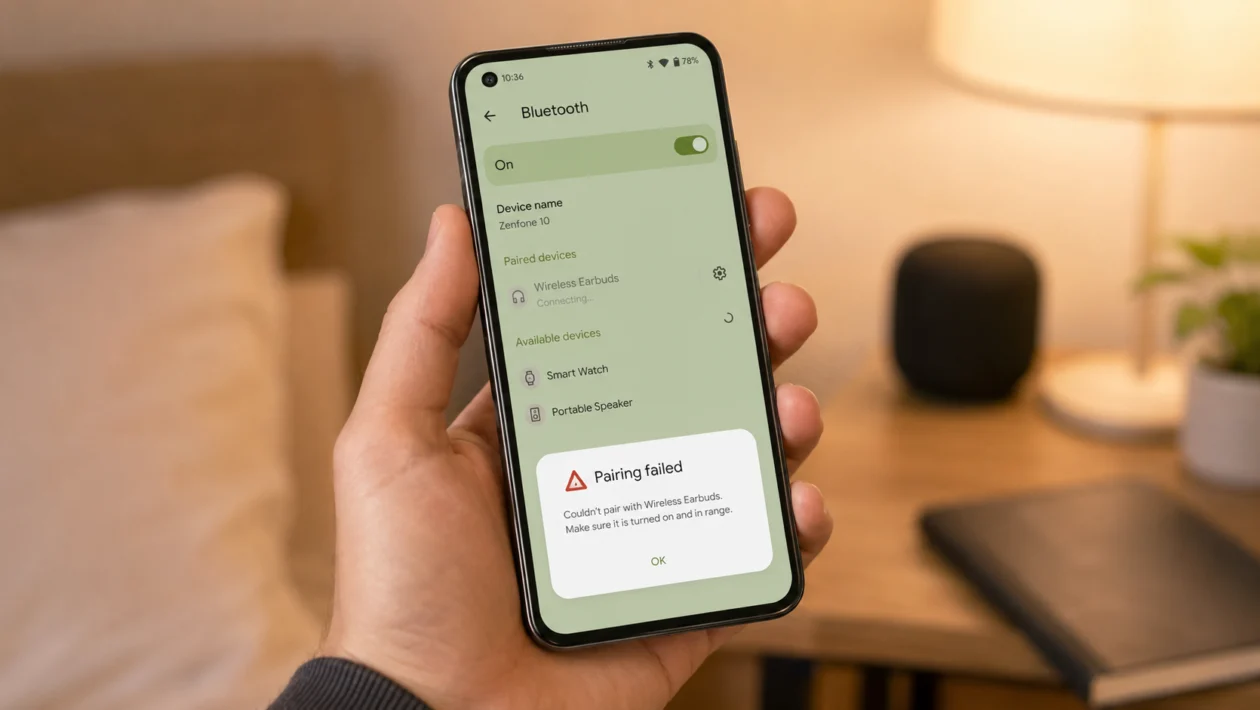
If your Asus Zenfone 10 Bluetooth is failing to pair, the problem usually comes from one of four things: the phone, the Bluetooth accessory, a saved pairing record, or a wireless setting that needs to be refreshed.
The good news is that most Bluetooth pairing problems do not mean your Zenfone 10 is broken. A failed pairing attempt can happen after a system update, when a device is already connected elsewhere, when the accessory is not in pairing mode, or when the phone keeps using an old Bluetooth profile.
Start with the easiest checks first. Turn Bluetooth off and on, restart both devices, remove the old pairing, then reset Wi-Fi, mobile, and Bluetooth settings if the issue continues.
Quick answer
If your Asus Zenfone 10 Bluetooth won’t pair, open Settings > Connected devices > Pair new device and check whether the accessory appears. If it does not appear, restart your Zenfone 10 and put the accessory back into pairing mode.
If the device appears but pairing fails, forget the device from Bluetooth settings, restart both devices, then pair again. If Bluetooth still does not work, reset network settings from Settings > System > Reset options > Reset Wi-Fi, mobile & Bluetooth.
Asus Zenfone 10 Bluetooth pairing diagnostic table
| Symptom | Likely cause | What to check first |
|---|---|---|
| Bluetooth device does not appear | Accessory not in pairing mode | Put the accessory into pairing mode again |
| Device appears but will not connect | Old pairing record or profile conflict | Forget the device and pair again |
| Headphones pair but no sound plays | Audio output or media permission issue | Check Bluetooth device settings |
| Car Bluetooth fails to pair | Car system memory is full or outdated | Delete old phones from the car system |
| Smartwatch will not pair | Needs companion app pairing | Use the watch app, not only Bluetooth settings |
| Pairing code fails | Wrong pairing prompt or old request | Cancel and restart pairing |
| Bluetooth disconnects often | Battery saver, distance, interference, or software issue | Restart and test nearby |
| Bluetooth fails after update | System or app needs re-optimising | Update apps and restart |
| Bluetooth works with some devices only | Accessory compatibility issue | Test another Bluetooth device |
| Bluetooth still fails after reset | Possible system or hardware issue | Contact ASUS Support |
Why is my Asus Zenfone 10 Bluetooth failing to pair?
Your Zenfone 10 Bluetooth pairing problem may happen because the accessory is not discoverable, the phone has saved an old Bluetooth connection, or another phone is already connected to the accessory.
Common causes include:
Bluetooth is stuck in a temporary error state
The accessory is not in pairing mode
The Bluetooth device is already connected to another phone
The saved pairing record is corrupted
The accessory battery is too low
The device needs its companion app
The car Bluetooth system has too many saved phones
A recent Android or ASUS system update changed wireless settings
Battery settings are limiting background connection behavior
There is wireless interference nearby
Network settings need to be reset
There may be a hardware issue with the phone or accessory
Use the fixes below in order. Do not start with a factory reset. Most pairing problems are solved long before that.
1. Turn Bluetooth off and on again
Start with the simplest fix. Turning Bluetooth off and on can refresh the phone’s wireless connection without deleting anything.
- Swipe down from the top of the screen.
- Tap the Bluetooth icon to turn it off.
- Wait 10 seconds.
- Tap Bluetooth again to turn it back on.
- Try pairing the device again.
You can also do this from Settings:
- Open Settings.
- Tap Connected devices.
- Tap Connection preferences.
- Tap Bluetooth.
- Turn Bluetooth off, then turn it back on.
This helps if the Asus Zenfone 10 Bluetooth connection is stuck after a failed pairing attempt.
2. Restart your Zenfone 10 and the Bluetooth device
A restart can clear temporary software issues on both sides of the connection. This is especially useful if Bluetooth was working earlier and suddenly stopped.
- Press and hold the Power button.
- Tap Restart.
- Turn off your Bluetooth accessory.
- Wait 15 to 30 seconds.
- Turn the accessory back on.
- Try pairing again.
For headphones, earbuds, speakers, watches, and car systems, restarting only the phone may not be enough. Restart the accessory too.
This will not delete your files, apps, photos, or saved settings.
3. Make sure the Bluetooth device is in pairing mode
A common mistake is turning on the accessory without actually putting it into pairing mode. Many Bluetooth devices only stay discoverable for a short time.
Check the accessory first:
For earbuds, place them in the case, open the lid, then hold the pairing button if the case has one.
For headphones, hold the power or Bluetooth button until the light flashes.
For speakers, press the Bluetooth button until the indicator flashes.
For smartwatches, start pairing from the watch setup screen or companion app.
For cars, open the Bluetooth or phone pairing menu on the infotainment system.
Then pair from your Zenfone 10:
- Open Settings.
- Tap Connected devices.
- Tap Pair new device.
- Wait for the Bluetooth device to appear.
- Tap the device name.
- Confirm the pairing request.
If the device does not appear, move it closer to the phone and restart pairing mode.
4. Forget the Bluetooth device and pair it again
If your Zenfone 10 can see the device but fails to connect, the saved pairing record may be the problem. Forgetting the device forces the phone and accessory to create a fresh connection.
- Open Settings.
- Tap Connected devices.
- Tap See all if needed.
- Tap the gear icon beside the Bluetooth device.
- Tap Forget.
- Confirm the action.
- Restart your Zenfone 10.
- Put the accessory back into pairing mode.
- Pair it again from Settings > Connected devices > Pair new device.
This is one of the best fixes for headphones, speakers, car Bluetooth, controllers, keyboards, and watches that used to work but now fail.
If you are pairing with a car, delete the Zenfone 10 from the car’s Bluetooth menu too. Then pair both from scratch.
5. Check if the Bluetooth device is already connected somewhere else
Some Bluetooth accessories can only connect to one phone, tablet, laptop, or car system at a time. If your headphones are still connected to a laptop or your speaker is connected to another phone, your Zenfone 10 may fail to pair.
Check nearby devices:
- Turn Bluetooth off on your laptop, tablet, or old phone.
- Disconnect the accessory from any other device.
- Restart the Bluetooth accessory.
- Put it back into pairing mode.
- Try pairing it with your Zenfone 10 again.
This matters more for earbuds and headphones with multipoint Bluetooth. Even if they support two devices, pairing can fail when the device memory is full or when it keeps reconnecting to an older phone.
If the accessory has a reset option, use it after removing old connections.
6. Update your Zenfone 10 software and apps
Bluetooth problems can appear after an update, but updates can also fix connection bugs. Before trying bigger resets, check whether your phone and companion apps are current.
To update your Zenfone 10:
- Open Settings.
- Scroll to System.
- Tap System update.
- Check for updates.
- Install any available update.
- Restart the phone after updating.
Also update apps used by Bluetooth accessories:
Google Play Store
ASUS system apps
Headphone companion apps
Smartwatch apps
Car companion apps
Fitness tracker apps
This is important for watches and earbuds because many of them rely on their own app for setup, firmware updates, permissions, and device management.
If the Asus Zenfone 10 Bluetooth issue started after a system update, restart the phone, update your apps, then test Bluetooth for a day before assuming the update broke the phone.
7. Check Bluetooth permissions and audio settings
Sometimes the device pairs successfully, but it does not work properly. You may see the accessory connected, but audio does not play, calls do not route correctly, or the device keeps failing inside an app.
Check the device settings:
- Open Settings.
- Tap Connected devices.
- Tap the gear icon beside the Bluetooth device.
- Make sure Phone calls, Media audio, Contact sharing, or other needed options are turned on.
- Turn the option off and back on if it looks stuck.
For headphone or speaker issues:
- Start playing audio.
- Press the volume button.
- Tap the audio output selector if available.
- Choose the Bluetooth device.
For smartwatch, fitness tracker, or hearing device issues, open the companion app and check whether Bluetooth, Nearby devices, Location, and notification permissions are allowed.
On newer Android versions, some accessories need Nearby devices permission before they can pair or reconnect properly.
8. Test in Safe Mode
Safe Mode can help you check whether a downloaded app is interfering with Bluetooth. In Safe Mode, your Zenfone 10 starts with only essential system apps.
Use this if Bluetooth started failing after you installed a new app, security tool, battery saver, smartwatch app, automation app, or Bluetooth utility.
- Press and hold the Power button.
- Touch and hold Power off on the screen.
- Tap OK when Safe Mode appears.
- Wait for the phone to restart.
- Try pairing the Bluetooth device again.
If Bluetooth works in Safe Mode, a third-party app is likely causing the problem.
Restart the phone normally, then uninstall or disable recently installed apps one by one. Start with apps that manage battery, audio, wearables, permissions, VPNs, automation, or device connections.
9. Reset Wi-Fi, mobile, and Bluetooth settings
If Bluetooth still fails, reset the phone’s wireless settings. This is stronger than restarting Bluetooth, but it is still safer than a factory reset.
This will remove saved Wi-Fi networks, paired Bluetooth devices, and some mobile network settings. It will not delete your photos, messages, apps, or files.
- Open Settings.
- Tap System.
- Tap Reset options.
- Tap Reset Wi-Fi, mobile & Bluetooth.
- Confirm the reset.
- Restart your Zenfone 10.
- Pair the Bluetooth device again.
Use this fix when:
Bluetooth devices do not appear
Pairing fails with several devices
Bluetooth fails after an update
The phone keeps reconnecting and disconnecting
You already tried forgetting the device
Wi-Fi and Bluetooth both seem unstable
After the reset, you will need to reconnect Wi-Fi networks and pair Bluetooth accessories again.
10. Reset the Bluetooth accessory or contact ASUS Support
If your Zenfone 10 still cannot pair, check whether the problem follows the phone or the accessory.
Test this:
Pair your Zenfone 10 with another Bluetooth device.
Pair the same Bluetooth accessory with another phone.
If your Zenfone 10 pairs with other devices, the accessory is likely the issue. Reset the accessory using its manual or companion app.
If your Zenfone 10 cannot pair with any Bluetooth device, the phone may have a deeper software or hardware issue.
Before contacting support, prepare these details:
Zenfone 10 model number
Android version
ASUS system version
Bluetooth device name and model
Whether the issue started after an update
Whether Bluetooth works in Safe Mode
Whether reset Wi-Fi, mobile, and Bluetooth was already tried
Contact ASUS Support if Bluetooth fails with multiple devices after a network reset, or if the phone also has Wi-Fi, mobile signal, or random restart issues.
What to do if Zenfone 10 Bluetooth fails with a car
Car Bluetooth can be more difficult because the car system may save old pairing records.
Try this order:
- Delete your Zenfone 10 from the car’s Bluetooth menu.
- Forget the car from the Zenfone 10 Bluetooth settings.
- Restart the phone.
- Turn the car off and back on.
- Open the car’s phone pairing menu.
- Pair from Settings > Connected devices > Pair new device.
- Confirm the same pairing code on both screens.
If your car has too many saved phones, delete old devices from the car system first. Some infotainment systems stop accepting new phones when the device list is full.
What to do if Zenfone 10 Bluetooth headphones pair but do not play sound
If your headphones connect but audio stays on the phone speaker, the pairing worked but the audio route failed.
Try this:
- Open Settings.
- Tap Connected devices.
- Tap the gear icon beside the headphones.
- Turn Media audio on.
- Play music or a video.
- Press the volume button.
- Choose the Bluetooth headphones as the output device if the option appears.
If that does not work, forget the headphones, reset the headphones, then pair again.
Should you factory reset your Asus Zenfone 10?
A factory reset should be the last option, not the first fix.
Only consider it if:
Bluetooth fails with every device
Wi-Fi or mobile signal is also unstable
Safe Mode does not help
Reset Wi-Fi, mobile, and Bluetooth does not help
ASUS Support recommends it
You have backed up your files
A factory reset deletes personal data from the phone. Back up your photos, messages, app data, and important files before doing it.
FAQs
Why won’t my Asus Zenfone 10 find Bluetooth devices?
Your Bluetooth device may not be in pairing mode, may already be connected to another phone, or may be too far away. Restart both devices, put the accessory into pairing mode again, then check Settings > Connected devices > Pair new device.
Why does my Zenfone 10 Bluetooth pairing keep failing?
Pairing can fail because of an old saved connection, a wrong pairing code, a full device memory on the accessory, or a temporary Bluetooth error. Forget the device, restart both devices, then pair again.
Why does my Zenfone 10 connect to Bluetooth but no sound plays?
The device may be connected for calls but not media audio. Go to Settings > Connected devices, tap the gear icon beside the Bluetooth device, then make sure Media audio is turned on.
