
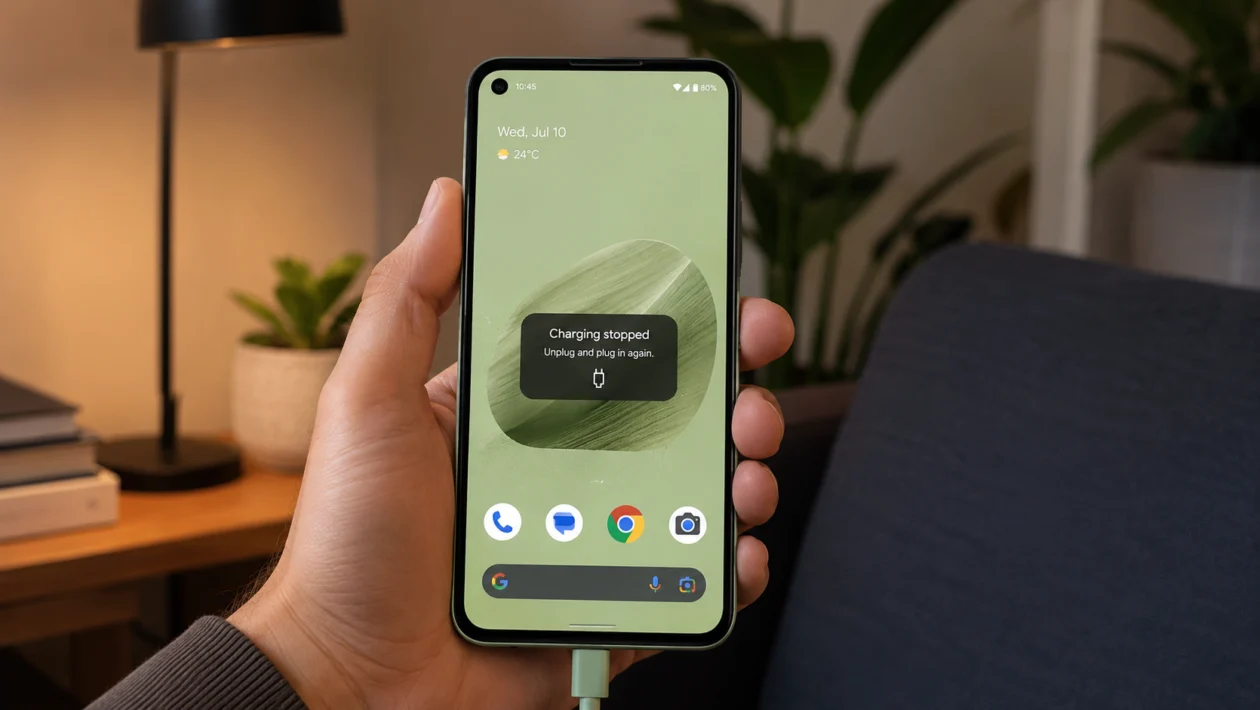
If your Asus Zenfone 10 randomly stops charging, the problem is usually caused by a loose cable connection, dirty USB-C port, weak power adapter, overheating, wireless charging alignment, software bug, or battery protection setting.
Start with the simple checks first. Try another cable and charger, clean the charging port carefully, restart the phone, update the system, then check whether the issue happens with wired charging, wireless charging, or both.
The Zenfone 10 supports up to 30W wired charging with compatible PD 3.0 PPS, Direct Charge, or QC 4.0 charging hardware. It also supports wireless charging, so testing both methods can help you find out whether the problem is the USB-C port, the charger, or the phone itself.
Quick answer
If your Asus Zenfone 10 randomly stops charging, unplug the cable, restart the phone, then try a different ASUS-compatible USB-C cable and power adapter. Also inspect the USB-C port for lint or dirt because even a small amount of debris can stop the cable from sitting properly.
If charging stops only with one cable or adapter, replace that accessory. If charging stops with every cable, every outlet, and wireless charging too, the issue may be software, heat, battery protection, or hardware related.
Asus Zenfone 10 charging problem diagnostic table
| Symptom | Likely cause | What to check first |
|---|---|---|
| Charging starts then stops after a few seconds | Loose cable, dirty port, weak adapter | USB-C cable, charger, charging port |
| Charging stops when you move the phone | Cable or USB-C port connection issue | Try another cable and inspect the port |
| Charging stops when the phone is warm | Heat protection or heavy usage | Remove case, close apps, charge in a cool place |
| Wireless charging starts then stops | Poor alignment or thick case | Reposition phone and remove case |
| Charging stops after a software update | Firmware or app conflict | Restart, update system, update apps |
| Charging works with wireless but not cable | USB-C port, cable, or adapter issue | Test another cable and charger |
| Charging works with cable but not wireless | Wireless pad, case, or alignment issue | Test another Qi charger |
| Phone charges very slowly then stops | Low-power USB port or bad adapter | Use wall adapter instead of laptop USB port |
| Battery percentage does not move | Software reading issue or battery problem | Restart and monitor charging |
| Phone never charges reliably | Possible hardware fault | Contact ASUS support |
Why does my Asus Zenfone 10 randomly stop charging?
Your Asus Zenfone 10 may stop charging because the phone is not getting stable power. That can happen when the cable does not fit tightly, the USB-C port has dust inside, the wall adapter is not delivering enough power, or the charging source keeps dropping the connection.
It can also happen because of heat. If the phone gets too warm while charging, the system may slow down or pause charging to protect the battery.
Common causes include:
Dirty USB-C charging port
Loose or damaged USB-C cable
Weak or incompatible charger
Faulty wall outlet or power strip
Laptop USB port not giving stable power
Phone case blocking the cable
Wireless charger misalignment
Overheating while charging
Software or firmware issue
Battery or charging hardware fault
Use the fixes below in order.
1. Restart your Asus Zenfone 10
Start with a restart before changing deeper settings.
A restart can clear temporary charging bugs, stuck background processes, and small system problems that may stop the charging status from updating properly.
- Hold the Power button.
- Tap Restart.
- Wait for the phone to turn back on.
- Plug in the charger again.
- Watch whether charging continues for at least 10 to 15 minutes.
This will not delete your files.
If the phone only stopped charging once, a restart may be enough. If it keeps happening, move to the next fix.
2. Try another USB-C cable and ASUS-compatible charger
A faulty cable is one of the most common reasons a phone charges for a moment, then stops.
The Zenfone 10 supports up to 30W wired charging with compatible charging hardware, but that does not mean every USB-C charger will behave the same. Some low-quality cables, old adapters, and weak USB ports may start charging, then disconnect.
Try this:
- Use the original ASUS USB-C cable if you still have it.
- Try another good USB-C to USB-C cable.
- Use a wall charger instead of a laptop USB port.
- Plug the charger directly into the wall.
- Avoid cheap adapters, damaged cables, or loose extension cords.
If the Zenfone 10 charges normally with another cable or charger, the phone is probably fine. Replace the bad accessory.
3. Check the USB-C port for dust, lint, or loose fit
If charging stops when you move the phone, the USB-C cable may not be seated properly.
Pocket lint, dust, or dirt can build up inside the charging port. When that happens, the cable may look plugged in but still fail to make a stable connection.
Do this carefully:
- Turn off the phone.
- Remove the charging cable.
- Look inside the USB-C port using a flashlight.
- Check for lint, dust, corrosion, or bent pins.
- Use a soft, dry brush or clean air blower to remove loose debris.
- Do not use metal tools inside the port.
- Plug the cable back in and check if it feels secure.
Do not force the cable. If the port feels loose with every cable, the USB-C port may need service.
4. Remove the case and check the cable connection
Some cases make the charging cable look connected even when it is not fully inserted.
This is more common with thick rugged cases, cases with narrow cutouts, magnetic accessories, or third-party USB-C cables with large connector housings.
Try this:
- Remove the phone case.
- Plug in the USB-C cable again.
- Gently check if the connector sits flush.
- Charge the phone without the case for 15 minutes.
- If charging becomes stable, the case or cable shape is the issue.
You do not need to stop using a case permanently. You may only need a better-fitting cable or a case with a larger charging cutout.
5. Use a different wall outlet or power source
Sometimes the phone is not the problem. The outlet, extension cord, power strip, or USB port may be unstable.
Test the power source:
- Plug the charger into another wall outlet.
- Avoid charging through a laptop, monitor, car USB port, or old power bank for this test.
- Use a direct wall outlet.
- Leave the phone charging for 10 to 15 minutes.
- Check whether the charging icon stays on.
If your Zenfone 10 only stops charging from one outlet or one power strip, the power source is likely the issue.
6. Let the phone cool down before charging again
If your Asus Zenfone 10 gets warm and then stops charging, heat may be the reason.
Charging creates heat. Gaming, video calls, mobile hotspot, camera recording, navigation, and 5G data can make the phone even warmer. When the phone gets too hot, charging may slow down or pause.
Try this:
- Unplug the charger.
- Remove the case.
- Close heavy apps.
- Put the phone on a cool, dry surface.
- Wait 10 to 20 minutes.
- Plug it back in.
- Avoid gaming or video recording while charging.
Do not put the phone in a freezer or refrigerator. Sudden temperature changes can cause moisture problems.
If charging works after the phone cools down, heat is probably the trigger.
7. Test wireless charging
The Zenfone 10 supports wireless charging, so this is a useful way to separate cable problems from phone problems.
If wired charging stops randomly but wireless charging works normally, the issue may be the USB-C cable, charger, or charging port.
Try this:
- Use a reliable Qi wireless charger.
- Remove the phone case.
- Place the Zenfone 10 in the center of the charging pad.
- Wait for the charging indicator.
- Leave it in place for 15 minutes.
- Check whether charging stays active.
If wireless charging also stops, the issue may be heat, software, battery protection, or internal hardware.
If wireless charging stops only with a stand-style charger, alignment may be the problem. Because the Zenfone 10 is a compact phone, the charging coil may not line up well with every wireless charging stand.
8. Update the system software
ASUS recommends updating the system firmware when troubleshooting abnormal charging. Software updates can fix charging detection bugs, battery management problems, and system stability issues.
To update your Zenfone 10:
- Open Settings.
- Tap System.
- Tap System update.
- Tap Check update.
- Install any available update.
- Restart the phone after updating.
- Test charging again.
Also update your apps through the Google Play Store. A buggy app can keep the phone awake, increase heat, or make charging look slower than normal.
9. Check battery care or charging limit settings
Battery protection features are useful, but they can make charging look like it randomly stopped.
Some ASUS phones include battery care settings that can limit charging, schedule charging, or slow charging to reduce battery wear. If one of these settings is active, the phone may stop charging at a certain percentage or charge more slowly overnight.
Check these settings:
- Open Settings.
- Tap Battery.
- Look for Battery care, Battery modes, Charging limit, Scheduled charging, or similar options.
- Turn off charging limits temporarily.
- Charge the phone again and see if the issue continues.
Do not leave battery care off forever if you like using it. This test is only to find out whether a setting is causing the charging behavior.
If charging always stops at the same percentage, a charging limit is more likely than a broken charger.
10. Reset settings or contact ASUS support
If nothing works, the problem may be deeper than a cable or setting.
Before contacting support, test these three things:
- Another cable
- Another wall charger
- Wireless charging
If the Zenfone 10 still stops charging across different cables, adapters, outlets, and wireless chargers, contact ASUS support or an authorized service center.
You should get help sooner if:
The USB-C port feels loose
The phone only charges at a certain angle
The phone gets unusually hot
The battery percentage jumps up or down
The phone shuts off while charging
There is moisture, corrosion, or visible port damage
Charging stops with both wired and wireless charging
As a last software step, you can reset settings. This is less extreme than a factory reset.
- Open Settings.
- Tap System.
- Tap Reset options.
- Choose the option to reset app preferences, Wi-Fi, mobile, and Bluetooth settings if available.
- Restart the phone.
- Test charging again.
Back up your data before doing any full factory reset.
Should you replace the charger, cable, or battery?
Replace the cable first if charging stops when the phone is moved.
Replace the charger if the issue happens only with one power adapter or power strip.
Clean or service the USB-C port if every cable feels loose or charging only works at an angle.
Contact ASUS support if wired and wireless charging both stop randomly, especially if the phone gets hot or shuts down.
FAQ
Why does my Asus Zenfone 10 start charging then stop?
It usually happens because of a loose USB-C cable, dirty charging port, weak charger, heat, or a battery care setting. Try another cable and charger first, then inspect the USB-C port.
Why does my Zenfone 10 stop charging at a certain percentage?
A battery care or charging limit setting may be active. Check the battery settings and temporarily disable charging limits to test.
Can overheating stop the Zenfone 10 from charging?
Yes. If the phone gets too warm, charging can slow down or pause. Remove the case, close heavy apps, and let the phone cool before charging again.
