
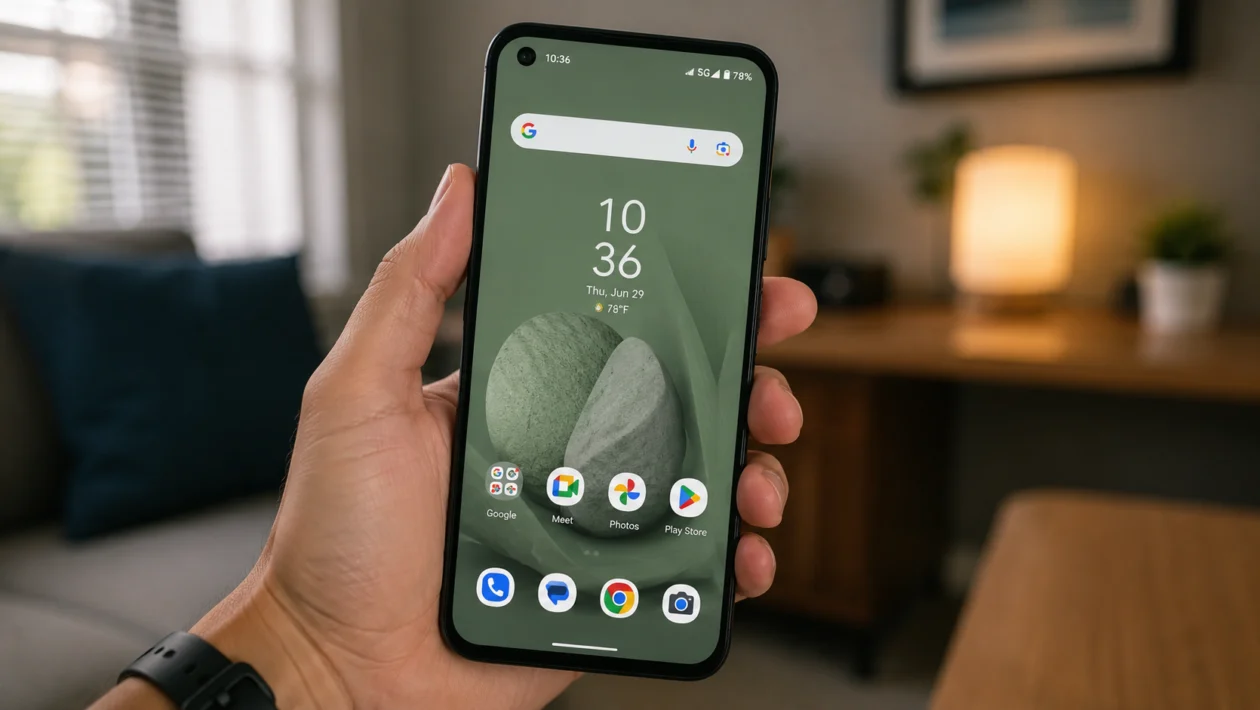
If your Asus Zenfone 10 keeps unlocking in your pocket, it can quickly become annoying. You lock the screen, put the phone away, then later find random apps open, accidental touches, missed battery percentage, or even unwanted pocket dials.
This usually does not mean the phone is broken. Pocket unlocking can happen when the side fingerprint sensor touches your finger or palm as you put the phone away. It can also happen because of sensitive lock screen gestures, wake settings, Always-on Panel behavior, a loose case, a screen protector issue, or a software bug.
Start with the fingerprint and lock screen settings first. Those are the most common causes.
Quick answer
To stop your Asus Zenfone 10 from unlocking in your pocket, turn on Pocket Mode, adjust the fingerprint unlock settings, disable tap-to-wake or lift-to-wake features, and check whether the power button is being touched when you place the phone in your pocket.
Also check your case, screen protector, lock screen shortcuts, Smart Lock settings, and software updates. If the issue continues after the fixes below, remove and re-add your fingerprints or contact Asus support.
Asus Zenfone 10 pocket unlocking diagnostic table
| Symptom | Likely cause | What to check first |
|---|---|---|
| Phone unlocks as you put it in your pocket | Fingerprint sensor touched accidentally | Fingerprint unlock behavior |
| Screen turns on inside pocket | Tap-to-wake, lift-to-wake, or notifications | Display and lock screen settings |
| Random apps open in pocket | Accidental screen touches | Pocket Mode and screen protector |
| Emergency dialer opens | Lock screen touch input | Lock screen shortcuts and wake settings |
| Battery drains in pocket | Screen stays awake | Always-on Panel and notifications |
| Phone unlocks only with one case | Case pressing the side button | Case fit and button cutout |
| Pocket issue started after update | Software bug or changed setting | Restart, update, reset related settings |
| Fingerprint fails or unlocks strangely | Bad fingerprint scan | Remove and re-add fingerprints |
Why does my Asus Zenfone 10 unlock in my pocket?
Your Asus Zenfone 10 may unlock in your pocket because the phone thinks you are intentionally waking or unlocking it.
The Zenfone 10 uses a side-mounted fingerprint sensor built into the power button. That is fast and convenient, but it can also be triggered when your finger, palm, or clothing touches the sensor while the phone is being put away.
Common causes include:
- Pocket Mode is off
- Fingerprint sensor is too easy to trigger
- Tap-to-wake is enabled
- Lift-to-wake is enabled
- Always-on Panel keeps the lock screen active
- Lock screen shortcuts are being touched
- Smart Lock keeps the phone unlocked
- A case is pressing the side button
- A thick or poor screen protector affects touch behavior
- Software needs an update or restart
The goal is simple: stop the phone from waking, stop the fingerprint sensor from unlocking accidentally, and stop the lock screen from accepting pocket touches.
1. Turn on Pocket Mode
Start here. Pocket Mode is designed to reduce accidental actions when the phone is inside a pocket or bag.
On Asus phones, Pocket Mode can detect that the device is covered and adjust behavior while it is in your pocket. If this setting is off, the phone may be more likely to react to accidental touches or button presses.
To check it:
- Open Settings.
- Tap Advanced.
- Look for Pocket Mode.
- Turn Pocket Mode on.
- Lock the phone and test it again.
After enabling Pocket Mode, place the phone in your pocket with the screen facing inward and then outward. Check which position causes fewer accidental wakes.
If Pocket Mode is already on, turn it off, restart the phone, then turn it back on. That can refresh the setting if it is not behaving properly.
2. Change how fingerprint unlocking behaves
The Zenfone 10’s fingerprint reader is fast, but that speed can work against you if the sensor is touched accidentally.
If the phone unlocks while you are sliding it into your pocket, the fingerprint sensor is probably being triggered before the phone is fully inside.
Try this:
- Open Settings.
- Tap Security & lock screen.
- Tap Fingerprint.
- Enter your PIN, pattern, or password.
- Look for fingerprint unlock behavior options.
- Choose the option that requires a more intentional press if available.
Some Asus software versions may offer different fingerprint behavior options. The wording can vary, but the goal is to avoid unlocking from a light accidental touch.
If your phone unlocks too easily, do not hold it by the power button when putting it away. Grip the top and bottom edges instead.
3. Remove and re-add your fingerprints
A messy fingerprint scan can cause unreliable unlock behavior. If your fingerprint was registered at an odd angle, the phone may unlock from partial contact more often than expected.
Remove your saved fingerprints and add them again carefully.
- Open Settings.
- Tap Security & lock screen.
- Tap Fingerprint.
- Delete the fingerprints you use most often.
- Restart the phone.
- Go back to Fingerprint.
- Add your fingerprint again.
When adding your fingerprint, scan the finger the way you actually unlock the phone. Include the center, sides, and tip of the finger, but do not rush through the setup.
If you use the same thumb to unlock the phone and place it in your pocket, test registering a different finger instead.
4. Turn off tap-to-wake
Tap-to-wake is useful on a desk. In a pocket, it can be a problem.
If the screen wakes when fabric brushes against it, the lock screen may become active long enough for accidental touches, notification taps, or emergency dialer input.
To turn it off:
- Open Settings.
- Tap Display.
- Look for Tap to wake or similar wake gestures.
- Turn it off.
- Lock the phone and test again.
This is one of the best fixes if your Zenfone 10 screen lights up inside your pocket even when you did not press the power button.
5. Turn off lift-to-wake
Lift-to-wake can also trigger pocket issues. When you walk, sit, stand, or pull the phone from your pocket, the movement can wake the display.
Once the screen is awake, accidental touches are more likely.
To disable it:
- Open Settings.
- Tap Display.
- Open the wake or lock screen display options.
- Turn off Lift to wake if available.
Use the power button instead when you want to check the screen. It is less convenient, but it gives you more control if pocket unlocking keeps happening.
6. Adjust Always-on Panel settings
Always-on Panel can make the phone feel more active when locked. That is useful for checking time and notifications, but it can also contribute to accidental pocket behavior if the screen keeps reacting.
Try setting Always-on Panel to a less active mode.
- Open Settings.
- Tap Display.
- Tap Always-on Panel.
- Turn it off temporarily.
- Test the phone for one full day.
If the problem stops, turn Always-on Panel back on only when needed or use a tap-to-show option if your software version supports it.
This fix is worth trying if your battery also drains while the phone is in your pocket.
7. Remove lock screen shortcuts
Sometimes the phone is not fully unlocking. It may only be waking the lock screen and triggering shortcuts like Camera, Phone, Wallet, or Emergency Call.
That can still feel like pocket unlocking because you may find the camera open, the dialer active, or random lock screen actions started.
To reduce that risk:
- Open Settings.
- Tap Security & lock screen or Display.
- Open Lock screen settings.
- Remove or reduce lock screen shortcuts.
- Disable any shortcut you do not use often.
Pay special attention to camera and phone shortcuts. Those are the ones most likely to cause obvious pocket problems.
8. Check Smart Lock or Extend Unlock
If your Zenfone 10 stays unlocked in trusted places or near trusted devices, it may not be a pocket detection issue at all.
Android’s Smart Lock, sometimes shown as Extend Unlock on newer Android versions, can keep your phone unlocked when it detects a trusted location, Bluetooth device, or on-body movement.
That means your phone may already be unlocked before it goes into your pocket.
Check this:
- Open Settings.
- Tap Security & lock screen.
- Look for Smart Lock or Extend Unlock.
- Enter your PIN, pattern, or password.
- Review trusted places, trusted devices, and on-body detection.
- Turn them off temporarily.
Test the phone for a day with these features disabled.
If pocket unlocking stops, the issue was probably not the fingerprint sensor. The phone was being kept unlocked by a trust setting.
9. Test without your case and screen protector
A case can make pocket unlocking worse if it presses the side button or leaves the fingerprint sensor too exposed. A screen protector can also cause strange touch behavior if it is lifting, cracked, dirty, or not fitted properly.
Test the phone without accessories.
- Remove the case.
- Clean the screen with a microfiber cloth.
- Check the screen protector edges.
- Lock the phone.
- Put it in your pocket for normal use.
- Test for several hours.
If the issue improves without the case, the power button cutout may be too tight or too exposed.
If the issue improves after removing the screen protector, replace it with a better-fitting one. Avoid protectors that lift near the edges or leave bubbles, because those can make touch behavior less reliable.
10. Restart, update, then reset related settings
If the problem started recently, your Zenfone 10 may be dealing with a temporary software issue.
Do the simple software checks before assuming hardware failure.
First, restart the phone:
- Press and hold the power button.
- Tap Restart.
- Wait for the phone to turn back on.
- Test pocket behavior again.
Then update the phone:
- Open Settings.
- Tap System.
- Tap System update.
- Install any available update.
Also update your apps through the Google Play Store.
If the issue still continues, reset settings related to apps and system behavior:
- Open Settings.
- Tap System.
- Tap Reset options.
- Choose a settings reset option if available.
- Avoid factory reset unless you have backed up your data.
A full factory reset should be the last software step, not the first one. Try the fingerprint, wake, lock screen, case, and update fixes before going that far.
Best settings to stop Zenfone 10 pocket unlocking
For most users, this combination works best:
| Setting | Recommended option |
| Pocket Mode | On |
| Fingerprint unlock | Require intentional press if available |
| Tap-to-wake | Off |
| Lift-to-wake | Off |
| Always-on Panel | Off or less active |
| Smart Lock / Extend Unlock | Off for testing |
| Lock screen shortcuts | Remove unused shortcuts |
| Case | Use one that does not press the power button |
| Screen protector | Use a clean, properly fitted protector |
You do not need to keep every feature off forever. Turn them off for testing first. Once the issue stops, turn features back on one by one until you find the setting causing the problem.
What if Pocket Mode does not fix it?
If Pocket Mode does not stop the problem, focus on the fingerprint sensor next.
The Zenfone 10’s side fingerprint reader sits exactly where your hand may touch the phone when putting it away. If the phone unlocks before it reaches your pocket, Pocket Mode may not get a chance to prevent the issue.
Try this order:
- Turn on Pocket Mode.
- Disable tap-to-wake.
- Disable lift-to-wake.
- Remove Smart Lock or Extend Unlock.
- Re-add fingerprints.
- Test without your case.
- Update the phone.
If none of that works, contact Asus support. The phone may need a deeper software check, especially if the sensor unlocks with very light contact or the screen wakes constantly without input.
Should you disable fingerprint unlock completely?
You do not have to, but it is a useful test.
Turn off fingerprint unlock for one day and use PIN, pattern, or password only. If the pocket unlocking stops completely, the fingerprint sensor is the cause.
That does not mean you can never use fingerprint unlock again. It means you need to adjust how it behaves, re-register your fingerprint, change your case, or avoid touching the power button when pocketing the phone.
If the phone still wakes and opens things even with fingerprint unlock disabled, the cause is more likely tap-to-wake, lift-to-wake, Smart Lock, lock screen shortcuts, or accidental screen touches.
When to contact Asus support
Contact Asus support if:
- The phone unlocks without touching the fingerprint sensor
- The screen wakes repeatedly while lying still
- Pocket Mode does not seem to work at all
- The power button feels loose or stuck
- Fingerprint unlock works with the wrong finger
- The issue started after a drop or liquid exposure
- A reset does not change anything
Also contact support if the phone opens emergency calling or makes calls from your pocket even after lock screen shortcuts and wake gestures are disabled.
FAQ
Why does my Asus Zenfone 10 unlock in my pocket?
Your Asus Zenfone 10 may unlock in your pocket because the side fingerprint sensor is being touched accidentally. It can also happen if tap-to-wake, lift-to-wake, Smart Lock, lock screen shortcuts, or Always-on Panel are making the screen active while the phone is locked.
Does the Asus Zenfone 10 have Pocket Mode?
Yes, Asus phones include a Pocket Mode setting. On supported models, you can usually find it under Settings > Advanced > Pocket Mode. The exact location may vary depending on your software version.
Why does my Zenfone 10 open apps in my pocket?
This usually happens when the screen wakes inside your pocket and accepts accidental touches. Turn on Pocket Mode, disable tap-to-wake, disable lift-to-wake, and remove lock screen shortcuts.
