
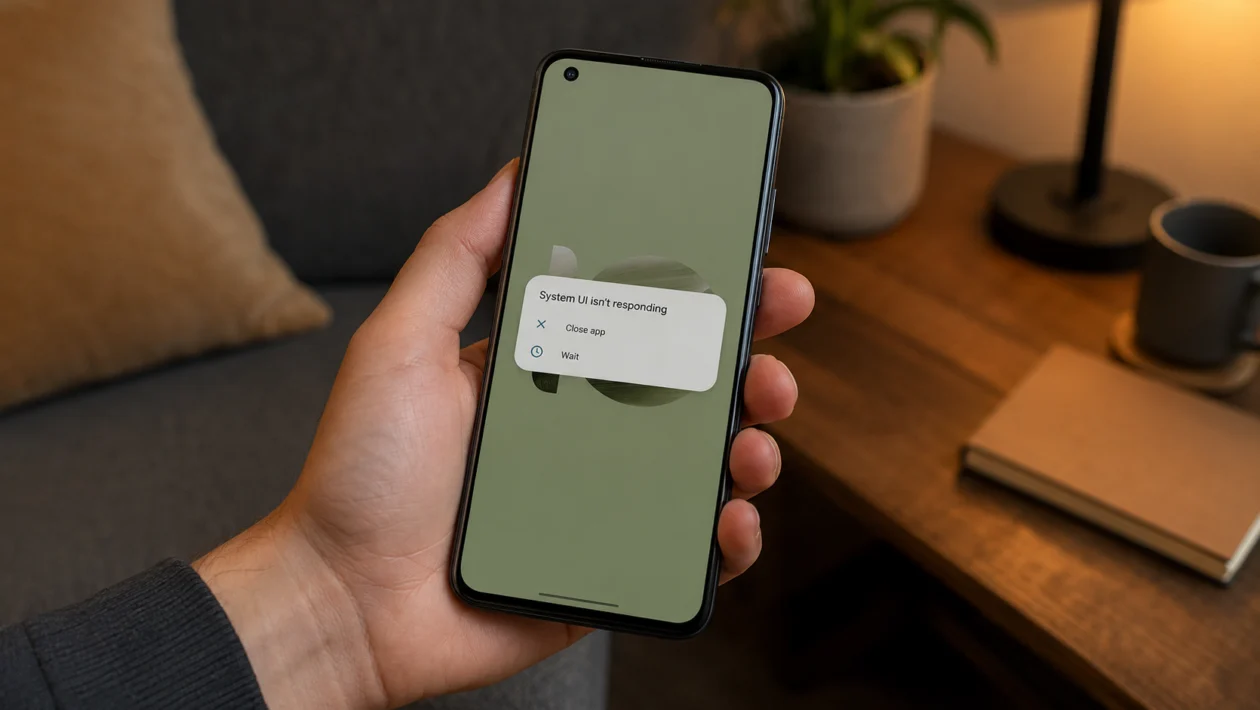
If your Asus Zenfone 10 is unresponsive, it can feel like the phone suddenly died. The screen may freeze, touch may stop working, the buttons may not respond, or the phone may stay stuck on a black screen.
In many cases, the phone is not permanently broken. It may be frozen because of a software glitch, low battery, a bad app, overheating, storage problems, a failed update, or a system process that stopped responding.
Start with the simple checks first. Force restart the phone, charge it properly, let it cool down, then check apps, storage, updates, and recovery options.
Quick Answer
If your Asus Zenfone 10 is unresponsive, press and hold the Power button for about 8 seconds to force restart the phone. If nothing happens, charge it with a working cable and adapter for at least 30 minutes, then try the force restart again.
If the phone turns on but keeps freezing, boot into Safe Mode, uninstall recently installed apps, free up storage, and install any available system updates. If the phone still does not respond after these steps, you may need to use recovery mode or contact Asus support.
Asus Zenfone 10 Unresponsive Diagnostic Table
| Symptom | Likely Cause | What to Try First |
|---|---|---|
| Screen is frozen | Temporary software glitch | Force restart |
| Black screen but phone vibrates | Display, system freeze, or low battery | Charge and force restart |
| Phone does not turn on | Empty battery, charger issue, or hardware fault | Charge for 30 minutes |
| Touchscreen does not respond | App freeze, screen protector, or system issue | Restart and clean screen |
| Phone freezes after opening an app | Problem app | Boot into Safe Mode |
| Phone freezes after update | System re-optimising or update bug | Restart, update apps, wait briefly |
| Phone is hot and unresponsive | Overheating | Let it cool down |
| Phone is stuck on Asus logo | Boot issue or corrupted system process | Recovery mode |
| Phone freezes often | Low storage or bad app | Free storage and uninstall apps |
| Nothing works | Possible hardware issue | Contact Asus support |
Why Is My Asus Zenfone 10 Unresponsive?
Your Asus Zenfone 10 may become unresponsive when Android, an app, or the phone’s hardware temporarily stops responding.
Common causes include:
A temporary system freeze
A drained battery
A faulty charger or cable
An overheating phone
A recently installed app
A software update issue
Too little free storage
A stuck background process
A screen protector interfering with touch
Physical or liquid damage
A failing battery, display, or motherboard issue
The good news is that you can fix many of these issues without resetting the phone. Work through the steps below in order.
1. Force Restart Your Asus Zenfone 10
Start with a force restart. This is the fastest fix when the phone is frozen, the screen is stuck, or the touch input no longer works.
Press and hold the Power button for about 8 seconds. Wait for the phone to restart. If the Asus logo appears, release the button and let the phone boot normally.
A force restart does not delete your photos, apps, messages, or files. It simply forces the phone to reboot when Android is not responding.
Try this first if:
The screen is frozen
The phone is stuck in an app
Touch is not working
The phone shows a black screen but still vibrates
The phone does not respond to normal button presses
If the phone does not restart, move to the next step.
2. Charge the Phone for at Least 30 Minutes
Your Zenfone 10 may look unresponsive when the battery is fully drained. This can happen if the battery reached 0%, the phone was left unused for a long time, or an app drained the battery in the background.
Plug the phone into a charger. Use a working USB-C cable and wall adapter. Leave it charging for at least 30 minutes. Then press and hold the Power button again.
If you see a charging icon, wait before turning it on. If the battery is deeply drained, it may need several minutes before the screen lights up.
Also check these basics:
Use a different charging cable
Try another wall adapter
Plug into a different power outlet
Check the USB-C port for dust or lint
Avoid charging from a weak laptop USB port
If the phone still shows no sign of life, the problem may be the charger, cable, port, battery, or internal hardware.
3. Let the Phone Cool Down
If your Asus Zenfone 10 became unresponsive while gaming, recording video, charging, using navigation, or staying under direct sunlight, it may have overheated.
When a phone gets too hot, it may slow down, freeze, dim the screen, stop charging, or shut down to protect itself.
Remove the case. Unplug the charger. Place the phone in a cool, dry area. Do not put it in a freezer or near ice. Wait 15 to 30 minutes, then try turning it on again.
This is worth checking if the phone froze while:
Playing games
Recording 4K video
Using the camera for a long time
Charging and using the phone at the same time
Using mobile data in a weak signal area
Running GPS navigation
Sitting in a hot car or direct sunlight
If the phone responds after cooling down, avoid heavy use while charging and check which apps are using too much power.
4. Remove the Case and Screen Protector
If the phone turns on but the touchscreen does not respond, the issue may not be Android itself. A thick case, damaged screen protector, moisture, dirt, or pressure on the edges of the display can interfere with touch input.
Remove the case. Remove any damaged or lifted screen protector. Wipe the screen with a clean microfiber cloth. Make sure your hands are dry. Then test the touchscreen again.
Check for:
Cracks on the screen
Moisture around the edges
A screen protector lifting near the corners
A case pressing against the buttons
Dirt or oil on the display
Touch issues only in one part of the screen
If only part of the screen does not respond, the display may be damaged. If the whole screen freezes only inside certain apps, continue with the software fixes below.
5. Boot Into Safe Mode
Safe Mode starts the phone with third-party apps disabled. This helps you check whether a downloaded app is causing the Zenfone 10 to freeze or stop responding.
If the phone still responds enough to open the power menu, press and hold the Power button. Touch and hold Power off. Tap OK when Safe Mode appears.
If the phone works normally in Safe Mode, one of your apps is likely causing the problem.
Start by removing apps you installed or updated recently. Pay attention to:
Battery saver apps
Cleaner apps
Launchers
Keyboard apps
VPN apps
Antivirus apps
Camera apps
Games
Apps downloaded outside the Play Store
After uninstalling a suspicious app, restart the phone normally and test it again.
If the phone is still unresponsive in Safe Mode, the problem is more likely related to Android, storage, firmware, or hardware.
6. Free Up Storage Space
Low storage can make Android unstable. Apps may freeze, system processes may slow down, and the phone may stop responding during basic tasks.
Once the phone responds again, check storage.
Go to Settings > Storage. Look at how much space is available. If storage is almost full, delete files you no longer need.
Start with:
Large videos
Duplicate photos
Downloaded movies
Old APK files
Unused apps
Offline maps
Messaging app media
Large game files
As a practical rule, keep at least 10% of your storage free. Android needs free space for app updates, temporary files, cache, and system tasks.
After clearing storage, restart the phone and use it normally for a few hours.
7. Update Apps and System Software
A buggy app or outdated software build can cause freezes. If the phone became unresponsive after opening a specific app, update that app first.
To update apps:
Open Google Play Store. Tap your profile icon. Tap Manage apps and device. Update your apps.
Also check the Asus system update page:
Open Settings. Tap System. Tap System update. Install any available update.
If the phone started freezing after a recent update, do not panic immediately. After a system update, Android may still be updating apps, rebuilding caches, and re-optimising background processes.
Give it some time after restarting. If the issue continues for more than a day or two, continue with the next fixes.
8. Uninstall Recently Installed Apps
If your Zenfone 10 became unresponsive after installing a new app, that app should be treated as a suspect.
Some apps can cause freezing because they run constantly in the background, request too many permissions, conflict with Android, or use aggressive overlays.
Go to Settings > Apps. Review your recently installed apps. Uninstall the ones you added shortly before the issue started.
Look especially at apps that control:
Battery saving
Screen dimming
Notifications
VPN connections
Device cleaning
Floating windows
Accessibility features
Custom launchers
System themes
After uninstalling the app, restart the phone and check whether the freezing stops.
If the phone becomes stable again, avoid reinstalling that app until it receives an update.
9. Wipe the Cache From Recovery Mode
If your Asus Zenfone 10 is stuck on the Asus logo, freezes during startup, or keeps becoming unresponsive after updates, recovery mode may help.
Recovery mode lets you perform system-level maintenance without fully booting Android. Use this carefully. Do not choose factory reset unless you are ready to erase the phone.
Turn off the phone if possible. Press and hold the Power button and Volume Up button together. When the boot menu or recovery option appears, use the volume buttons to navigate and the power button to select.
Look for an option related to recovery or cache, depending on what your phone shows. If a wipe cache option is available, use it. Then restart the phone.
This can help when temporary system files are causing startup or freezing problems.
Do not select wipe data or factory reset unless you have backed up your data or you have no other option.
10. Factory Reset or Contact Asus Support
Use this only after trying the safer fixes above.
A factory reset can fix serious software problems, but it erases your apps, photos, files, settings, and accounts from the phone. Back up anything important first if the phone still lets you access it.
To reset from settings:
Go to Settings > System > Reset options. Choose Erase all data. Follow the on-screen instructions.
If the phone cannot boot properly, you may need recovery mode to perform a reset.
Contact Asus support instead if:
The phone does not charge
The phone does not vibrate or show any logo
The screen stays black after charging
The phone was dropped
The phone got wet
The display is cracked
The phone gets extremely hot
The phone shuts down again after every restart
Recovery mode does not work
If the issue is caused by hardware, repeated resets will not fix it. At that point, repair service is the safer option.
What to Do If Your Asus Zenfone 10 Keeps Freezing Again
If the phone works after a restart but becomes unresponsive again later, do not stop at the first fix. Repeated freezing usually means something is still wrong.
Check battery usage. Review recently installed apps. Free up storage. Install updates. Test Safe Mode. Watch for patterns.
For example, if it freezes only while gaming, the problem may be heat or performance load. If it freezes only when charging, check the cable, adapter, and charging port. If it freezes only after opening one app, remove that app.
The pattern usually tells you where to look.
When It Is Probably a Hardware Problem
Your Asus Zenfone 10 may need repair if the issue continues even after a factory reset or if the phone does not respond to charging and button combinations.
Hardware-related signs include:
No vibration
No charging icon
Black screen after several charging attempts
Touch does not work in one area
Screen flickers or shows lines
Phone gets hot while doing nothing
Phone restarts again and again
Phone was dropped or exposed to liquid
If you see these signs, contact Asus support or visit an authorised service centre.
FAQ
How do I force restart the Asus Zenfone 10?
Press and hold the Power button for about 8 seconds. The phone should restart. This does not erase your data.
Why is my Asus Zenfone 10 screen black but still vibrating?
The phone may be frozen, the display may not be waking, or the battery may be too low. Charge it for at least 30 minutes, then force restart it.
Will force restarting delete my files?
No. A force restart only reboots the phone. It does not delete photos, apps, messages, or settings.
