
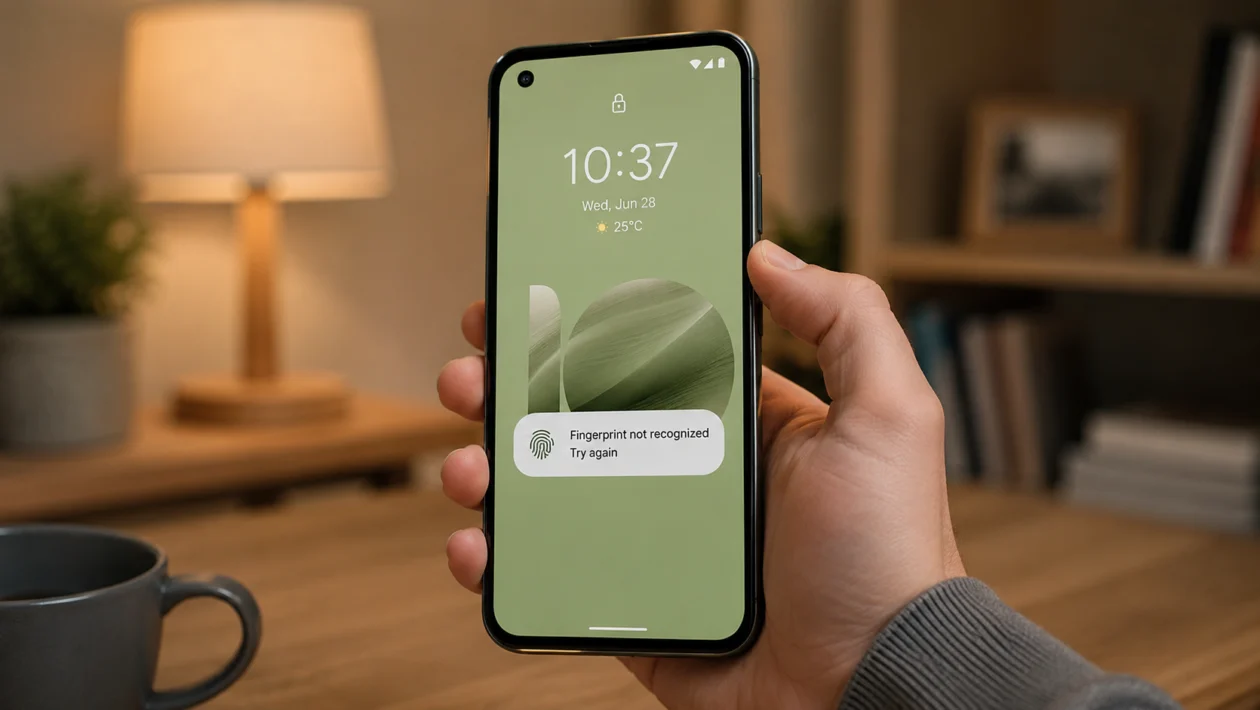
If your Asus Zenfone 10 fingerprint scanner is not recognizing your finger, the problem usually comes from a dirty side button, a poorly registered fingerprint, dry or wet skin, a phone case blocking the sensor, software glitches, or a recent system update.
The Zenfone 10 uses a side fingerprint sensor built into the power button, so even small changes in how your finger touches the button can affect recognition. Start with the simple fixes first before assuming the sensor is broken.
Quick answer
If your Asus Zenfone 10 fingerprint scanner is not recognizing your finger, clean the side power button, dry your finger, restart the phone, then delete and re-add your fingerprint in Settings > Security & lock screen > Fingerprint.
If the problem started after an update, check for another software update and give the phone a restart. If the fingerprint option disappears completely or the sensor does not respond at all, contact ASUS support.
Asus Zenfone 10 fingerprint problem diagnostic table
| Symptom | Likely cause | What to check first |
|---|---|---|
| Fingerprint works sometimes | Dirty sensor, bad finger angle, dry skin | Clean the power button and re-register your finger |
| Fingerprint never works | Software issue or sensor fault | Restart, update software, check fingerprint settings |
| Fingerprint option missing | System bug or security setting issue | Check Security & lock screen settings |
| Fingerprint fails after update | Temporary software conflict | Restart and install pending updates |
| Fingerprint fails with case on | Case blocking the side button | Remove the case and test again |
| Fingerprint says not recognized | Poor fingerprint scan | Delete and add the fingerprint again |
| Fingerprint is slow | Background load or dirty sensor | Restart and clean the sensor |
| Fingerprint works with one finger only | Weak saved scan | Add the same finger again |
| Fingerprint unlock stops suddenly | Lock screen or security conflict | Check screen lock settings |
| Power button works but fingerprint does not | Possible fingerprint sensor issue | Try all fixes, then contact ASUS |
Why is my Asus Zenfone 10 fingerprint scanner not recognizing my finger?
Your Asus Zenfone 10 fingerprint scanner may not recognize your finger because the side sensor cannot read your fingerprint clearly.
Common causes include:
Dirty power button
Wet, oily, or very dry fingers
A phone case pressing against the sensor
A screen lock setting problem
Fingerprint data saved poorly
Recent software update
Temporary system glitch
Damaged power button or fingerprint sensor
Too many failed unlock attempts
Security policy from a work profile or app
Because the fingerprint reader is built into the side power button, it needs clean contact and the right finger placement. A small case lip, dust, sweat, or a slightly different finger angle can make the phone reject the scan.
1. Clean the side fingerprint sensor
Start here because the Zenfone 10 fingerprint scanner sits on the side power button. If that button has oil, dust, sweat, lotion, or pocket dirt on it, the phone may fail to read your fingerprint.
Use a soft microfiber cloth and gently wipe the power button. If needed, slightly dampen the cloth with clean water, then wipe the area again with a dry part of the cloth.
Do not use sharp tools, metal objects, or too much liquid around the button.
After cleaning it:
- Lock the phone.
- Wait a few seconds.
- Place your finger flat on the side power button.
- Try unlocking again.
2. Dry your finger and try again
Fingerprint scanners can struggle if your finger is wet, oily, sweaty, or too dry.
Wash and dry your hands, then try unlocking again. Place your finger on the power button naturally, without pressing too hard. The scanner needs to read the fingerprint pattern, not just detect pressure.
If your skin is very dry, the scan may also fail because the fingerprint lines are harder to read. In that case, try the same finger again after your hands return to normal moisture.
This usually helps when the phone says the fingerprint is not recognized even though the sensor still reacts.
3. Remove your case and test the scanner
Some phone cases can interfere with the side fingerprint sensor. This is more likely if the case has a thick edge around the power button or makes it harder to place your finger flat on the sensor.
Remove the case completely, then test the fingerprint scanner again.
If fingerprint unlock works without the case, the phone is probably fine. The case is changing your finger angle or blocking part of the side button.
You can either switch to a thinner case or re-register your fingerprint while using the case. That way, the phone saves your fingerprint in the same position you normally use.
4. Restart your Asus Zenfone 10
A restart can fix temporary software problems that stop fingerprint recognition from working properly.
To restart your Zenfone 10:
- Press and hold the Power button.
- Tap Restart.
- Wait for the phone to turn back on.
- Unlock with your PIN, pattern, or password first.
- Lock the phone and test fingerprint unlock again.
After a restart, Android usually asks for your PIN, pattern, or password before fingerprint unlock works again. That is normal.
This fix is worth trying if the fingerprint scanner suddenly stopped working, became slow, or started failing after the phone had been running for several days.
5. Delete and re-add your fingerprint
If the saved fingerprint scan is weak, old, or incomplete, your Asus Zenfone 10 may keep rejecting it. Removing the old fingerprint and adding it again often fixes recognition problems.
To re-add your fingerprint:
- Open Settings.
- Tap Security & lock screen.
- Tap Fingerprint.
- Enter your PIN, pattern, or password.
- Delete the fingerprint that is not working.
- Tap Add fingerprint.
- Follow the on-screen instructions.
- Scan the edges and center of your finger.
When adding your fingerprint, do not press your finger in exactly the same position every time. Slightly move your finger during setup so the phone can recognize it from different angles.
6. Add the same finger more than once
If your fingerprint works only half the time, add the same finger again as a second fingerprint.
This gives the phone more fingerprint data to compare when you unlock it.
To do this:
- Go to Settings.
- Tap Security & lock screen.
- Tap Fingerprint.
- Add the same finger again.
- During setup, scan the finger at the angle you normally use.
For the Zenfone 10, this matters because the fingerprint sensor is on the side. Many people unlock the phone with the side of their thumb instead of the flat center. Register that real-world angle.
You can also add another finger, such as your other thumb or index finger, as a backup.
7. Check your screen lock settings
Fingerprint unlock needs a secure screen lock to work. If your lock method was changed, removed, or affected by a work profile, fingerprint unlock may stop behaving normally.
Check your lock settings:
- Open Settings.
- Tap Security & lock screen.
- Tap Screen lock.
- Make sure PIN, pattern, or password is enabled.
- Go back and tap Fingerprint.
- Check whether your saved fingerprints are still listed.
If fingerprint unlock is unavailable, set up a PIN, pattern, or password again, then add your fingerprint.
This also helps if the fingerprint option disappeared after changing lock screen settings.
8. Update your phone software
Software bugs can affect fingerprint recognition, especially after a system update or security patch.
To check for updates:
- Open Settings.
- Tap System.
- Tap System update.
- Install any available update.
- Restart the phone after updating.
Also update your apps from the Google Play Store. App updates may not directly control the fingerprint sensor, but they can reduce background crashes or security conflicts that affect phone behavior.
If the scanner stopped working right after an update, restart the phone first, then check for another update. Sometimes a follow-up patch fixes bugs from an earlier release.
9. Test fingerprint unlock in Safe Mode
Safe Mode helps you check whether a third-party app is causing the fingerprint problem. This is useful if the issue started after installing a launcher, lock screen app, cleaner app, security app, or work-related app.
To enter Safe Mode:
- Press and hold the Power button.
- Touch and hold Power off.
- Tap OK when Safe Mode appears.
- Test the fingerprint scanner.
If fingerprint unlock works better in Safe Mode, one of your installed apps may be interfering with the lock screen or security settings.
Restart the phone to exit Safe Mode. Then uninstall recently installed apps one by one and test fingerprint unlock again.
Start with apps that change the lock screen, run accessibility services, manage security, clean memory, or control gestures.
10. Reset settings or contact ASUS support
If none of the fixes work, reset your phone settings before assuming the fingerprint sensor is damaged.
This does not erase your personal files, but it can reset system preferences such as network, app, and device settings depending on the option you choose.
To reset settings:
- Open Settings.
- Tap System.
- Tap Reset options.
- Choose the least destructive reset option first.
- Restart the phone.
- Set up fingerprint unlock again.
Do not factory reset the phone unless you have backed up your files and tried the other fixes first.
Contact ASUS support if:
The fingerprint option is missing
The power button works but fingerprint never responds
The sensor stopped working after a drop or liquid exposure
The phone cannot register any fingerprint
The problem continues after updates and reset settings
At that point, the issue may be hardware-related.
What if the fingerprint scanner disappeared from settings?
If the fingerprint option is missing from your Asus Zenfone 10 settings, restart the phone first. Then check Settings > Security & lock screen and make sure a PIN, pattern, or password is enabled.
If it still does not appear, install any available system update. If the fingerprint menu remains missing, contact ASUS support because the phone may not be detecting the fingerprint sensor correctly.
What if fingerprint unlock works only after several tries?
If fingerprint unlock works only after several attempts, the sensor is probably reading your finger inconsistently.
Clean the power button, remove the case, delete the old fingerprint, and add the same finger again. During setup, scan the finger from the angle you actually use when holding the phone.
Also add your thumb twice if that is the finger you use most.
Should you factory reset your Asus Zenfone 10?
A factory reset should be the last option. Try cleaning the sensor, restarting, re-adding fingerprints, checking screen lock settings, updating software, testing Safe Mode, and resetting settings first.
Only factory reset if fingerprint unlock still fails and you have already backed up your photos, messages, app data, and files.
If the fingerprint sensor is physically damaged, a factory reset will not fix it.
FAQ
Why is my Asus Zenfone 10 fingerprint scanner not working?
Your Asus Zenfone 10 fingerprint scanner may not work because the side power button is dirty, your finger is wet or dry, the saved fingerprint scan is poor, your case blocks the sensor, or the phone has a temporary software issue.
Where is the fingerprint scanner on the Asus Zenfone 10?
The Asus Zenfone 10 has a side fingerprint sensor built into the power button. That means your finger needs to touch the side button clearly for fingerprint unlock to work.
How do I re-add fingerprint on Asus Zenfone 10?
Go to Settings > Security & lock screen > Fingerprint, enter your PIN, delete the old fingerprint, then add it again. Move your finger slightly during setup so the phone can save different angles.
