
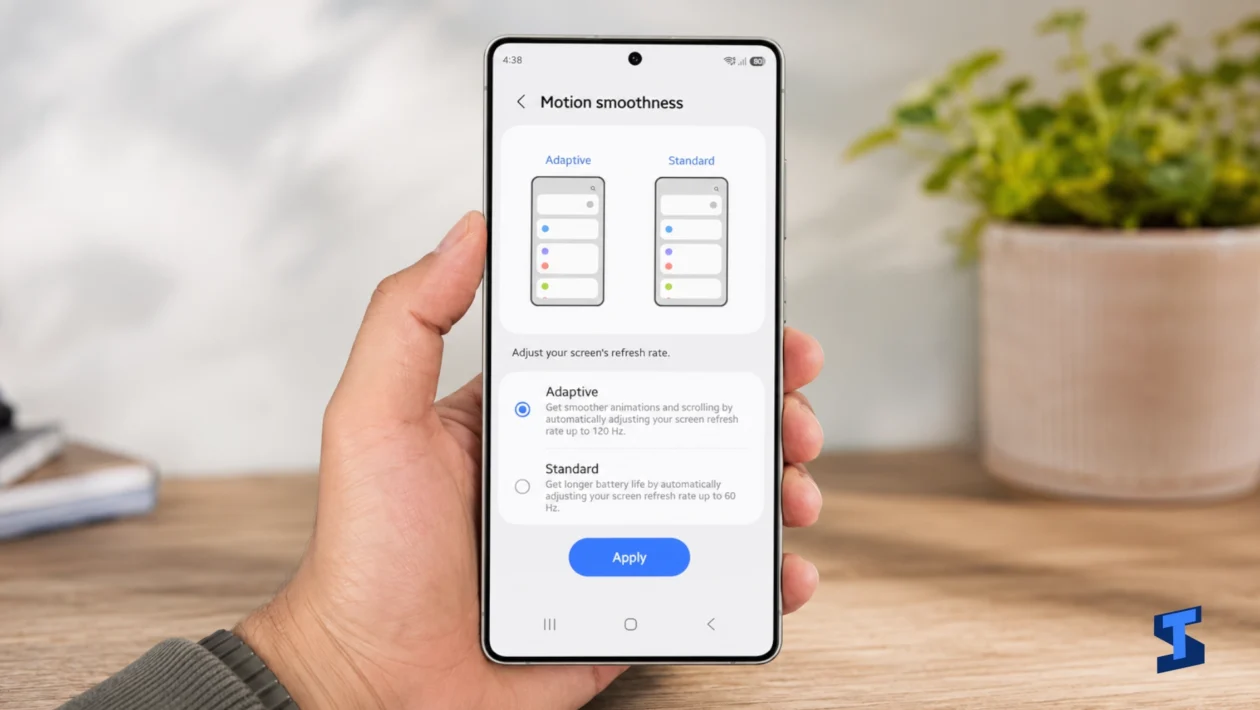
The Galaxy S26 Ultra can adjust its display from 1Hz to 120Hz, but that does not mean everything on the screen runs at 120 frames per second. Power saving, app limitations, inconsistent frame delivery, heat, background activity, or changed animation settings can still make scrolling and gaming feel choppy.
Start by checking whether the problem affects the entire phone or only one app. That distinction will tell you whether to investigate the display settings, the phone’s performance, or the app itself.
Quick checks before troubleshooting
Open Settings > Display > Motion smoothness and select Adaptive. Then confirm that Power saving is turned off under Settings > Battery > Power saving.
Scroll through the Settings app and the app drawer. If those areas feel smooth but Instagram, Chrome, a game, or another app stutters, the display is probably working correctly. The affected app may not be producing frames consistently.
Menu names can vary slightly by region and software version.
Why 120Hz can still look choppy
Refresh rate and frame rate are related, but they are not the same.
The display’s refresh rate describes how often the panel can update. Frame rate describes how many new frames an app or game actually produces.
A 120Hz screen can show up to 120 updates each second. However, an app that produces only 60 frames per second does not suddenly become a 120fps app. If it produces frames unevenly, you may notice small jumps even while the display is refreshing at 120Hz.
At 120fps, an app has roughly 8 milliseconds to prepare each frame. When it misses that timing, Android may repeat or drop a frame. This is what often creates the visible stutter.
1. Confirm that Adaptive motion smoothness is enabled
Go to:
Settings > Display > Motion smoothness > Adaptive
Tap Apply after selecting it.
The Galaxy S26 Ultra uses an adaptive refresh rate rather than remaining at 120Hz continuously. The panel lowers its refresh rate when the image is static or when high refresh is unnecessary, then raises it during supported scrolling and animations.
This behaviour saves power and is not usually a fault.
The phone may also remain at a lower refresh rate while displaying certain videos, apps, menus, or static content. Review Samsung’s Galaxy S26 Ultra display specifications for the supported display range.
2. Turn off Power saving
Samsung’s Power saving mode can set Motion smoothness to Standard, which limits the display to 60Hz.
Open:
Settings > Battery > Power saving
Turn it off temporarily and test the phone again.
Also check the Quick Settings panel. Power saving may have been activated from there without you noticing.
You do not need to keep Power saving disabled permanently. Use it when battery life matters more than fluid scrolling, but remember that it can change how the screen behaves. Samsung’s Power saving mode instructions explain which features may be limited.
3. Check whether only one app stutters
Scroll through the Settings app, Samsung Internet, the app drawer, and your affected app.
| What you notice | Probable cause |
|---|---|
| Only one app stutters | App optimisation, cache, or frame-rate limitation |
| Games stutter but normal scrolling is smooth | Game settings, FPS cap, heat, or performance control |
| The entire interface stutters | System load, software issue, heat, or third-party interference |
| The phone feels smooth after restarting | Temporary process or background activity |
| The issue appears only in videos | The video’s original frame rate |
Update the affected app through Google Play or the Galaxy Store.
You can also clear its temporary cache:
Settings > Apps > select the app > Storage > Clear cache
Do not select Clear data as your first step. Clearing data resets the app and may remove saved settings or require you to sign in again.
4. Check the game’s FPS settings
A game can run at 30fps, 60fps, 90fps, or 120fps regardless of the display’s maximum refresh rate. Some games do not support 120fps on every device, while others require you to enable it inside the graphics settings.
Open the game and check options such as:
- Frame rate
- FPS
- Graphics quality
- Performance mode
- Battery-saving mode
Then review Samsung Game Booster settings. Depending on your software version, Game Booster may let you change the optimisation mode, resolution, FPS limit, or settings for individual games.
High graphics settings can sometimes produce a worse experience than slightly lower graphics at a stable frame rate. A consistent 60fps often feels smoother than a game repeatedly moving between 70fps and 110fps.
5. Check the current display refresh rate
You can use Android’s refresh-rate counter to see whether the panel reaches 120Hz during scrolling.
First, enable Developer options:
- Open Settings > About phone > Software information.
- Tap Build number seven times.
- Enter your PIN when requested.
- Return to Settings and open Developer options.
- Enable Show refresh rate.
Scroll through the phone while watching the number.
The counter shows the display’s current refresh rate. It does not show the app’s real frame rate.
If the counter reaches 120Hz but one app still stutters, the problem is probably frame delivery inside that app. If the phone remains at 60Hz everywhere, check Motion smoothness and Power saving again.
Avoid changing unrelated Developer options. Turn off the refresh-rate counter after testing.
6. Let the phone cool down
A warm phone may reduce performance to control temperature and power use. This can happen during gaming, video recording, navigation, app installation, large downloads, or charging.
Remove the case temporarily, stop charging, close demanding tasks, and allow the device to cool naturally.
Do not place the phone in a refrigerator or against ice. Rapid temperature changes can cause condensation inside the device.
If stuttering disappears after the phone cools, temperature or workload was probably contributing to it.
7. Update the phone and restart it
Open:
Settings > Software update > Download and install
Update your apps through both Google Play and the Galaxy Store, then restart the phone.
Updates may address display behaviour, app compatibility, animation problems, and performance bugs. Restarting also stops temporary processes that may be consuming processor or memory resources.
Test the phone before making additional changes.
8. Restore animation settings
A 120Hz display can still feel unusual when system animations have been disabled or modified.
Check:
Settings > Accessibility > Vision enhancements > Remove animations
Turn Remove animations off if you want normal One UI transitions.
Also check Developer options if you previously changed them. The following settings normally use their default value of 1x:
- Window animation scale
- Transition animation scale
- Animator duration scale
Setting these to 0.5x makes animations finish faster, but it does not improve the display’s refresh rate. Disabling them completely can make transitions feel abrupt rather than smooth.
Test the phone in Safe Mode
Use Samsung Safe Mode instructions when the entire interface remains choppy after updating and restarting.
Safe Mode temporarily disables downloaded apps. Scroll through Settings, the notification panel, and the app drawer while in this mode.
If the phone becomes smooth in Safe Mode, a downloaded app, launcher, accessibility service, live wallpaper, or overlay may be interfering. Remove recently installed apps one at a time.
If the phone still stutters in Safe Mode, the cause is more likely to involve the system software, device temperature, or hardware.
How to know whether the problem is fixed
Use the same screen for each comparison. For example, scroll through the main Settings list before and after applying a fix.
The phone is probably working normally when:
- The refresh-rate counter reaches 120Hz during supported scrolling
- Samsung’s interface feels smooth
- Stuttering is limited to a particular app or game
- Static screens cause the counter to fall below 120Hz
- Videos play according to their original frame rate
A 24fps or 30fps video will not become 120fps simply because the phone has a 120Hz panel.
When to contact Samsung
Contact Samsung support or an authorised service centre when the phone stutters across the entire interface after updates, restarts, cooling, and Safe Mode testing.
Professional inspection is also appropriate when you notice screen flickering, touch-input delays, coloured lines, display corruption, unusual heat while idle, or repeated system crashes.
Avoid performing a factory reset until your files are backed up and Samsung support confirms that it is a reasonable next step.
