
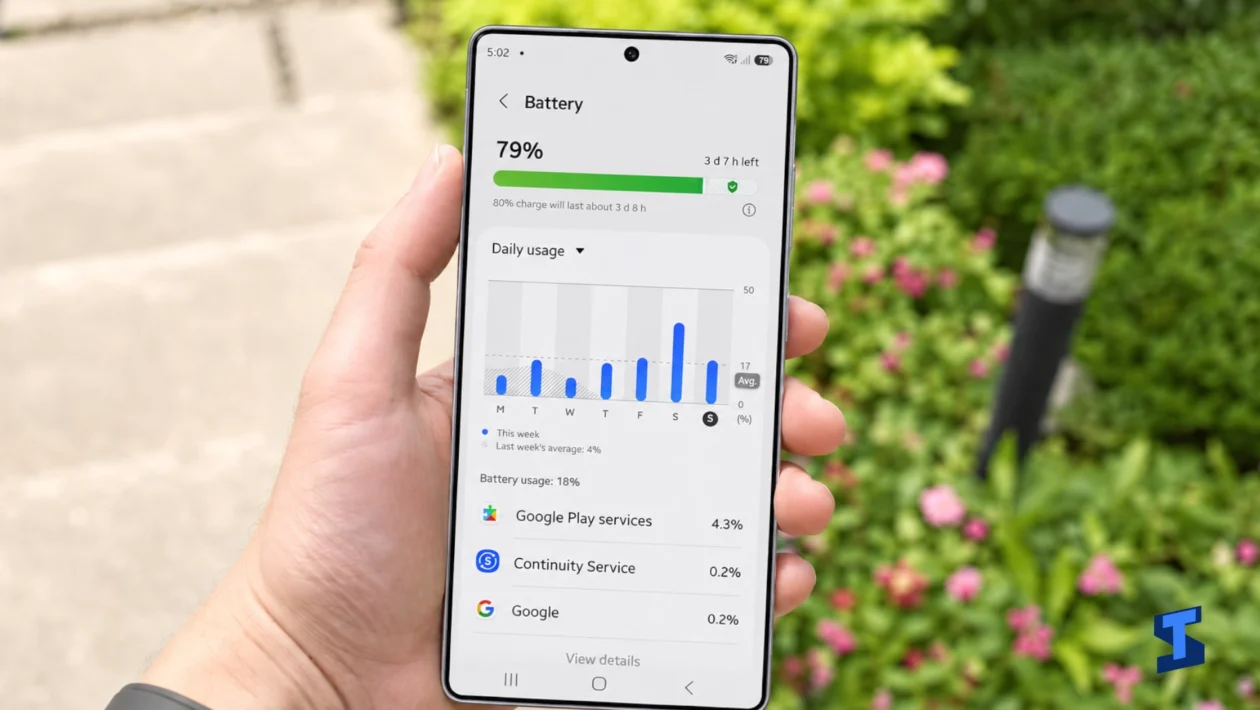
Your Galaxy S26 Ultra can lose power quickly even when you barely touch it because screen time is only one part of battery use. Apps can sync in the background, the modem may search for a stronger signal, accounts may restore data, and location services or connected accessories can keep the phone active.
Start by checking what used the battery. Do not disable several features at once, or you will not know what caused the problem.
First, check whether the battery is really draining while idle
“Light use” can mean different things. You may only unlock the phone a few times, but it could still be:
- Restoring apps and files after setup
- Uploading photos to cloud storage
- Synchronising email and social media accounts
- Maintaining a weak 5G connection
- Connecting to a smartwatch or earbuds
- Receiving frequent notifications
- Running location services in the background
- Installing system or app updates
Open Settings > Battery, then tap View details or Battery usage, depending on your software version.
Look at which apps and system services consumed power since the last charge. Pay attention to background activity rather than only screen time.
| What you notice | Where to investigate first |
|---|---|
| One app appears unusually high | Its background activity and permissions |
| Mobile network uses considerable power | Signal strength, 5G and coverage |
| Drain started after setup | App restoration, indexing and synchronisation |
| The phone becomes warm while idle | A stuck app, update or system process |
| Drain improves after restarting | Temporary software activity |
| No app explains the drain | Safe Mode and battery diagnostics |
The Galaxy S26 Ultra has a 5,000mAh battery, but capacity alone does not guarantee identical battery life for every owner. Signal quality, software, apps, display settings and usage conditions all affect the result. You can confirm the official hardware details in the Galaxy S26 Ultra specifications.
Give a newly configured phone time to finish setup
Battery consumption can be temporarily higher after setting up a new phone or restoring data from an older Galaxy device.
The phone may be downloading apps, indexing photos, restoring messages, synchronising accounts and preparing background services. Some of this continues after the setup screen disappears.
Connect the phone to reliable Wi-Fi, install pending updates and allow the background work to finish. Avoid judging battery life during the first few hours after transferring a large amount of data.
The phone should not remain hot or continue draining severely for days. Persistent drain needs further investigation.
Find the app using power in the background
Open Settings > Battery and review the usage details.
An app deserves attention when it consumes substantial power despite little direct use. Tap the app and check whether it is allowed unrestricted background activity.
Depending on the app, you may see options such as:
- Unrestricted
- Optimised
- Restricted
Use Optimised for most apps. Choose Restricted only when the app does not need constant background access.
Restricting an app can delay notifications, pause uploads or prevent location tracking. Do not automatically restrict messaging, security, health, navigation or wearable apps.
You can also open:
Settings > Battery > Background usage limits
Place rarely used apps into Sleeping apps or Deep sleeping apps. Review Samsung’s battery optimisation guidance before restricting services you depend on.
Check your mobile signal
Weak reception is one of the easiest battery drains to overlook.
The Galaxy S26 Ultra may use more power when it repeatedly searches for a stable mobile connection. This can happen inside concrete buildings, lifts, rural areas, underground parking areas or places where the phone frequently changes between network types.
Notice whether the battery drains faster away from Wi-Fi or in areas with one or two signal bars.
For a controlled test, connect to Wi-Fi and temporarily enable Airplane mode during a period when you do not need cellular calls or texts. Leave Wi-Fi enabled and compare the idle drain with your normal result.
A clear improvement suggests that mobile reception is contributing to the problem.
Do not leave Airplane mode enabled when you require normal calling, messaging or emergency connectivity.
Restart and update the phone
A temporary process can become stuck and prevent the phone from entering a lower-power state.
Restart the Galaxy S26 Ultra, then check:
Settings > Software update > Download and install
Update your apps through both Google Play and the Galaxy Store. An outdated app may not behave correctly with the phone’s current software.
After updating, restart the device again and test it before changing more settings. This gives you a cleaner comparison.
Review Always On Display and frequent notifications
Always On Display is designed to use limited power, but it still activates part of the screen. Frequent notifications can also wake the display, trigger sounds, activate vibration and cause connected devices to respond.
Open:
Settings > Lock screen and AOD > Always On Display
Temporarily change it to Tap to show or turn it off for one day.
Next, review apps that send unnecessary notifications:
Settings > Notifications > App notifications
Disable promotional or repetitive alerts instead of turning off notifications for every app.
This test is most useful when battery usage shows frequent screen wakes rather than one obvious background app.
Check location access and connected accessories
Weather apps, fitness trackers, automation tools and social apps may request location access even when you are not actively using them.
Open:
Settings > Location > App permissions
Change nonessential apps from Allow all the time to Allow only while using the app, where appropriate.
Also consider connected devices. A smartwatch, Bluetooth tracker, earbuds or vehicle connection may maintain background communication. Do not permanently disable Bluetooth without evidence that it is causing the drain. Disconnect accessories one at a time and compare the result.
Use Power saving as a diagnostic test
Power saving restricts background activity and disables or reduces some power-hungry features.
Open:
Settings > Battery > Power saving
Enable it for several hours under your normal light-use conditions.
If battery life improves dramatically, the cause is likely related to background data, display behaviour or performance settings. Power saving does not identify the exact offender, but it narrows the investigation.
Do not treat it as the only solution. A premium phone should not require aggressive Power saving all day to avoid abnormal idle drain.
Test the Galaxy S26 Ultra in Safe Mode
Safe Mode temporarily disables downloaded apps while keeping the phone’s original system software available.
Follow the official Samsung Safe Mode instructions and use the phone under similar conditions for several hours.
If the battery improves in Safe Mode, a downloaded app, launcher, theme, accessibility service or background tool is probably responsible. Start by removing recently installed apps or apps that appear high in Battery usage.
If the phone continues draining quickly in Safe Mode, the cause is more likely to involve system software, signal conditions or hardware.
Run Samsung’s battery diagnostic
Open Samsung Members, select Support, then open Phone diagnostics and choose Battery status. Menu placement may differ slightly depending on the app version.
The result can help identify whether the battery requires inspection. Review the official Samsung Members battery diagnostics instructions for the current steps.
A normal diagnostic result does not rule out an inefficient app or weak signal, but it makes a physical battery fault less likely.
How to test whether the problem is fixed
Compare similar periods.
Record the battery percentage, time, signal type and major settings before each test. Do not compare an eight-hour night on Wi-Fi with a day spent using navigation and mobile data.
Change one variable at a time and monitor the result. A repeatable improvement is more useful than a single unusually good or bad day.
When to contact Samsung
Contact Samsung support or an authorised service centre when:
- The phone becomes unusually hot while idle
- The back panel appears to lift
- The battery is swollen
- The phone shuts down with charge remaining
- Battery drain remains severe in Safe Mode
- Samsung Members reports a battery problem
- The problem continues after software and app updates
Do not press, puncture, heat or continue charging a swollen battery.
