
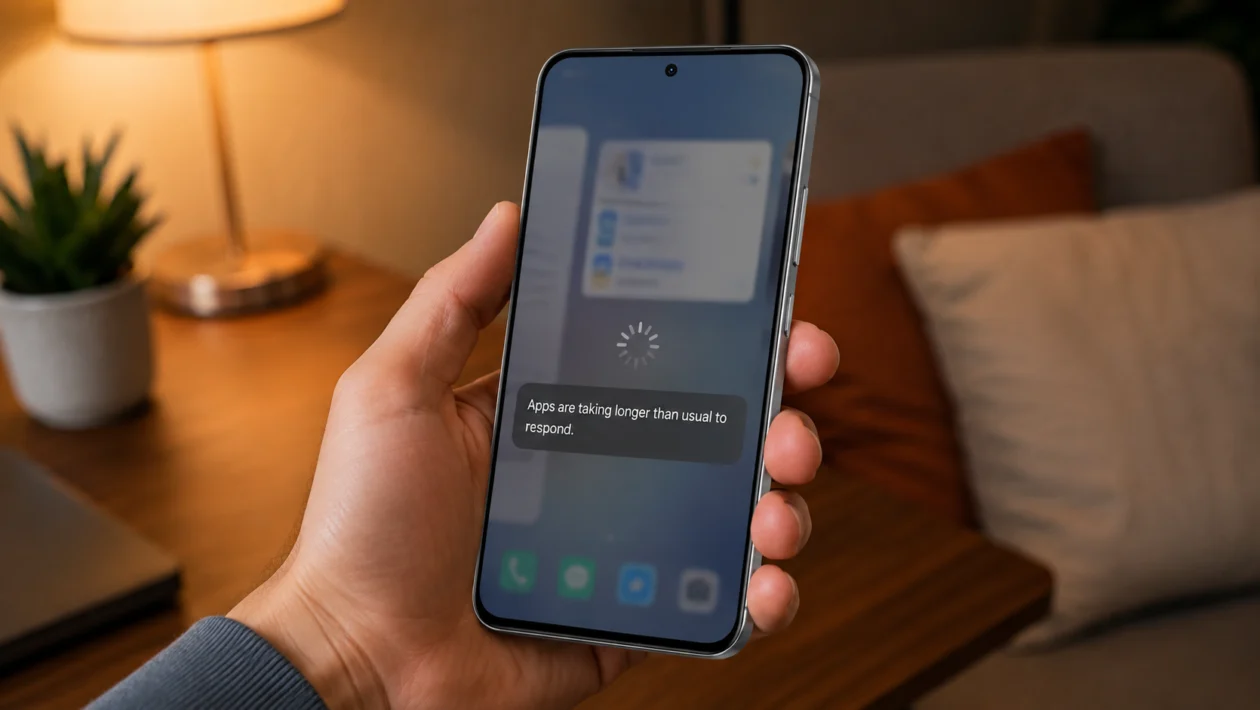
If your Realme P4R apps are lagging, freezing, stuttering, or taking too long to open, the problem is usually caused by background apps, full storage, outdated apps, app cache, weak network, battery restrictions, or a recent software update.
You do not need to reset the phone right away. Start with the basic checks first. Restart the phone, update your apps, clear cache, free storage, and check which apps are using too many resources.
Quick answer
To fix Realme P4R apps lagging, restart the phone, update Realme UI, update your apps, clear the cache of the lagging app, free up storage, close background apps, and check if the issue happens only with one app or across the whole phone.
If only one app is lagging, clear that app’s cache or reinstall it. If all apps are lagging, check storage, system updates, background processes, and performance settings.
Realme P4R apps lagging diagnostic table
| Symptom | Likely cause | Check first |
|---|---|---|
| One app keeps lagging | App cache, app bug, outdated app | App info and app update |
| All apps open slowly | Low storage, background apps, system load | Storage and recent apps |
| Apps lag after update | System re-optimising or app compatibility | Restart and update apps |
| Apps lag while gaming | Heat, graphics settings, background apps | Game settings and temperature |
| Apps lag on mobile data | Weak signal or network delay | Wi-Fi test and signal strength |
| Keyboard lags inside apps | Keyboard cache or low memory | Keyboard app cache |
| Social media apps lag | Cache, autoplay, background sync | App cache and app settings |
| Phone gets warm and apps lag | Heavy load, poor signal, or charging heat | Temperature and background apps |
| Apps freeze then recover | RAM pressure or app bug | Recent apps and app cache |
| Apps still lag after fixes | Software or hardware issue | Backup and service check |
Why are apps lagging on Realme P4R?
Apps may lag on your Realme P4R when the phone does not have enough free storage, too many apps are running in the background, app cache has built up, Realme UI needs an update, or the app itself has a bug.
This can also happen after a software update. The phone may need time to settle, rebuild app data, and optimise background services. If the lag started right after an update, restart the phone and monitor it for a day before doing bigger fixes.
1. Restart your Realme P4R
Start with a restart. It sounds basic, but it can clear temporary system issues, close stuck background processes, and refresh apps that are not responding properly.
- Press and hold the Power button.
- Tap Restart.
- Wait for the phone to turn back on.
- Open the lagging app again.
- Check if it feels smoother.
This will not delete your photos, files, apps, or settings.
2. Update the lagging apps
If only one or two apps are lagging, the app may have a bug. Updating the app can fix performance problems, crashes, and compatibility issues with Realme UI.
- Open Google Play Store.
- Tap your profile icon.
- Tap Manage apps and device.
- Tap Updates available.
- Update the app that is lagging.
- Tap Update all if many apps are outdated.
Also check the realme App Market if you installed some apps from there.
3. Update Realme UI
System updates can improve app stability, performance, security, and compatibility. If your Realme P4R apps started lagging after a known bug, a newer Realme UI update may already include a fix.
- Open Settings.
- Scroll down and tap About device.
- Tap realme UI or Software update.
- Tap Check for updates.
- Install any available update.
- Restart the phone after updating.
Keep the phone charged before updating. Use Wi-Fi if the update file is large.
4. Clear the cache of the lagging app
App cache helps apps load faster, but old or corrupted cache can also cause lag, freezing, or slow loading. Clearing cache is one of the safest fixes because it usually does not delete your login or personal files.
- Open Settings.
- Tap Apps.
- Tap App management.
- Select the app that is lagging.
- Tap Storage usage.
- Tap Clear cache.
- Reopen the app.
Try this first for apps like Facebook, Instagram, TikTok, Chrome, YouTube, Shopee, Lazada, Messenger, WhatsApp, or games that suddenly feel slow.
Do not tap Clear data unless you are ready to reset that app. Clearing data can remove app settings, downloaded files inside the app, or login sessions.
5. Free up storage space
Apps lag when your Realme P4R has too little free space. Android needs storage for app cache, temporary files, updates, downloads, and background tasks.
- Open Settings.
- Tap Storage.
- Check how much space is available.
- Delete files you no longer need.
- Remove duplicate photos and videos.
- Uninstall apps you rarely use.
- Empty recently deleted files if available.
Try to keep at least 10% to 15% of your storage free. If the phone is almost full, apps may open slowly, freeze during scrolling, or fail to update properly.
6. Close background apps you do not need
Too many apps running at the same time can make the phone feel slower, especially when switching between apps. This is more noticeable if you have social media, games, shopping apps, browser tabs, navigation, and messaging apps open together.
- Swipe up from the bottom and hold to open Recent apps.
- Swipe away apps you are not using.
- Tap Close all if you want to clear everything.
- Reopen only the app you need.
Do not do this every few minutes. Closing apps constantly can make some apps reload more often. Use it when the phone is already lagging or when a heavy app is stuck.
7. Turn off battery restrictions for important apps
Sometimes apps feel laggy because battery settings are too strict. This can affect messaging apps, keyboard apps, navigation apps, and apps that need background activity.
- Open Settings.
- Tap Battery.
- Tap More settings or App battery management.
- Choose the app that is lagging.
- Allow background activity if the app needs it.
- Avoid restricting important apps too aggressively.
This is useful if an app lags when opening notifications, loading messages, syncing files, or refreshing feeds.
For apps you do not use often, keep background activity limited. For apps you rely on daily, allow enough background activity so they work properly.
8. Check if the lag happens only on mobile data
Some apps feel slow because of network delay, not phone performance. Social media, streaming apps, browsers, maps, games, cloud storage, and shopping apps can lag when the signal is weak.
Test it this way:
- Connect to a stable Wi-Fi network.
- Open the same app.
- Scroll, load videos, send messages, or open pages.
- Switch back to mobile data.
- Compare the difference.
If the app works fine on Wi-Fi but lags on mobile data, check your signal, SIM, data plan, VPN, private DNS, or network mode.
You can also try turning Airplane mode on for 10 seconds, then turning it off again.
9. Remove or reinstall problem apps
If one app keeps lagging even after clearing cache and updating it, the app installation may be corrupted. Reinstalling gives it a fresh start.
- Long-press the lagging app.
- Tap App info.
- Tap Uninstall.
- Restart your Realme P4R.
- Open Google Play Store.
- Install the app again.
- Sign in and test it.
Before uninstalling, check whether the app stores important files locally. Some apps may delete downloaded files, offline videos, drafts, or saved settings when removed.
If the problem comes back after reinstalling, the issue may be with the app version itself. In that case, wait for the next app update or report the issue to the app developer.
10. Back up your phone and reset only if nothing works
A factory reset should be the last fix, not the first. It can help when system files, settings, or apps are badly corrupted, but it will erase your phone if you do not back up your data first.
Before resetting, back up:
Photos and videos
Contacts
Messages
WhatsApp or Messenger data
Documents and downloads
Authenticator apps
Banking app access
Important app files
Then reset the phone:
- Open Settings.
- Tap Additional settings.
- Tap Back up and reset.
- Tap Reset phone.
- Tap Erase all data only when your backup is complete.
After the reset, install your apps slowly. Do not restore every old app at once. Test the phone first, then reinstall only the apps you actually use.
If your Realme P4R still lags after a clean reset, contact realme support or visit a service center. The issue may be related to hardware, storage health, or a deeper system problem.
When should you contact realme support?
Contact realme support if:
Your Realme P4R lags even after a factory reset
Apps freeze every few minutes
The phone gets hot during simple tasks
The phone restarts while using apps
Apps lag badly after a failed update
The screen becomes unresponsive
The issue started after physical damage or water exposure
Bring your proof of purchase if the phone is still under warranty.
FAQs
Why is my Realme P4R lagging when opening apps?
Your Realme P4R may lag when opening apps because of full storage, too many background apps, outdated apps, app cache, weak signal, or a system update that needs more time to settle.
Does clearing cache delete my files?
Clearing cache usually does not delete your photos, videos, logins, or personal files. It only removes temporary files used by the app. Clearing data is different and may reset the app.
Why do apps lag after a Realme UI update?
Apps may lag after a Realme UI update because the phone is rebuilding cache, updating background services, or waiting for app updates to match the new system version. Restart the phone, update apps, and monitor it for 24 to 48 hours.
