
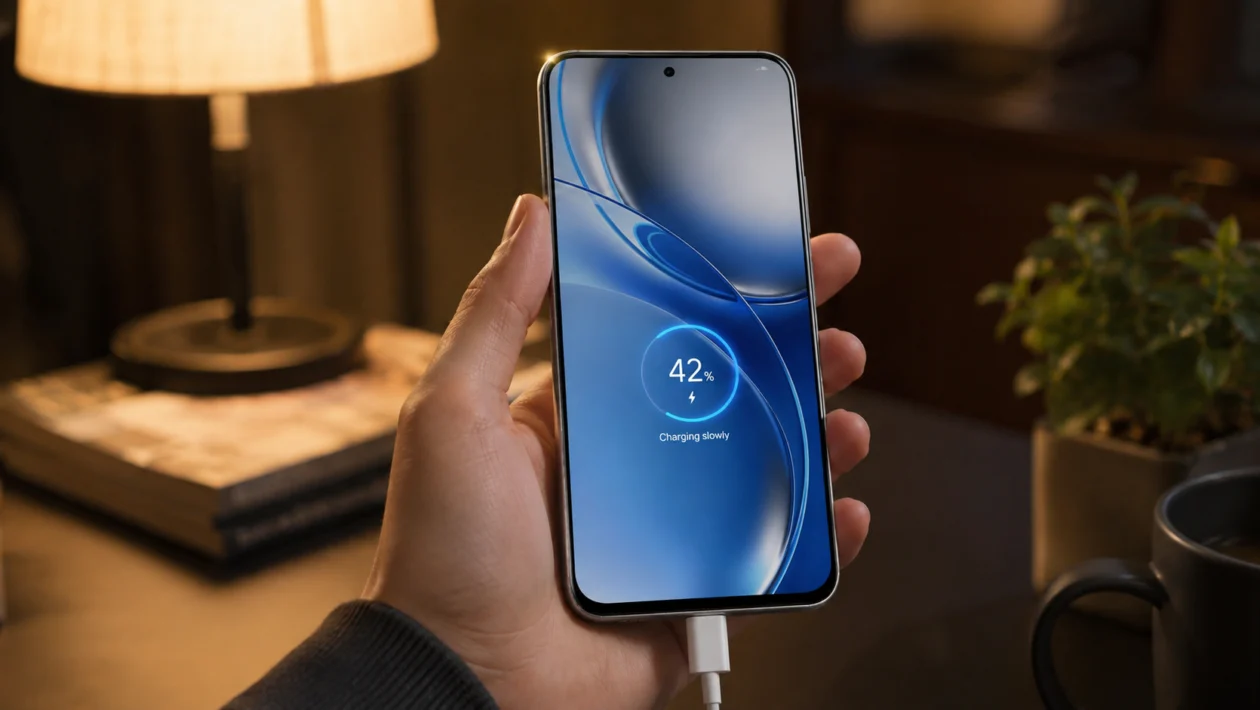
If your Realme P4R is charging slower than expected, the first thing to check is the charger, cable, charging port, phone temperature, and battery settings. Slow charging does not always mean the battery is damaged. It can happen because of a weak adapter, damaged cable, dirty USB-C port, heat, background apps, smart charging limits, or a software issue.
The Realme P4R 5G supports 45W Fast Charging and has an 8000mAh battery, so a full charge can still take time compared with smaller phones. But if it suddenly charges much slower than before, use the checks below before going to a service center.
Quick answer
To fix a Realme P4R with slow charging, use the original Realme charger and cable, clean the USB-C port carefully, restart the phone, stop using it while charging, close background apps, and check whether the phone is too hot. Then update Realme UI, turn off battery features that delay charging, and test another compatible Realme charger.
If your Realme P4R still charges slowly with a known working Realme charger and cable, the issue may be with the charging port, battery, adapter, or phone hardware.
Realme P4R slow charging diagnostic table
| Symptom | Likely cause | What to check first |
|---|---|---|
| Charging is slow all the time | Weak charger, damaged cable, dirty port | Charger, USB-C cable, charging port |
| Fast charging does not appear | Non-compatible charger or cable | Use original Realme adapter and cable |
| Charging slows after 70% or 80% | Smart charging or battery protection | Battery settings |
| Charging is slow while gaming | Heat and high power use | Stop gaming while charging |
| Charging slows when phone is hot | Temperature protection | Remove case and let phone cool |
| Battery percentage barely moves | Background apps or bad charger | Close apps and test another charger |
| Charging keeps connecting and disconnecting | Loose cable, dirty port, damaged accessory | Cable, port, adapter |
| Slow charging started after update | Software or app issue | Restart, update apps, update Realme UI |
| Phone shows temperature warning | Battery protection | Cool phone before charging |
| Still slow after all fixes | Possible hardware issue | Realme service center |
Why is my Realme P4R charging slowly?
Your Realme P4R may charge slowly because the phone is not receiving enough power or because it is limiting charging speed to protect the battery.
Common causes include:
Using a non-original charger
Using a weak USB adapter
Using a damaged or low-quality USB-C cable
Dust or lint inside the charging port
High phone temperature
Gaming, video calls, hotspot, or navigation while charging
Too many apps running in the background
Smart charging or optimized night charging
Outdated software
Battery, charging port, or adapter damage
Realme’s own support guidance says slow charging can be related to charging accessories, damaged cables or adapters, high charging temperature, background apps, and phone use while charging.
1. Use the original Realme charger and cable
Start here because this is the most common reason Realme fast charging stops working.
The Realme P4R supports 45W Fast Charging, but you usually need a compatible Realme charger and USB-C cable to get the expected charging speed. A random charger may still charge the phone, but it may not trigger fast charging.
Do this:
- Unplug the charger.
- Use the original Realme adapter if you still have it.
- Use the original USB-C cable.
- Plug the adapter directly into a wall outlet.
- Check whether the charging speed improves.
Avoid charging from a laptop USB port, car USB port, cheap extension socket, or low-wattage power bank when testing. These can make charging much slower.
If the phone charges faster with the original charger, the problem is not the phone. It is likely the adapter, cable, or power source you were using.
2. Check the USB-C cable for damage
A cable can look fine and still cause slow charging. This happens when the inner wiring is damaged or the connector no longer fits firmly.
Check for:
Bent USB-C tip
Loose connection
Frayed cable
Burn marks
Charging that stops when the cable moves
Fast charging working only at certain angles
Try another compatible Realme, OPPO, or OnePlus USB-C cable if available. These brands often share similar fast-charging standards, but the safest test is still the original Realme cable.
If a different cable fixes the issue, replace the old cable. Do not keep using a cable that heats up, disconnects often, or only works when bent.
3. Clean the charging port carefully
Dust, pocket lint, and dirt inside the USB-C port can stop the cable from sitting properly. When the connection is weak, your Realme P4R may charge slowly or keep switching between charging and not charging.
Do this carefully:
- Turn off the phone.
- Remove the charging cable.
- Look inside the USB-C port using a flashlight.
- If you see lint, remove it gently with a soft brush or wooden toothpick.
- Do not use metal tools.
- Do not pour liquid into the port.
- Plug the cable back in and check if it fits firmly.
If the cable still feels loose after cleaning, the port may be worn or damaged. At that point, it is safer to have Realme service inspect it.
4. Let the phone cool down before charging
Heat can slow charging on Realme phones. This is normal battery protection, not always a defect.
Your Realme P4R may charge slowly if it is hot from:
Gaming
Video recording
Video calls
Hot weather
Direct sunlight
Mobile hotspot
Poor signal areas
Charging with a thick case on
Do this:
- Unplug the charger.
- Remove the phone case.
- Close games, camera, hotspot, and video apps.
- Place the phone in a cooler indoor area.
- Wait 10 to 15 minutes.
- Charge again.
Do not put the phone in a freezer or in front of water. A sudden temperature change can create moisture risk.
If slow charging happens only when the phone is hot, the phone is likely protecting the battery.
5. Stop using the Realme P4R while charging
If you use the phone heavily while charging, the charger is powering the screen, processor, network, and battery at the same time. That can make the battery percentage move slowly.
This is common when using:
Games
TikTok, YouTube, or Netflix
Camera
Video calls
Maps navigation
Mobile hotspot
Large downloads
5G mobile data
For a proper test, do this:
- Plug in the phone.
- Lock the screen.
- Leave it unused for 20 minutes.
- Check how much the battery percentage increases.
If charging becomes faster when the screen is off, the issue is usage load, not necessarily the charger.
6. Close background apps before charging
Apps running in the background can use power while the phone is charging. If too many apps are active, your Realme P4R may seem like it is charging slowly because power is being used at the same time.
Do this:
- Open the recent apps screen.
- Tap Close all.
- Open Settings.
- Go to Battery.
- Check battery usage.
- Look for apps using more power than expected.
- Force stop or uninstall suspicious apps.
Pay attention to apps that use location, camera, mobile data, or background syncing. Social media, shopping apps, games, VPN apps, and navigation apps can sometimes drain power while charging.
7. Turn off Smart Charging or Optimized Night Charging temporarily
Some Realme battery features are designed to protect battery health by slowing or pausing charging at certain times. This is useful overnight, but it can look like a charging problem if you need a faster charge right now.
Check this setting:
- Open Settings.
- Tap Battery.
- Tap Battery Health or More battery settings.
- Look for Wise Charging, Smart Charging, or Optimized Night Charging.
- Turn it off temporarily.
- Charge the phone again and compare the speed.
On some Realme UI versions, the wording may vary. You can also use the Settings search bar and type:
Smart charging
Wise charging
Optimized night charging
Battery health
If the phone charges faster after turning this off, the feature was likely managing charging speed based on your routine.
8. Restart your Realme P4R
A restart can fix temporary charging bugs, stuck background apps, and small system glitches.
Do this:
- Press and hold the power button.
- Tap Restart.
- Wait for the phone to turn back on.
- Plug in the charger again.
- Check whether fast charging works.
This will not delete your files.
If slow charging started suddenly, restart before changing more settings. It is simple, safe, and often enough to clear a temporary issue.
9. Update Realme UI and your apps
Software bugs can affect charging behavior, battery use, and background power consumption. If slow charging started after an update, apps may also need updates to work properly with the new system version.
To update Realme UI:
- Open Settings.
- Tap About device.
- Tap Realme UI or Software update.
- Install any available update.
To update apps:
- Open the Google Play Store.
- Tap your profile icon.
- Tap Manage apps and device.
- Tap Update all.
If your phone recently received a major update, give it a day or two of normal use after updating apps. Phones can temporarily use more background power after a system update.
10. Test another compatible charger, then contact Realme support
If none of the fixes work, test your Realme P4R with another known working Realme charger and cable.
Do this:
- Borrow a compatible Realme charger and cable.
- Plug it directly into a wall outlet.
- Charge the phone while the screen is off.
- Test for at least 20 minutes.
- Compare the charging speed.
If your Realme P4R still charges slowly, the issue may be hardware-related. Possible causes include:
Damaged charging port
Faulty battery
Faulty charging circuit
Damaged adapter
Water or moisture damage
Internal heat or power management issue
Bring the phone, charger, cable, proof of purchase, and warranty card to a Realme service center if the problem continues.
What not to do
Do not use a damaged cable.
Do not clean the port with metal tools.
Do not charge the phone under a pillow.
Do not keep gaming while troubleshooting charging speed.
Do not use random “fast charging booster” apps.
Do not ignore swelling, burning smell, or extreme heat.
If the battery looks swollen or the phone gets unusually hot, stop charging and have it checked.
FAQ
Why is my Realme P4R charging slowly even with fast charging?
Your Realme P4R may charge slowly even with fast charging if the phone is hot, the cable is damaged, the charger is not fully compatible, or smart charging is limiting the speed. Start by testing the original Realme charger and cable.
Does the Realme P4R support fast charging?
Yes. The Realme P4R 5G is listed with 45W Fast Charging and an 8000mAh battery. Because the battery is large, charging may still take longer than smaller phones even when fast charging works normally.
Why does my Realme P4R charge slowly after 80%?
Charging often slows near higher battery levels to reduce heat and protect battery health. If Smart Charging, Wise Charging, or Optimized Night Charging is enabled, the phone may also pause or slow charging based on your routine.
