
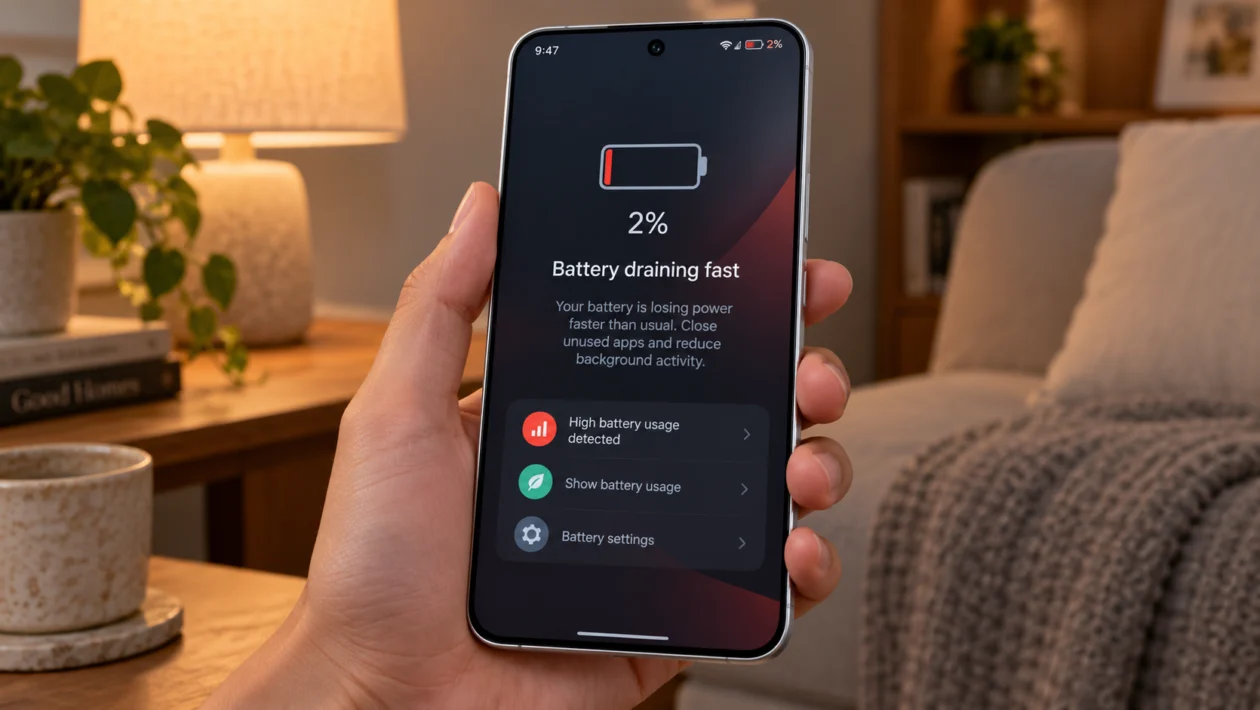
If your vivo X500 Pro battery is dropping faster than expected, do not assume the battery is bad right away. Rapid battery drain can come from apps, screen settings, weak signal, 5G, location access, system updates, gaming, camera use, or background activity.
The vivo X500 Pro is a high-end phone, so it can use more power when the display, camera, processor, mobile data, and AI features are active at the same time. That does not mean you have to live with poor battery life.
Start with the simple checks first. Look at battery usage, restart the phone, update your apps, then adjust the settings that usually drain power fastest.
Quick answer
To fix a vivo X500 Pro with rapid battery drain, go to Settings > Battery and check which apps are using the most power. If one app is unusually high, update it, restrict background battery use, or uninstall it temporarily.
Then check display brightness, refresh rate, 5G signal, background apps, location access, Bluetooth, hotspot, system updates, and battery health. If the drain started after an update, give the phone 24 to 48 hours after updating apps before doing a reset.
vivo X500 Pro battery drain diagnostic table
| Symptom | Likely cause | What to check first |
|---|---|---|
| Battery drains overnight | Background apps, syncing, notifications, location | Settings > Battery |
| Battery drains faster on mobile data | Weak signal, 5G, poor coverage | Network mode and signal strength |
| Battery drops while screen is on | Brightness, refresh rate, long screen timeout | Display settings |
| Phone gets warm and drains fast | Gaming, camera, hotspot, heavy app, poor signal | Battery usage and temperature |
| Battery drain after update | Apps re-indexing or system optimisation | Restart, update apps, wait 24 to 48 hours |
| Battery drops fast with apps closed | Auto-start apps or background permissions | Background power consumption settings |
| Battery drains while using camera | High-resolution video, zoom, AI processing | Camera mode and recording settings |
| Battery drops suddenly | Battery calibration issue or hardware fault | Full charge cycle and vivo support |
| Phone shuts down before 0% | Possible battery or system issue | Service center check |
| Battery is poor from day one | Setup activity, restore process, defective unit | Monitor after 2 full days |
Why is my vivo X500 Pro battery draining so fast?
Your vivo X500 Pro may be draining fast because something is using more power than normal.
Common causes include:
Apps running in the background
High screen brightness
High refresh rate
Always On Display
Weak mobile signal
5G usage
Location access
Bluetooth, hotspot, or syncing
Camera and video recording
Gaming or heavy performance mode
Recent software update
Battery or hardware fault
The best fix depends on the cause. Use the 10 solutions below in order.
1. Check battery usage first
Start here because it tells you what is actually using the battery.
- Open Settings.
- Tap Battery.
- Open Battery usage or a similar power usage section.
- Look for apps using more battery than expected.
- Tap the app and check its background activity options.
Look for apps that you barely used but appear high on the list. Social media apps, shopping apps, navigation apps, games, camera apps, video apps, and messaging apps can use more power than expected.
If one app stands out, update it first. If it still drains battery, restrict its background activity or uninstall it for one day to test the phone without it.
2. Restart your vivo X500 Pro
A restart can stop temporary software issues, stuck background services, and apps that are draining power after freezing or crashing.
- Press and hold the Power button.
- Tap Restart.
- Wait for the phone to turn back on.
- Use it normally for a few hours.
- Check whether the battery drain improves.
This will not delete your photos, apps, messages, or files.
Try this before changing deeper settings. It is simple, but it fixes more battery problems than people expect.
3. Update your apps and phone software
Battery drain often starts when one app is outdated, buggy, or not fully compatible with the current system version.
To update your phone:
- Open Settings.
- Tap System update.
- Check for updates.
- Install any available update.
To update apps:
- Open the Google Play Store or vivo app store, depending on your model and region.
- Tap your profile or app management section.
- Choose Manage apps and device or Updates.
- Update all important apps.
If the battery drain started after a major update, do not panic immediately. The phone may still be re-optimising apps, refreshing background data, and rebuilding system processes. Use the phone normally for 24 to 48 hours after updating your apps.
4. Reduce brightness, refresh rate, and screen timeout
The screen is one of the biggest battery users on the vivo X500 Pro. A bright display with a high refresh rate can drain battery quickly, especially when you watch videos, browse social apps, or use the phone outdoors.
Change these settings:
- Open Settings.
- Tap Display and brightness.
- Lower the brightness.
- Turn on Auto brightness if you want the phone to adjust brightness automatically.
- Open Screen timeout.
- Choose a shorter time, such as 30 seconds or 1 minute.
Then check refresh rate:
- Open Settings.
- Tap Display and brightness.
- Look for Screen refresh rate or Refresh rate.
- Choose a standard or smart option if battery life matters more than smoother scrolling.
Also turn off Always On Display if your phone loses battery while sitting idle.
- Open Settings.
- Tap Lock screen and wallpaper or Home screen, lock screen and wallpaper.
- Open Always On Display.
- Turn it off, or set it to show only when tapped.
5. Restrict background power usage
Some apps keep running even when you are not actively using them. This can drain the vivo X500 Pro overnight or while the phone is in your pocket.
Check background battery settings:
- Open Settings.
- Tap Battery.
- Open Background power consumption management, Background battery usage, or a similar option.
- Select apps you do not need running all the time.
- Restrict or optimise their background activity.
Be careful with apps you rely on for real-time alerts. Messaging, banking, ride-hailing, delivery, health, and security apps may need background access to work properly.
Good apps to restrict usually include games, shopping apps, rarely used social apps, video apps, and apps that send too many notifications.
6. Turn off unnecessary location access
Location services can drain battery when apps check your position often. This is common with maps, weather apps, ride-hailing apps, camera apps, social apps, and shopping apps.
Check location permissions:
- Open Settings.
- Tap Location.
- Check which apps recently used location.
- Open App location permissions.
- Set unnecessary apps to Allow only while using the app or Deny.
Do not turn off location for apps that need it for safety or core functions. Maps, delivery, emergency tools, and ride apps may need location access.
Also check camera location tagging. If you do not need location saved with photos, turn it off inside the Camera settings.
7. Check 5G and weak signal drain
Mobile signal matters. If your vivo X500 Pro is in an area with weak or unstable signal, it may use more power trying to stay connected. This is worse in basements, lifts, rural areas, crowded malls, and places with patchy 5G.
If battery drain is worse on mobile data than Wi-Fi, test a lower network mode.
- Open Settings.
- Tap Mobile network or Network and internet.
- Tap your SIM.
- Open Preferred network type or Network mode.
- Choose 4G/LTE if you do not need 5G all day.
You do not have to disable 5G forever. Try using 4G for one full day. If battery life improves, weak 5G coverage may be part of the problem.
Also turn off hotspot when you are done using it. Hotspot can drain battery quickly because the phone is using mobile data and sharing Wi-Fi at the same time.
8. Reduce camera, gaming, and performance-heavy use
The vivo X500 Pro is built for demanding tasks, but camera recording, gaming, high brightness, AI features, and mobile data can drain battery fast when used together.
Battery can drop quickly when you use:
4K or high-frame-rate video
Long camera sessions
Portrait and night modes
Zoom-heavy camera use
Mobile gaming
Game boost modes
Screen recording
Hotspot
Navigation
Video calls
To reduce drain:
- Lower screen brightness before gaming or recording.
- Use Wi-Fi instead of mobile data when possible.
- Close games when finished.
- Avoid recording long high-resolution videos when the phone is already warm.
- Turn off hotspot during gaming or camera use.
- Remove thick cases if the phone gets hot.
Heat makes battery drain worse. If the phone becomes warm, stop heavy use for a few minutes and let it cool down.
9. Clean up auto-start apps and notifications
Some apps start automatically when the phone turns on. Others wake the phone repeatedly through notifications, sync, widgets, and background refresh.
Check auto-start apps:
- Open Settings.
- Tap Apps.
- Open Permission management, Special app access, or Auto-start, depending on your software version.
- Turn off auto-start for apps that do not need it.
Then reduce unnecessary notifications:
- Open Settings.
- Tap Notifications.
- Choose apps that send frequent alerts.
- Turn off low-value notification categories.
This helps if the battery drains while the screen is off. A phone that wakes up every few minutes will not save much power, even if you are not using it.
10. Reset settings or contact vivo support
Use this only after trying the easier fixes.
First, reset system settings without deleting personal files:
- Open Settings.
- Tap System management.
- Open Backup and reset.
- Choose Reset all settings, if available.
- Restart the phone.
This may reset Wi-Fi, Bluetooth, permissions, and system preferences, but it should not delete your photos or personal files. Wording may vary by region and software version, so read the confirmation screen carefully before tapping reset.
Contact vivo support or visit a service center if:
The battery drops suddenly from a high percentage
The phone shuts down before reaching 0%
The phone gets hot during light use
Battery drain continues after a reset
Charging is slower than normal
The phone is new and battery life is poor after several days
The battery looks swollen or the back panel is lifting
Do not keep using the phone if you suspect battery swelling. Power it off and get it checked.
Should you factory reset the vivo X500 Pro?
A factory reset can help if rapid battery drain is caused by a deep software problem, but it should not be your first fix.
Try these first:
Check battery usage
Restart the phone
Update apps
Update the system
Restrict background apps
Lower display settings
Test 4G instead of 5G
Turn off unnecessary location access
Only factory reset if the drain continues and you have backed up your data.
FAQ
Why is my vivo X500 Pro battery draining overnight?
Overnight battery drain is usually caused by background apps, syncing, notifications, mobile signal, location access, or Always On Display. Check Settings > Battery first to see what used power while the phone was idle.
Why does my vivo X500 Pro drain faster on mobile data?
Mobile data can use more power than Wi-Fi, especially when signal is weak. If the phone keeps switching between 5G and 4G, battery drain can get worse. Test 4G/LTE mode for one day and compare the results.
Can 5G cause battery drain on the vivo X500 Pro?
Yes. 5G can use more battery when coverage is weak, unstable, or constantly switching. You can keep 5G on when you need speed, then use 4G/LTE when battery life matters more.
