
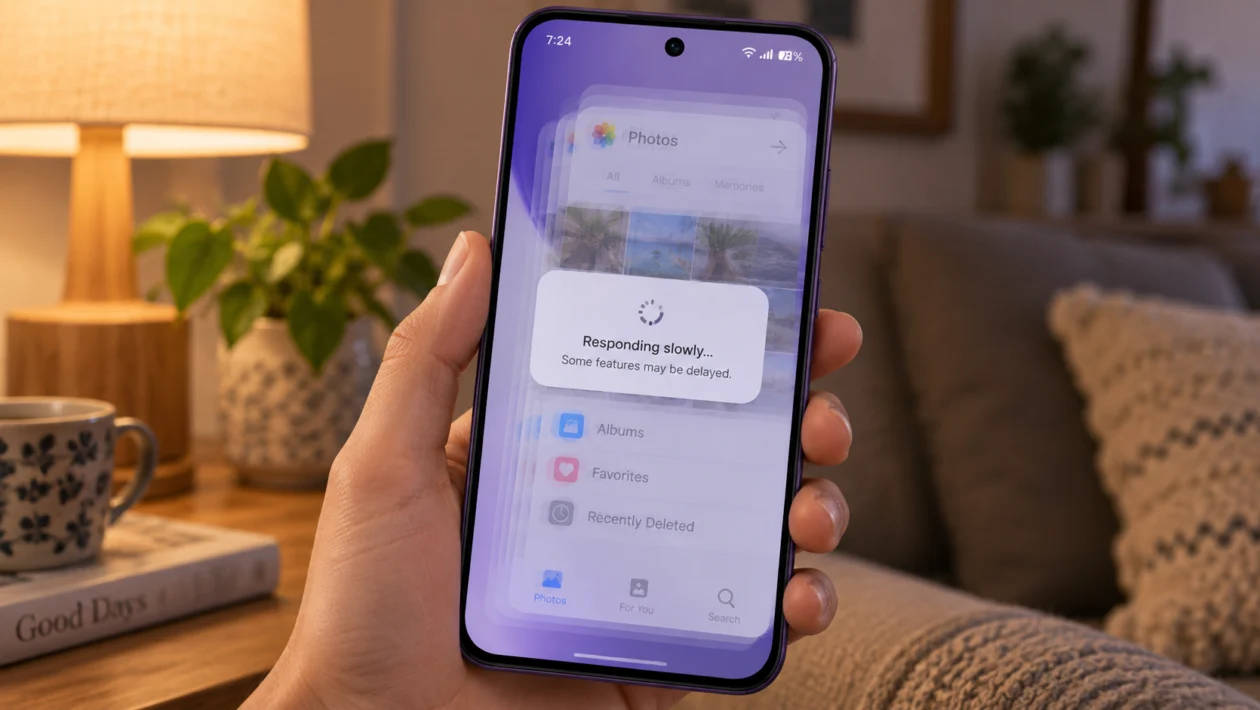
If your Oppo Reno16c keeps lagging, freezing, or responding slowly, it does not always mean the phone is defective. Lag can happen when too many apps are running, storage is almost full, software needs an update, background apps are using memory, or the phone is getting warm during heavy use.
Start with the simple checks first. Restart the phone, check storage, update your apps, then look at settings that affect performance. Oppo phones running ColorOS also include built-in tools that can help clean storage, manage apps, and improve day-to-day smoothness.
Quick answer
To fix frequent lag on your Oppo Reno16c, restart the phone, close unused apps, free up storage, update ColorOS and your apps, then check which apps are using too much battery, memory, or background activity.
If the lag happens mostly while gaming, using the camera, switching apps, or scrolling, the cause is usually app load, heat, storage pressure, display settings, or background processes.
If the phone still lags after trying all 10 fixes, back up your data and consider a factory reset or contact Oppo support.
Oppo Reno16c lag diagnostic table
| Symptom | Likely cause | Check first |
|---|---|---|
| Phone lags after unlocking | Too many background apps | Recent apps and battery usage |
| Apps open slowly | Low storage or app cache buildup | Storage and app cache |
| Lag while gaming | Heat, high graphics, background apps | Game settings and temperature |
| Scrolling feels choppy | Refresh rate, app issue, low memory | Display settings and app updates |
| Keyboard delay | Keyboard cache or overloaded RAM | Keyboard app and background apps |
| Camera opens slowly | Storage, camera cache, heat | Free storage and restart |
| Lag after update | Apps re-optimising or software bug | Restart and update apps |
| Phone freezes often | Problem app or system issue | Safe Mode or factory reset |
Why is my Oppo Reno16c lagging?
Your Oppo Reno16c may lag because the phone is running out of available memory, storage space, or processing headroom.
Common causes include:
Too many apps running in the background
Low internal storage
Large app cache files
Outdated apps
Outdated ColorOS software
High refresh rate or heavy animations
Gaming or camera use while the phone is warm
Weak or unstable apps
Too many widgets or live wallpapers
A recent software update still settling in
The good news is that most lag problems can be fixed without replacing the phone. Try the fixes below in order.
1. Restart your Oppo Reno16c
Start with a restart. It sounds basic, but it is one of the quickest ways to clear temporary system lag.
A restart can close stuck background processes, refresh memory, and stop apps that may be slowing the phone down.
- Press and hold the Power button.
- Tap Restart.
- Wait for the phone to turn back on.
- Use it normally for a few minutes.
- Check if the lag is still there.
Do this first if the lag appeared suddenly, especially after opening many apps, gaming, using the camera, or installing an update.
This will not delete your files.
2. Close unused background apps
If many apps are open at the same time, your Oppo Reno16c may slow down when switching between them.
Apps like TikTok, Facebook, Instagram, Chrome, YouTube, Shopee, Lazada, games, maps, and camera apps can use memory even when you are not actively looking at them.
To close unused apps:
- Swipe up from the bottom of the screen and hold.
- Look through your recent apps.
- Swipe away apps you are not using.
- Tap Close all if available.
Do not close every app every few minutes. That can sometimes make the phone work harder because apps need to reload again. Just close apps that are stuck, heavy, or no longer needed.
3. Free up storage space
Low storage is one of the most common reasons a phone starts lagging. When internal storage is almost full, the phone has less room for app data, cache, downloads, photos, videos, and system processes.
Try to keep at least 10% to 20% of your storage free.
To check storage:
- Open Settings.
- Tap About device or Storage.
- Check how much space is left.
- Delete files you no longer need.
Start with large files:
Videos
Screen recordings
Downloaded movies
Duplicate photos
Old APK files
WhatsApp media
Telegram downloads
Offline music
Unused apps
You can also use Phone Manager or the built-in storage cleanup tool to remove junk files and cached data.
If your Oppo Reno16c supports expandable storage, move photos, videos, and large files to a microSD card. Keep apps and system files on internal storage for better performance.
4. Clear cache from laggy apps
If the lag happens in one app, the problem may be that app, not the whole phone.
For example, if your Oppo Reno16c only lags when using Facebook, TikTok, Chrome, Shopee, Messenger, or Mobile Legends, clear that app’s cache first.
To clear app cache:
- Open Settings.
- Tap Apps.
- Tap App management.
- Select the app that lags.
- Tap Storage usage.
- Tap Clear cache.
Do not tap Clear data unless you are ready to reset the app. Clearing data may remove logins, settings, downloads, or saved app information.
Clear cache first. Then reopen the app and check if it feels smoother.
5. Update ColorOS and your apps
Software updates often include bug fixes, performance improvements, app compatibility changes, and security patches. If your Oppo Reno16c lags often, check for both system updates and app updates.
To update ColorOS:
- Open Settings.
- Tap About device.
- Tap ColorOS version.
- Check for updates.
- Download and install any available update.
To update apps:
- Open Google Play Store.
- Tap your profile icon.
- Tap Manage apps and device.
- Tap Update all.
Also check the App Market or Oppo app store if you use Oppo system apps.
If the lag started right after an update, restart the phone and give it a day or two. After a major update, the phone may need time to re-optimise apps, rebuild background data, and settle system processes.
6. Remove apps you do not use
Unused apps can still affect performance. Some apps run services in the background, send notifications, sync data, track location, or wake the phone even when you rarely open them.
Remove apps you no longer need.
- Open Settings.
- Tap Apps.
- Tap App management.
- Look for apps you rarely use.
- Tap Uninstall.
Pay special attention to:
Battery saver apps
Phone booster apps
Unknown cleaner apps
Old games
Shopping apps you no longer use
Duplicate browser apps
Apps installed from APK files
Wallpaper and theme apps
Many third-party “RAM booster” and “phone cleaner” apps are not needed. Oppo already includes built-in system management tools, so extra cleaner apps may create more background activity instead of helping.
7. Turn off heavy visual effects and live wallpapers
If your Oppo Reno16c feels slow when swiping, unlocking, opening folders, or returning to the home screen, the issue may be related to animations, widgets, or wallpapers.
Live wallpapers, animated themes, too many widgets, and heavy launchers can make the phone feel less responsive.
Try this:
- Use a static wallpaper instead of a live wallpaper.
- Remove widgets you do not need.
- Avoid third-party launchers if the phone lags on the home screen.
- Use a simple theme.
- Restart the phone after changing the home screen setup.
You can also reduce animation speed through Developer Options, but most users do not need to touch that setting. Start with wallpapers, widgets, and themes first.
8. Adjust refresh rate and display settings
A high refresh rate can make scrolling look smoother, but it can also use more power and system resources. If the phone feels inconsistent, try changing the screen refresh rate and test whether performance improves.
To check refresh rate:
- Open Settings.
- Tap Display and brightness.
- Look for Screen refresh rate.
- Choose Auto or Standard if available.
The exact wording may vary depending on your ColorOS version.
Also check brightness. If your phone gets warm because brightness is high for long periods, performance may drop to control heat.
Try this:
Lower brightness
Turn on auto brightness
Avoid using the phone under direct sunlight for long sessions
Remove thick cases while gaming if the phone gets hot
Heat can make the phone throttle performance, which may feel like lag.
9. Limit background activity for problem apps
Some apps keep running in the background even when you are not using them. This can cause lag, battery drain, overheating, and delayed touch response.
Check apps that do not need constant background activity.
- Open Settings.
- Tap Battery.
- Tap Battery usage.
- Look for apps using more power than expected.
- Tap the app.
- Limit background activity if the option is available.
You can also check app permissions:
- Open Settings.
- Tap Privacy.
- Tap Permission manager.
- Review Location, Camera, Microphone, and Nearby devices.
- Remove permissions from apps that do not need them.
Be careful with messaging, email, banking, delivery, and security apps. If you restrict them too much, notifications may be delayed.
Focus on apps that do not need to run all day, such as shopping apps, games, photo editors, travel apps, and rarely used social apps.
10. Factory reset if nothing else works
A factory reset should be the last fix, not the first one. It can help if the phone still lags after updates, cache cleanup, app removal, storage cleanup, and background activity checks.
A factory reset removes your personal files, apps, accounts, settings, photos, videos, and downloads from the phone. Back up everything important before doing this.
Before resetting:
Back up photos and videos
Sync contacts
Save important files
Back up WhatsApp or Messenger data
Remember your Google account password
Charge the phone
To factory reset:
- Open Settings.
- Tap Additional settings.
- Tap Back up and reset.
- Tap Reset phone.
- Choose Erase all data.
- Follow the on-screen instructions.
After the reset, do not reinstall every old app immediately. Install only the apps you actually use, then observe the phone for a day. If the lag disappears, one of your previous apps or settings was likely causing the problem.
When should you contact Oppo support?
Contact Oppo customer service if your Oppo Reno16c still lags after a factory reset, freezes during basic tasks, restarts by itself, overheats even when idle, or becomes unusable with no apps installed.
You should also get help if the phone:
Freezes on the lock screen
Shuts down randomly
Gets very hot during light use
Lags heavily after a drop or water exposure
Cannot install updates
Shows storage errors
Has touch delay even after reset
These symptoms may point to a deeper software or hardware issue.
FAQ
Why is my Oppo Reno16c lagging after an update?
Your Oppo Reno16c may lag after an update because apps and system services are still re-optimising. Restart the phone, update all apps, and use it normally for 24 to 48 hours. If the lag continues, clear cache from problem apps and check storage.
Does low storage make the Oppo Reno16c lag?
Yes. Low storage can make apps open slowly, delay camera performance, and make the phone feel less responsive. Delete large files, remove unused apps, and keep free storage available.
Should I use a phone booster app?
Usually, no. Third-party booster apps can add more background activity. Use the built-in Phone Manager or ColorOS storage tools instead.
