
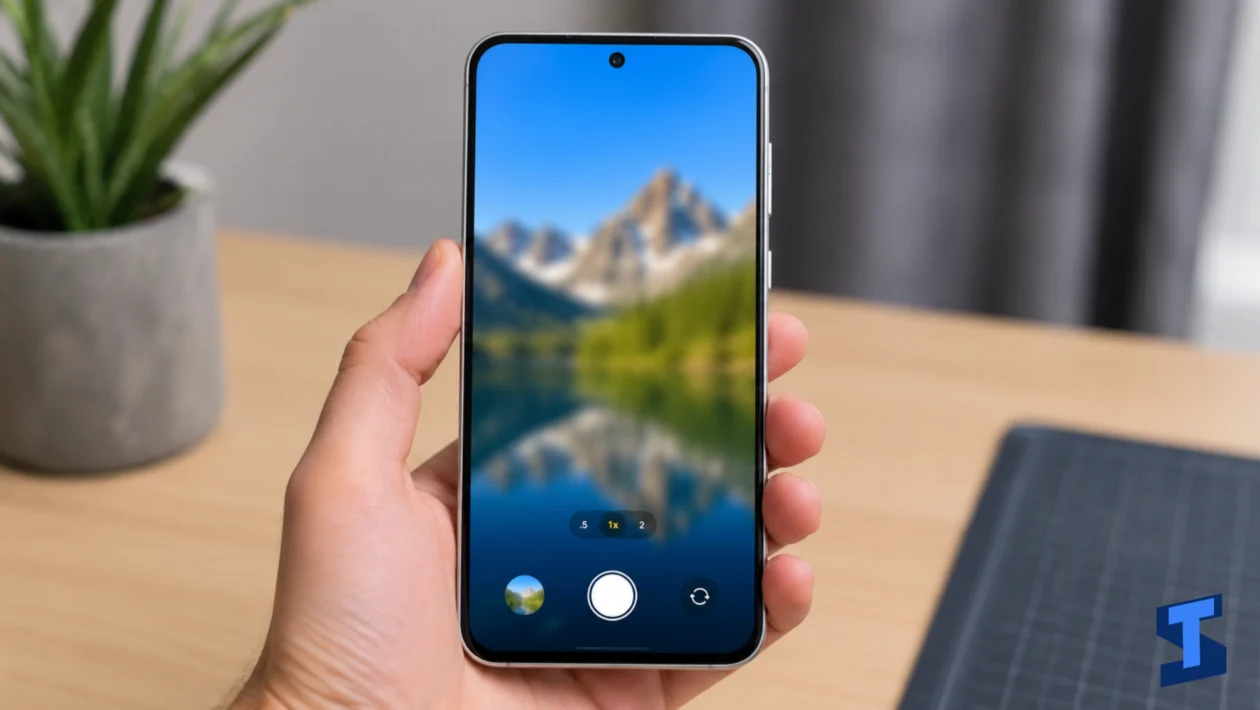
Camera problems on the Galaxy A57 can affect photos, videos, selfies, scanning, video calls, and social media uploads. If the camera app will not open, photos look blurry, focus does not work, or video recording fails, the issue may come from the Camera app, settings, storage, permissions, software bugs, or hardware-related problems.
This page covers the most common Galaxy A57 camera problems and points you to the right guide for each issue. Use it as your starting point if your camera is not working properly or if photo and video quality suddenly looks worse than expected.
For other device issues, visit the main Galaxy A57 problems and fixes page.
Common Galaxy A57 Camera Problems
The Galaxy A57 camera can run into different problems depending on how the phone is being used. Some issues happen only inside the Camera app, while others affect third-party apps like Instagram, Messenger, WhatsApp, TikTok, Snapchat, Zoom, or Google Meet.
Some camera problems are caused by simple things, such as a dirty lens, low light, blocked permissions, low storage, or an app glitch. Others may be linked to software updates, overheating, performance issues, or display problems.
Start with the camera issue that best matches what you are seeing.
Galaxy A57 Camera Not Working
If the camera is not working on your Galaxy A57, the Camera app may fail to open, show a black screen, freeze, or close by itself. This can happen because of a temporary app glitch, missing permissions, low storage, corrupted cache, or another app using the camera in the background.
Restarting the phone is usually the first fix to try. You can also close all apps, check Camera permissions, clear the Camera app cache, and make sure your phone has enough free storage.
If the issue started after installing a new app, that app may be conflicting with the camera. Apps that use the camera, filters, QR scanners, video calls, or social media camera tools can sometimes cause problems.
Galaxy A57 Camera Failed Error
The “Camera failed” error usually appears when the Camera app cannot start properly. This may happen after a software glitch, app crash, failed update, overheating, or conflict with another camera-related app.
When this error appears, try closing the Camera app and opening it again. If that does not work, restart the phone, clear the Camera app cache, check for software updates, and test the camera in Safe Mode.
If the error appears after the phone gets hot, let the device cool down first. Camera functions may be limited when the phone is overheating. You may also want to check the battery and overheating guide if heat happens often during camera use.
Galaxy A57 Camera Focus Not Working
If your Galaxy A57 camera focus is not working, photos may look soft, subjects may appear unclear, or the camera may keep hunting for focus. This can happen when the lens is dirty, the subject is too close, lighting is poor, or the camera app is having trouble locking focus.
Start by cleaning the camera lens with a soft cloth. Then tap the subject on the screen to force the camera to focus. Move slightly farther from the subject if you are too close.
Focus problems can also happen during low-light shots, close-up photos, or video recording. If the camera keeps failing to focus in all conditions, reset the Camera settings and check for software updates.
Galaxy A57 Photos Look Blurry or Soft
Blurry or soft photos are among the most common camera complaints. On the Galaxy A57, this can be caused by a dirty lens, shaky hands, moving subjects, low light, focus errors, camera settings, or image processing issues.
Before assuming something is wrong with the phone, clean the rear and front camera lenses. Make sure your fingers are not touching the camera glass. Use better lighting when taking photos indoors or at night.
If only selfies look blurry, the issue may be related to the front camera or beauty filters. If all photos look blurry, check Camera settings, reset the Camera app, and test different shooting modes.
Galaxy A57 Front Camera Not Working
If the front camera is not working, you may not be able to take selfies, make video calls, use face recognition, or record front-facing videos. The app may show a black screen, freeze when switching cameras, or close unexpectedly.
This issue can be caused by Camera app glitches, blocked permissions, third-party app conflicts, or software bugs. Check if the front camera works in the main Camera app and then test it in another app.
If face unlock is also failing, the issue may affect both the front camera and security features. You can check the security and lock screen guide for related face recognition fixes.
Galaxy A57 Camera Keeps Lagging
Camera lag can make the viewfinder stutter, delay the shutter button, or slow down photo and video capture. This can happen when the phone has low storage, too many apps running, high camera settings, software bugs, or background processes using system resources.
If the Camera app lags only after long use, the phone may be getting warm. If it lags all the time, check storage, close background apps, update the Camera app if available, and restart the phone.
Camera lag can also be connected to general system slowdown. If your phone feels slow outside the Camera app too, visit the performance troubleshooting page.
Galaxy A57 Video Recording Not Working
If video recording is not working on your Galaxy A57, the Camera app may fail to start recording, stop recording suddenly, save corrupted videos, or show an error message. This can happen because of low storage, app glitches, overheating, unsupported settings, or permission issues.
Start by checking available storage. Videos take more space than photos, especially at higher resolutions. If your storage is almost full, the camera may fail to save videos properly.
Also check whether the phone gets hot during recording. Long video sessions can use more power and may cause the phone to warm up. If overheating happens while recording, take a break and let the device cool down.
Galaxy A57 Night Mode Not Working
Night Mode helps improve photos taken in dark scenes, but it may not work properly if the phone moves too much, the subject is moving, the scene is too dark, or the Camera app has a temporary problem.
If Night Mode photos look dark, blurry, or unchanged, hold the phone steady and wait for the capture to finish. Avoid moving the phone immediately after pressing the shutter button.
For better results, use a stable surface or tripod, clean the camera lens, and take photos in areas with at least some light. Night Mode works best when the phone has enough time and stability to process the image.
What Causes Galaxy A57 Camera Problems?
Galaxy A57 camera problems can be caused by several different things. In many cases, the camera hardware is not damaged. The issue is usually related to apps, settings, storage, lighting, or software.
Common causes include:
- Dirty camera lens
- Poor lighting
- Camera app glitches
- Low storage space
- Outdated software
- Corrupted Camera app cache
- Third-party camera or social media app conflicts
- Blocked camera permissions
- Overheating during camera use
- Too many apps running in the background
- Subject too close to the lens
- Shaky hands or moving subjects
- High video settings
- Screen or touch response issues
If the issue started suddenly, think about what changed before the problem began. A new app, software update, dropped phone, low storage warning, or overheating event may be connected.
What to Try First
Before opening a specific guide, try these basic fixes first.
- Restart your Galaxy A57.
- Clean the front and rear camera lenses.
- Close all background apps.
- Check Camera permissions.
- Clear the Camera app cache.
- Free up storage space.
- Update your phone software.
- Update camera-related apps.
- Reset Camera settings.
- Test the camera in Safe Mode.
- Let the phone cool down if it feels hot.
If these quick fixes do not solve the problem, choose the guide that matches your exact camera issue.
When Camera Problems May Be Related to Other Issues
Some Galaxy A57 camera problems are connected to other parts of the phone.
If the Camera app lags, freezes, or opens slowly, the issue may be related to overall phone performance.
If the camera viewfinder does not respond to taps, check the display and touchscreen guide.
If photos or videos fail to upload, send, or back up, the problem may be related to Wi-Fi and Bluetooth issues or mobile data and SIM problems.
If the phone gets hot while recording videos, using the camera outdoors, or shooting for a long time, check the battery problems page.
If the camera acts up while the phone is plugged in, the issue may be linked to charging problems.
If video calls have no sound or the microphone does not work during recording, visit the sound and call problems guide.
How to Prevent Camera Problems on Galaxy A57
You can prevent many camera problems by keeping the phone clean, updated, and free from unnecessary background load.
Wipe the camera lenses regularly with a soft microfiber cloth. Avoid touching the lens glass when holding the phone. If you use a case, make sure it does not block the camera area or flash.
Keep enough storage available for photos and videos. If the phone is nearly full, camera performance may suffer, and videos may fail to save properly.
Avoid using the camera for long periods when the phone is already hot. Heavy camera use, 4K video, direct sunlight, gaming, charging, and mobile data can all increase heat.
You should also review app permissions from time to time. Only allow camera access to apps that actually need it.
When Should You Get the Camera Checked?
You should consider having your Galaxy A57 checked if the camera stays black in all apps, photos are blurry even after cleaning the lens, focus never works, the Camera failed error keeps returning, or the front or rear camera stopped working after the phone was dropped.
Hardware damage may also be possible if the camera glass is cracked, the lens looks foggy inside, or the phone was exposed to water or moisture.
If your Galaxy A57 is still under warranty, contact Samsung Support or visit an authorized service center before attempting any risky repair.
Final Thoughts
Galaxy A57 camera problems can affect both photo quality and everyday features like video calls, QR scanning, face recognition, and social media recording. Most issues can be fixed by cleaning the lens, restarting the phone, clearing the Camera app cache, freeing storage, updating software, or resetting Camera settings.
Start with the guide that matches your issue, whether the camera is not working, the Camera failed error appears, focus is unreliable, photos look blurry, the front camera fails, the camera lags, video recording stops, or Night Mode does not work.
Once the cause is fixed, your Galaxy A57 should capture clearer photos, record smoother videos, and run the Camera app more reliably.
Frequently Asked Questions
Why is my Galaxy A57 camera not working?
Your Galaxy A57 camera may not work because of a Camera app glitch, blocked permissions, low storage, outdated software, overheating, or another app using the camera in the background. Restart the phone, check Camera permissions, clear the Camera app cache, and update the software.
Why does my Galaxy A57 say Camera failed?
The Camera failed error usually means the Camera app could not start properly. It may be caused by a temporary software glitch, corrupted app cache, overheating, or conflict with another camera app. Restart the phone and clear the Camera app cache first.
Why are my Galaxy A57 photos blurry?
Photos may look blurry if the camera lens is dirty, the subject is moving, lighting is poor, the camera did not focus correctly, or the phone moved while taking the shot. Clean the lens, tap the subject to focus, and use better lighting.
How do I fix camera focus on my Galaxy A57?
Clean the camera lens, move slightly farther from the subject, tap the screen where you want to focus, and avoid very dark scenes. If focus still does not work, reset the Camera settings and check for software updates.
Why is my Galaxy A57 front camera not working?
The front camera may stop working because of an app glitch, camera permission issue, software bug, or conflict with a third-party app. Test it in the main Camera app and another app to see if the problem affects all camera functions.
Why does my Galaxy A57 camera lag?
Camera lag can happen when storage is low, too many apps are running, the phone is hot, or the system is under heavy load. Free up storage, close background apps, restart the phone, and check for updates.
Why is video recording not working on my Galaxy A57?
Video recording may fail if there is not enough storage, the phone is overheating, the Camera app has a glitch, or the selected video settings are causing issues. Free up space, lower video settings if needed, and restart the phone.
Why is Night Mode not working on my Galaxy A57?
Night Mode may not work well if the phone moves during capture, the subject is moving, the scene is too dark, or the lens is dirty. Hold the phone steady, clean the lens, and use a stable surface for better night shots.
Can a phone case cause Galaxy A57 camera problems?
Yes, a poorly fitted case can block the camera lens, flash, microphone, or autofocus area. Remove the case and test the camera again if photos look dark, blurry, or uneven.
Should I reset Camera settings on my Galaxy A57?
Yes, resetting Camera settings can help if the app behaves strangely, photos look different than before, or some camera modes do not work properly. This does not delete your photos or videos, but it restores Camera app settings to default.