
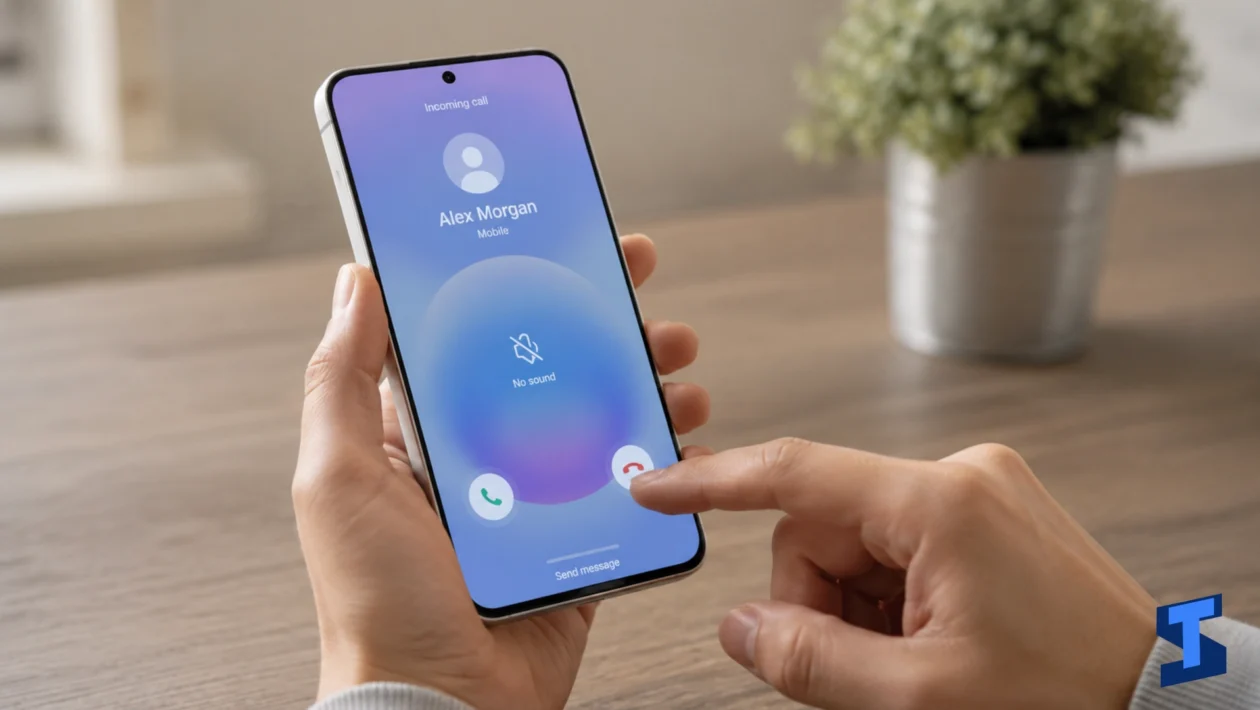
Sound and call problems on the Galaxy A57 can affect everyday tasks like answering calls, hearing notifications, recording voice messages, using speakerphone, listening through Bluetooth earbuds, or hearing your ringtone when someone calls.
These issues can happen because of incorrect volume settings, silent mode, app permissions, blocked speakers, Bluetooth routing, software glitches, or network-related call problems. In some cases, the issue may only affect one sound feature, such as the earpiece or microphone. In other cases, the whole phone may seem muted.
This page covers the most common Galaxy A57 sound and call issues and points you to the right guide for each problem. For a complete list of device fixes, you can also visit the main Galaxy A57 troubleshooting hub.
Common Galaxy A57 Sound and Call Problems
The Galaxy A57 uses different audio components for different tasks. The loudspeaker handles media, speakerphone, alarms, ringtone, and notifications. The earpiece is used during regular calls. The microphone records your voice for calls, videos, voice notes, and apps. Bluetooth audio uses a separate wireless connection.
Because of this, sound problems can show up in different ways.
You may notice that your Galaxy A57 has no sound at all, the speaker does not work, call volume is too low, the microphone does not pick up your voice, the earpiece is silent, notification sounds are missing, the ringtone does not play, or Bluetooth audio keeps failing.
Start with the section that matches your exact issue.
Galaxy A57 Has No Sound
If your Galaxy A57 has no sound, check whether the phone is muted, set to vibrate, connected to a Bluetooth device, or using Do Not Disturb. The issue may also be caused by app-specific sound settings, media volume being turned down, or a temporary software glitch.
This problem can affect videos, games, music, alerts, alarms, and calls. Before assuming the speaker is broken, test different sound types. Try playing a video, using speakerphone, checking ringtone volume, and testing alarms.
If the whole phone seems silent, start with the no sound guide.
Galaxy A57 Speaker Not Working
If the speaker is not working, your Galaxy A57 may not play music, videos, alarms, notification sounds, or speakerphone audio. This can happen if the speaker grille is blocked by dust, a case, moisture, or debris.
The problem may also be caused by audio routing. For example, your phone may still be connected to Bluetooth earbuds, a car audio system, or another wireless speaker.
If the speaker issue started after a drop, water exposure, or charging problem, check related symptoms too. You may need to review the charging issue guide if the problem happened after using a charger or cable, or the performance guide if audio stutters while the phone is lagging.
Galaxy A57 Call Volume Too Low
Low call volume can make it hard to hear the other person during phone calls. This issue is usually linked to the earpiece volume, blocked earpiece grille, poor signal, Bluetooth routing, or call audio settings.
During a call, press the Volume Up button to make sure call volume is raised. This is different from media volume or ringtone volume. Also check whether the phone is connected to a Bluetooth device, since call audio may be routed there instead of the earpiece.
If calls sound low only in certain areas, the issue may be related to poor signal or mobile network quality. In that case, you may also need the mobile data and SIM troubleshooting guide.
Galaxy A57 Microphone Not Working
If the microphone is not working, people may not hear you during calls, voice recordings may sound silent, or apps may fail to capture your voice. This can affect phone calls, video calls, voice messages, camera videos, voice search, and recording apps.
Microphone problems may be caused by blocked microphone holes, app permission issues, Bluetooth devices, software bugs, or a case covering the mic opening. If the problem happens only in one app, check that app’s microphone permission first.
If microphone audio fails while recording videos, you may also want to check the camera problems page, especially if the Camera app is also freezing, crashing, or recording without sound.
Galaxy A57 Earpiece Not Working
The earpiece is the small speaker used when you place the phone against your ear during a regular call. If it is not working, you may hear nothing unless you switch to speakerphone or Bluetooth.
This issue can be caused by low call volume, dirt or dust blocking the earpiece grille, Bluetooth audio routing, call app glitches, or network issues. It may also happen if the phone is stuck in a wrong audio output mode.
If the earpiece does not respond and the screen also behaves strangely during calls, check the display and touchscreen fixes as well, since proximity sensor or screen response issues can affect call behavior.
Galaxy A57 Notification Sounds Not Working
Notification sounds help you know when messages, emails, app alerts, reminders, or system notifications arrive. If notification sounds are not working, your Galaxy A57 may still receive alerts but stay silent.
This can happen when notification volume is low, Do Not Disturb is enabled, app notifications are muted, conversations are set to silent, or battery restrictions delay app alerts.
If notifications arrive late or apps do not update in the background, the issue may also be tied to battery or performance settings. Check the battery problems guide if alerts are delayed because of power-saving behavior.
Galaxy A57 Ringtone Not Working
If your ringtone is not working, incoming calls may appear on the screen without sound. This can cause missed calls, especially if the phone is in your bag, pocket, or another room.
Ringtone issues may be caused by silent mode, low ringtone volume, Do Not Disturb, custom ringtone errors, contact-specific ringtone settings, or Bluetooth audio routing.
If you are also not receiving calls properly, check your SIM, signal, and network settings. Related call and network issues may be covered in the mobile data, SIM, and 5G guide.
Galaxy A57 Bluetooth Audio Not Working
Bluetooth audio problems can affect earbuds, headphones, speakers, car audio systems, watches, and other wireless audio devices. You may experience no sound, choppy audio, pairing failure, delayed sound, low volume, or audio playing from the phone instead of the Bluetooth device.
This issue may be caused by pairing errors, outdated device firmware, Bluetooth cache problems, distance, interference, or wrong audio output settings.
If Bluetooth audio is the only sound issue on your phone, start with Bluetooth troubleshooting. For a deeper wireless connection fix, visit the Wi-Fi and Bluetooth problems page.
What Causes Galaxy A57 Sound and Call Problems?
Galaxy A57 audio problems can come from settings, apps, accessories, wireless connections, or hardware. The exact cause depends on which sound feature is affected.
Common causes include:
- Low volume settings
- Silent or Vibrate mode
- Do Not Disturb
- Blocked speaker, microphone, or earpiece grille
- Bluetooth audio routing
- Faulty headset or earbuds
- App notification settings
- Microphone permission issues
- Custom ringtone file problems
- Weak mobile signal
- Software glitches
- Outdated apps
- Battery restrictions delaying alerts
- Third-party call, recorder, or sound apps
- Moisture or debris in speaker openings
If the issue started after installing an app, connecting a Bluetooth device, changing notification settings, or updating the phone, that change may be related to the problem.
What to Try First
Before opening a specific guide, try these quick checks.
- Restart your Galaxy A57.
- Press the Volume Up button and check all volume sliders.
- Turn off Silent mode and Vibrate mode.
- Disable Do Not Disturb.
- Disconnect Bluetooth devices.
- Clean the speaker, earpiece, and microphone openings gently.
- Remove the case and test the sound again.
- Check app notification settings.
- Check microphone permission for affected apps.
- Test audio in different apps.
- Install available software updates.
If these basic steps do not fix the problem, choose the guide that matches the sound or call issue you are having.
When the Problem May Be Related to Other Galaxy A57 Issues
Some sound and call problems are connected to other parts of the phone.
If calls are dropping, signal is weak, or mobile service is unstable, check the SIM and mobile network guide.
If Bluetooth headphones or speakers will not connect, check the Bluetooth troubleshooting page.
If the phone lags, freezes, or stutters while playing audio, visit the Galaxy A57 performance fixes.
If the screen does not wake during calls, touch input fails, or the call screen freezes, check the display and touchscreen guide.
If audio problems happen while recording videos, visit the camera troubleshooting page.
If the phone gets hot while calling, charging, gaming, or using Bluetooth, review the battery and charging guides.
If lock screen notifications are silent or hidden, check the security and lock screen page for related settings.
How to Prevent Sound and Call Problems
You can reduce sound and call issues by keeping your phone clean, updated, and properly configured.
Avoid covering the speaker, microphone, or earpiece openings with a case, grip, or screen protector. Clean these areas gently if sound becomes muffled. Do not use sharp objects that can damage the mesh or microphone holes.
Keep your apps and phone software updated. Updates can fix audio bugs, Bluetooth problems, call issues, and notification glitches.
Check notification settings after installing new apps. Some apps are muted by default, while others may need permission to show sound alerts.
Also review Bluetooth devices regularly. If your Galaxy A57 keeps sending audio to earbuds, speakers, or car systems you no longer use, unpair those devices or turn off Bluetooth when not needed.
Final Thoughts
Galaxy A57 sound and call problems can affect calls, speaker audio, microphone input, notifications, ringtones, and Bluetooth devices. In many cases, the cause is simple: low volume, Silent mode, Do Not Disturb, Bluetooth routing, blocked speaker openings, or incorrect app settings.
Start with the guide that matches your exact issue. If the problem affects calls, check call volume, signal, microphone, and earpiece behavior. If it affects media or alerts, check sound mode, notification settings, Bluetooth output, and speaker condition.
Once the cause is fixed, your Galaxy A57 should play sound clearly, ring properly, record your voice, and handle calls more reliably.
Frequently Asked Questions
Why does my Galaxy A57 have no sound?
Your Galaxy A57 may have no sound because the phone is muted, volume is turned down, Do Not Disturb is enabled, or audio is being sent to a Bluetooth device. It can also happen because of a software glitch, blocked speaker, or app-specific sound setting.
Why is my Galaxy A57 speaker not working?
The speaker may not work if the speaker grille is blocked by dust, dirt, moisture, or a phone case. It may also fail if the phone is connected to Bluetooth audio, the media volume is too low, or the software needs to be restarted or updated.
Why is my Galaxy A57 call volume too low?
Call volume may be too low because the in-call volume is turned down, the earpiece grille is blocked, Bluetooth is routing the call audio elsewhere, or the mobile signal is weak. Press Volume Up during a call to adjust the correct call volume.
Why can’t people hear me on calls?
If people cannot hear you, the microphone may be blocked, muted, or affected by an app permission issue. Remove the case, clean the microphone openings gently, disconnect Bluetooth devices, and test the microphone using a voice recorder app.
Why is my Galaxy A57 ringtone not working?
Your ringtone may not work because the phone is in Silent or Vibrate mode, ringtone volume is low, Do Not Disturb is enabled, or the selected ringtone file is not working. Check sound mode, ringtone volume, and call notification settings.
Why are notification sounds not working on my Galaxy A57?
Notification sounds may not work if app notifications are muted, notification volume is low, Do Not Disturb is enabled, or conversations are set to silent. Battery restrictions can also delay some app alerts.
Why is Bluetooth audio not working on my Galaxy A57?
Bluetooth audio may not work because of pairing errors, wrong audio output selection, low Bluetooth device battery, interference, outdated firmware, or Bluetooth cache problems. Try disconnecting and reconnecting the device, then test audio again.
How do I know if my Galaxy A57 speaker is damaged?
Your speaker may be damaged if sound is distorted, crackling, very low, or completely silent across all apps even after restarting, raising volume, disconnecting Bluetooth, and cleaning the speaker grille. If the issue started after a drop or water exposure, have the phone checked by a technician.
Can Do Not Disturb block calls and notification sounds?
Yes, Do Not Disturb can silence calls, messages, app alerts, reminders, and notifications depending on your settings. You can turn it off or customize exceptions for important contacts and apps.