
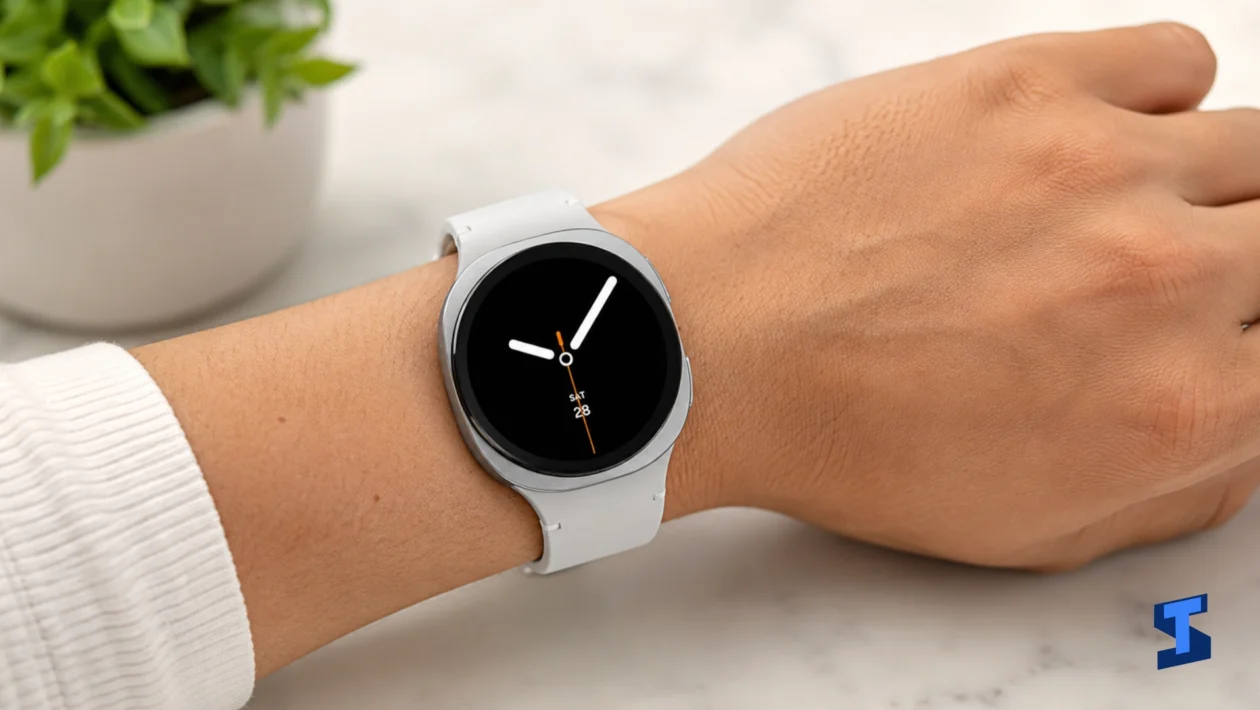
Galaxy Watch8 battery problems can happen because of display brightness, Always On Display, LTE use, GPS workouts, health tracking, notifications, sleep tracking, background apps, and active watch faces.
The Galaxy Watch8 is designed for daily smartwatch use, but battery life still depends on how you wear it, which features stay active, and whether the watch is using Bluetooth, Wi-Fi, LTE, GPS, or health sensors throughout the day.
This page brings together practical guides for fixing battery drain, overnight battery loss, update-related drain, workout battery issues, sleep tracking drain, LTE battery drain, watch face battery use, and warmth during normal use.
For a full list of related troubleshooting guides, visit the main Samsung Galaxy Watch8 hub.
Quick Battery Checklist
Before trying deeper fixes, start with the basics.
Make sure your Galaxy Watch8 is updated, your Galaxy Wearable app is current, and your paired phone is nearby. Restart both the watch and phone, then check whether the battery drain continues.
You should also review the watch face, Always On Display, brightness, LTE, GPS workouts, health tracking, and notification settings. These features are useful, but they can shorten battery life when they run too often.
How to Stop Your Watch Battery From Draining Fast
Fast battery drain is usually caused by too many active features running at the same time.
Always On Display, high brightness, frequent notifications, LTE, GPS, continuous heart rate tracking, sleep tracking, and animated watch faces can all reduce battery life.
Start with these steps:
- Open Settings on your Galaxy Watch8.
- Tap Battery.
- Check which apps or features are using the most power.
- Turn off features you do not need all day.
- Restart the watch.
You can also lower the screen brightness, use a simpler watch face, reduce notifications, and keep LTE off when your phone is nearby.
For a full step-by-step guide, read how to fix fast battery drain.
What to Do When the Battery Drains Overnight
Overnight battery drain often happens because of sleep tracking, snore detection, blood oxygen monitoring, skin temperature tracking, Wi-Fi, LTE, notifications, or a watch face that stays active longer than expected.
If your Galaxy Watch8 loses too much battery while you sleep, check your sleep and health tracking settings first.
Try these fixes:
- Open the Samsung Health app.
- Review your sleep tracking options.
- Turn off sleep features you do not need every night.
- Enable Sleep Mode before going to bed.
- Charge the watch before sleep if battery is already low.
Sleep Mode can help reduce interruptions and background activity during the night.
For detailed help, read what to do about overnight battery drain.
How to Reduce Battery Drain After a Software Update
Battery drain after a software update is common during the first few days.
After an update, the Galaxy Watch8 may still be optimizing apps, syncing health data, updating watch faces, rebuilding system files, or adjusting background services.
Start with these steps:
- Restart your Galaxy Watch8.
- Restart the paired phone.
- Update the Galaxy Wearable app.
- Update Samsung Health and watch apps.
- Give the watch a few charging cycles to settle.
If the battery drain continues after several days, check battery usage, remove unused apps, switch to a basic watch face, and consider resetting the watch only after simpler fixes fail.
For the full guide, read how to reduce battery drain after an update.
Why the Battery Percentage Drops Quickly
A sudden battery percentage drop can happen when the watch is using LTE, GPS, Always On Display, health sensors, or a bright screen for long periods.
It can also happen if the battery reading is temporarily inaccurate after an update or after the watch has not been restarted for a while.
Try these checks:
- Restart the watch.
- Charge it fully.
- Use it normally until the battery drops.
- Check battery usage in Settings.
- Look for apps or features using more power than expected.
If the battery percentage drops quickly even when the watch is idle, check for background syncing, app problems, or software bugs.
Read why the battery percentage drops quickly for more fixes.
How to Reduce Battery Drain During Workouts
Workouts can drain the Galaxy Watch8 battery faster because the watch may use GPS, heart rate tracking, motion sensors, screen wake, music controls, Bluetooth, LTE, and Samsung Health at the same time.
Outdoor workouts usually use more battery than indoor workouts because GPS stays active.
To reduce workout battery drain:
- Lower the screen brightness before starting.
- Turn off Always On Display during workouts.
- Use Bluetooth instead of LTE when your phone is nearby.
- Avoid streaming music directly from the watch.
- Start GPS workouts only when needed.
If you run, cycle, or walk outdoors often, make sure the watch has enough battery before starting.
For a complete guide, read how to reduce battery drain during workouts.
What to Do When LTE Drains the Battery Too Fast
LTE is useful because it lets your Galaxy Watch8 work without your phone nearby. However, LTE can drain the battery faster than Bluetooth, especially in areas with weak signal.
When the watch struggles to maintain a mobile connection, it may use more power.
Try these fixes:
- Use Bluetooth when your phone is nearby.
- Turn off LTE when you do not need it.
- Avoid using LTE in weak signal areas.
- Reduce streaming and calls from the watch.
- Check whether your carrier plan is working properly.
If you only need the watch for notifications and health tracking, Bluetooth mode is usually more battery-friendly.
For more help, read what to do about LTE battery drain.
How to Reduce Battery Drain During Sleep Tracking
Sleep tracking uses sensors and background monitoring while you sleep. Depending on your settings, the watch may track sleep stages, blood oxygen, skin temperature, snoring, and movement.
These features are helpful, but they can use more battery overnight.
To reduce sleep tracking drain:
- Open Samsung Health.
- Review your sleep tracking settings.
- Turn off advanced tracking features you do not need.
- Enable Sleep Mode.
- Use a simple watch face before bedtime.
If your watch loses too much battery overnight, try disabling one sleep feature at a time so you can identify the main cause.
Read how to reduce sleep tracking battery drain for the full guide.
How to Manage Always On Display Battery Drain
Always On Display keeps the watch screen visible even when you are not actively using it. This is convenient, but it can reduce battery life.
The brighter the screen and the more active the watch face, the more power it can use.
To manage Always On Display:
- Open Settings.
- Tap Display.
- Tap Always On Display.
- Turn it off or limit when it appears.
You can also use Raise to Wake instead of keeping the screen on all day.
If battery life matters more than convenience, turning off Always On Display is one of the most effective changes you can make.
For more details, read how to manage Always On Display battery drain.
How to Check If Your Watch Face Is Draining the Battery
Some watch faces use more battery than others.
Animated designs, bright colors, always-updating complications, live health data, weather, calendar updates, and third-party watch faces can increase battery use.
To test your watch face:
- Switch to a simple Samsung watch face.
- Use it for a full day.
- Compare battery life with your previous watch face.
- Remove third-party faces you do not use.
- Avoid faces with too many live complications.
A basic watch face with fewer widgets can improve battery life, especially when Always On Display is enabled.
For more help, read how to check watch face battery drain.
How to Use Battery Saving Mode
Battery Saving Mode helps your Galaxy Watch8 last longer by reducing background activity and limiting power-hungry features.
Use it when your battery is low, when traveling, during long workdays, or when you cannot charge the watch soon.
To turn it on:
- Open Settings.
- Tap Battery.
- Tap Battery saving.
- Turn it on.
You may also be able to access Battery Saving Mode from the Quick Panel.
Battery Saving Mode can reduce performance or limit some features, but it is useful when you need more time before charging.
Read how to use Battery Saving Mode for a full walkthrough.
Best Battery Settings for Longer Watch Life
The best battery settings depend on how you use your watch.
For most users, these settings can help improve daily battery life:
- Turn off Always On Display if you do not need it.
- Lower brightness or use auto brightness.
- Use Bluetooth instead of LTE when your phone is nearby.
- Limit unnecessary notifications.
- Use a simple watch face.
- Turn off advanced sleep tracking features you do not need.
- Avoid streaming music directly from the watch.
- Update the watch and Galaxy Wearable app.
- Remove apps you no longer use.
- Restart the watch regularly.
These changes help reduce background activity without making the watch difficult to use.
For a complete settings guide, read the best battery settings.
What to Do When Your Watch Gets Warm During Normal Use
Some warmth is normal during charging, LTE use, GPS workouts, app updates, and long tracking sessions.
However, your Galaxy Watch8 should not feel hot during light use.
If the watch gets warm while doing basic tasks, try these steps:
- Remove the watch from your wrist if it feels uncomfortable.
- Turn off LTE, GPS, and Always On Display temporarily.
- Close recently used apps.
- Restart the watch.
- Check for software updates.
A warm watch can also drain battery faster because the system may work harder to manage temperature.
If the watch continues to get hot during normal use, contact Samsung Support or visit an authorized service center.
For more details, read what to do when your watch gets warm during normal use.
Common Causes of Galaxy Watch8 Battery Problems
Galaxy Watch8 battery problems are usually caused by one or more of these factors:
| Cause | Why It Affects Battery |
|---|---|
| Always On Display | Keeps the screen active more often |
| LTE | Uses more power than Bluetooth, especially with weak signal |
| GPS workouts | Tracks location continuously during outdoor activities |
| Sleep tracking | Uses sensors while you sleep |
| Health monitoring | Runs heart rate, SpO2, temperature, and other sensors |
| Bright screen | Uses more power during daily use |
| Third-party watch faces | May refresh data too often |
| Too many notifications | Wakes the screen and uses vibration repeatedly |
| Background apps | Continue syncing or running in the background |
| Software updates | May temporarily increase system activity |
Understanding the cause makes it easier to choose the right fix.
Simple Battery Routine for Daily Use
A good daily battery routine can prevent most battery problems.
- Charge your watch before it gets extremely low.
- Use Bluetooth when your phone is nearby.
- Turn off LTE when you do not need it.
- Use Sleep Mode at night.
- Keep Always On Display off if battery life matters.
- Use a simple watch face.
- Update watch apps regularly.
- Restart the watch once in a while.
These habits can help your Galaxy Watch8 last longer without disabling every useful feature.
Before You Reset Your Watch
A reset should not be your first solution.
Before resetting your Galaxy Watch8, try restarting it, updating the software, changing the watch face, reducing Always On Display use, checking LTE, and reviewing battery usage.
If you decide to reset the watch, make sure your data is synced or backed up first.
A factory reset removes local settings, downloaded apps, watch faces, and saved preferences.
When to Contact Samsung Support
Contact Samsung Support or visit an authorized service center if your Galaxy Watch8 battery drains extremely fast even after basic troubleshooting.
You should also contact support if the watch gets hot during light use, refuses to charge, shuts down unexpectedly, shows signs of battery swelling, or loses power even when it is not being used.
Do not open the watch yourself because that may affect warranty coverage, water resistance, and repair eligibility.
More Galaxy Watch8 Help
For more troubleshooting topics, visit the main Galaxy Watch8 problems and fixes hub.
You may also find these related pages helpful:
- charging problems
- pairing problems
- LTE and eSIM problems
- health sensor problems
- settings and features
FAQ
Why is my Galaxy Watch8 battery draining fast?
Your Galaxy Watch8 battery may drain fast because of Always On Display, LTE, GPS workouts, health tracking, sleep tracking, bright screen settings, active watch faces, background apps, or too many notifications.
Start by checking battery usage, restarting the watch, lowering brightness, using a simpler watch face, and turning off features you do not need all day.
Why does my Galaxy Watch8 battery drain overnight?
Overnight battery drain is usually linked to sleep tracking, health monitoring, snore detection, blood oxygen tracking, skin temperature tracking, Wi-Fi, LTE, or notifications.
Enable Sleep Mode and review your sleep tracking settings to reduce overnight battery use.
Does LTE drain the Galaxy Watch8 battery faster?
Yes. LTE can drain the battery faster than Bluetooth, especially when the signal is weak or when you use calls, messages, streaming, and mobile data directly from the watch.
Use Bluetooth when your phone is nearby to save battery.
Does Always On Display use more battery?
Yes. Always On Display uses more battery because the screen stays active even when you are not actively using the watch.
Turning it off or using Raise to Wake can help extend battery life.
Can a watch face drain the Galaxy Watch8 battery?
Yes. Animated watch faces, third-party watch faces, and faces with many live complications can use more battery.
Try switching to a simple Samsung watch face and compare battery life for a full day.
Why does my Galaxy Watch8 battery drain faster during workouts?
Workouts can use GPS, heart rate tracking, motion sensors, Bluetooth, LTE, and screen wake features at the same time.
Outdoor workouts usually use more power because GPS stays active.
Should I use Battery Saving Mode on Galaxy Watch8?
Use Battery Saving Mode when the battery is low or when you need the watch to last longer.
It may limit some features, but it is useful during travel, long workdays, or emergencies.
Why does my Galaxy Watch8 get warm during normal use?
The watch may get warm because of LTE, GPS, app updates, background syncing, charging, or heavy sensor activity.
If it gets hot during light use or feels uncomfortable on your wrist, remove it and contact Samsung Support if the issue continues.
Should I factory reset my Galaxy Watch8 to fix battery drain?
A factory reset should be a last option.
Try restarting the watch, updating software, changing the watch face, checking battery usage, and reducing LTE, GPS, and Always On Display first.
How can I make my Galaxy Watch8 battery last longer?
Use a simple watch face, lower brightness, turn off Always On Display, use Bluetooth instead of LTE, reduce notifications, enable Sleep Mode at night, update apps, and remove unused apps.