
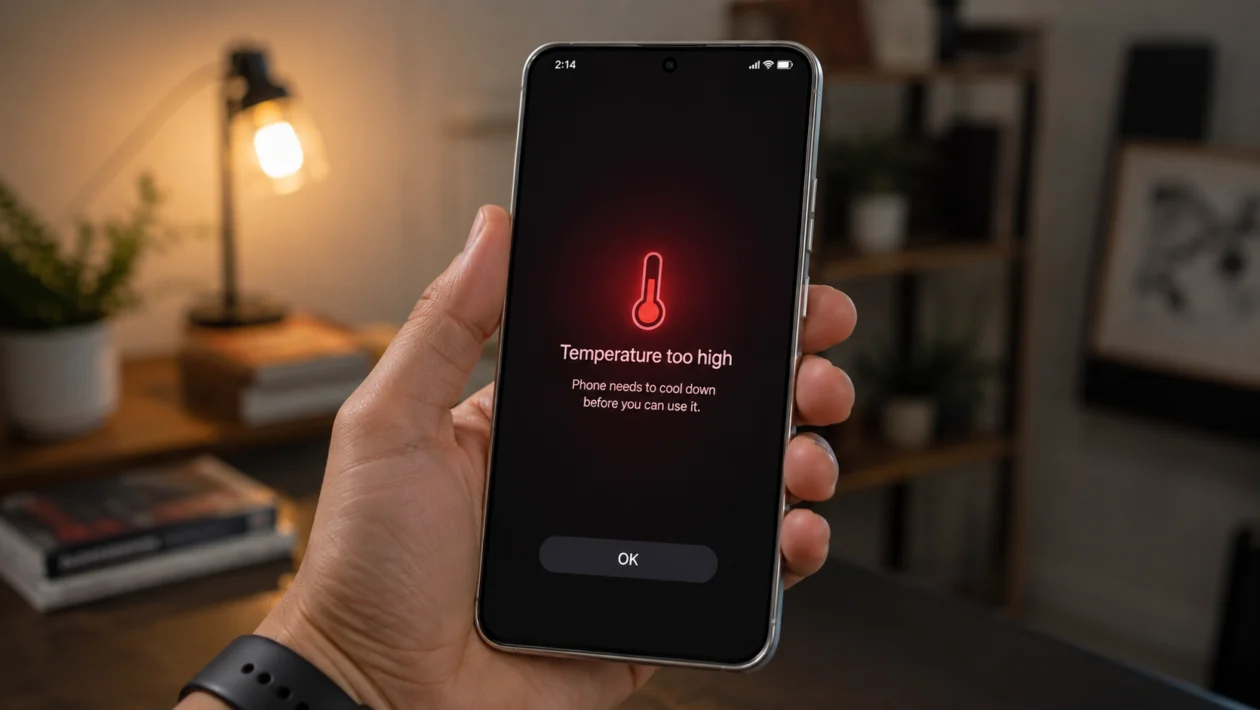
If your Realme P4R feels hot during normal use, charging, gaming, video calls, or mobile data browsing, do not ignore it. A little warmth is normal, but constant overheating can make the phone slow, drain the battery faster, stop charging, or trigger temperature warnings.
The Realme P4R has a large battery, fast charging support, a high refresh rate display, 5G connectivity, and thermal management hardware. Even with cooling features, heat can still build up when the phone is under heavy load, used in a hot environment, or running too many background tasks.
Start with the simple fixes first. Most overheating problems come from charging habits, display settings, mobile signal, gaming load, background apps, software bugs, or direct sunlight.
Quick answer
To fix a Realme P4R that is overheating, remove the case, stop charging for a few minutes, close heavy apps, lower screen brightness, turn off 5G if the signal is weak, and restart the phone.
Then check Settings > Battery and look for apps using too much power. If the phone started heating after an update, update your apps and monitor it for 24 to 48 hours. If it still overheats while idle, shuts down, or shows repeated temperature warnings, contact Realme support.
Realme P4R overheating diagnostic table
| Symptom | Likely cause | What to check first |
|---|---|---|
| Phone heats while charging | Fast charging, thick case, hot room, using phone while charging | Charger, case, charging location |
| Phone heats during games | High graphics, high refresh rate, long sessions | Game settings and display settings |
| Phone heats on mobile data | Weak 5G signal or poor network coverage | Network mode and signal strength |
| Phone heats after update | App optimization, background indexing, software bugs | Restart, update apps, wait 24 to 48 hours |
| Phone heats while idle | Background apps, syncing, location, malware-like app behavior | Battery usage by app |
| Phone heats during video calls | Camera, screen, mobile data, speaker, and processor working together | Brightness and connection type |
| Phone gets hot in sunlight | Direct heat exposure | Move phone to shade |
| Phone heats and drains fast | Battery-hungry app or weak signal | Battery usage and network settings |
| Phone stops charging | Temperature protection | Let it cool before charging again |
| Phone shuts down from heat | Serious thermal or hardware issue | Realme service center |
Why is my Realme P4R overheating?
Your Realme P4R may overheat because the processor, display, battery, modem, camera, or apps are using more power than usual.
Common causes include:
- Charging while using the phone
- Gaming for long periods
- High screen brightness
- 144Hz or high refresh rate use
- Weak 5G signal
- Hot weather or direct sunlight
- Background apps
- Location services
- Video recording or video calls
- Recent system update
- Buggy third-party app
- Thick phone case trapping heat
- Faulty charger or cable
- Possible battery or hardware issue
Warmth is normal during charging, gaming, camera use, hotspot use, and software updates. The problem is when the phone becomes uncomfortable to hold, slows down often, stops charging, or gets hot even when you are barely using it.
1. Stop charging and let the phone cool down
Start here if your Realme P4R gets hot while plugged in.
Fast charging creates heat. Using the phone while charging adds even more heat because the screen, processor, modem, and battery are working at the same time.
Do this:
- Unplug the charger.
- Remove the phone case.
- Place the phone on a cool, dry surface.
- Close games, camera, video apps, and navigation apps.
- Wait 10 to 15 minutes before charging again.
Do not put the phone in a freezer or fridge. Sudden temperature changes can cause moisture problems and may damage internal parts.
Also avoid charging under a pillow, on a bed, inside a bag, or in direct sunlight. Heat needs somewhere to escape.
2. Remove the case while charging or gaming
A thick case can trap heat around the battery and frame. This is more noticeable during charging, gaming, hotspot use, or video recording.
Remove the case if:
- The phone heats while charging
- The back panel feels hot during games
- The phone becomes warm during video calls
- You use a thick rubber, leather, or rugged case
- The phone shows a temperature warning
Use the phone without the case for one charging cycle and one gaming session. If temperatures feel better, the case is part of the problem.
For daily use, a slim case with better airflow is usually safer than a thick case that keeps heat inside.
3. Close heavy apps running in the background
Some apps continue working even when you are not actively using them. Social media apps, games, camera apps, shopping apps, VPNs, navigation apps, and fitness trackers can all use power in the background.
Check battery usage:
- Open Settings.
- Tap Battery.
- Check Battery usage.
- Look for apps using more battery than expected.
- Tap the app and limit background activity if needed.
Look for apps that appear high on the list even though you barely used them. That is usually a sign that the app is running too much in the background.
If one app stands out, update it first. If the phone still overheats, uninstall that app for a day and check whether the heat problem improves.
4. Restart your Realme P4R
A restart is simple, but it often helps. It can stop stuck background processes, clear temporary software glitches, and reset apps that may be causing heat.
To restart your Realme P4R:
- Press and hold the Power button.
- Tap Restart.
- Wait for the phone to turn back on.
- Use it normally for a few hours.
- Check if the heating returns.
Restarting will not delete your photos, apps, or files.
This is especially useful if the overheating started suddenly, after installing an app, after a game session, or after a software update.
5. Lower brightness and refresh rate
The display is one of the biggest power users on a phone. If your Realme P4R gets hot while scrolling, watching videos, gaming, or browsing outdoors, reduce the display load.
Change these settings:
- Open Settings.
- Tap Display & brightness.
- Lower the brightness.
- Turn on Auto brightness if you prefer automatic control.
- Look for Screen refresh rate.
- Choose a lower refresh rate if battery life and temperature matter more than smooth scrolling.
A high refresh rate makes the phone feel smoother, but it can also increase power use. If you combine high refresh rate, high brightness, 5G, and gaming, heat can build up quickly.
Also shorten screen timeout:
- Open Settings.
- Tap Display & brightness.
- Tap Auto screen off.
- Choose 30 seconds or 1 minute.
This helps if the screen stays on longer than necessary.
6. Turn off 5G when the signal is weak
Weak signal can make your Realme P4R heat up. When the phone struggles to maintain a stable mobile connection, it may use more power searching for signal.
This is common in:
- Buildings
- Basements
- Elevators
- Rural areas
- Moving vehicles
- Areas with unstable 5G coverage
- Crowded locations
If the phone gets hotter on mobile data than on Wi-Fi, test 4G/LTE mode.
To change network mode:
- Open Settings.
- Tap Mobile network.
- Select your SIM.
- Tap Preferred network type.
- Choose 4G/3G/2G or LTE if available.
Use the phone for a few hours and compare the temperature. If the phone runs cooler on 4G, weak 5G coverage is likely part of the problem.
You can switch 5G back on when you are in an area with stronger coverage.
7. Update your apps and system software
Software bugs can cause overheating. A broken app, outdated game, old system component, or recent update issue can keep the processor active longer than needed.
Update your phone:
- Open Settings.
- Tap About device.
- Tap realme UI.
- Check for updates.
- Install any available update.
Update your apps:
- Open Google Play Store.
- Tap your profile icon.
- Tap Manage apps and device.
- Tap Update all.
Also check the realme App Market if you use apps from there.
If overheating started right after a system update, give the phone 24 to 48 hours. After updates, phones may re-optimize apps, rebuild background services, and resync data. That can temporarily increase heat and battery drain.
If the issue continues after two days, move to the next fixes.
8. Reduce gaming, camera, and hotspot load
Gaming, camera recording, video calls, and hotspot use are some of the fastest ways to heat a phone. These tasks use the processor, graphics chip, display, battery, modem, and sometimes the camera at the same time.
For gaming:
- Lower graphics quality.
- Lower frame rate.
- Turn off performance or GT mode if enabled.
- Take breaks every 20 to 30 minutes.
- Avoid gaming while charging.
- Use Wi-Fi instead of mobile data when possible.
For camera use:
- Avoid long video recording in direct sunlight.
- Lower video resolution if the phone gets hot.
- Stop recording if the phone shows a temperature warning.
- Let the phone cool before recording again.
For hotspot:
- Turn off hotspot when not needed.
- Keep the phone in an open area.
- Avoid hotspot use while charging.
- Use Wi-Fi instead if available.
If the phone only overheats during heavy gaming or long camera sessions, the device may not be faulty. It is likely reacting to sustained load.
9. Turn on battery saving mode
Battery saving mode can reduce heat by limiting background activity, lowering performance demand, and reducing unnecessary power use.
To turn it on:
- Open Settings.
- Tap Battery.
- Tap Power saving mode.
- Turn it on.
You can also use Battery settings to check power-consuming apps and apply recommended optimizations.
Use Power saving mode when:
- The phone gets warm during normal use
- You are outside in hot weather
- You are using mobile data for a long time
- The battery drains quickly
- You need the phone to stay cooler for longer
This may slightly reduce performance, background syncing, and visual smoothness, but it can help keep temperature under control.
10. Reset settings or contact Realme support
If your Realme P4R still overheats after trying the fixes above, the problem may be deeper. It could be a system setting conflict, a faulty app, charging issue, battery problem, or hardware fault.
Before visiting a service center, try resetting system settings.
To reset settings:
- Open Settings.
- Tap Additional settings.
- Tap Back up and reset.
- Tap Reset phone.
- Choose reset system settings only if available.
Avoid a full factory reset unless you have backed up your data.
Contact Realme support or visit a Realme service center if:
- The phone overheats while idle
- The phone shuts down because of heat
- Charging stops repeatedly due to temperature warnings
- The back panel becomes too hot to touch
- The battery drains unusually fast
- The phone heats even after removing apps and updating software
- The issue started after physical damage or water exposure
Bring your proof of purchase, warranty card if available, and original charger.
What not to do when your Realme P4R overheats
Do not cool the phone too aggressively. Some quick tricks can cause more damage than the heat itself.
Avoid these:
- Do not put the phone in a freezer.
- Do not place it in a fridge.
- Do not pour water on it.
- Do not use a hot hair dryer.
- Do not keep charging if it shows a temperature warning.
- Do not game while charging if it already feels hot.
- Do not ignore repeated overheating while idle.
The safest fix is to stop heavy use, unplug the charger, remove the case, and let the phone cool naturally.
Is Realme P4R overheating normal?
Some heating is normal. Your Realme P4R may feel warm during fast charging, gaming, video calls, hotspot use, camera recording, software updates, or 5G use.
It is not normal if the phone gets hot while idle, shuts down, stops charging often, becomes uncomfortable to hold, or overheats every day during light use.
If the issue happens only during heavy use, adjust settings and usage habits. If it happens during normal use, check apps, update software, and contact Realme support if it continues.
FAQs
Why does my Realme P4R heat while charging?
Your Realme P4R may heat while charging because fast charging naturally produces warmth. Heat can increase if you use the phone while charging, charge in a hot room, use a thick case, or use a non-original charger.
Why does my Realme P4R overheat while gaming?
Gaming uses the processor, graphics chip, display, battery, and network connection at the same time. Lower graphics settings, reduce frame rate, remove the case, and avoid gaming while charging.
Can 5G make the Realme P4R hot?
Yes. If 5G signal is weak, the phone may use more power to stay connected. Switching to 4G/LTE can help if overheating happens mostly on mobile data.
