
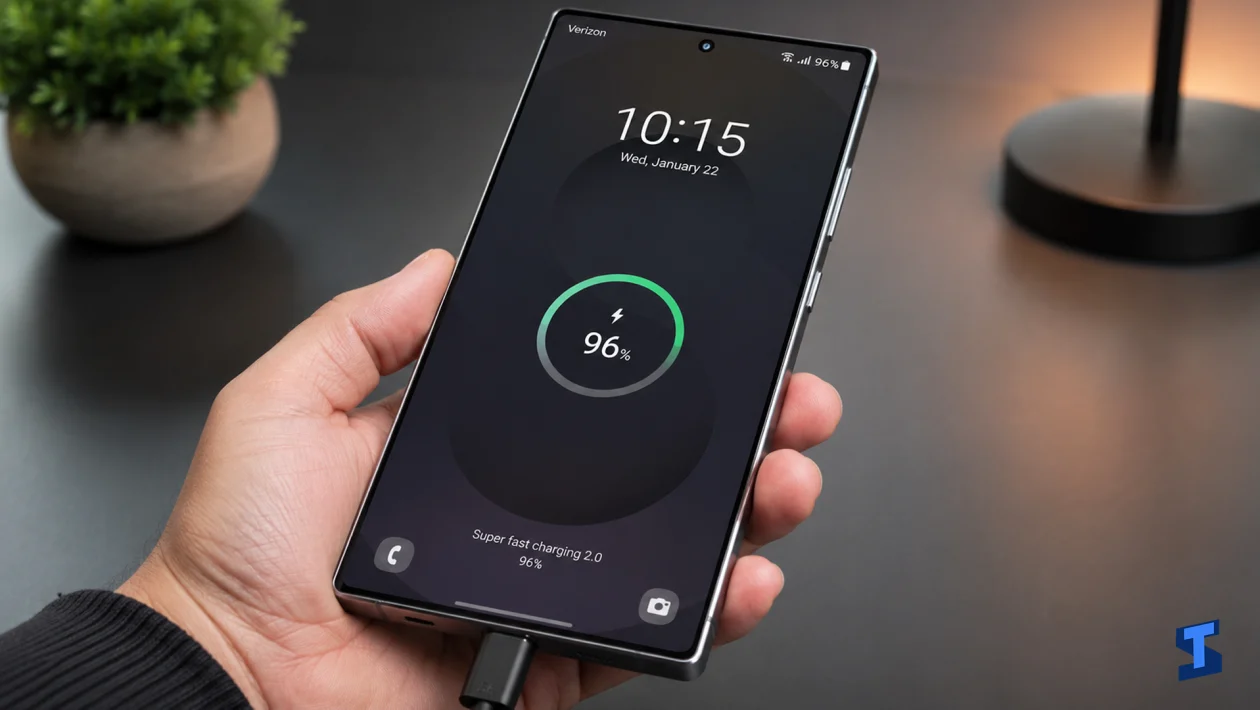
If your Samsung Galaxy S26 Ultra gets unusually hot while charging, you’re not alone. Charging can naturally create some warmth, but excessive heat can come from a bad cable, incompatible charger, thick case, wireless charging, background apps, or a software issue. The good news is, a few quick adjustments can usually bring the temperature back under control.
Use the Right Charger and Cable
I’d start by checking your charger and cable, because charging heat often starts there. Your Galaxy S26 Ultra needs a charger that can properly communicate with the phone and regulate power safely.
Use a Samsung-approved USB-C charger and a high-quality USB-C cable. If you are using an old charger, a cheap adapter, or a damaged cable, the phone may charge inefficiently and produce more heat than usual.
Also check the cable ends for bending, looseness, or discoloration. If the phone only gets hot with one specific charger, stop using that charger and test with another one.
Remove the Case While Charging
A thick phone case can trap heat while your Galaxy S26 Ultra is plugged in. This is especially true with rugged cases, leather cases, magnetic cases, or cases with metal plates for car mounts.
Remove the case before charging and place the phone on a cool, flat surface. Avoid charging it on a bed, pillow, blanket, sofa, or anything that blocks airflow.
If the phone stays cooler without the case, the case is part of the problem. You can still use it daily, but it’s better to remove it during long charging sessions.
Stop Using the Phone While It Charges
Using your phone while charging is one of the fastest ways to make it hot. The battery is already generating heat, and gaming, video recording, video calls, GPS navigation, or mobile data can push the processor harder at the same time.
Unplug the phone if you need to do something demanding. If you only need to check messages or answer a quick call, that’s usually fine, but avoid heavy use until charging is done.
This is even more important if the phone gets hot near the camera area or upper frame. That usually means the processor and network hardware are also working hard, not just the battery.
Turn Off Fast Charging Temporarily
Fast charging is convenient, but it can create more heat than slower charging. If your Galaxy S26 Ultra only overheats when fast charging is enabled, try turning it off temporarily.
Go to Settings > Battery > Charging settings. Turn off Fast charging or Super fast charging, depending on the options available on your device.
After that, plug in the phone and check if it charges at a cooler temperature. If it does, you can leave fast charging off when you are not in a hurry and only enable it when you need a quick top-up.
Check the Charging Port
A dirty or blocked USB-C port can cause charging problems, poor cable contact, and extra heat. Even a small amount of lint can prevent the cable from sitting properly.
Unplug the charger and inspect the USB-C port using good lighting. If you see dust or lint, gently clean it with a dry wooden toothpick or use short bursts of compressed air.
Do not use metal tools or liquid cleaners. If the port looks damaged, loose, or burned, stop charging the phone and have it checked by Samsung Support or a service center.
Close Background Apps Before Charging
Sometimes the phone is not heating because of charging alone. It may also be syncing files, updating apps, backing up photos, downloading data, or running a misbehaving app in the background.
Open Settings > Battery, then check which apps are using the most power. If one app shows unusually high background usage, force stop it or update it from the Play Store or Galaxy Store.
You can also close recent apps before plugging in the charger. This gives the phone less work to do while the battery is charging.
Restart the Galaxy S26 Ultra
A restart can clear temporary system glitches that cause abnormal heat, charging delays, or background activity. This is a good fix if the phone suddenly started overheating even though you have not changed your charger or case.
Press and hold the Side button and Volume Down button, then tap Restart. Wait for the phone to reboot fully before charging it again.
After restarting, plug in the charger and leave the phone idle for a few minutes. If it stays cooler, the issue may have been caused by a temporary process or app behavior.
Update the Software
Software bugs can affect battery management, charging behavior, background apps, and temperature control. If the charging heat started after setup or after a recent update, check if another patch is available.
Go to Settings > Software update > Download and install. If an update is available, install it and restart your phone.
After a major update, your phone may also run warmer for a day or two while it finishes optimizing apps and syncing data. If the heat continues after that, the issue is worth troubleshooting further.
If your Galaxy S26 Ultra still overheats every time it charges, stop using questionable chargers, remove the case, avoid using the phone while plugged in, and test with another Samsung-approved charger and cable. If the back panel looks swollen, the phone smells unusual, charging keeps stopping, or the heat becomes uncomfortable to touch, contact Samsung Support right away. That may point to a battery, port, or hardware issue that should not be ignored.
