
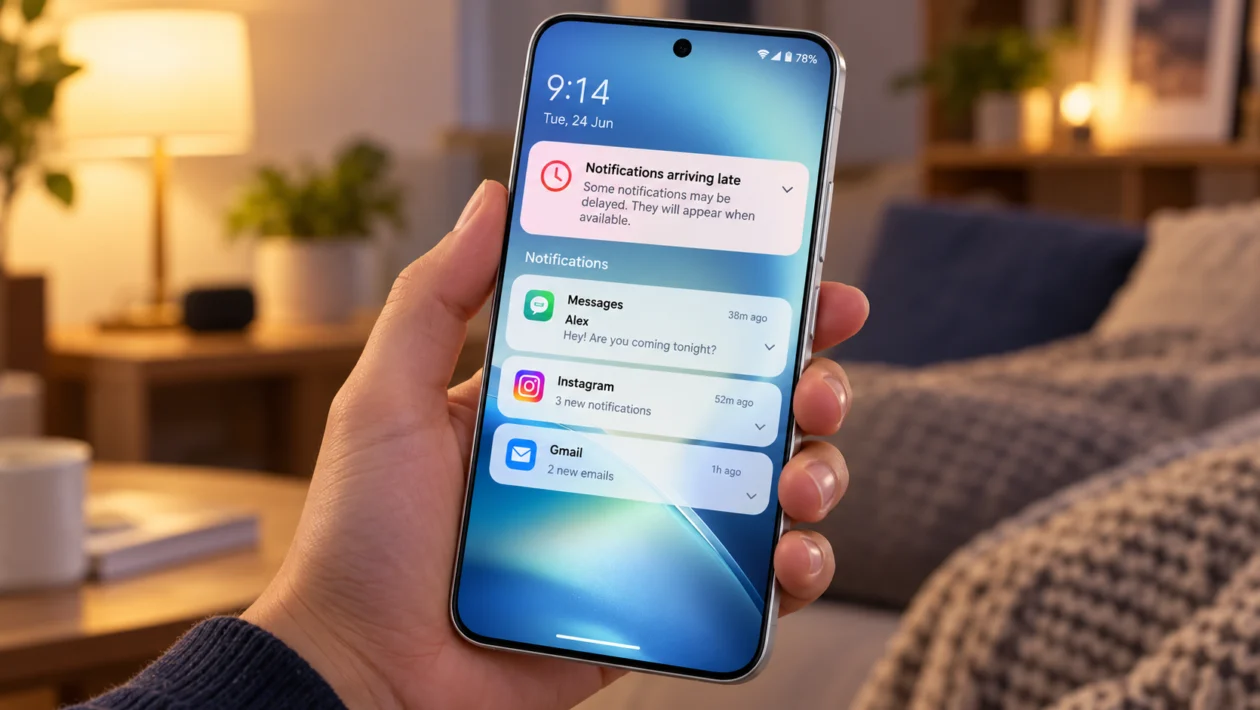
If notifications on your vivo X500 Pro arrive late, only appear after you open the app, or do not show on the lock screen, the problem is usually caused by background restrictions.
This can happen with messaging apps, email apps, banking apps, delivery apps, social media apps, work apps, and smart home apps. The phone may be saving battery by limiting what the app can do when the screen is off.
Start with the basics first. Check notification permission, battery settings, background data, Do Not Disturb, and the app’s own notification settings before resetting anything.
Quick answer
To fix delayed notifications on the vivo X500 Pro, open Settings and check whether the affected app is allowed to send notifications, run in the background, use mobile data in the background, and bypass battery restrictions.
The most important settings to check are notification permission, background battery usage, background data, Do Not Disturb, and the app’s own notification settings.
If the issue only happens with one app, fix that app first. If delayed notifications happen across many apps, check system-wide battery saver, network, and software settings.
vivo X500 Pro delayed notification diagnostic table
| Symptom | Likely cause | What to check first |
|---|---|---|
| Notifications arrive only when you open the app | App is restricted in the background | Battery and background activity settings |
| Lock screen alerts do not appear | Lock screen notification setting is off | Notifications and lock screen settings |
| WhatsApp, Messenger, Telegram, or email alerts arrive late | Battery optimization or app notification setting | App notifications and background battery use |
| Notifications are delayed on mobile data only | Background data or weak signal | Mobile data and network settings |
| Notifications are delayed when battery is low | Battery Saver or power mode | Battery settings |
| Notifications make no sound | Silent channel, DND, or app sound setting | Notification sound and Do Not Disturb |
| Notifications stopped after an update | App cache, permission change, or system bug | Update apps and restart the phone |
| Only one app has delayed alerts | App-specific setting or bug | App notification settings |
| All apps have delayed alerts | System battery or network restriction | Battery Saver, data saver, and system update |
| Notifications disappear from the lock screen | Privacy or lock screen notification setting | Lock screen notification display |
Why are notifications delayed on the vivo X500 Pro?
Delayed notifications usually happen when the phone limits background activity.
Your vivo X500 Pro may delay alerts because of:
Background battery restrictions
Battery Saver mode
Restricted background data
Do Not Disturb or Focus mode
Disabled app notifications
Silent notification categories
Weak mobile signal
Outdated app version
App cache problems
System software bugs
Android phones also manage background apps to save power. On vivo phones, this can be more noticeable if the affected app is not allowed to keep running in the background.
The fixes below are arranged from the simplest to the most useful.
1. Check notification permission for the affected app
Start here if only one app has delayed notifications.
- Open Settings.
- Tap Notifications.
- Tap App notifications or App notification management.
- Select the affected app.
- Turn on Allow notifications.
- Check notification categories if they are available.
- Make sure important categories are not set to silent.
For example, a messaging app may have separate notification categories for direct messages, group chats, calls, reminders, and background alerts. If one category is disabled, some notifications may arrive late or silently.
Also check whether the app is allowed to show notifications on the lock screen. If lock screen alerts are off, the notification may still arrive, but you may not notice it until you unlock the phone.
2. Turn off battery restrictions for the app
Battery optimization is one of the most common reasons notifications arrive late.
- Open Settings.
- Tap Battery.
- Look for background power usage, battery optimization, or app battery management.
- Select the affected app.
- Allow background activity.
- Choose the least restricted battery option available.
The exact wording can vary depending on the vivo X500 Pro software version and region. Look for settings such as Don’t optimize, Allow background activity, Unrestricted, or High background power consumption.
Use this setting for apps where timing matters, such as WhatsApp, Messenger, Gmail, Outlook, Telegram, banking apps, work chat apps, delivery apps, or security camera apps.
This may slightly increase battery use, but it is usually worth it for apps that need real-time alerts.
3. Allow the app to use mobile data in the background
If notifications are delayed only when you are away from Wi-Fi, the app may not be allowed to use mobile data in the background.
- Open Settings.
- Tap Apps.
- Select the affected app.
- Tap Mobile data or Data usage.
- Turn on Background data.
- Turn on Unrestricted data usage if available.
This matters for email, chat, banking, delivery, and work apps. If background data is blocked, the app may wait until you open it before refreshing messages.
Also check whether Data Saver is enabled.
- Open Settings.
- Tap Network and internet or Mobile network.
- Tap Data Saver if available.
- Turn it off, or allow the affected app to use data without restriction.
If your vivo X500 Pro has dual SIM cards, check whether the active SIM has stable data. Weak signal can also delay push notifications.
4. Turn off Battery Saver or Super Power Saving mode
Battery Saver can reduce background activity to extend battery life. That is useful when your battery is low, but it can delay notifications.
- Open Settings.
- Tap Battery.
- Turn off Battery Saver, Low power mode, or Super Power Saving mode.
- Restart the affected app.
- Wait a few minutes and test notifications again.
If the problem only happens when your battery drops below a certain percentage, Battery Saver is likely the cause.
You do not need to keep Battery Saver off all the time. But for important apps, make sure they are allowed to keep working even when power-saving features are active.
5. Check Do Not Disturb and Focus mode
Sometimes notifications are not actually delayed. They arrive on time, but the phone hides the alert, sound, vibration, or lock screen banner.
- Open Settings.
- Tap Sound and vibration.
- Tap Do Not Disturb or Focus mode.
- Turn it off.
- Check any schedules that turn it on automatically.
Also check whether specific apps are allowed to notify you during Do Not Disturb.
If your notifications arrive silently at night, during work hours, or while using certain apps, a scheduled focus mode may be responsible.
Some apps also have their own Do Not Disturb settings. For example, messaging apps may mute chats, groups, channels, or calls inside the app itself.
6. Lock important apps in Recents
Some vivo phones may close apps more aggressively when they are removed from memory. Locking the app in Recents can help important apps stay active.
- Open the affected app.
- Go back to the home screen.
- Open Recent apps.
- Tap the app icon or menu above the app card.
- Choose Lock, Keep open, or a similar option if available.
This is useful for messaging apps, work chat apps, authentication apps, smart home apps, and apps that need instant alerts.
Do not lock every app. Use it only for apps where delayed notifications are a real problem. Locking too many apps can reduce battery life and memory performance.
7. Update the app and your vivo X500 Pro software
Delayed notifications can happen after an app update, system update, or Android security patch. Updating again can fix bugs that affect background sync.
To update apps:
- Open Google Play Store.
- Tap your profile icon.
- Tap Manage apps and device.
- Tap Update all, or update the affected app first.
Also check the vivo app store if your phone includes one in your region.
To update your phone:
- Open Settings.
- Tap System update.
- Download and install any available update.
- Restart your phone after updating.
If the notification delay started right after a major update, give the phone several hours of normal use after updating apps. Some background services may need time to settle.
8. Clear the affected app’s cache
A damaged app cache can cause sync issues, late alerts, or repeated notification bugs.
- Open Settings.
- Tap Apps.
- Select the affected app.
- Tap Storage and cache.
- Tap Clear cache.
- Restart the phone.
Clearing cache does not usually delete your account or personal files. It removes temporary files that the app can rebuild.
Avoid tapping Clear storage or Clear data unless you know what it does. That option can sign you out or remove downloaded app data.
After clearing cache, open the app once and make sure you are still signed in. Some apps need to be opened after a restart before notifications work properly again.
9. Check the app’s own notification settings
Some apps have separate notification controls inside the app. Even if Android notifications are enabled, the app may still mute messages, calls, emails, reminders, or alerts.
Open the affected app and check its settings.
For messaging apps, check:
Message notifications
Group notifications
Call notifications
Muted chats
Archived chats
Background sync
For email apps, check:
Sync frequency
Push mail
Focused inbox
Account notification settings
Battery or sync warnings
For shopping, banking, delivery, or security apps, check:
Transaction alerts
Order updates
Promotional alerts
Login alerts
Device permissions
This step is important when only one app has delayed notifications while other apps work normally.
10. Reset app preferences or contact vivo support
If notifications are delayed across many apps and none of the settings above work, reset app preferences.
This can restore disabled apps, default permissions, background settings, and notification-related app behavior without deleting personal files.
- Open Settings.
- Tap Apps.
- Tap the menu icon.
- Tap Reset app preferences.
- Confirm the reset.
- Restart your vivo X500 Pro.
After the reset, open your most important apps and allow notifications again when asked.
If the problem continues, contact vivo support or visit a service center. This is worth doing if notifications are delayed even after updates, resets, and correct app settings.
You should also get support if the phone has other problems, such as overheating, random restarts, weak signal, app crashes, or battery drain at the same time.
What to do if only WhatsApp, Messenger, Telegram, or Gmail is delayed
If only one communication app is delayed, do not reset the whole phone yet.
Check these first:
Allow notifications
Allow lock screen notifications
Allow background battery activity
Allow background mobile data
Disable battery optimization for that app
Update the app
Clear the app cache
Open the app once after restarting the phone
Check muted chats or app-level notification settings
Most delayed notification problems are fixed by allowing the app to run in the background and removing battery restrictions.
What to do if all notifications are delayed
If all notifications are late, check system-wide settings instead.
Start with:
Battery Saver
Super Power Saving mode
Data Saver
Do Not Disturb
Weak mobile signal
System update
App updates
Background power management
If your vivo X500 Pro delays alerts mainly when the screen is off, background battery control is the most likely cause.
FAQ
Why do notifications only appear when I open the app?
This usually means the app is not refreshing in the background. Check battery optimization, background data, and notification permission for that app.
Will turning off battery optimization drain my vivo X500 Pro battery?
It can use more battery, but only for the apps you allow. Use it for important apps only, such as messaging, email, banking, delivery, and work apps.
Why are notifications delayed on mobile data but not Wi-Fi?
The app may be blocked from using background mobile data, or your signal may be weak. Allow background data for the app and check your mobile network connection.
