
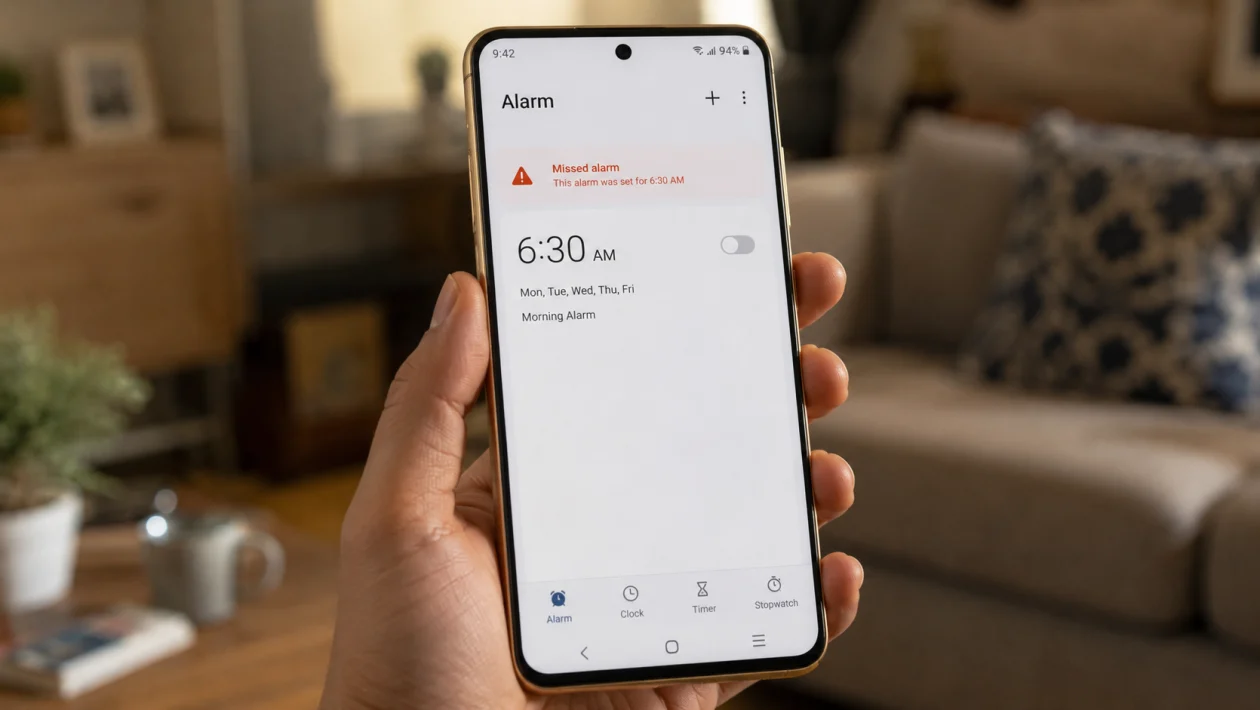
If your vivo Y51 Pro alarm is not going off, start with the basics: check the alarm time, alarm volume, repeat schedule, Do Not Disturb settings, and battery restrictions for the Clock app.
Most alarm problems are caused by silent alarm volume, a disabled repeat setting, bedtime or focus modes, restricted background activity, a third-party alarm app, or a small software glitch. The good news is that you usually do not need to reset the phone right away.
Use these 10 fixes in order.
Quick answer
To fix a vivo Y51 Pro alarm that is not going off, open the Clock app, check that the alarm is turned on, confirm the correct AM or PM time, choose a real alarm sound, and raise the alarm volume in Settings > Sound and vibration.
Then check Do Not Disturb, battery saver, app permissions, and software updates. If you use a third-party alarm app, allow background activity and disable battery restrictions for that app.
vivo Y51 Pro alarm not going off: quick diagnostic table
| Symptom | Likely cause | Check first |
|---|---|---|
| Alarm shows on screen but makes no sound | Alarm volume is low or muted | Settings > Sound and vibration |
| Alarm works once but not every day | Repeat days are not selected | Clock > Alarm > Repeat |
| Alarm does not ring overnight | Do Not Disturb, Sleep mode, or battery saving | DND and Battery settings |
| Third-party alarm app fails | App is restricted in background | Battery and app permissions |
| Alarm rings late | Phone software, time settings, or app issue | Date and time, updates |
| Alarm only vibrates | Alarm sound set to silent or none | Alarm tone settings |
| Alarm stopped after update | Clock app or system glitch | Restart and update apps |
Why your vivo Y51 Pro alarm is not ringing
Your vivo Y51 Pro alarm may fail because the Clock app is muted, restricted, misconfigured, or blocked by a system mode. Android phones can also behave differently depending on the software version, region, and whether you use the built-in Clock app or a third-party alarm app.
Common causes include:
Silent alarm volume
Wrong AM or PM setting
Alarm repeat not enabled
Alarm tone set to none
Do Not Disturb blocking alarms
Battery saver limiting background activity
Clock app notifications turned off
Third-party alarm app being killed in the background
Incorrect date and time settings
Outdated system software
Start with the fixes below before trying a factory reset.
1. Check that the alarm is actually turned on
This sounds obvious, but it is one of the most common reasons an alarm does not ring. An alarm can exist in the Clock app but still be switched off.
Open the Clock app.
Tap Alarm.
Look for the alarm you want to use.
Make sure the switch beside it is turned on.
Tap the alarm and check the time carefully.
Confirm AM or PM if your phone uses 12-hour time.
If you need the alarm every day, check the repeat setting. Select the correct days instead of creating a one-time alarm.
This is especially important if your vivo Y51 Pro alarm not ringing problem happens only on weekdays or weekends.
2. Raise the alarm volume
Your media volume and ringtone volume are not always the same as alarm volume. Your videos can sound loud while your alarm is still too quiet.
Go to Settings.
Tap Sound and vibration.
Look for Volume.
Raise the Alarm volume slider.
Set it to at least 70 percent for testing.
Then create a test alarm for two or three minutes later. Lock the phone and wait.
If the alarm appears on screen but does not make sound, volume is the first setting to fix.
3. Choose a proper alarm sound
The alarm may not ring if the tone is set to none, silent, corrupted, missing, or linked to a sound file that no longer exists.
Open Clock.
Tap Alarm.
Choose the alarm that failed.
Tap Alarm sound or Ringtone.
Select a built-in tone.
Avoid very soft tones while testing.
Save the alarm.
Do not use a downloaded song or third-party audio file until the alarm works reliably again. A built-in alarm tone is safer for testing because the Clock app can access it directly.
4. Check the repeat schedule
If your alarm rang yesterday but not today, the repeat schedule may be the problem.
Open the Clock app.
Tap the alarm.
Check Repeat.
Select the days you want the alarm to ring.
Save your changes.
For a daily wake-up alarm, select every day of the week. For a work alarm, select Monday to Friday only.
Also check whether you accidentally paused or skipped the next alarm. Some Clock apps allow temporary skipping, which can make the alarm look correct but prevent the next ring.
5. Allow alarms in Do Not Disturb
Do Not Disturb can silence notifications, calls, and alerts. On most Android phones, alarms should still ring when allowed, but the setting is worth checking.
Go to Settings.
Tap Sound and vibration or Notifications.
Open Do Not Disturb.
Look for Allowed interruptions, Exceptions, or a similar option.
Make sure Alarms are allowed.
If your alarm fails only at night, also check Sleep mode, Bedtime mode, Focus mode, or scheduled Do Not Disturb.
Turn off scheduled Do Not Disturb for one night and test again. If the alarm works, the issue is not the Clock app. It is your quiet-hours setup.
6. Turn off Battery Saver before sleeping
Battery Saver can reduce background activity to save power. The built-in Clock app should normally be reliable, but aggressive battery settings can still cause problems, especially with third-party alarm apps.
Go to Settings.
Tap Battery.
Turn off Battery Saver or Power saving mode.
Check whether Ultra power saving mode is enabled.
Disable it before relying on alarms overnight.
If your vivo Y51 Pro alarm works during the day but not overnight, battery saving is one of the first things to suspect.
Use a test alarm while the phone is locked. Then test again after the phone has been idle for a longer period.
7. Remove battery restrictions from the Clock app
If the Clock app or your alarm app is restricted, it may not run properly in the background.
Go to Settings.
Tap Apps.
Find Clock.
Open Battery or Battery usage.
Choose Unrestricted or allow background activity if available.
The wording can vary depending on your vivo software version. You may see options like background power consumption, battery usage, or app battery management.
If you use a third-party alarm app, do the same for that app.
Also check iManager or Phone Manager if your vivo model includes it. Some vivo phones manage app startup and background behavior through built-in optimization tools.
8. Allow Clock notifications and full-screen alerts
Some alarm problems look like sound problems, but they are actually notification problems. The alarm may be triggered, but the phone does not show the full alarm screen properly.
Go to Settings.
Tap Apps.
Tap Clock.
Open Notifications.
Make sure notifications are allowed.
Allow alarm notifications, pop-up alerts, lock screen alerts, and sound if those options appear.
If there is a category called Alarms, open it and make sure it is not set to silent.
This matters more if you use a downloaded alarm app from the Play Store. Android may require notification permission before the app can alert you properly.
9. Restart and update the phone
A restart can clear small system bugs that stop alarms, notifications, or sound controls from behaving normally.
Press and hold the Power button.
Tap Restart.
Wait for the phone to turn back on.
Set a test alarm.
Then check for updates.
Go to Settings.
Tap System update.
Install any available update.
Also update the Clock app if you use Google Clock or another alarm app from the Play Store.
If the alarm stopped after a recent update, restart the phone first and test it for the next 24 hours. Some background services settle after an update, but repeated alarm failure should not be ignored.
10. Clear Clock app cache or reset Clock settings
If the alarm still does not go off, clear the Clock app cache. This can fix app-level glitches without deleting your personal files.
Go to Settings.
Tap Apps.
Find Clock.
Tap Storage.
Tap Clear cache.
Then open the Clock app and create a new test alarm.
If that does not work, you can try Clear data or Reset app preferences, but be careful. Clearing Clock data may remove saved alarms, timers, or settings. Write down your important alarms before doing it.
After clearing data, create a fresh alarm instead of editing an old one. This helps rule out a corrupted alarm entry.
What to do if the alarm still does not work
If none of the 10 fixes work, test the phone with the built-in Clock app only. Remove third-party alarm apps temporarily, restart the phone, and create one simple alarm with a built-in tone.
If the built-in Clock app still fails, the issue may be related to the system software, sound hardware, or a deeper notification problem. At that point, contact vivo support or visit a vivo service center.
Do not rely on the phone as your only alarm until you confirm it works overnight. Use a backup alarm for important schedules.
FAQ
Why does my vivo Y51 Pro alarm show but not sound?
The alarm volume may be low, the alarm tone may be set to silent, or the Clock notification category may be muted. Check Settings > Sound and vibration first, then check the alarm tone inside the Clock app.
Does Do Not Disturb stop alarms on vivo phones?
It can, depending on your settings. Check Do Not Disturb exceptions and make sure alarms are allowed. Also check Sleep mode or scheduled quiet hours if the problem happens at night.
Why does my third-party alarm app not ring on vivo Y51 Pro?
vivo battery management may restrict the app in the background. Allow background activity, remove battery restrictions, allow notifications, and enable auto-start if that option appears.
