
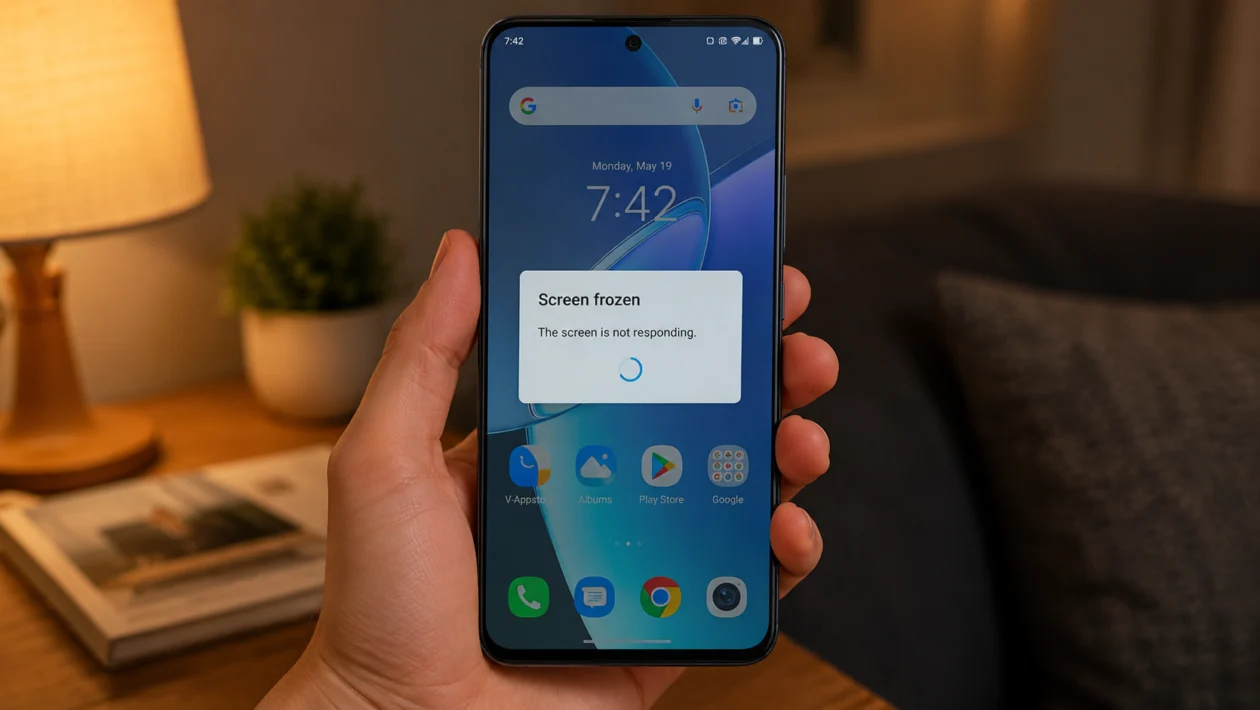
If your vivo Y60 screen keeps freezing, gets stuck while scrolling, or stops responding when opening apps, the phone may be struggling with memory, storage, software bugs, app conflicts, or touch response issues.
A frozen screen does not always mean the display is broken. In many cases, the problem comes from too many background apps, low storage, a buggy app, overheating, an outdated system version, or a temporary Funtouch OS glitch.
Start with the simple fixes first. Restart the phone, close background apps, check storage, update your apps, and test whether the issue happens in one app or across the whole phone.
Quick answer
To fix a vivo Y60 with screen freezing, force restart the phone first. Press and hold the Power button until the phone restarts. If the issue continues, close background apps, free up storage, update your apps, check for a system update, and boot into Safe Mode to see if a third-party app is causing the freeze.
If the screen still freezes after software fixes, back up your data and try a factory reset. If the freezing comes with ghost touch, dead touch areas, screen lines, or damage after a drop or water exposure, contact vivo support or visit a service center.
vivo Y60 screen freezing diagnostic table
| Symptom | Likely cause | What to check first |
|---|---|---|
| Screen freezes randomly | Background apps, low RAM, software glitch | Recent apps and restart |
| Screen freezes in one app | App bug or app cache issue | Update or reinstall that app |
| Screen freezes after update | System optimization or app compatibility | Restart, update apps, monitor |
| Screen freezes while gaming | Heat, RAM use, graphics load | Game settings and temperature |
| Screen freezes when storage is full | Low internal storage | Free up storage |
| Screen freezes while charging | Heat, charger issue, cable issue | Charger, cable, phone temperature |
| Touch does not respond in some areas | Display or touch panel issue | Remove case and screen protector |
| Phone freezes then restarts | System crash or hardware issue | Software update and service check |
| Phone freezes after installing an app | Problematic third-party app | Safe Mode |
| Phone stays frozen on the vivo logo | Boot or system issue | Force restart, recovery, service center |
Why does my vivo Y60 screen keep freezing?
Your vivo Y60 may freeze because the phone is running out of available memory, an app is stuck in the background, the storage is nearly full, or the software needs an update.
Common causes include:
Apps running in the background
Low internal storage
Buggy or outdated apps
Outdated system software
Heavy games or video apps
Overheating
A recent software update
Too many apps set to auto-start
Corrupted cache or app data
A screen protector affecting touch response
Physical or liquid damage
The best fix depends on when the screen freezes. If it freezes only inside one app, fix the app first. If the whole phone freezes, start with system-level fixes.
1. Force restart your vivo Y60
Start here if the screen is frozen and you cannot tap anything.
A force restart can clear temporary system glitches without deleting your files. It is the safest first step when the vivo Y60 screen becomes stuck.
How to do it:
- Press and hold the Power button.
- Keep holding it until the phone restarts.
- Wait for the vivo logo to appear.
- Unlock the phone after it boots.
- Use the phone normally and check if the screen freezes again.
If the Power button alone does not work, try holding Power and Volume Down together for several seconds until the phone restarts.
This will not erase your photos, apps, messages, or files.
2. Close background apps
If too many apps are running, your vivo Y60 may slow down or freeze because available RAM is limited.
This often happens after switching between social media apps, games, camera, browser tabs, and video apps without closing anything.
How to close background apps:
- Open the Recent Apps screen.
- Swipe away apps you are not using.
- Tap Clear all if available.
- Restart the phone.
- Test the screen again.
Do this especially before gaming, video recording, editing photos, or using navigation apps.
You should also check apps that keep running in the background. Messaging, shopping, VPN, cleaner, launcher, battery saver, and social apps can sometimes cause lag when they stay active too long.
3. Free up internal storage
Low storage can make the vivo Y60 freeze, especially when opening apps, taking photos, downloading updates, or switching between tasks.
Try to keep enough free space for the system to run smoothly.
How to check storage:
- Open Settings.
- Tap Storage.
- Check how much space is available.
- Delete large videos, duplicate photos, unused apps, and old downloads.
- Move files to cloud storage or a computer if needed.
Focus on removing:
Large videos
Screen recordings
Old APK files
Downloaded movies
Unused games
Duplicate photos
App cache from social media or video apps
After freeing space, restart the phone and check if the freezing improves.
4. Update your apps
A buggy app can make the screen freeze even when the phone itself is working fine.
This is common when the freezing happens inside one app, such as Facebook, TikTok, YouTube, Chrome, Messenger, Instagram, Shopee, Lazada, or a mobile game.
How to update apps:
- Open Google Play Store.
- Tap your profile icon.
- Tap Manage apps and device.
- Tap Updates available.
- Update all apps, or update the apps you use most.
Also check the vivo App Store if you installed apps from there.
If the screen freezes only in one app, update that app first. If it still freezes, clear the app cache or reinstall it.
5. Clear the cache of the problem app
If one app keeps freezing your vivo Y60, its cached data may be corrupted or too heavy.
Clearing cache does not usually delete your account or personal files inside the app. It removes temporary files that the app can rebuild later.
How to clear app cache:
- Open Settings.
- Tap Apps.
- Select the app that freezes.
- Tap Storage.
- Tap Clear cache.
- Reopen the app and test it again.
Do not tap Clear data unless you know what it does. Clear data can remove app settings, login sessions, downloaded files, or local app data.
Use this fix for apps that freeze, crash, open slowly, or stop responding.
6. Check for a system update
System updates can fix bugs, improve stability, and solve freezing issues caused by software problems.
How to check for updates:
- Open Settings.
- Tap System update.
- Download and install any available update.
- Restart the phone after updating.
- Use the phone normally and monitor it.
If the screen freezing started right after an update, give the phone some time to settle. After a major update, apps and system services may re-optimize in the background.
If the problem continues for more than a day or two, update your apps and continue with the next fixes.
7. Boot into Safe Mode
Safe Mode helps you check whether a third-party app is causing the vivo Y60 screen freezing problem.
When Safe Mode is on, downloaded apps are temporarily disabled. If the phone works normally in Safe Mode, one of your installed apps is likely causing the issue.
How to enter Safe Mode on many vivo phones:
- Press and hold the Power button.
- When the power menu appears, touch and hold Power off.
- Tap Safe Mode if the option appears.
- Wait for the phone to restart.
- Check if the screen still freezes.
If your vivo Y60 does not show this option, turn the phone off, then power it on and follow the Safe Mode method available for your Funtouch OS version.
What to do in Safe Mode:
If the screen does not freeze, uninstall recently installed apps one by one. Start with cleaner apps, launchers, battery savers, VPN apps, modded APKs, and apps downloaded outside the Play Store.
To exit Safe Mode, restart the phone normally.
8. Remove the screen protector and case
Sometimes the issue feels like screen freezing, but the real problem is touch sensitivity.
A thick, cracked, dirty, or poorly installed screen protector can affect touch response. A tight case can also press against the edges of the display and make the phone behave strangely.
Try this:
- Remove the phone case.
- Clean the screen with a soft microfiber cloth.
- Remove the screen protector if it is cracked or lifting.
- Dry your hands before using the phone.
- Test the screen without accessories.
Also check whether the freezing happens only while charging. If it does, test another charger and cable. Poor-quality chargers can sometimes cause touch issues, heat, or unstable behavior.
If some parts of the screen never respond, even after removing the protector, the display may need inspection.
9. Turn off auto-start for unnecessary apps
Some apps start automatically and keep running in the background. Over time, this can slow down the vivo Y60 and make the screen freeze.
This is more noticeable on phones with many messaging apps, shopping apps, social media apps, games, or utility apps installed.
How to check auto-start settings:
- Open Settings.
- Go to Battery or Apps, depending on your Funtouch OS version.
- Look for Background power consumption management, Autostart, or app battery settings.
- Disable auto-start for apps you do not need running all the time.
- Keep it enabled only for important apps like messaging, calls, banking alerts, and work apps.
Do not restrict apps you rely on for real-time notifications unless you are okay with delayed alerts.
10. Back up your data and factory reset the phone
Use this only after trying the easier fixes.
A factory reset can fix deeper software problems, corrupted settings, and persistent freezing. It also deletes your personal data, apps, photos, messages, and files from the phone, so back up everything first.
Before resetting:
Back up photos and videos
Sync contacts
Save important files
Check app login details
Back up WhatsApp or other chat apps
Make sure the battery is charged
How to factory reset:
- Open Settings.
- Tap System management.
- Tap Backup and reset.
- Choose Erase all data.
- Follow the on-screen instructions.
The exact menu names may vary depending on the vivo Y60 software version.
After the reset, set up the phone and test it before reinstalling all your apps. If the screen freezes again before you install anything, the issue may be hardware-related.
When should you contact vivo support?
Contact vivo support or visit a service center if your vivo Y60 still freezes after a factory reset, or if the issue started after a drop, water exposure, pressure damage, or screen replacement.
You should also get the phone checked if you notice:
Dead touch areas
Ghost touch
Green, white, or black screen lines
Screen flickering
The phone freezing on the vivo logo
Random restarts
Overheating even when idle
Swollen battery signs
Freezing during setup after factory reset
If the phone is still under warranty, avoid opening it yourself. Let an authorized technician inspect it.
FAQ
Why is my vivo Y60 screen freezing?
Your vivo Y60 screen may freeze because of low RAM, too many background apps, low storage, outdated apps, system bugs, overheating, or a problematic third-party app. If the freezing happens after a drop or liquid exposure, the display or internal hardware may be affected.
How do I restart my vivo Y60 when the screen is frozen?
Press and hold the Power button until the phone restarts. If that does not work, press and hold Power and Volume Down together for several seconds until the vivo logo appears.
Will force restart delete my files?
No. A force restart only reboots the phone. It does not delete your photos, videos, messages, apps, or settings.
