
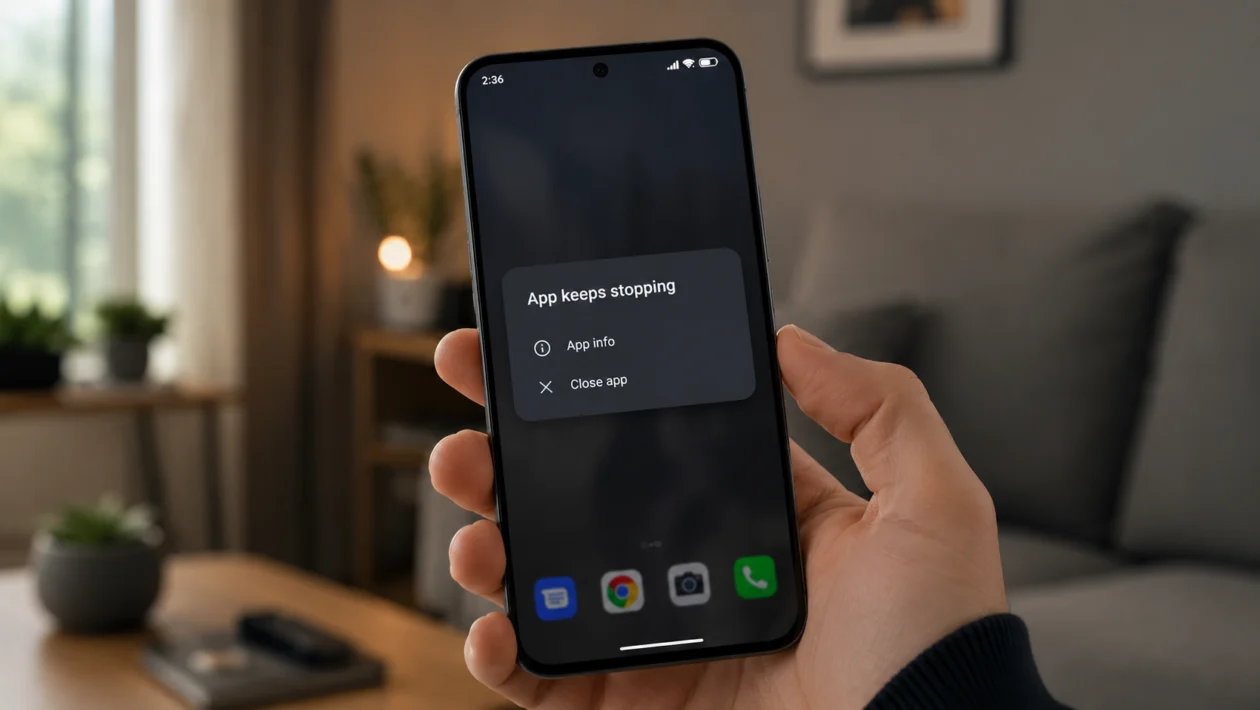
If apps keep crashing on your Xiaomi 17T Pro, the problem usually comes from a bad app update, corrupted cache, low storage, permission issues, battery restrictions, or a temporary HyperOS glitch.
The crash may happen when you open one app, switch between apps, use the camera, open a game, or launch apps that depend on Google services. In most cases, you do not need to reset the phone right away. Start with the simple fixes first.
Quick answer
To fix app crashing on the Xiaomi 17T Pro, go to Settings > Apps > Manage apps, choose the crashing app, then tap Force stop and Clear cache. Reopen the app and check if it works.
If it still crashes, update the app, update HyperOS, check storage, allow required permissions, disable battery restrictions, reinstall the app, or test the phone in Safe mode.
Xiaomi 17T Pro app crashing diagnostic table
| Symptom | Likely cause | Check first |
|---|---|---|
| One app keeps crashing | App bug, bad cache, outdated version | App info and app update |
| Many apps keep crashing | System update issue, low storage, Google service issue | HyperOS update and storage |
| App crashes after opening | Corrupted cache or app data | Clear cache first |
| App crashes after login | Account sync, app data, server issue | Update or reinstall the app |
| Game crashes during play | Heat, RAM, storage, graphics issue | Storage, performance, app update |
| Camera or social app crashes | Permission or camera access conflict | App permissions |
| Apps close in the background | Battery restriction or memory management | Battery saver settings |
| App crashes after HyperOS update | Compatibility issue | Update app and wait for patch |
| App installed from APK crashes | Compatibility or unsafe install file | Install from Play Store or Xiaomi app store |
| App still crashes after every fix | App bug or system issue | Safe mode or Xiaomi support |
Why apps keep crashing on Xiaomi 17T Pro
Apps may crash on your Xiaomi 17T Pro when the app cannot load properly, does not have enough storage, conflicts with HyperOS, or gets restricted in the background.
Common causes include:
App cache errors
Outdated app version
Outdated HyperOS version
Low internal storage
Missing app permissions
Battery saver restrictions
Buggy Android System WebView or Google Play services
App installed from an unsafe APK source
Recent app or system update
Temporary phone memory issue
The fastest way to fix it is to check the affected app first, then move to system-level fixes only if several apps are crashing.
1. Restart your Xiaomi 17T Pro
Start with a restart. It sounds basic, but it can fix temporary memory problems, frozen background services, and small HyperOS glitches.
- Press and hold the Power button.
- Tap Restart.
- Wait for the Xiaomi 17T Pro to turn back on.
- Open the crashing app again.
- Use it for a few minutes to check if the problem returns.
This will not delete your photos, apps, messages, or files.
Try this first if the app started crashing suddenly after normal use.
2. Force stop the crashing app
If only one app keeps crashing, force stop it before changing deeper settings. This closes the app completely and stops any stuck background process.
- Open Settings.
- Tap Apps.
- Tap Manage apps.
- Choose the app that keeps crashing.
- Tap Force stop.
- Open the app again.
This works best when the app freezes, keeps closing, or shows an error like “app keeps stopping.”
If the app crashes again right away, clear its cache next.
3. Clear the app cache
A damaged cache can make an app crash even if the app itself is not broken. Clearing cache removes temporary files, not your main app account.
- Open Settings.
- Tap Apps.
- Tap Manage apps.
- Select the crashing app.
- Tap Storage.
- Tap Clear cache.
- Reopen the app.
Use this fix for apps like Chrome, Facebook, TikTok, Instagram, YouTube, banking apps, games, shopping apps, and messaging apps.
Do not tap Clear data yet unless cache clearing does not work. Clear data is more aggressive and may remove saved app settings, offline files, chat history, or game progress depending on the app.
4. Update the crashing app
Apps often crash after a phone update because the app has not yet been optimized for the latest system version. Updating the app can fix compatibility bugs.
To update apps from Google Play Store:
- Open Google Play Store.
- Tap your profile icon.
- Tap Manage apps and device.
- Tap Updates available.
- Update the crashing app.
- Update other important apps too.
Also check GetApps or Xiaomi App Mall if the app was installed from Xiaomi’s app store.
After updating, restart the Xiaomi 17T Pro and open the app again.
5. Update HyperOS on your Xiaomi 17T Pro
If several apps are crashing, check for a system update. Xiaomi may release updates that improve app compatibility, background behavior, security, and system stability.
- Open Settings.
- Tap About phone.
- Tap the HyperOS version card.
- Tap Check for updates.
- Install any available update.
- Restart the phone.
If the app crashing started right after a major HyperOS update, update your apps first and monitor the phone for 24 to 48 hours. Some apps need their own patch after a new system version arrives.
6. Check storage space
Low storage can make apps freeze, close, or fail to load. Apps need free space for cache, temporary files, downloads, updates, and background processes.
- Open Settings.
- Tap About phone.
- Tap Storage.
- Check how much free space is left.
- Delete large videos, unused apps, duplicate files, or old downloads.
Try to keep at least 10% to 15% of your internal storage free. If your Xiaomi 17T Pro is almost full, app crashing can happen more often.
Good places to check:
Downloads folder
Screen recordings
Large videos
Offline Netflix or YouTube downloads
Telegram and WhatsApp media
Unused games
Duplicate photos
After freeing space, restart the phone and open the crashing app again.
7. Allow the app permissions it needs
Some apps crash because they cannot access a required permission. This is common with camera apps, banking apps, messaging apps, fitness apps, map apps, and apps that use microphone, location, files, or notifications.
- Open Settings.
- Tap Apps.
- Tap Manage apps.
- Choose the crashing app.
- Tap App permissions.
- Allow the permissions the app needs.
- Reopen the app.
Examples:
Camera apps need camera and microphone access.
Navigation apps need location access.
Messaging apps may need contacts, photos, microphone, and notifications.
Banking apps may need camera access for ID scans or QR codes.
Do not allow every permission blindly. Only allow what makes sense for the app.
8. Turn off battery restrictions for the app
HyperOS can restrict background activity to save power. That is useful for battery life, but it can cause some apps to crash, freeze, delay notifications, or close in the background.
- Open Settings.
- Tap Battery.
- Tap Additional features or Battery usage settings if shown.
- Find the affected app.
- Set battery usage to No restrictions or a less restricted option.
- Reopen the app.
You can also try this path:
Settings > Apps > Manage apps > Select the app > Battery saver > No restrictions
Use this for apps that must keep running, such as:
Messaging apps
Email apps
Fitness trackers
Navigation apps
Smartwatch apps
VPN apps
Authenticator apps
Delivery or ride-hailing apps
If the app only crashes when running in the background, battery restriction is one of the first settings to check.
9. Uninstall and reinstall the app
If force stop, cache clearing, and updates do not work, reinstall the app. This gives you a clean copy of the app and removes damaged local files.
- Press and hold the app icon.
- Tap Uninstall.
- Restart your Xiaomi 17T Pro.
- Open Google Play Store or Xiaomi’s app store.
- Reinstall the app.
- Sign in again.
Before uninstalling, check whether the app stores important data locally. Some games, note apps, voice recorder apps, and messaging apps may lose unsynced data.
Install apps from Google Play Store, Xiaomi’s app store, or the app’s official website whenever possible. Apps from random APK sites may crash because of compatibility, missing services, modified files, or security issues.
10. Test the phone in Safe mode
Safe mode helps you check whether another app is causing the crashing problem. In Safe mode, third-party apps are disabled temporarily.
Use this if several apps keep crashing or the phone became unstable after installing a new app.
- Press and hold the Power button.
- Touch and hold Power off.
- Tap Safe mode when it appears.
- Wait for the phone to restart.
- Check if the problem still happens.
If apps stop crashing in Safe mode, a third-party app is probably causing the issue. Restart normally, then uninstall recently installed apps one by one.
Start with apps installed shortly before the crashing began, especially:
Cleaner apps
Battery saver apps
VPN apps
Antivirus apps
APK-installed apps
Screen recorder apps
Launcher apps
Theme customization apps
If apps still crash even in Safe mode, the issue may be tied to HyperOS, Google services, corrupted app data, or a deeper system problem.
What if apps still crash on Xiaomi 17T Pro?
If the problem continues after all 10 fixes, check whether the crashing app is also failing on other phones. If many users are reporting the same issue, the app developer may need to release an update.
You should contact Xiaomi support or the app developer if:
The phone crashes with many different apps
The same app crashes after reinstalling
The phone overheats before apps close
The phone restarts by itself
The issue started after a failed update
Banking or work apps cannot open
Safe mode does not help
The app shows a repeated error message
Avoid factory resetting the phone unless you have backed up your data and tried the safer fixes first.
FAQ
Why does my Xiaomi 17T Pro keep closing apps?
Your Xiaomi 17T Pro may keep closing apps because of battery restrictions, low storage, app cache problems, or HyperOS memory management. Start by clearing the app cache, updating the app, and setting the app battery saver option to No restrictions.
Why does one app keep crashing but other apps work?
If only one app crashes, the problem is usually inside that app. It may have corrupted cache, a bad update, missing permissions, or compatibility issues with your current HyperOS version.
Should I clear cache or clear data?
Clear cache first. It is safer and usually enough for basic app crashing problems. Clear data only if the app still crashes, because it may remove local settings, saved files, login sessions, or unsynced information.
