
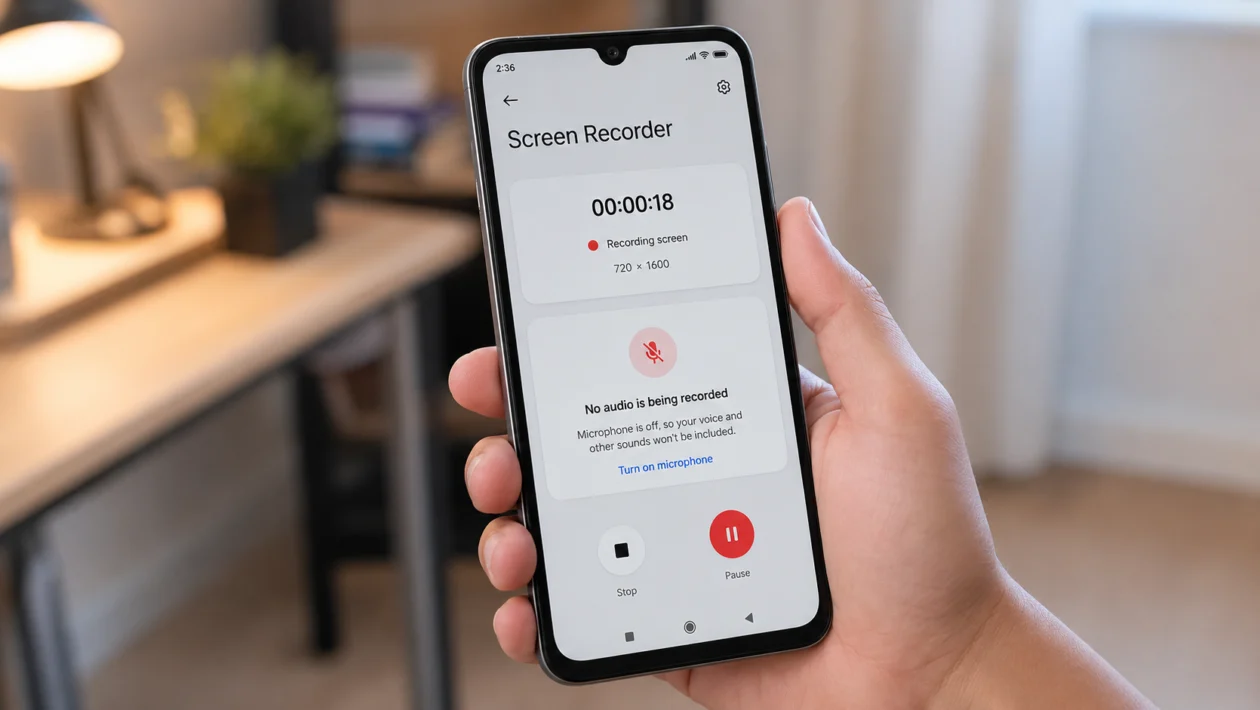
If your Xiaomi Poco C81 Pro screen recorder saves video but no sound, the problem is usually a wrong audio source, blocked microphone permission, Bluetooth audio conflict, app restriction, or a temporary HyperOS bug.
Start with the Screen Recorder sound setting first. On Xiaomi phones, the built-in recorder has a Sound source option where you can choose system sounds, microphone, or mute. If it is set to mute, your recording will have no audio even if the video looks normal.
Quick answer
To fix Xiaomi Poco C81 Pro screen recorder with no audio, open Screen Recorder > Settings > Sound source, then choose Microphone or System sounds instead of Mute.
If that does not work, restart the phone, check microphone permission, disconnect Bluetooth devices, close apps using the mic, update HyperOS, and test whether the issue happens in all apps or only one app.
Xiaomi Poco C81 Pro screen recorder no audio quick check
| Problem | Likely cause | What to try first |
|---|---|---|
| No sound in every recording | Sound source set to mute | Change Screen Recorder sound source |
| No voice audio | Microphone access blocked | Allow microphone permission |
| No internal audio | App blocks audio capture | Test another app |
| Audio missing while using earbuds | Bluetooth audio conflict | Disconnect Bluetooth |
| Audio worked before update | HyperOS or app bug | Restart and update |
| Very low audio | Mic covered or dirty | Clean mic area |
| No audio only in games | Game audio restriction or game mode | Check Game Turbo and app audio |
| Recorder stops capturing sound | Another app is using mic | Close voice, camera, and call apps |
1. Change the Screen Recorder sound source
This is the first setting to check because it directly controls whether your Poco C81 Pro records audio.
- Open the Screen Recorder app.
- Tap the Settings icon.
- Tap Sound source.
- Choose Microphone if you want your voice recorded.
- Choose System sounds if you want app, game, or video audio recorded.
- Avoid Mute unless you only want silent video.
- Record a short 10-second test clip.
2. Turn on microphone permission for Screen Recorder
If you want to record your voice but the saved video has no microphone sound, the recorder may not have mic access.
- Open Settings.
- Tap Apps.
- Tap Manage apps.
- Find and open Screen Recorder.
- Tap App permissions.
- Tap Microphone.
- Choose Allow only while using the app.
- Try recording again.
Also check this path:
Settings > Privacy protection > Permissions > Microphone
Make sure Screen Recorder is not blocked there.
3. Make sure microphone access is not disabled
HyperOS and Android can block microphone access at the system level. When this is off, apps may appear to work but cannot capture voice audio.
- Swipe down from the top of the screen.
- Open the Quick Settings panel.
- Look for Microphone access.
- Turn it on if it is disabled.
- Try another screen recording.
If you cannot find it in Quick Settings:
- Open Settings.
- Tap Privacy protection.
- Tap Privacy.
- Check Microphone access.
This matters most when the recorder captures system audio but not your voice.
4. Disconnect Bluetooth earbuds or speakers
Bluetooth devices can confuse audio routing during screen recording. Your Poco C81 Pro may send or capture audio through the connected headset instead of the phone microphone.
- Open Settings.
- Tap Bluetooth.
- Turn Bluetooth off temporarily.
- Record a test video using the phone speaker and built-in microphone.
- Play the video from the Gallery.
If the sound returns, the issue is linked to Bluetooth audio routing. Reconnect your earbuds after recording, or test another headset.
This fix is especially useful if screen recordings have no voice audio during games, calls, voice chat, or messaging apps.
5. Close apps that are already using the microphone
Only one app may be actively using the microphone properly at a time. If WhatsApp, Messenger, TikTok, Camera, Recorder, Discord, Telegram, or a game voice chat is using the mic, Screen Recorder may save video without audio.
- Swipe up and hold to open recent apps.
- Close apps that may use the microphone.
- Close Camera, Recorder, calling apps, and voice chat apps.
- Open Screen Recorder again.
- Start a new test recording.
You should also check for a green microphone indicator near the status bar. If it appears before you start recording, another app may already be using the mic.
6. Test another app because some apps block internal audio
If your Poco C81 Pro records sound in YouTube, Gallery, or the home screen but not in one specific app, the phone may not be the problem.
Some apps block internal audio recording because of privacy, copyright, call protection, or security rules. This can happen with streaming apps, banking apps, video call apps, online classes, and some games.
Test it this way:
- Record your home screen with microphone audio.
- Record a YouTube video or local video.
- Record the app where audio is missing.
- Compare all three recordings.
7. Turn off silent mode and raise media volume before recording
Screen Recorder may capture very low or silent system sound if the media volume is muted.
- Press the Volume up button.
- Tap the three-dot volume menu if shown.
- Raise Media volume.
- Turn off Silent mode or Do Not Disturb.
- Play the audio you want to record.
- Start Screen Recorder again.
For microphone recordings, speak near the bottom microphone area and remove any thick case that may be covering the mic.
This is a simple fix, but it is easy to miss because screen recording can continue normally even when the audio level is too low.
8. Clear Screen Recorder cache
A corrupted cache can cause small app glitches, including missing sound, failed saves, or broken settings.
- Open Settings.
- Tap Apps.
- Tap Manage apps.
- Open Screen Recorder.
- Tap Storage.
- Tap Clear cache.
- Restart the phone.
- Try recording again.
Do not tap Clear all data unless you are okay with resetting the app’s settings.
9. Restart and update your Poco C81 Pro
If the issue started after a HyperOS update, app update, or long gaming session, restart the phone before changing deeper settings.
- Hold the Power button.
- Tap Restart.
- After the phone turns back on, record a short test clip.
Then check for updates:
- Open Settings.
- Tap About phone.
- Tap the HyperOS version card.
- Tap Check for updates.
- Install any available update.
Also update system apps:
- Open Settings.
- Tap System apps updater.
- Update Screen Recorder, Security, and other Xiaomi apps if updates are available.
10. Test the microphone hardware
If Screen Recorder, Camera, Voice Recorder, calls, and third-party apps all have no microphone sound, your Poco C81 Pro may have a microphone issue.
Try this:
- Open the Recorder app.
- Record your voice for 10 seconds.
- Play it back.
- Open the Camera app.
- Record a short video while speaking.
- Play the video back.
If both tests have no sound, clean the microphone area gently. Do not insert metal objects into the hole.
You can also test with and without a phone case. Some cheap or tight cases block the microphone opening.
If the microphone still does not work, back up your files and contact Xiaomi or Poco support. Xiaomi’s own support guidance says no-sound recording issues may need microphone testing, software updates, or deeper troubleshooting when hardware detection is normal.
Why does Poco C81 Pro screen recording have no audio?
Your Poco C81 Pro screen recording may have no audio because the Screen Recorder sound source is set to mute, microphone permission is blocked, Bluetooth is changing the audio route, another app is using the microphone, or the app you are recording does not allow internal audio capture.
In most cases, the fix is not a factory reset. Start with Screen Recorder > Settings > Sound source, then test microphone permission and Bluetooth.
Can Poco C81 Pro record internal audio?
Yes, the built-in Xiaomi Screen Recorder can record audio depending on the selected Sound source setting. On Xiaomi’s Screen Recorder settings page, the sound source option can be set to system sounds, microphone, or mute.
One important limitation: some apps may block internal audio recording. If only one app has no sound, test another app before blaming the phone.
Can Poco C81 Pro record microphone and system sound at the same time?
This depends on the Screen Recorder version and HyperOS build on your phone. Some Xiaomi builds offer only one sound source at a time, such as microphone, system sounds, or mute. If your Poco C81 Pro does not show a combined option, record with the source that matters most for that video.
For tutorials, choose Microphone.
For gameplay or app demos, choose System sounds.
For silent screen captures, choose Mute.
Should you factory reset the phone?
Only use a factory reset as a last step. A reset may help if the issue is caused by a damaged system setting, but it will erase your phone if you do not back up first.
Before resetting, try all 10 fixes above, update HyperOS, and test the microphone in Recorder and Camera.
Final fix checklist
Check these before recording again:
| Setting | Recommended choice |
|---|---|
| Screen Recorder sound source | Microphone or System sounds |
| Microphone permission | Allowed |
| Microphone access | On |
| Bluetooth | Off during testing |
| Media volume | Raised |
| Silent mode | Off |
| App being recorded | Tested against another app |
| Screen Recorder cache | Cleared |
| HyperOS | Updated |
| Microphone hardware | Tested in Recorder and Camera |
FAQs
Why is my Poco C81 Pro screen recording silent?
It is usually silent because Screen Recorder is set to Mute, the microphone permission is blocked, or the app you are recording does not allow internal audio capture.
Why does screen recording capture my voice but not game sound?
The recorder is probably set to Microphone instead of System sounds. Open Screen Recorder settings and change the sound source.
Why does screen recording capture game sound but not my voice?
The recorder may be set to System sounds, or microphone permission may be blocked. Change the sound source to Microphone and check app permissions.
