


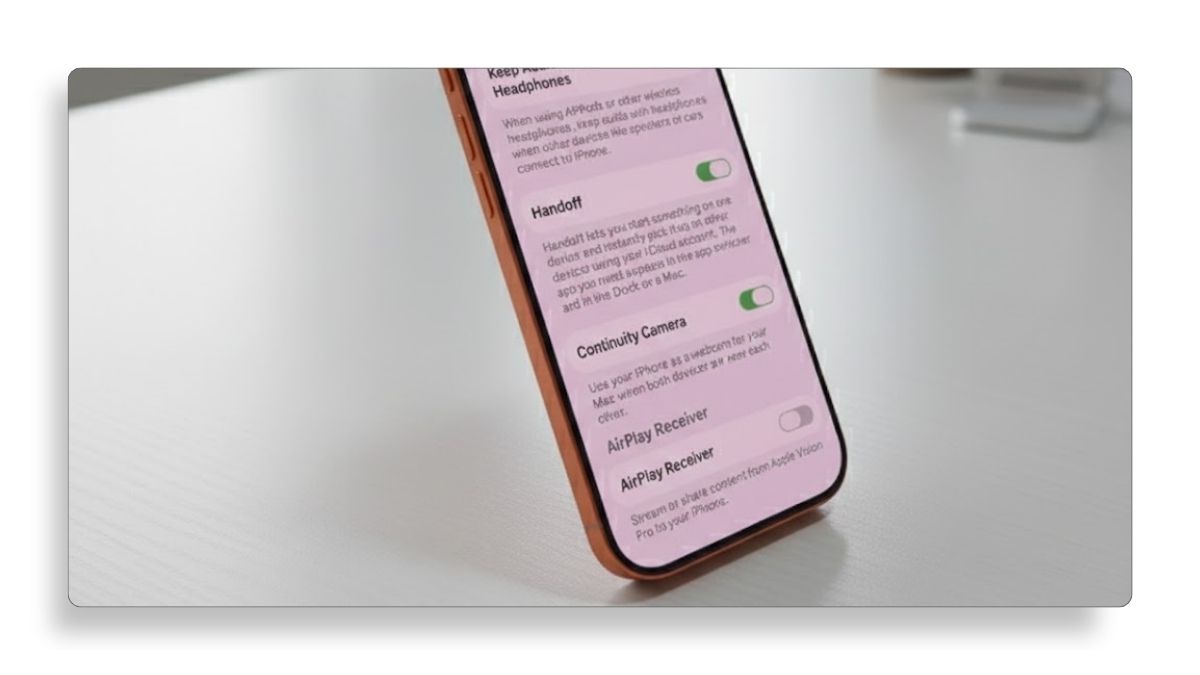
You might notice your iPhone automatically picking up what you were doing on another Apple device, like continuing a Safari page or message, and that behavior is controlled by a feature called Handoff.
Handoff is part of Apple’s AirPlay and Continuity features, and you can turn it on or off depending on how you want your devices to work together.
Here’s how to manage it step by step.
1. Open AirPlay and Continuity Settings
Open Settings, then scroll down and tap General.
From there, scroll down again and tap AirPlay and Continuity.
This is where Apple groups features that allow your iPhone to work seamlessly with other devices connected to your iCloud account.
2. Turn Handoff On or Off
Scroll down and tap Handoff.
Tap the toggle switch to turn Handoff on or off, depending on your preference.
When Handoff is turned on, you can start something on one Apple device and instantly continue it on another device that uses the same iCloud account.
Turning it off stops this automatic activity sharing between devices.
3. What Happens After Changing This Setting
Once you toggle Handoff, the change takes effect immediately.
You do not need to restart your iPhone or sign out of iCloud.
If you turned it off, your iPhone will stop suggesting activities from your other Apple devices.
If you turned it on, you should start seeing app and task suggestions again when switching devices.
That’s all there is to it.
This simple setting gives you full control over how connected your Apple devices feel, whether you prefer seamless continuity or a more private, independent experience.
If this guide helped you understand or fix the issue, consider checking out more tutorials to get the most out of your iPhone.





