

Setting up the Samsung Galaxy A57 5G is easy, but the first 20 minutes matter.
This is where you connect Wi-Fi, sign in to your Google and Samsung accounts, move your data, set up fingerprint unlock, choose your privacy settings, enable fast charging, and adjust One UI 8.5 so the phone feels right from day one.
This guide walks you through the first-time setup step by step.
Before You Start
Difficulty: Easy
Time required: 15 to 30 minutes
You’ll need:
- Your Samsung Galaxy A57
- A Wi-Fi connection
- Your Google account email and password
- Your Samsung account login, if you have one
- Your SIM card or eSIM QR code
- Your old phone, if you want to transfer data
- A USB-C cable, if using wired Smart Switch transfer
- At least 40% battery, or keep the phone plugged in
The Galaxy A57 does not have a microSD card slot, so choose your storage habits early. Photos, 4K videos, downloads, and WhatsApp files can fill the phone faster than you expect.
Quick Setup Checklist
Here’s the short version if you just want the order:
- Turn on the Galaxy A57.
- Choose language and region.
- Connect to Wi-Fi.
- Insert SIM or set up eSIM.
- Sign in to your Google account.
- Sign in to your Samsung account.
- Transfer data with Smart Switch.
- Set up fingerprint, PIN, or password.
- Review privacy and location settings.
- Update Android, One UI, and apps.
- Set display, battery, camera, and notification preferences.
Do not skip the update step. A new phone can ship with older software, and setup bugs are often fixed through updates.
Step 1: Turn On the Samsung Galaxy A57
Press and hold the Side button until the Samsung logo appears.
If the battery is low, plug the phone into a charger first. The Galaxy A57 supports 45W wired charging, but any safe USB-C charger should work for basic setup.
Once the welcome screen appears, tap Start.
Step 2: Choose Your Language and Region
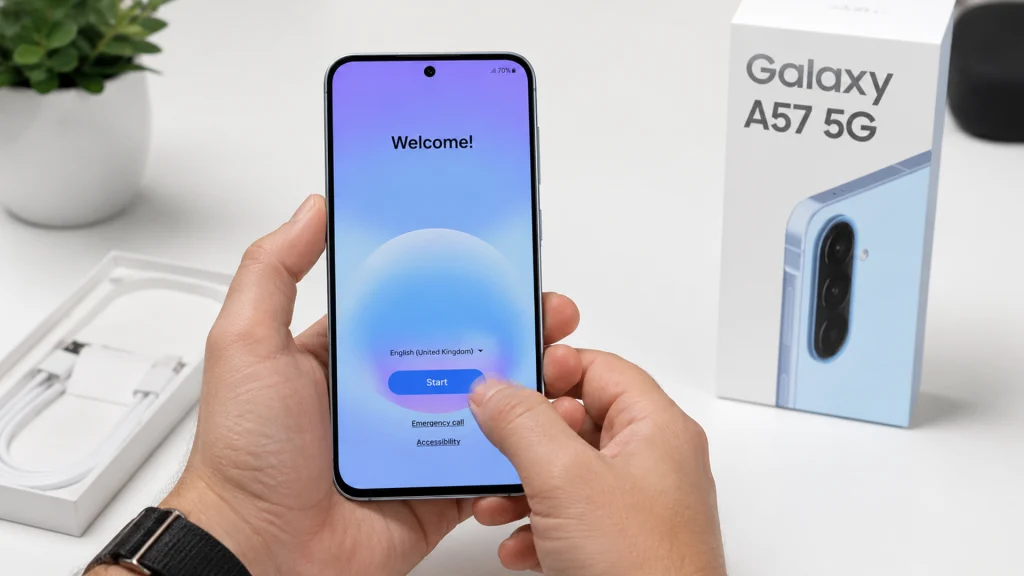
Select your preferred language, then choose your country or region.
This matters because some features can depend on region, carrier, language, or local regulations. NFC, eSIM, Samsung Wallet, emergency alerts, and certain network features may vary depending on where the phone is sold and used.
Tap Next when done.
Step 3: Accept the Required Terms
Samsung will show setup terms and permissions.
You usually need to accept the required terms to continue. Optional marketing permissions are your choice.
My advice: only accept what you understand. You can always turn on optional services later.
Tap Next.
Step 4: Connect to Wi-Fi
Choose your Wi-Fi network and enter the password.
A stable Wi-Fi connection is useful because setup may download updates, restore apps, sync Google data, and transfer files.
If your Wi-Fi does not appear:
- Move closer to the router.
- Tap Refresh if available.
- Restart your router.
- Use mobile data temporarily if your SIM is active.
You can fix Wi-Fi problems later using How to Fix Wi-Fi Problems on Samsung Galaxy A57.
Step 5: Insert Your SIM or Set Up eSIM
The Galaxy A57 supports Nano-SIM and eSIM options, depending on the model and region.
If you have a physical SIM:
- Turn off the phone if you have not started setup yet.
- Insert the SIM ejector tool into the SIM tray hole.
- Place the Nano-SIM into the tray.
- Push the tray back in carefully.
- Continue setup.
If you have eSIM:
- Choose the option to add a mobile plan during setup.
- Scan the QR code from your carrier.
- Follow the carrier activation steps.
- Wait for the plan to activate.
If eSIM activation fails, do not delete the plan repeatedly. Some carriers limit QR code reuse. Use How to Set Up eSIM on the Samsung Galaxy A57 for a full troubleshooting guide.
Step 6: Copy Apps and Data From Your Old Phone
Samsung will ask if you want to copy apps and data.
Use Samsung Smart Switch if you are moving from an older Samsung phone, another Android phone, or an iPhone.
You can transfer:
- Contacts
- Photos and videos
- Messages
- Call logs
- Apps
- Device settings
- Home screen layout
- Documents
- Some WhatsApp data, depending on your old phone
You have two main choices:
| Transfer method | Best for |
|---|---|
| Cable transfer | Faster and better for large files |
| Wireless transfer | Easier if you do not have the right cable |
If your old phone has a lot of photos and 4K videos, use a cable. Wireless transfer works, but it can take longer and may fail if either phone loses connection.
Use How to Transfer Data to the Samsung Galaxy A57 if you want a separate step-by-step transfer guide.
Step 7: Sign In to Your Google Account
Your Google account connects Gmail, Google Play, YouTube, Chrome, Google Photos, Google Drive, contacts, and app backups.
Enter your Google email and password.
After signing in, review:
- Backup settings
- Location access
- Diagnostic data
- App restore options
- Google services
This part is easy to rush through. Don’t.
If you restore every old app from your previous phone, you may also bring back apps you no longer use. That can affect storage, battery, and notifications later.
Step 8: Sign In to Your Samsung Account
Your Samsung account gives you access to Samsung services such as:
- Galaxy Store
- Samsung Cloud
- Samsung Find
- Secure Folder
- SmartThings
- Samsung Wallet, where available
- Device backup and restore
- Some One UI features
You can skip this, but I do not recommend skipping it completely.
At minimum, sign in so you can use Samsung Find if your Galaxy A57 gets lost.
Use How to Find a Lost Samsung Galaxy A57 as a supporting guide in your silo.
Step 9: Set Up Screen Lock
Choose a secure screen lock.
You can use:
- PIN
- Password
- Pattern
- Fingerprint
- Face unlock
For most people, a PIN plus fingerprint is the best setup.
Do not use an obvious PIN like 0000, 1111, 1234, or your birth year. It is convenient, but it is also weak.
Step 10: Set Up Fingerprint Unlock
The Galaxy A57 uses an under-display optical fingerprint sensor.
To set it up:
- Go to Settings.
- Tap Security and privacy.
- Tap Biometrics.
- Tap Fingerprints.
- Enter your PIN or password.
- Follow the on-screen instructions.
- Add your main thumb.
- Add the same thumb again from a slightly different angle.
That last part matters. Registering the same finger twice can make unlocks more reliable.
If you use a screen protector, install it before registering fingerprints. Some protectors can affect fingerprint accuracy.
Step 11: Review Privacy Settings
Go to:
Settings > Security and privacy
Check these settings first:
- Lock screen security
- Permission manager
- Location access
- Camera access
- Microphone access
- Samsung account security
- Google Play Protect
- Find My Mobile or Samsung Find
- Auto blocker, if available in your region
Then go to:
Settings > Privacy
Review which apps can access:
- Camera
- Microphone
- Location
- Contacts
- Photos and videos
- Nearby devices
A simple rule: if an app does not need the permission to work, deny it.
A flashlight app does not need your contacts. A calculator does not need your location. You get the point.
Step 12: Update the Galaxy A57
Do this before judging battery life, performance, heat, or camera quality.
Go to:
Settings > Software update > Download and install
Install any available update.
Then update your apps:
- Open Google Play Store.
- Tap your profile picture.
- Tap Manage apps and device.
- Tap Update all.
Also update Samsung apps:
- Open Galaxy Store.
- Tap Menu.
- Tap Updates.
- Update available Samsung apps.
New phones often improve after the first few updates. The first day is not always the best day to judge performance.
Step 13: Set Up Display Settings
The Galaxy A57 has a 6.7-inch Super AMOLED+ display with 120Hz refresh rate. It should look smooth and bright, but the default settings may not be right for you.
Go to:
Settings > Display
Check these options:
Motion Smoothness
Choose the smoother refresh rate option if you want better scrolling. Choose the lower refresh option if you want to save battery.
Dark Mode
Go to:
Settings > Display > Dark mode
Dark mode is easier on the eyes at night and can help save some battery on AMOLED screens.
Eye Comfort Shield
Go to:
Settings > Display > Eye comfort shield
Turn this on if the screen feels harsh at night.
Screen Timeout
Go to:
Settings > Display > Screen timeout
Set it to 30 seconds or 1 minute if you want better battery life.
Font Size and Screen Zoom
Go to:
Settings > Display > Font size and style
Settings > Display > Screen zoom
Adjust these now. A good setup is one you do not have to fight every day.
Step 14: Set Up Battery and Charging Settings
The Galaxy A57 has a 5000mAh battery and 45W wired charging. Still, the way you set up the phone affects battery life.
Go to:
Settings > Battery
Check:
- Battery usage
- Power saving
- Background usage limits
- Battery protection
- Charging settings
Then go to:
Settings > Battery > Charging settings
Turn on fast charging if it is available.
For better long-term battery health, enable Battery Protection if you usually charge overnight.
Step 15: Clean Up Notifications Early
This is where most people make their phone annoying without realizing it.
Go to:
Settings > Notifications
Review:
- App notifications
- Lock screen notifications
- Notification pop-up style
- Do Not Disturb
- Advanced settings
Turn off notifications from apps that do not need your attention.
Be strict here. Shopping apps, games, random utilities, and social apps can bury useful alerts under noise.
Step 16: Set Up Samsung Find and Google Find My Device
Do this before you lose the phone, not after.
For Samsung Find:
- Go to Settings.
- Tap your Samsung account.
- Open Samsung Find or Find My Mobile, depending on your region.
- Turn on location and remote finding features.
For Google Find My Device:
- Go to Settings.
- Tap Google.
- Tap Find My Device.
- Turn it on.
Also keep location enabled for finding features. Without it, tracking may be limited.
Step 17: Set Up Secure Folder
Secure Folder is useful if you want a private space for apps, photos, files, and documents.
Go to:
Settings > Security and privacy > More security settings > Secure Folder
Sign in with your Samsung account, then choose a lock method.
Use Secure Folder for:
- Private photos
- Banking apps
- Work files
- ID copies
- Notes
- Messaging apps you want separated
Step 18: Set Up Camera Basics
The Galaxy A57 has a 50MP main camera with OIS, a 12MP ultrawide camera, and a 5MP macro camera.
Open the Camera app and check these settings:
- Tap the Settings gear.
- Turn on Grid lines if available.
- Check video resolution.
- Set rear video to 4K at 30fps if you want higher detail.
- Use 1080p at 60fps if you want smoother motion.
- Keep the main camera as your default for most photos.
Do not use 50MP mode all the time. It can be useful in bright light when you want more detail, but standard photo mode is usually better for quick everyday shots.
Step 19: Set Up Modes and Routines
Modes and Routines can make the Galaxy A57 feel smarter without installing extra apps.
Go to:
Settings > Modes and Routines
Useful routines:
| Routine | What it does |
|---|---|
| Sleep mode | Lowers distractions at night |
| Work mode | Silences personal apps during work hours |
| Driving routine | Opens maps or music when connected to car Bluetooth |
| Battery routine | Turns on power saving below a chosen battery level |
| Earbuds routine | Opens Spotify or YouTube Music when earbuds connect |
This is one of the best One UI features for everyday use. Not flashy. Actually useful.
Use How to Use Modes and Routines on Galaxy A57 as a full tutorial.
Step 20: Remove or Disable Apps You Do Not Need
New phones often come with apps you will never use.
Go to:
Settings > Apps
Review the list and uninstall or disable apps you do not want.
You can also press and hold an app icon, then tap Uninstall or Disable if available.
Be careful with system apps. If you are not sure what an app does, leave it alone.
Step 21: Set Default Apps
Go to:
Settings > Apps > Choose default apps
Check your default:
- Browser app
- Phone app
- SMS app
- Digital assistant app
- Home app
- Opening links
This is useful if you prefer Chrome over Samsung Internet, Google Messages over Samsung Messages, or another assistant app.
Step 22: Set Up Backup
Backups save you when something goes wrong.
For Google backup:
Settings > Google > Backup
For Samsung backup:
Settings > Accounts and backup
Back up:
- Contacts
- Calendar
- Photos
- Messages
- Call logs
- App data
- Device settings
For photos, choose whether you want Samsung Gallery sync, Google Photos backup, or manual backup to a computer.
Because the Galaxy A57 has no microSD card slot, cloud or external backup matters more.
Step 23: Check Storage Before You Fill It
Go to:
Settings > Device care > Storage
Your Galaxy A57 may have 128GB, 256GB, or 512GB storage depending on the model.
If you record 4K video, download Netflix episodes, save TikTok drafts, or keep WhatsApp media, 128GB can fill quickly.
Use How to Free Up Space on Samsung Galaxy A57 as a supporting guide.
Step 24: Test Calls, Mobile Data, Wi-Fi, Bluetooth, and Camera
Before you finish setup, test the basics:
- Make a phone call.
- Send a text message.
- Turn on mobile data.
- Check 5G or LTE signal.
- Connect to Wi-Fi.
- Pair Bluetooth earbuds.
- Take a photo.
- Record a short video.
- Test the speakers.
- Plug in the charger.
This catches problems early.
If something does not work, it is easier to fix now than after you have fully settled into the phone.
Common Setup Problems and Quick Fixes
The Galaxy A57 will not connect to Wi-Fi
Restart the router and phone. Then forget the Wi-Fi network and reconnect. If it still fails, try another Wi-Fi network to check whether the issue is the phone or the router.
Google account verification is asking for an old account
This may happen after a factory reset. Use the Google account previously synced to the phone. If you bought the phone used, contact the seller.
Smart Switch is taking too long
Use a USB-C cable instead of wireless transfer. Also make sure both phones are charged and unlocked during transfer.
eSIM will not activate
Check that your carrier supports eSIM for the Galaxy A57. Make sure the QR code has not already been used. Contact your carrier before deleting and re-adding the plan repeatedly.
Fingerprint unlock is unreliable
Clean the screen, remove bad screen protectors, and register the same finger twice from different angles.
The phone feels warm during setup
That can happen while restoring apps, downloading updates, syncing photos, and indexing files. Let the phone finish setup before judging heat. If it stays hot during normal use, check background apps and updates.
What to Do After Setup
Once your Galaxy A57 is ready, these are the next guides worth reading:
- Samsung Galaxy A57 Settings to Change First
- Best Samsung Galaxy A57 Camera Settings
- How to Fix Samsung Galaxy A57 Battery Drain
- How to Enable Fast Charging on Samsung Galaxy A57
- How to Set Up eSIM on the Samsung Galaxy A57
- How to Use Secure Folder on Samsung Galaxy A57
- How to Use Modes and Routines on Galaxy A57
- How to Free Up Space on Samsung Galaxy A57
- How to Fix 5G Not Working on Samsung Galaxy A57
Final Take
A good Galaxy A57 setup is not just signing in and tapping Next.
Set up your accounts, update the phone, secure your lock screen, enable backups, clean up notifications, check battery settings, and test calls, Wi-Fi, 5G, Bluetooth, charging, and camera before you call it done.
Do that once, properly, and the Galaxy A57 will feel cleaner, faster, and easier to live with from the first day.
FAQ
Do I need a Samsung account to use the Galaxy A57?
No, but you should sign in to one. A Samsung account helps with Samsung Find, Secure Folder, Galaxy Store, device backup, SmartThings, and other Samsung services.
Can I set up the Galaxy A57 without Wi-Fi?
Yes, but it is better to use Wi-Fi. Setup may require updates, app downloads, account sync, and data transfer.
Should I transfer everything from my old phone?
Not always. Transfer contacts, photos, messages, and important apps. Avoid restoring old apps you no longer use because they can clutter your new phone and affect battery life.
Does the Galaxy A57 support eSIM?
Yes, based on the specs provided. eSIM support can still depend on your carrier, region, and exact model.
What should I update first after setup?
Update the phone software first, then Google Play apps, then Galaxy Store apps.
Should I use fingerprint or face unlock?
Use fingerprint unlock as your main biometric option. Face unlock is convenient, but fingerprint unlock is usually better for secure everyday use.
Does the Galaxy A57 have a microSD card slot?
No. The Galaxy A57 does not have a microSD card slot, so storage management and cloud backup are important.
Does the Galaxy A57 have a headphone jack?
No. Use Bluetooth earbuds, USB-C earphones, or a compatible USB-C audio adapter.
