
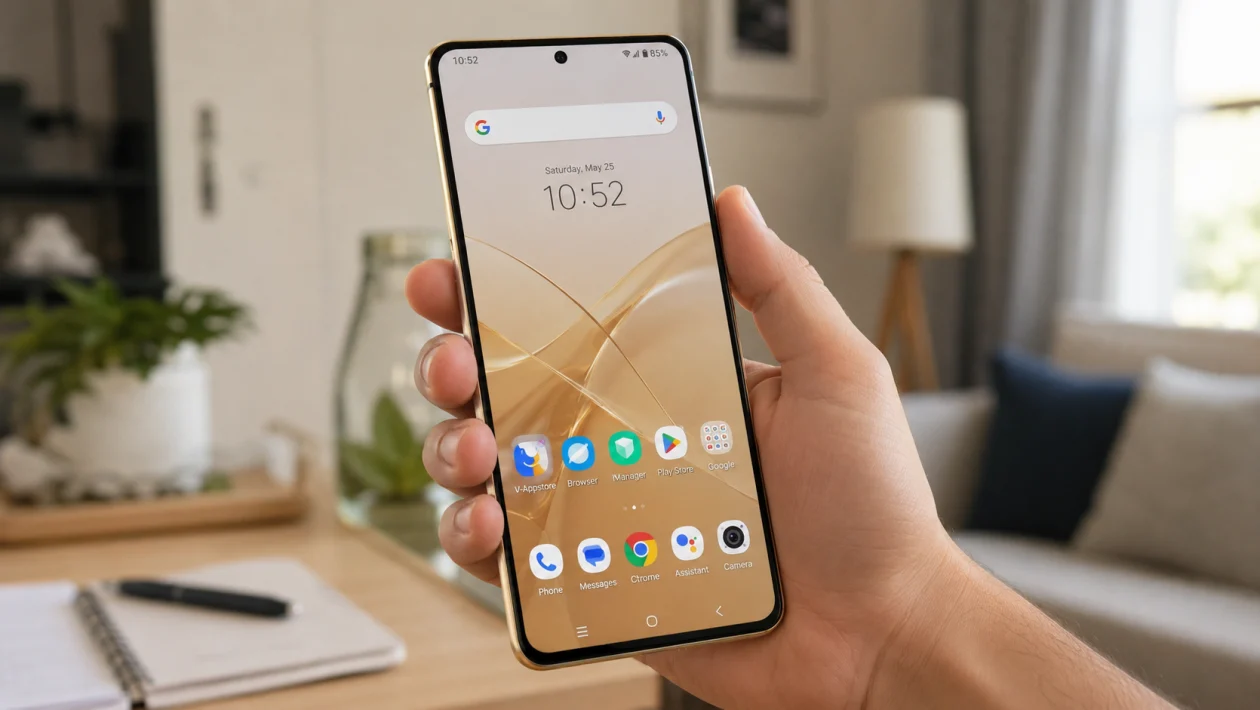
If SMS badges are not showing on your vivo Y51 Pro, the problem is usually caused by notification settings, app icon badge settings, the Messages app, the launcher, or battery restrictions.
The badge may also disappear if SMS notifications are turned off, the Messages app is not your default SMS app, Do Not Disturb is active, or your phone is using a launcher that does not support unread message badges properly.
Start with the basic notification settings first. Most of the time, you do not need to reset the phone.
Quick answer
If SMS badges are not showing on your vivo Y51 Pro, go to Settings > Notifications or Settings > Status bar and notifications, open Messages, and make sure notifications are allowed. Then check app icon badges, home screen badge settings, battery restrictions, and whether the correct Messages app is set as the default SMS app.
If the badge problem started after an update, restart the phone, update the Messages app, and check the badge setting again.
SMS badge diagnostic table
| Symptom | Likely cause | What to check first |
|---|---|---|
| No SMS badge on Messages app | App icon badges are off | Notification badge settings |
| SMS arrives but no badge appears | Messages notifications are disabled | Messages app notification settings |
| Badge appears sometimes only | Battery restriction or launcher issue | Battery and home screen settings |
| Badge shows dot but not number | vivo launcher or Android badge behavior | Badge style support |
| Badge gone after update | Settings reset or app bug | Restart and update apps |
| Badge missing only for Google Messages | Default SMS app or notification channel issue | Default SMS app and notification categories |
| No SMS notification at all | Do Not Disturb or blocked alerts | DND and notification permissions |
Why SMS badges are not showing on vivo Y51 Pro
SMS badges may not show because Android badges depend on active notifications. In simple terms, if the Messages app is not allowed to show notifications, the home screen badge may not appear either.
On vivo phones, this can also depend on Funtouch OS or OriginOS settings, the home screen launcher, and whether the app supports badge counts. Some phones may show a simple dot instead of a number.
Here are the 10 fixes to try.
1. Turn on notifications for the Messages app
Start here because SMS badges usually depend on Messages notifications.
- Open Settings.
- Tap Notifications or Status bar and notifications.
- Find and tap Messages.
- Turn on Allow notifications.
- Also enable lock screen, banner, sound, or badge options if shown.
If notifications are blocked, the phone may still receive texts, but the badge may not appear on the home screen.
This is the most important setting to check before changing anything else.
2. Enable app icon badges on your vivo Y51 Pro
Your vivo Y51 Pro may have a separate setting for badge dots or badge numbers.
- Open Settings.
- Tap Notifications.
- Look for App icon badges, Badges, or Home screen badges.
- Turn it on.
- Make sure Messages is allowed to show badges.
Some vivo software versions place this setting under the home screen settings instead of the notification menu.
Try this path too:
- Long-press an empty area on the home screen.
- Tap Home settings or Launcher settings.
- Look for App icon badges.
- Turn it on.
If your phone only supports dots, you may see a small dot instead of an unread number.
3. Check the notification category for SMS messages
Android can separate notifications into categories. The Messages app may have general notifications turned on, but SMS alerts disabled inside a specific channel.
- Open Settings.
- Tap Apps.
- Tap Messages.
- Tap Notifications.
- Open each message-related category.
- Turn on alerts and badges where available.
Look for options such as:
Incoming messages
SMS
Default notifications
Message notifications
Background notifications
If a message category has badges disabled, the app may notify you without showing a badge.
4. Make sure the right Messages app is your default SMS app
If you installed Google Messages, another SMS app, or a carrier messaging app, your vivo Y51 Pro may not be using the app whose icon you are checking.
- Open Settings.
- Tap Apps.
- Tap Default apps.
- Tap SMS app.
- Choose the Messages app you actually use.
After that, send yourself a test message or ask someone to text you.
Check the badge on the same Messages app you selected as default.
This matters because the badge will usually appear on the active SMS app, not on every messaging app installed on the phone.
5. Remove battery restrictions for the Messages app
If vivo battery management is too aggressive, the Messages app may not refresh badge counts properly.
- Open Settings.
- Tap Battery.
- Open Background power consumption management, Battery usage, or App battery management.
- Find Messages.
- Allow background activity if available.
- Remove strict battery restrictions.
You do not need to turn off every battery-saving feature on the phone. Just make sure the Messages app is not being heavily restricted.
This is especially useful if the SMS badge appears late, disappears randomly, or only updates after you open the app.
6. Turn off Do Not Disturb
Do Not Disturb can silence or hide notifications depending on your settings. If SMS notifications are hidden, the badge may not behave normally.
- Swipe down from the top of the screen.
- Check if Do Not Disturb is on.
- Turn it off.
- Send a test SMS.
- Check whether the badge appears.
You can also check it from settings:
- Open Settings.
- Tap Sound and vibration.
- Tap Do Not Disturb.
- Turn it off or allow Messages as an exception.
If you use scheduled Do Not Disturb at night, SMS badges may not appear as expected during that schedule.
7. Clear the Messages app cache
A corrupted app cache can cause badge delays, missing notifications, or unread counts that do not update.
- Open Settings.
- Tap Apps.
- Tap Messages.
- Tap Storage.
- Tap Clear cache.
Do not tap Clear data unless you understand what will be removed. Clearing cache is the safer option and should not delete your text messages.
After clearing the cache, restart the phone and check again.
8. Restart your vivo Y51 Pro
A restart can refresh the launcher, notification system, and Messages app.
- Press and hold the power button.
- Tap Restart.
- Wait for the phone to turn back on.
- Ask someone to send you an SMS.
- Check the Messages icon again.
This is simple, but it can fix temporary badge problems after an app update, system update, or long uptime.
If the badge works after restarting but disappears again later, the issue may be caused by battery restrictions, the launcher, or the Messages app itself.
9. Update the Messages app and system software
If the problem started after a recent update, the fix may also come through another update.
To update the Messages app:
- Open the Google Play Store.
- Search for Messages.
- Tap Update if available.
Also check vivo system updates:
- Open Settings.
- Tap System update.
- Install any available update.
After updating, restart the phone. Then send a test SMS and check the badge again.
This can help if the issue is caused by a notification bug, launcher bug, or app compatibility problem.
10. Check your launcher or switch back to the default vivo launcher
If you use Nova Launcher, Microsoft Launcher, Niagara Launcher, or another third-party launcher, SMS badges may depend on that launcher’s own badge settings.
Try this first:
- Open your launcher settings.
- Find Notification badges or Unread badges.
- Enable badges for Messages.
- Give the launcher notification access if requested.
You can also test the default vivo launcher:
- Open Settings.
- Tap Apps.
- Tap Default apps.
- Tap Home app.
- Choose the default vivo launcher.
If SMS badges work on the default launcher but not on your third-party launcher, the problem is probably not the Messages app. It is the launcher badge setting or launcher permission.
What if SMS badges still do not show?
If none of the 10 fixes work, check whether your vivo Y51 Pro shows badges for other apps like WhatsApp, Gmail, or missed calls.
If badges are missing for all apps, the issue is likely with notification badge settings, launcher settings, or system software.
If badges are missing only for SMS, the issue is more likely with the Messages app, SMS notification category, default SMS app, or app cache.
You may also see only a dot instead of a number. That can be normal depending on the Android version, vivo software version, and launcher behavior.
FAQ
Why does my vivo Y51 Pro show SMS notifications but no badge?
The Messages app may be allowed to show notifications, but app icon badges may be turned off separately. Check both the Messages notification settings and the phone’s app icon badge setting.
Why is the SMS badge showing a dot instead of a number?
Some Android and vivo launcher versions use notification dots instead of unread number badges. If there is no badge style option, your phone may not support number badges for that app.
Can Google Messages cause badge problems on vivo phones?
Yes. If Google Messages is not set as your default SMS app, or if one of its notification categories is disabled, badges may not appear correctly.
