
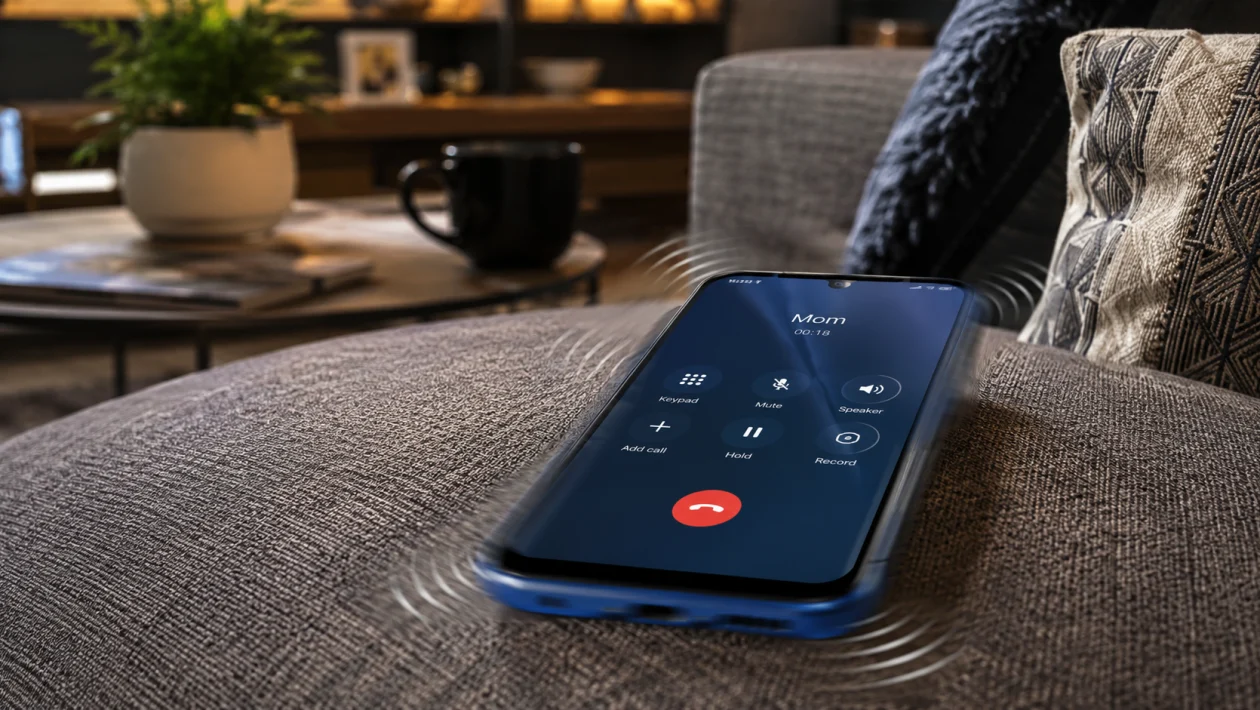
If your vivo Y51 Pro incoming call vibration feels too weak, too long, missing, or just not the way you want it, start with the call and sound settings first. Most vibration problems come from silent mode, vibration being turned off, Do Not Disturb, app permissions, accessibility vibration settings, or a temporary software glitch.
The vivo Y51 Pro 5G runs OriginOS 6 with Android 16, so the exact menu names may vary slightly by region or software version. vivo’s support pages also use paths such as Settings > Sound and vibration for vibration controls, so that is the best place to begin.
Quick answer
To change or adjust the vivo Y51 Pro incoming call vibration pattern, open Settings > Sound and vibration, then check the vibration options for calls. Look for settings such as Vibrate for calls, Vibration intensity, Incoming call ringtone, or similar call vibration options.
If your phone does not show a dedicated vibration pattern picker, the model or software version may not support custom incoming call vibration patterns directly. In that case, you can still fix call vibration problems by adjusting vibration intensity, ringtone behavior, accessibility vibration settings, Do Not Disturb, and contact-specific ringtone settings.
vivo Y51 Pro incoming call vibration problem table
| Problem | Likely cause | Check first |
|---|---|---|
| Phone does not vibrate for calls | Call vibration is off | Settings > Sound and vibration |
| Vibration is too weak | Low vibration intensity | Vibration intensity settings |
| Vibration works for some calls only | Contact or ringtone setting issue | Contacts app |
| Phone rings but does not vibrate | Vibrate while ringing is off | Sound and vibration |
| Vibration stops after update | Software setting reset or bug | Restart and update |
| No vibration in Silent mode | Silent mode vibration is off | Sound profile settings |
| No vibration during certain hours | Do Not Disturb is active | Do Not Disturb |
| Vibration works in apps but not calls | Phone app or call setting issue | App and notification settings |
| Vibration does not work at all | Haptics disabled or hardware issue | Accessibility and diagnostics |
| Pattern cannot be changed | Feature not supported on current software | Use intensity or ringtone workaround |
Why your vivo Y51 Pro call vibration pattern may not change
Your vivo Y51 Pro may not let you fully customize the incoming call vibration pattern if your current OriginOS build does not include a separate pattern picker. Some Android phones let you change vibration intensity but not the exact rhythm of incoming call vibration.
That does not always mean something is broken.
In many cases, you can still control how calls feel by changing:
Vibrate for calls
Vibration intensity
Silent mode vibration
Do Not Disturb rules
Incoming call ringtone
Contact-specific ringtone
Accessibility vibration settings
Phone app notification behavior
Start with the steps below.
1. Check Vibrate for calls
This is the first setting to check if your vivo Y51 Pro does not vibrate when someone calls.
- Open Settings.
- Tap Sound and vibration.
- Look for Vibrate for calls, Vibrate while ringing, or a similar option.
- Turn it on.
- Ask someone to call your phone and test it.
If you see options such as Never vibrate, Always vibrate, or Vibrate first then ring, choose the one that matches how you want incoming calls to behave.
Choose Always vibrate if you want the phone to vibrate every time it rings.
2. Adjust vibration intensity
If the vivo Y51 Pro vibrates but feels too soft, the pattern may not be the real problem. The vibration intensity may simply be set too low.
- Open Settings.
- Tap Sound and vibration.
- Tap Vibration intensity if available.
- Increase the slider for Ring vibration or Incoming calls.
- Test another incoming call.
Use a higher setting if you keep the phone in a pocket, bag, or thick case.
If you do not see a vibration intensity option, your software version may not expose that control. Move to the next solution.
3. Check Silent mode vibration
Some users expect the phone to vibrate in Silent mode, but the phone may be set to stay completely quiet.
- Open Settings.
- Tap Sound and vibration.
- Switch to Silent mode or check your sound profile settings.
- Look for Vibrate in silent mode or Vibrate when silent.
- Turn it on.
Now test an incoming call while the phone is in Silent mode.
This is useful if you want calls to vibrate during meetings, classes, commuting, or work hours without playing a ringtone.
4. Change the incoming call ringtone
On some phones, the vibration behavior can feel different depending on the ringtone or call alert style. If the vibration pattern feels odd, change the ringtone and test again.
- Open Settings.
- Tap Sound and vibration.
- Tap Incoming call ringtone or Phone ringtone.
- Choose a different ringtone.
- Save the change.
- Test an incoming call.
This will not always create a new vibration pattern, but it can help if the call alert feels delayed, too short, or inconsistent.
For SEO anchor text, you may want to link vivo incoming call ringtone settings to vivo’s ringtone support page.
5. Set a different ringtone for important contacts
If you mainly want to recognize who is calling without looking at the screen, a contact-specific ringtone may work better than a custom vibration pattern.
- Open the Contacts app.
- Select the contact you want to customize.
- Tap Edit.
- Look for Ringtone or Default ringtone.
- Choose a different ringtone.
- Save the contact.
This is helpful for family, work calls, delivery riders, clients, or emergency contacts.
If your vivo Y51 Pro does not support custom vibration patterns per contact, using a different ringtone is the easiest workaround.
6. Turn off Do Not Disturb
Do Not Disturb can block or silence calls, depending on your rules. It may also stop vibration for incoming calls.
- Swipe down from the top of the screen.
- Check if Do Not Disturb is turned on.
- If it is on, turn it off.
- Open Settings.
- Tap Sound and vibration.
- Tap Do Not Disturb.
- Check allowed calls, schedules, and exceptions.
If Do Not Disturb turns on automatically at night, during calendar events, or while driving, change the schedule.
This is one of the most common reasons a phone suddenly stops vibrating for calls.
7. Check Accessibility vibration settings
Android includes vibration and haptic controls under Accessibility. If these are disabled, call vibration may not behave as expected.
- Open Settings.
- Tap Accessibility.
- Tap Vibration and haptics if available.
- Turn on vibration and haptics.
- Check Ring vibration.
- Test an incoming call.
If you see separate controls for ring, notification, touch, and alarm vibration, make sure Ring vibration is enabled.
For SEO anchor text, you may want to link Android vibration and haptics settings to Google’s Android Accessibility support page.
8. Restart your vivo Y51 Pro
A restart can fix temporary call vibration bugs, especially if the issue started after changing settings, installing an update, or using Bluetooth devices.
- Press and hold the Power button.
- Tap Restart.
- Wait for the phone to turn back on.
- Test an incoming call.
This will not delete your files, photos, contacts, or apps.
Try this before resetting settings or visiting a service center.
9. Update your phone software
If the incoming call vibration issue started after a system update, app update, or settings change, check for another software update. Updates can fix sound, vibration, call, and system stability bugs.
- Open Settings.
- Tap System update or Software update.
- Check for updates.
- Install any available update.
- Restart the phone.
- Test incoming call vibration again.
Also update the Phone app and system apps if your vivo Y51 Pro offers updates through vivo’s app store or system updater.
If the issue appeared right after a major update, give the phone a little time after updating and restarting. System services may still be settling in.
10. Reset all settings if vibration still does not work
Use this only after checking the easier fixes. Resetting all settings can fix broken sound, vibration, network, and permission settings without deleting personal media.
- Open Settings.
- Tap System or More settings.
- Tap Backup and reset or Reset options.
- Choose Reset all settings.
- Confirm the reset.
- Set up your sound and vibration settings again.
- Test an incoming call.
This should not delete your photos, videos, music, or documents, but you may need to set up Wi-Fi, Bluetooth, notification, and display preferences again.
If the phone still does not vibrate after this, test vibration in other areas such as keyboard haptics, alarms, and notifications. If vibration does not work anywhere, the vibration motor may need service.
Can you create a custom incoming call vibration pattern on the vivo Y51 Pro?
You may not see a dedicated custom vibration pattern option on every vivo Y51 Pro software version. If your phone only shows basic vibration controls, then you can adjust how calls behave, but you may not be able to create a fully custom vibration rhythm from the built-in settings.
Your best alternatives are:
Turn on Vibrate for calls
Increase Vibration intensity
Use Vibrate in silent mode
Change the incoming call ringtone
Set different ringtones for important contacts
Use a third-party dialer or ringtone app carefully
Be careful with third-party apps that ask for call logs, contacts, notification access, or accessibility access. Only use trusted apps, and remove them if call vibration becomes worse.
FAQ
Why is my vivo Y51 Pro not vibrating for incoming calls?
Your vivo Y51 Pro may not vibrate for calls because Vibrate for calls is turned off, Silent mode vibration is disabled, Do Not Disturb is active, ring vibration is disabled in Accessibility, or a system setting is stuck.
How do I make my vivo Y51 Pro vibrate stronger?
Go to Settings > Sound and vibration > Vibration intensity and increase the ring vibration level. If you do not see that option, your software version may not support manual vibration intensity control.
Can I set a different vibration pattern for each contact?
The vivo Y51 Pro may not support custom vibration patterns for each contact through the default settings. You can usually set a different ringtone for specific contacts instead.
