
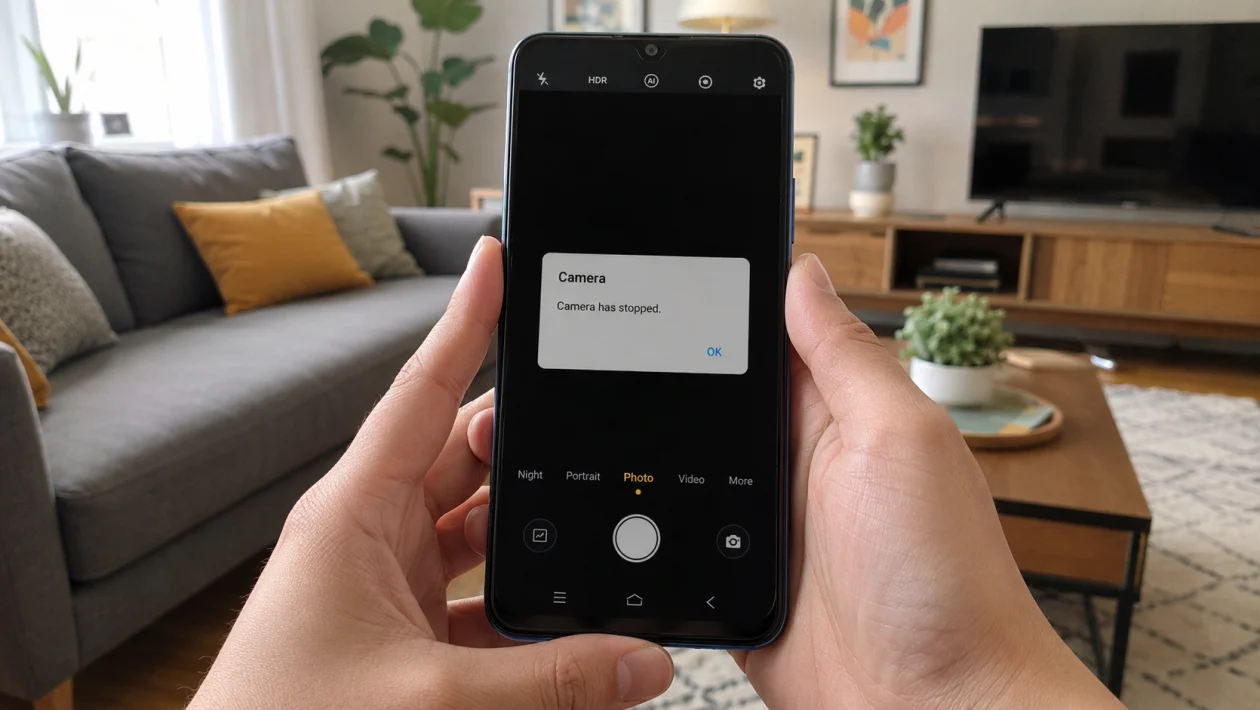
If the Camera app on your vivo Y51 Pro keeps crashing, freezing, closing by itself, or showing a “Camera keeps stopping” message, start with the simple fixes first.
Most camera crashes are caused by temporary app bugs, low storage, corrupted Camera data, app permission conflicts, overheating, or a recent system update. In some cases, the problem may also come from a third-party app using the camera in the background.
The good news: you do not need to reset the phone right away. Try the 10 solutions below in order.
Quick answer
To fix a vivo Y51 Pro camera that keeps crashing, restart the phone, then clear the Camera app cache and data. Go to Settings > Apps > Camera > Storage, then clear cache or clear data if available.
Also check storage space, close apps using the camera, update the phone, and reset Camera settings. If the Camera app still crashes after all 10 fixes, the issue may need vivo service support.
vivo Y51 Pro camera crash diagnostic table
| Symptom | Likely cause | What to check first |
|---|---|---|
| Camera closes as soon as it opens | Camera app bug or corrupted app data | Clear Camera cache and data |
| Camera freezes on black screen | Temporary system issue or camera conflict | Restart the phone |
| Camera crashes after an update | Software or app compatibility issue | Update Funtouch OS and apps |
| Camera crashes only in video mode | Storage, overheating, or high processing load | Free storage and let phone cool |
| Camera crashes in WhatsApp, Instagram, or Messenger | App permission or third-party app issue | Check camera permissions |
| Camera says it cannot be used | Another app may be using the camera | Close background apps |
| Camera crashes after dropping the phone | Possible hardware damage | Contact vivo service support |
Why does the vivo Y51 Pro camera keep crashing?
The Camera app may crash when the phone cannot load the camera module properly, when the app data becomes unstable, or when another app is trying to use the camera at the same time.
Common causes include:
Low internal storage
Corrupted Camera cache
Too many apps running in the background
A third-party app using the camera
Outdated system software
Overheating
Camera permission problems
A recent update that needs optimization
Damaged camera hardware
System settings conflict
Start with these 10 fixes.
1. Restart your vivo Y51 Pro
Restarting is the easiest fix, but it works more often than people expect.
It clears temporary system glitches, closes stuck background processes, and reloads the Camera app from scratch.
- Press and hold the Power button.
- Tap Restart.
- Wait for the phone to turn back on.
- Open Camera again.
- Test Photo, Video, Portrait, and front camera modes.
If the Camera app works after restarting but crashes again later, move to the next solution.
2. Force stop the Camera app
Force stopping the Camera app closes it completely. This helps if the app is frozen in the background or failed to load correctly.
- Open Settings.
- Go to Apps.
- Tap Camera.
- Tap Force stop.
- Open the Camera app again.
This will not delete your photos or videos.
If you cannot find Camera under Apps, look for App manager or System apps, depending on your Funtouch OS version.
3. Clear the Camera cache and data
This is one of the best fixes for a Camera app that keeps crashing.
Cache files help apps load faster, but they can also become corrupted. Clearing Camera data resets the app back to its default state.
- Open Settings.
- Go to Apps or App manager.
- Tap Camera.
- Tap Storage.
- Tap Clear cache.
- If the issue continues, tap Clear data.
- Open Camera again.
Clearing Camera data may reset your Camera settings, such as timer, watermark, grid lines, and mode preferences. It should not delete photos already saved in your gallery.
If you want to cite this fix manually, link the phrase clear the Camera app cache and data.
4. Free up storage space
Camera apps can crash when the phone does not have enough free internal storage. This is especially common when recording videos, using portrait mode, or saving large photos.
- Open Settings.
- Go to Storage.
- Check available internal storage.
- Delete large unused files.
- Remove old videos, downloads, and duplicate photos.
- Empty recently deleted items in your gallery if available.
- Restart the phone.
Try to keep at least a few gigabytes of free storage. If the phone is nearly full, the Camera app may fail when saving new files.
5. Close apps that may be using the camera
The Camera app may crash if another app is already using the camera in the background.
Common apps that can cause conflicts include:
WhatsApp
Instagram
Facebook
Messenger
TikTok
Snapchat
Google Meet
Zoom
Scanner apps
QR code apps
To check this:
- Open the recent apps screen.
- Close all apps.
- Restart the phone.
- Open the default Camera app first.
- Test whether it still crashes.
If the default Camera app works, open your social apps one by one. If the crash happens only inside one app, update or reinstall that app.
6. Check camera permissions for third-party apps
If the camera crashes only in apps like WhatsApp, Instagram, or Messenger, the issue may be permission-related.
- Open Settings.
- Go to Apps.
- Choose the app where the camera crashes.
- Tap Permissions.
- Tap Camera.
- Choose Allow only while using the app.
- Restart the app.
You can also check privacy settings if your Funtouch OS version has a Privacy or Permission manager section.
If you want to cite this section manually, link the phrase camera permissions on vivo phones.
7. Update Funtouch OS and your apps
A camera crash can happen after a system update, but it can also be fixed by a newer update.
Check for a system update first:
- Open Settings.
- Tap System update.
- Download and install any available update.
- Restart the phone.
Then update your apps:
- Open Google Play Store.
- Tap your profile icon.
- Tap Manage apps and device.
- Tap Update all.
Also update apps from vivo’s app store if you use it.
If the Camera started crashing right after an update, give the phone some time to settle after restarting. Background optimization can make the phone feel unstable for a short period after major updates.
8. Turn off battery restrictions for Camera and gallery apps
Aggressive battery settings can sometimes interfere with apps that need quick access to hardware, storage, or background services.
- Open Settings.
- Go to Battery.
- Look for background power usage or battery management.
- Find Camera, Albums, Photos, or Gallery.
- Set them to normal battery usage if restricted.
- Restart the phone.
This is worth checking if the Camera opens normally but crashes when saving, previewing, or switching between camera modes.
9. Reset Camera settings or reset all settings
If the Camera app crashes after changing settings, try resetting Camera settings first.
Open Camera, then check for a settings icon. Look for an option such as Restore defaults or Reset camera settings.
If that does not work, reset all system settings:
- Open Settings.
- Go to System management or More settings.
- Tap Backup & reset or Reset options.
- Choose Reset all settings.
- Confirm the reset.
Resetting all settings should not erase your personal photos, videos, or apps, but it may reset Wi-Fi, Bluetooth, display, app, and system preferences.
Do not choose Erase all data unless you already backed up your phone and are ready for a full factory reset.
If you want to cite this section manually, link the phrase reset all settings on vivo phone.
10. Test in Safe Mode or contact vivo support
Safe Mode helps you check if a downloaded app is causing the Camera app to crash.
The exact Safe Mode method can vary by vivo model and Funtouch OS version, but the usual Android method is:
- Press and hold the Power button.
- Touch and hold Power off.
- Tap Safe Mode if the option appears.
- Once the phone restarts, open Camera.
- Test the camera again.
If Camera works in Safe Mode, a third-party app is likely causing the crash. Uninstall recently installed camera, beauty, scanner, social media, or editing apps.
If Camera still crashes in Safe Mode, or if the phone was dropped, exposed to water, or shows a black screen in every camera mode, contact vivo support or visit an authorized service center.
When should you get the vivo Y51 Pro checked?
Get the phone checked if:
The Camera app crashes even after clearing data
The camera shows only a black screen
Both front and rear cameras fail
The camera crashes in Safe Mode
The phone was dropped recently
The phone got wet
The camera module makes unusual sounds
The issue started after physical damage
At that point, the problem may not be a simple app issue. It could be related to the camera module, internal connection, storage hardware, or system software.
FAQ
Why does my vivo Y51 Pro Camera app keep stopping?
The Camera app may keep stopping because of corrupted app data, low storage, background app conflicts, outdated software, overheating, or a third-party app using the camera.
Will clearing Camera data delete my photos?
No, clearing Camera data should only reset the Camera app settings. Your saved photos and videos are stored separately in your gallery or file storage.
What is the best fix for vivo Camera keeps crashing?
The best first fix is to restart the phone, then clear the Camera app cache and data. If that does not work, update Funtouch OS, free up storage, and reset all settings.
