
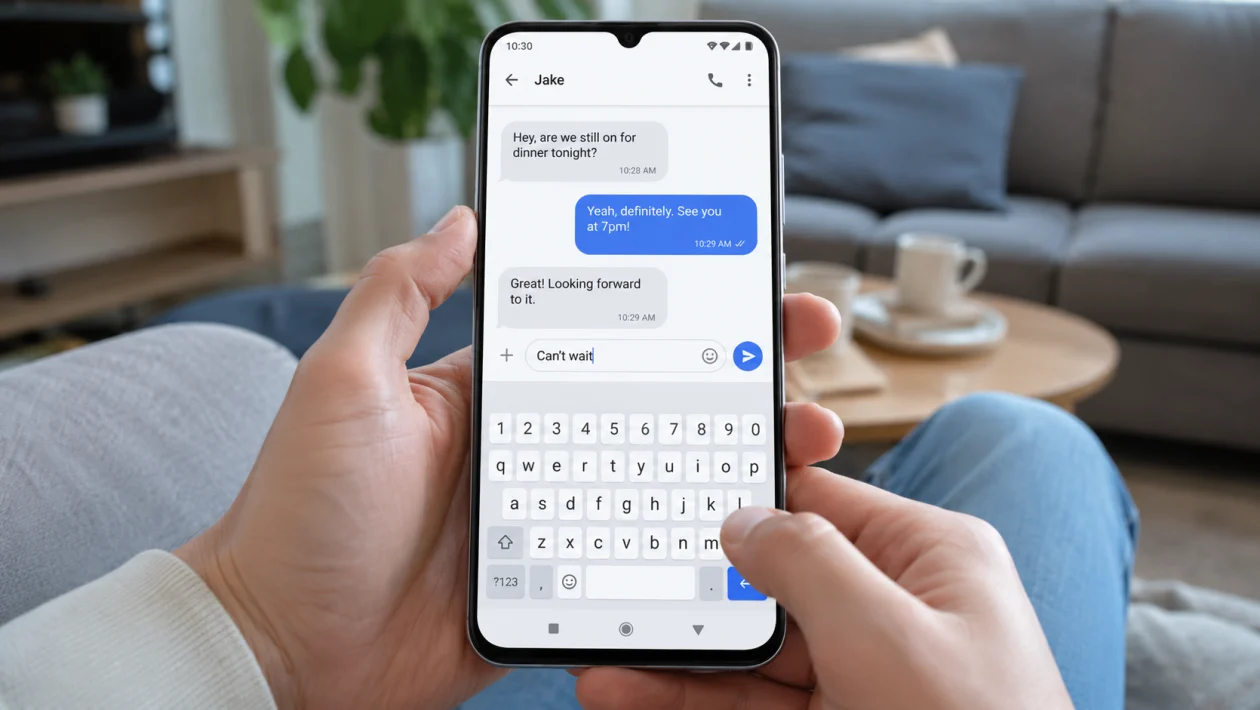
If predictive text is not working on your vivo Y51 Pro, the keyboard may stop showing word suggestions, autocorrect may not appear, or the suggestion bar above the keyboard may disappear.
This usually does not mean the phone is broken. It is often caused by a keyboard setting, disabled suggestion strip, wrong input language, outdated Gboard app, corrupted keyboard cache, or a recent software change.
Start with the keyboard settings first. Most predictive text problems on vivo phones can be fixed without resetting the phone.
Quick answer
To fix vivo Y51 Pro predictive text not working, open any typing app, bring up the keyboard, go to keyboard settings, then check Text correction. Turn on Show suggestion strip, Next-word suggestions, Auto-correction, and Personalized suggestions if available.
If that does not work, update Gboard, clear the keyboard cache, check your language settings, restart the phone, then reset keyboard settings if needed.
vivo Y51 Pro predictive text diagnostic table
| Problem | Likely cause | Check first |
|---|---|---|
| No word suggestions appear | Suggestion strip is off | Gboard > Text correction |
| Autocorrect does not work | Auto-correction is disabled | Keyboard settings |
| Suggestions appear in the wrong language | Wrong keyboard language | Languages and input |
| Predictive text works in some apps only | App-specific typing issue | Test Notes, Messages, WhatsApp |
| Keyboard feels slow or glitchy | Keyboard cache or app bug | Clear Gboard cache |
| Issue started after an update | App or system setting changed | Update Gboard and restart |
| Voice typing works but suggestions do not | Text correction setting issue | Show suggestion strip |
| Keyboard keeps resetting | Third-party keyboard conflict | Default keyboard settings |
Why is predictive text not working on vivo Y51 Pro?
Predictive text may stop working on your vivo Y51 Pro when the keyboard suggestion settings are turned off, the wrong keyboard is selected, the language dictionary is missing, or the keyboard app has a temporary bug.
Common causes include:
Disabled suggestion strip
Disabled autocorrect
Wrong keyboard language
Outdated Gboard app
Corrupted keyboard cache
Third-party keyboard conflict
App-specific typing issue
Battery or background restrictions
Recent Funtouch OS update
Keyboard settings being reset
The fixes below are arranged from easiest to more advanced.
1. Turn on predictive text in keyboard settings
Start here. If the suggestion strip is turned off, the keyboard may still work, but predictive text will not appear above the keys.
- Open Messages, Notes, WhatsApp, or any app where you can type.
- Tap the text box to show the keyboard.
- Tap the gear icon on the keyboard.
- Tap Text correction.
- Turn on Show suggestion strip.
- Turn on Next-word suggestions if available.
- Turn on Auto-correction if you want spelling fixes.
- Close the keyboard and open it again.
Now type a few normal words. You should see suggestions above the keyboard.
If you use Gboard, Show suggestion strip is the main setting to check first because word predictions usually appear in that top row.
2. Make Gboard the default keyboard
Predictive text may not work properly if your vivo Y51 Pro is switching between keyboards or using a keyboard with limited suggestion settings.
- Open Settings.
- Tap System, or System management.
- Tap Languages and input.
- Tap On-screen keyboard or Current keyboard.
- Select Gboard or the keyboard you normally use.
- Go back and test typing again.
The exact path may vary depending on your Funtouch OS version. On some vivo phones, you may see Keyboard and input method instead of On-screen keyboard.
Use only one main keyboard while testing. If predictive text starts working after choosing Gboard, the issue was probably caused by the previous keyboard app or input method.
3. Check the keyboard language
Predictive text depends heavily on the selected language. If your keyboard is set to the wrong language, suggestions may disappear, look strange, or stop matching what you type.
- Open the keyboard in any typing app.
- Tap the gear icon.
- Tap Languages.
- Check the active keyboard language.
- Add your preferred language if it is missing.
- Remove languages you do not use, or switch to the correct one while typing.
For example, if you type in English but the keyboard is set to another language, predictive text may feel broken even when it is technically enabled.
If you write in two languages, add both languages. Gboard can handle multilingual typing better when both languages are added properly.
4. Update Gboard from the Play Store
An outdated keyboard app can cause missing suggestions, typing lag, autocorrect problems, or prediction errors.
- Open Google Play Store.
- Tap your profile icon.
- Tap Manage apps and device.
- Tap Updates available.
- Look for Gboard.
- Tap Update.
- Restart your vivo Y51 Pro after the update.
If Gboard is not listed, search for Gboard manually in the Play Store and check whether an update is available.
This is worth doing if predictive text stopped working after an app update, system update, or keyboard layout change.
5. Clear the Gboard cache
If the keyboard opens but suggestions do not load properly, the keyboard cache may be causing the problem.
- Open Settings.
- Tap Apps.
- Tap See all apps, App manager, or App management.
- Find and tap Gboard.
- Tap Storage.
- Tap Clear cache.
- Restart the phone.
- Test predictive text again.
Clearing cache does not usually delete your personal files. It removes temporary keyboard files that may be causing glitches.
Do not tap Clear storage yet unless the cache fix does not work. Clear storage is a deeper reset for the keyboard app.
6. Clear Gboard storage if cache does not work
Use this only if predictive text still does not work after checking the settings and clearing cache.
Clearing storage can reset some keyboard preferences, learned words, themes, and personal keyboard settings.
- Open Settings.
- Tap Apps.
- Tap App management.
- Tap Gboard.
- Tap Storage.
- Tap Clear storage or Clear data.
- Confirm if you are ready.
- Open the keyboard again.
- Turn predictive text settings back on.
After this, go back to Gboard > Text correction and enable Auto-correction, Show suggestion strip, and Next-word suggestions again.
This fix is useful when the keyboard settings look correct but predictive text still refuses to appear.
7. Turn personalized suggestions back on
Some keyboard suggestions depend on personalization. If personalized suggestions are off, the keyboard may still show basic predictions, but it may stop learning your writing style.
- Open any app where you can type.
- Open the keyboard settings.
- Tap Text correction.
- Look for Personalized suggestions.
- Turn it on if you want the keyboard to learn from your typing.
- Test typing a few common phrases.
This setting is optional. Some users prefer to keep it off for privacy. But if you want better predictive text, it is worth checking.
If you share your phone or do not want the keyboard to learn personal words, leave personalization off and use only basic suggestions.
8. Check if predictive text fails only in one app
Sometimes the keyboard is not the problem. The app you are typing in may be blocking suggestions or causing a text field issue.
Test predictive text in:
Messages
Notes
Chrome search bar
WhatsApp
Gmail
Facebook Messenger
If predictive text works in Notes but not in one app, update that app first.
- Open Google Play Store.
- Search for the problem app.
- Tap Update if available.
- Force close the app.
- Open it again and test typing.
If the issue happens only in a password field, login field, banking app, or secure form, that can be normal. Some apps limit keyboard suggestions for privacy and security.
9. Restart your vivo Y51 Pro and check for system updates
A restart can fix temporary keyboard bugs, especially after an app update or Funtouch OS update.
- Press and hold the Power button.
- Tap Restart.
- Wait for the phone to turn back on.
- Open a typing app and test the keyboard.
Then check for system updates:
- Open Settings.
- Tap System update.
- Download and install any available update.
- Restart the phone again after updating.
Do not skip the restart. Keyboard services can get stuck in the background, and restarting forces them to reload cleanly.
10. Reset keyboard or input settings
Use this if none of the earlier fixes work. Resetting keyboard or input settings can help if a hidden setting changed and you cannot find it.
- Open Settings.
- Tap System management.
- Tap Backup and reset, Reset options, or Reset all settings.
- Look for an option related to keyboard, app preferences, or system settings.
- Read the warning screen carefully.
- Confirm only if you are comfortable with what will be reset.
Avoid Factory data reset for a keyboard problem unless you have backed up your phone and tried every safer option first.
A factory reset deletes personal data. Predictive text problems almost never need that as the first solution.
vivo Y51 Pro predictive text checklist
Use this before trying a reset.
Check Show suggestion strip
Turn on Auto-correction
Turn on Next-word suggestions
Set Gboard as the default keyboard
Check keyboard language
Update Gboard
Clear Gboard cache
Test predictive text in another app
Restart your vivo Y51 Pro
Check for system updates
Reset keyboard settings only if needed
FAQs
Why is predictive text not showing on my vivo Y51 Pro?
Predictive text may not show if the suggestion strip is turned off, the wrong keyboard is selected, or the keyboard language is not set correctly. Start by checking Gboard > Text correction > Show suggestion strip.
Why does autocorrect not work on my vivo Y51 Pro?
Autocorrect may be disabled in keyboard settings. Open the keyboard settings, go to Text correction, then turn on Auto-correction.
Should I install another keyboard app?
You can, but try fixing Gboard first. Installing many keyboard apps can make troubleshooting harder. Use one keyboard while testing.
