
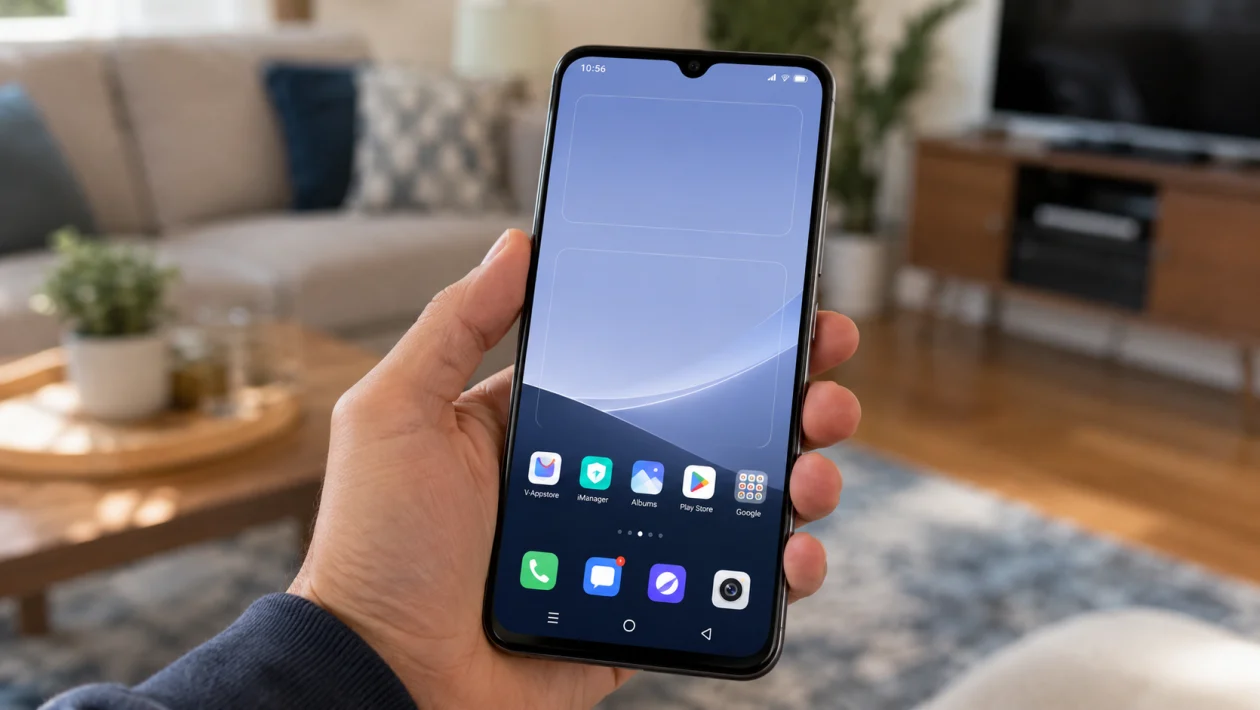
If vivo Y51 Pro accidental touch protection is not working, your phone may wake up inside your pocket, open apps, pull down quick settings, reject calls, or trigger fingerprint attempts by mistake.
This usually does not mean the screen is broken. Accidental touch protection can fail when the proximity sensor is blocked, the screen protector is too thick, lift-to-wake is enabled, double tap to wake is active, or the phone is waking too easily inside a tight pocket or bag.
Start with the setting itself, then check gestures, lock screen behavior, screen accessories, and sensor problems.
Quick answer
If accidental touch protection is not working on your vivo Y51 Pro, go to Settings > Display and brightness and check for Accidental touch prevention, Mistouch prevention, or Pocket mode. Turn it off, restart the phone, then turn it back on.
If the issue continues, disable wake gestures such as double tap to wake, raise to wake, and lock screen shortcuts. Then clean the top sensor area, remove any thick screen protector or case, update Funtouch OS, and test the phone again.
vivo Y51 Pro accidental touch protection diagnostic table
| Symptom | Likely cause | What to check first |
|---|---|---|
| Phone wakes in pocket | Wake gestures or pocket detection failing | Display and gesture settings |
| Quick settings open by themselves | Screen turns on inside pocket | Lock screen and notification shade settings |
| Fingerprint keeps trying in pocket | Side fingerprint or lift-to-wake triggering | Fingerprint and wake settings |
| Accidental touch setting is missing | Different Funtouch OS wording | Search Settings for “pocket” or “touch” |
| Problem started after update | Software bug or reset setting | System update and restart |
| Touches happen even on a table | Ghost touch or screen issue | Screen protector, charger, service check |
| Worse with case installed | Case blocks sensor or presses buttons | Remove case and test |
| Worse after new screen protector | Protector covers sensor area | Remove or replace protector |
Why accidental touch protection stops working on vivo Y51 Pro
Accidental touch protection depends on a mix of software and hardware behavior. The phone needs to detect when it is in a pocket or covered, then ignore unwanted screen input.
It can stop working properly because of:
Apps waking the screen
Double tap to wake
Raise to wake
Side fingerprint unlock attempts
Lock screen shortcuts
A thick or misaligned screen protector
A case pressing the power button
Dust near the top sensor area
A Funtouch OS bug
A faulty proximity sensor or display
The best fix depends on what is waking the phone first. Use the steps below in order.
1. Turn accidental touch protection off and on again
Start with the setting itself. A simple toggle can refresh the feature if it stopped working after a restart, update, or settings change.
- Open Settings.
- Tap Display and brightness.
- Look for Accidental touch prevention, Mistouch prevention, or Pocket mode.
- Turn it off.
- Restart your phone.
- Go back to the same setting.
- Turn it on again.
The exact name may vary depending on the Funtouch OS version. If you cannot find it, use the search bar inside Settings and search for pocket, accidental, mistouch, or touch.
2. Disable double tap to wake
Double tap to wake is useful, but it can also make pocket touches worse. If fabric repeatedly taps the screen, the phone may wake even when accidental touch protection is enabled.
- Open Settings.
- Tap Shortcuts and accessibility.
- Tap Smart motion or Smart wake, depending on your software version.
- Find Double tap to turn on screen.
- Turn it off.
Now lock the phone and place it in your pocket with the screen facing your leg. Walk around for a few minutes and check whether the screen wakes again.
This is one of the most useful fixes if the phone keeps lighting up while you move.
3. Turn off raise to wake
Raise to wake can turn the screen on when the phone thinks you are picking it up. Inside a pocket, that movement can be misread.
- Open Settings.
- Tap Display and brightness, Shortcuts and accessibility, or Smart motion.
- Look for Raise to wake or a similar wake gesture.
- Turn it off.
This does not stop you from using the power button or fingerprint unlock. It only prevents the phone from waking automatically when it moves.
4. Check fingerprint unlock behavior
If your vivo Y51 Pro keeps vibrating or showing failed unlock attempts in your pocket, the fingerprint sensor may be getting triggered.
This can happen if the side button is pressed by your pocket, case, or hand movement.
Try this:
- Open Settings.
- Tap Fingerprint, face and password.
- Tap Fingerprint.
- Check unlock behavior.
- Disable any option that allows overly sensitive screen-off unlocking, if available.
- Remove your case and test the phone for a few hours.
If the issue stops after removing the case, the case may be pressing the power button or exposing the fingerprint sensor too easily.
5. Clean the top sensor area
Pocket detection often depends on sensors near the top of the display. If that area is covered by dust, oil, lint, or a badly placed screen protector, the phone may not detect that it is inside a pocket.
- Turn off the screen.
- Remove the case.
- Wipe the top front area of the phone with a clean microfiber cloth.
- Check for dust around the earpiece and sensor area.
- Avoid using sharp objects or liquid cleaners.
- Test accidental touch protection again.
This is worth doing if the problem started after using the phone in dusty places, after applying a new protector, or after keeping the phone in a lint-heavy pocket.
6. Remove or replace the screen protector
A thick, dirty, cracked, or misaligned screen protector can interfere with touch behavior and sensor detection.
Remove the screen protector temporarily if:
It covers the top sensor area
It has black borders that overlap the display
It is lifting at the edges
It has cracks near the top
It was installed shortly before the problem started
The screen feels too sensitive after installation
After removing it, restart the phone and test pocket behavior again.
If the problem stops, replace it with a thinner protector that is made for the exact vivo Y51 Pro screen layout.
7. Turn off lock screen shortcuts and notification wake options
Sometimes the problem is not accidental touch protection itself. The phone may be waking because of notifications, shortcuts, or lock screen interactions.
Check these settings:
- Open Settings.
- Tap Lock screen and wallpaper.
- Review lock screen shortcuts.
- Disable shortcuts you do not need.
- Go back to Settings.
- Tap Notifications and status bar.
- Turn off notification options that wake the screen, if available.
This helps if your phone does not fully unlock in your pocket but still opens quick settings, changes brightness, toggles Wi-Fi, or interacts with lock screen controls.
8. Restart and update Funtouch OS
If accidental touch protection stopped working after a software update, app update, or settings change, restart the phone before doing anything more serious.
To restart:
- Press and hold the power button.
- Tap Restart.
- Wait for the phone to turn back on.
- Test the pocket behavior again.
Then check for system updates:
- Open Settings.
- Tap System update.
- Install any available update.
- Restart the phone again after updating.
Updates can fix display, touch, gesture, and sensor-related bugs. vivo’s support pages also include sections for system updates, display, touch screen, sensors, and service support, which are the right categories to check when this issue continues.
9. Test for ghost touch or touch screen problems
If the phone taps things by itself even when it is not in your pocket, this may be a touch screen issue rather than an accidental touch protection issue.
Look for these signs:
The screen opens apps while lying on a table
The keyboard types by itself
The notification shade drops without touch
The screen becomes worse while charging
Touch becomes unstable after the phone gets warm
Certain screen areas respond without being touched
Try this:
- Remove the case.
- Remove the screen protector if possible.
- Use the original or good-quality charger.
- Restart the phone.
- Test the screen while not charging.
- Test again while charging.
If ghost touches only happen while charging, stop using that charger or cable. Poor-quality chargers can cause unstable touch behavior on some phones.
10. Reset settings or visit a vivo service center
Use this only after the easier fixes fail. Resetting settings can help if a system setting, gesture, or accessibility option is causing the problem.
This should not delete your personal photos or files, but it may reset Wi-Fi, Bluetooth, permission, display, and system preferences depending on the option shown on your phone.
- Open Settings.
- Tap System management.
- Tap Backup and reset.
- Choose Reset all settings, if available.
- Confirm the reset.
- Restart the phone.
- Turn accidental touch protection back on.
If the problem still continues after this, contact vivo support or visit a service center. The phone may need a sensor, display, or button inspection.
You should get service help sooner if:
The screen touches itself even outside your pocket
The phone was dropped
The phone got wet
The power button feels stuck
The fingerprint sensor keeps triggering
The screen has been replaced before
Accidental touches continue after a settings reset
Best settings to reduce accidental touches on vivo Y51 Pro
Use this combination if your main problem is pocket dialing or random lock screen touches:
Accidental touch protection: On
Double tap to wake: Off
Raise to wake: Off
Lock screen shortcuts: Limited
Wake screen for notifications: Off, if available
Screen protector: Thin and properly aligned
Case: Not pressing the power button
Fingerprint unlock: Check if side sensor triggers in pocket
This setup makes the phone less convenient to wake, but it is more reliable if accidental touches are happening often.
FAQ
Why does my vivo Y51 Pro screen turn on in my pocket?
Your vivo Y51 Pro screen may turn on in your pocket because double tap to wake, raise to wake, notifications, fingerprint unlock, or a case pressing the power button is waking the phone. Accidental touch protection can reduce pocket touches, but it may not stop every wake trigger.
Why is accidental touch protection missing on my vivo phone?
The setting may use a different name depending on the Funtouch OS version. Search Settings for pocket, mistouch, touch, or accidental. It may appear under Display, Shortcuts and accessibility, Smart motion, or Lock screen settings.
Can a screen protector stop accidental touch protection from working?
Yes. A thick, cracked, dirty, or misaligned screen protector can affect touch response or cover the sensor area near the top of the display. Remove it temporarily and test the phone again.
