
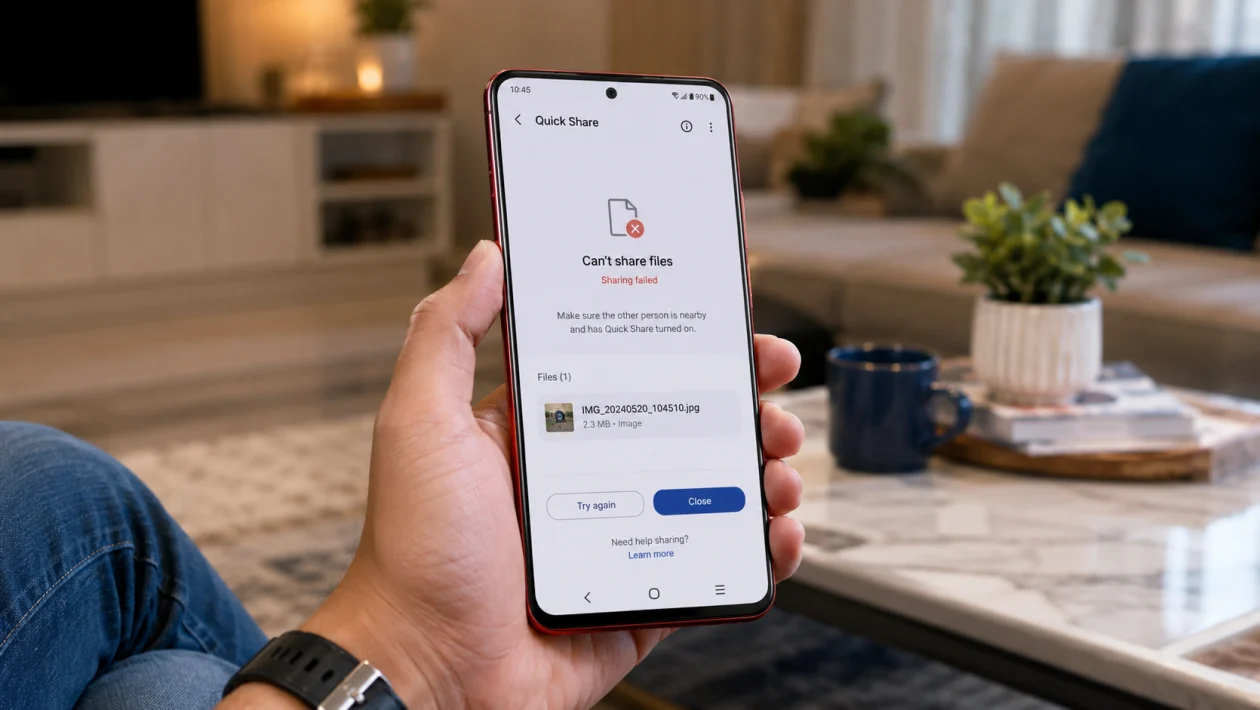
If your vivo Y51 Pro can’t share files via Quick Share, the problem is usually caused by visibility settings, Bluetooth, Wi-Fi, Location, permissions, Google Play services, or the receiving device not being ready.
Quick Share works only when nearby devices can detect each other. Your vivo Y51 Pro also needs Bluetooth and Wi-Fi available, and the other phone, tablet, Chromebook, or Windows PC must have Quick Share turned on.
Start with the simple checks first. In most cases, you do not need to reset the phone.
Quick answer
To fix a vivo Y51 Pro that can’t share files via Quick Share, turn on Bluetooth, Wi-Fi, and Location, then go to Quick Share settings and set device visibility to Everyone nearby or Contacts. Keep both devices close, unlock the receiving device, and try sending a small photo first.
If your vivo Y51 Pro still cannot find the other device, restart both devices, update Google Play services, clear the cache for Google Play services, and reset network settings only if the basic fixes fail.
vivo Y51 Pro Quick Share diagnostic table
| Problem | Likely cause | What to check first |
|---|---|---|
| Other device does not appear | Visibility is off | Quick Share visibility |
| Transfer starts but fails | Weak Wi-Fi or Bluetooth connection | Distance between devices |
| File sends to some devices only | Contact or account mismatch | Visibility set to Contacts |
| Quick Share is missing | Google Play services or system issue | System and app updates |
| Sharing is very slow | Large file or unstable connection | Try a smaller file |
| Receiver cannot accept file | Screen locked or prompt missed | Unlock receiving device |
| Windows PC does not appear | Quick Share for Windows not ready | PC app, Bluetooth, Wi-Fi |
| Nothing works after update | Temporary system bug | Restart and update apps |
Why Quick Share is not working on vivo Y51 Pro
Quick Share depends on several phone features at the same time. It may use Bluetooth, Wi-Fi, nearby device discovery, your Google account, and device visibility settings.
Common reasons include:
Bluetooth is turned off
Wi-Fi is turned off
Location is disabled
Quick Share visibility is set too privately
The receiving device is locked
The devices are too far apart
Google Play services needs an update
Battery Saver is limiting background activity
The file is too large or unsupported
Network settings are corrupted
The vivo Y51 Pro supports Bluetooth and dual-band Wi-Fi, so the phone has the basic wireless features needed for nearby file sharing. Quick Share itself is supported on Android devices running Android 6 or later.
1. Turn on Bluetooth, Wi-Fi, and Location
Quick Share needs nearby wireless discovery to find another device. If Bluetooth, Wi-Fi, or Location is off, your vivo Y51 Pro may not detect the receiver.
- Swipe down from the top of the screen.
- Turn on Bluetooth.
- Turn on Wi-Fi.
- Turn on Location.
- Keep both devices close to each other.
- Try sharing the file again.
You do not always need to connect to a Wi-Fi network, but Wi-Fi should be enabled. Google’s Quick Share guidance also says nearby devices need Bluetooth and Wi-Fi enabled.
2. Change Quick Share visibility
If your vivo Y51 Pro cannot find the other device, visibility is the first setting to check.
- Open Settings.
- Tap Google.
- Tap Devices and sharing.
- Tap Quick Share.
- Check Who can share with you.
- Choose Everyone nearby for testing.
- Try sending the file again.
After testing, you can switch back to Contacts or Your devices for privacy.
This is especially important if you are sharing with a phone that is not saved in your contacts, uses a different Google account, or has not verified contact details.
3. Unlock the receiving device and keep Quick Share open
Quick Share may fail if the receiving device is asleep, locked, or not visible.
On the receiving device:
- Unlock the screen.
- Keep the screen turned on.
- Open Quick Share settings if needed.
- Set visibility to Everyone nearby.
- Wait for the sender’s device to appear.
- Accept the transfer prompt.
Do not leave the receiving phone in your pocket or on the lock screen while testing. The transfer request can expire if the receiver misses the prompt.
4. Move both devices closer together
Distance can stop Quick Share from detecting nearby devices. Walls, cases, crowded Wi-Fi areas, and Bluetooth interference can also affect sharing.
Try this:
- Place both devices on the same table.
- Keep them within 30 cm to 1 meter while testing.
- Remove thick phone cases if needed.
- Turn off hotspot if it is running.
- Try sharing one photo first.
Google recommends bringing devices very close when troubleshooting Quick Share between Android and Windows. The same idea helps when testing phone-to-phone sharing.
5. Restart your vivo Y51 Pro and the receiving device
A restart can clear temporary wireless, Bluetooth, or Google service problems.
- Press and hold the Power button.
- Tap Restart.
- Restart the receiving phone, tablet, or PC too.
- Wait for both devices to fully turn back on.
- Turn on Bluetooth, Wi-Fi, and Location again.
- Try Quick Share.
This will not delete your photos, videos, apps, or files.
6. Update your vivo system software and Google apps
Quick Share depends on Android system components and Google Play services. If they are outdated, file sharing may fail or disappear from the share menu.
To update your vivo Y51 Pro:
- Open Settings.
- Tap System update.
- Install any available update.
- Restart the phone after updating.
To update Google apps:
- Open Play Store.
- Tap your profile picture.
- Tap Manage apps and device.
- Tap Update all.
- Search for Google Play services if needed.
- Update it if an update is available.
Also update the receiving device. Quick Share can fail when one device is updated and the other is running old sharing components.
7. Clear cache for Google Play services
If Quick Share appears but does not work properly, clearing Google Play services cache can help.
- Open Settings.
- Tap Apps.
- Tap See all apps or App management.
- Find Google Play services.
- Tap Storage.
- Tap Clear cache.
- Restart your vivo Y51 Pro.
- Try Quick Share again.
Do not tap Clear all data unless you know what it will affect. Start with cache only.
8. Turn off Battery Saver temporarily
Battery Saver can limit background activity, nearby detection, and wireless behavior. This can stop Quick Share from finding devices or completing transfers.
- Open Settings.
- Tap Battery.
- Turn off Battery Saver or Low power mode.
- If available, check background restrictions for Google Play services.
- Try sending the file again.
Also check the receiving device. If the other phone is in power saving mode, it may not stay discoverable long enough to receive the file.
9. Try a smaller file or a different file type
The issue may not be Quick Share itself. A very large video, damaged file, unsupported file type, or file stored in a restricted app folder can cause sharing to fail.
Test with a simple file:
- Open Gallery.
- Select one small photo.
- Tap Share.
- Tap Quick Share.
- Send it to the same device.
If the small photo works, the original file may be the problem.
Try these checks:
Rename the file
Move it to internal storage
Compress large videos before sharing
Avoid sending too many files at once
Check if the file opens normally before sharing
If only one app fails to share files, update that app or share the file from vivo File Manager instead.
10. Reset network settings
Use this only after the easier fixes. Resetting network settings can fix deeper Bluetooth, Wi-Fi, and mobile network issues, but it will remove saved Wi-Fi networks and paired Bluetooth devices.
- Open Settings.
- Tap System or System management.
- Tap Reset options.
- Tap Reset Wi-Fi, mobile network, and Bluetooth.
- Confirm the reset.
- Restart your vivo Y51 Pro.
- Reconnect to Wi-Fi.
- Pair Bluetooth devices again if needed.
- Try Quick Share.
The wording may vary depending on the vivo software version.
What to do if Quick Share still does not work
If your vivo Y51 Pro still cannot share files after all 10 fixes, test Quick Share with another Android phone. This helps you find out whether the problem is your vivo phone or the receiving device.
If Quick Share fails with every device, contact vivo support or visit a service center. If it fails only with one receiver, troubleshoot that device instead.
For a temporary workaround, use vivo EasyShare, Google Drive, Files by Google, USB cable transfer, Bluetooth sharing, or a messaging app that supports file attachments.
FAQ
Does vivo Y51 Pro support Quick Share?
Yes, Quick Share works on Android devices running Android 6 or later. The vivo Y51 Pro also has Bluetooth and Wi-Fi support, which are needed for nearby sharing.
Why can’t my vivo Y51 Pro find another phone?
The other phone may not be visible. Set Quick Share visibility to Everyone nearby, unlock both devices, turn on Bluetooth, Wi-Fi, and Location, then move the phones closer together.
Why does Quick Share fail after I tap send?
The connection may be unstable, the file may be too large, or the receiving device may have missed the accept prompt. Try sending one small photo first.
