
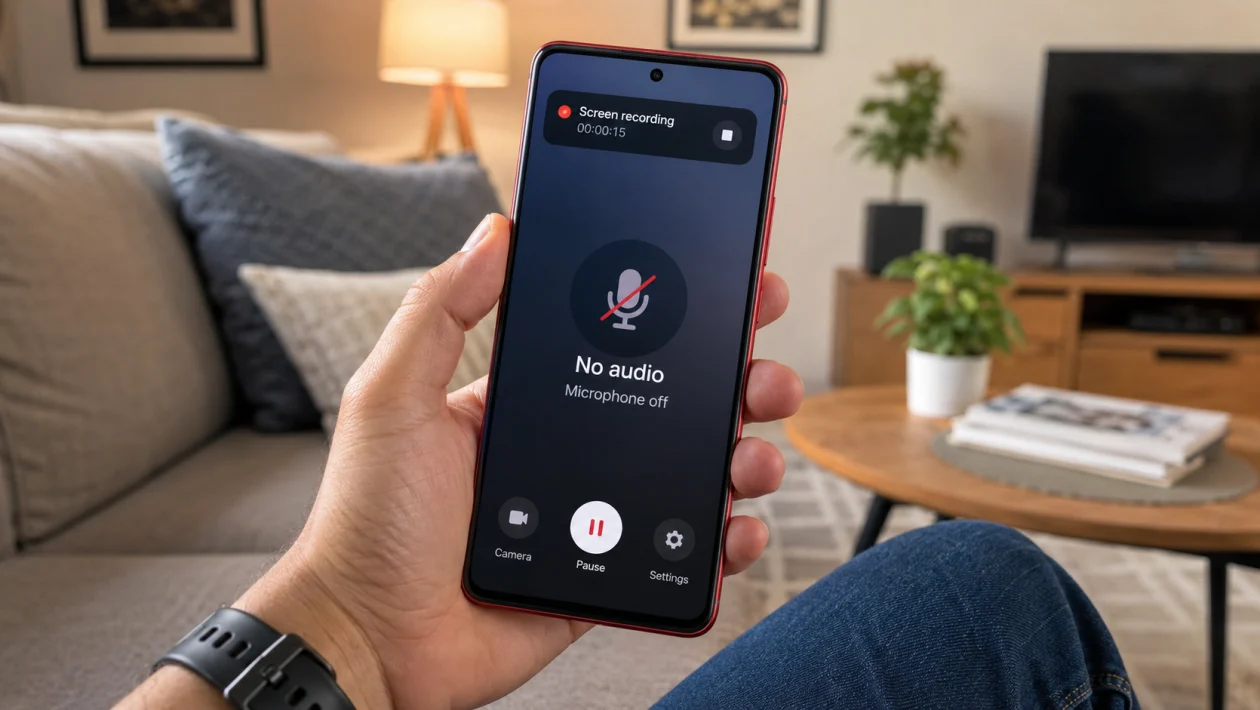
If your vivo Y51 Pro screen recorder saves video but records no sound, the problem is usually caused by one of three things: screen recording audio settings, microphone permission, or the app you are trying to record.
Start with the built-in screen recorder settings first. vivo’s support page says screen recording can be accessed through Control Center > Shortcuts > S-capture, and sound recording depends on how the recording feature is set up.
The good news is that this does not usually mean your phone speaker or microphone is broken. In most cases, you can fix it by changing one setting, allowing microphone access, turning off Bluetooth audio, or updating the app and phone software.
Quick answer
To fix vivo Y51 Pro screen recorder with no audio, open the screen recorder from Control Center or S-capture, then check whether audio recording is enabled. If you want your voice included, allow microphone access. If you are recording an app, make sure that app is not blocking internal audio recording.
Then restart the phone, turn off Bluetooth, test the Recorder app, update Funtouch OS, and try screen recording again.
vivo Y51 Pro screen recorder no audio diagnostic table
| Symptom | Likely cause | What to check first |
|---|---|---|
| Screen recording has no sound at all | Audio recording is turned off | Screen recorder sound settings |
| Your voice is missing | Microphone permission is blocked | microphone permission |
| Game sound is missing | App blocks internal audio | App audio rules |
| Only Bluetooth audio is missing | Sound routed to earbuds | Bluetooth connection |
| Audio works in Recorder but not screen recorder | Screen recorder setting issue | S-capture settings |
| Audio fails in one app only | App restriction or bug | Update or reinstall the app |
| Audio fails after update | Temporary Funtouch OS issue | Restart and update apps |
| Audio is very low | Volume or mic obstruction | Volume and microphone opening |
| Screen recorder crashes or saves muted clips | App cache or system bug | Clear cache and update |
| Mic does not work anywhere | Possible hardware issue | vivo service center |
Why does vivo Y51 Pro screen recorder have no audio?
Your vivo Y51 Pro screen recorder may have no audio because the phone is not set to capture sound, microphone access is disabled, Bluetooth is taking over the audio route, or the app being recorded does not allow internal sound recording.
Some apps also block audio capture for privacy, copyright, or call security reasons. That means your phone may record audio normally in other apps but still save a silent video in streaming apps, video call apps, banking apps, or protected content screens.
vivo’s sound troubleshooting guidance also recommends checking microphone permission, updating the app and phone software, clearing app data, rebooting the phone, and testing the Recorder app to confirm whether the microphone works normally.
1. Check the screen recorder sound setting
Start here because this is the most common reason screen recordings save without audio.
- Swipe down from the top of the screen to open Control Center.
- Look for Screen recording or S-capture.
- Press and hold the screen recorder icon if settings appear.
- Look for a sound, microphone, or audio source option.
- Turn on sound recording.
- Choose microphone audio if you want to record your voice.
- Start a short test recording.
- Play the video and check the sound.
The exact wording can vary depending on your Funtouch OS version. On some vivo phones, the screen recording option is under S-capture. vivo’s support page also points users to Control Center > Shortcuts > S-capture for screen recording.
If the audio option is off, your video will save normally but stay silent.
2. Allow microphone permission
If your voice is missing from the screen recording, check microphone access.
- Open Settings.
- Go to Apps or App management.
- Find the screen recorder, S-capture, or system recording app.
- Tap Permissions.
- Allow microphone permission.
- Restart the phone.
- Try another screen recording.
On some vivo software versions, permissions may appear under Settings > More settings > App manager > Permission. vivo’s support guidance says microphone permission should be allowed when an app has sound or recording problems.
This is especially important if you recently denied microphone access after a pop-up appeared.
3. Turn up media volume before recording
Screen recorder audio can seem broken when the media volume is too low.
- Press the Volume Up button.
- Tap the three-dot volume menu if it appears.
- Raise Media volume.
- Raise Microphone or system sound if available.
- Play the app audio first.
- Start screen recording while the sound is already playing.
Do not only check ringtone volume. Screen recordings usually depend on media volume or microphone input, not ringtone volume.
This matters if you are recording games, tutorials, YouTube-style clips, online classes, or app walkthroughs.
4. Turn off Bluetooth headphones or earbuds
If your vivo Y51 Pro is connected to Bluetooth earbuds, the audio may be routed away from the phone speaker or microphone.
- Open Settings.
- Tap Bluetooth.
- Turn Bluetooth off.
- Disconnect wireless earbuds, speakers, watches, or car audio.
- Restart screen recording.
- Test the saved video.
This is worth checking if your screen recording has no voice, low voice, or missing game sound while earbuds are connected.
For the cleanest test, disconnect Bluetooth and record using the phone speaker and built-in microphone.
5. Test the microphone with the Recorder app
Before changing more settings, confirm that the microphone itself works.
- Open the Recorder app.
- Record a short voice note.
- Play it back.
- Check if your voice is clear.
- If the voice note has sound, the microphone is working.
- If the voice note is silent, clean the microphone opening and test again.
vivo also recommends using the Recorder app to check whether the microphone records sound normally. If Recorder works, the issue is more likely with screen recorder settings, app permissions, or the app you are recording.
If Recorder has no audio too, skip to solution 10.
6. Check if the app blocks internal audio recording
Some apps do not allow their audio to be captured by screen recorders.
This can happen with:
Streaming apps
Music apps
Video call apps
Banking apps
Course apps
Paid content apps
DRM-protected videos
Private chat or call screens
If audio works when recording your home screen but not inside one specific app, your vivo Y51 Pro may not be the problem. The app may be blocking internal sound capture.
Try this test:
- Open a normal app, such as Settings.
- Start screen recording with microphone enabled.
- Speak while recording.
- Save and play the video.
- Then record the problem app.
- Compare both results.
If the first recording has audio but the second one does not, the app is likely restricting audio capture.
7. Restart your vivo Y51 Pro
A restart can fix temporary screen recorder bugs, stuck permissions, and background app conflicts.
- Press and hold the Power button.
- Tap Restart.
- Wait for the phone to turn back on.
- Open the app you want to record.
- Start a new screen recording.
- Check the saved video.
This will not delete your files.
Restarting is especially useful if the screen recorder stopped recording audio after a long gaming session, video call, update, or app crash.
8. Update Funtouch OS and your apps
Software bugs can affect screen recording, microphone access, and app audio capture.
To update your vivo Y51 Pro:
- Open Settings.
- Tap System update.
- Download and install any available update.
- Restart your phone after the update.
To update apps:
- Open Google Play Store.
- Tap your profile icon.
- Tap Manage apps and device.
- Tap Update all.
vivo’s troubleshooting guidance also recommends updating both the app and the phone when sound-related problems continue.
If the issue started after an update, restart the phone and update your apps first before resetting anything.
9. Clear cache or data for the problem app
If screen recorder audio fails only when recording one app, that app may have a temporary bug.
- Open Settings.
- Tap Apps or App management.
- Choose the app you are trying to record.
- Tap Storage.
- Tap Clear cache.
- Restart the phone.
- Try recording again.
If clearing cache does not work, you can try clearing data, but be careful. Clearing data may sign you out or remove app settings.
For games, chat apps, and editing apps, back up your account first before clearing data.
This fix is useful when the screen recorder works in other apps but fails in one specific app after an update.
10. Reset settings or contact vivo support
Try this only after the easier fixes fail.
Resetting settings can fix broken permission, sound, or system configuration issues without deleting your personal photos and videos.
- Open Settings.
- Go to System management or More settings.
- Tap Backup & reset or Reset options.
- Choose Reset all settings.
- Confirm the reset.
- Restart the phone.
- Test screen recording again.
vivo’s sound troubleshooting page also lists restoring or resetting all settings as a step when audio issues continue, while noting that personal data and media are not deleted by that setting reset.
Contact vivo support or visit a service center if:
Your microphone does not work in Recorder
Calls also have no microphone audio
Screen recordings are always silent after reset
The phone was dropped or exposed to water
The microphone hole is blocked or damaged
The issue started after repair
At that point, it may be a hardware or firmware issue, not just a screen recorder setting.
Best fix for most users
For most vivo Y51 Pro users, the best fix is:
- Turn on screen recorder sound.
- Allow microphone permission.
- Disconnect Bluetooth.
- Restart the phone.
- Test with the Recorder app.
If the microphone works in Recorder but one app still records without sound, the app is probably blocking audio capture. Try recording another app to confirm.
FAQ
Why is my vivo Y51 Pro screen recording silent?
Your screen recording is silent because audio recording may be turned off, microphone permission may be blocked, Bluetooth may be routing the sound, or the app may not allow internal audio recording.
Can vivo Y51 Pro record internal audio?
It depends on the screen recorder settings, Funtouch OS version, and the app being recorded. Some apps may block internal audio even when screen recording is enabled.
Why does my screen recording record my voice but not game sound?
The recorder may be set to microphone audio only, or the game may not allow internal audio capture. Check the screen recorder audio source before recording.
