
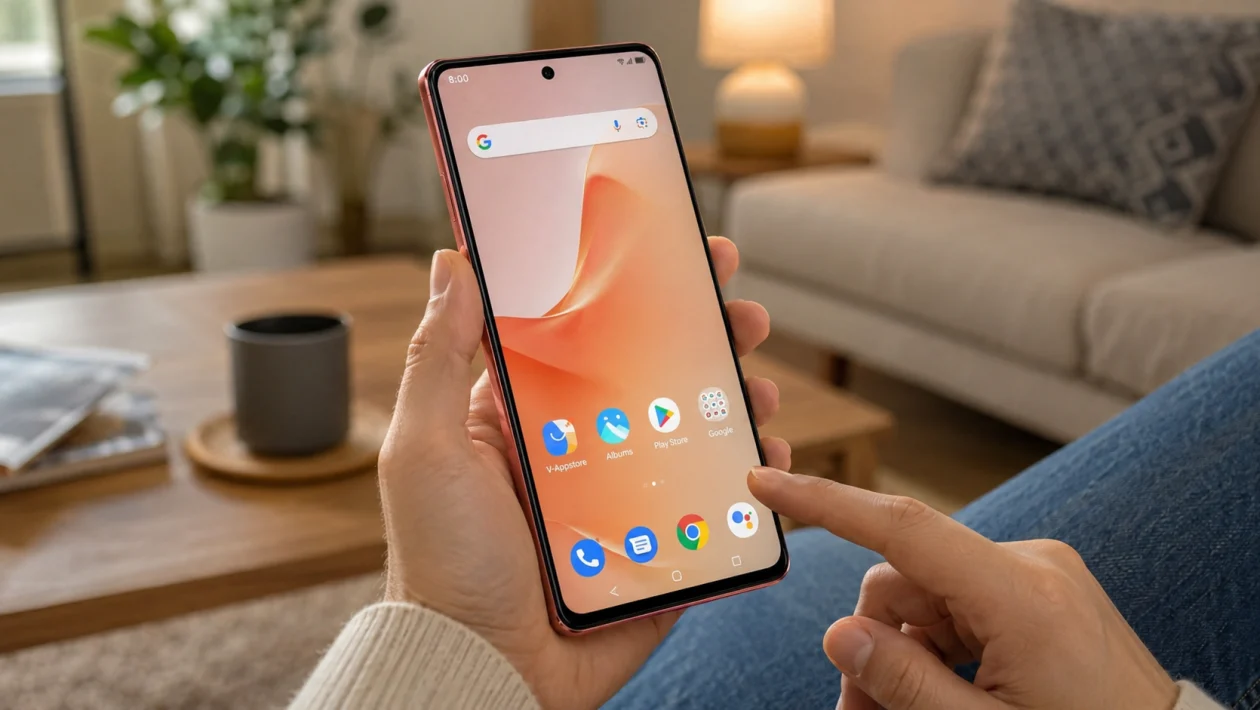
If your vivo Y51 Pro home screen keeps resetting, your app icons may move back to default positions, widgets may disappear, folders may break apart, or the phone may switch back to its original layout after a restart.
This usually happens because of a launcher issue, a home screen style change, a system update, a third-party launcher conflict, low storage, or cleared launcher data. It does not always mean your phone is broken.
Start with the simple checks first. Make sure the default home app is correct, check your home screen style, update the system, then clear the launcher cache only if the layout keeps resetting.
Quick answer
To fix a vivo Y51 Pro home screen layout that keeps resetting, first check the default launcher. Go to Settings > Apps > Default apps > Home app and make sure the correct home screen launcher is selected.
Then long press the Home screen, open Home Settings, and check the home screen style. If the issue started after an update, restart the phone, update your apps, and avoid clearing launcher data unless you are ready to rebuild your layout.
vivo Y51 Pro home screen layout reset diagnostic table
| Symptom | Likely cause | What to check first |
|---|---|---|
| Icons move after restart | Launcher bug or default launcher conflict | Default Home app |
| Widgets disappear | Widget permission, app update, or launcher refresh | Widget app permissions |
| Folders reset | Home screen launcher data issue | Home screen settings |
| Layout changes after update | Funtouch OS re-optimising apps | Restart and update apps |
| Phone switches to app drawer layout | Home screen style changed | Home screen style |
| Layout resets after using cleaner app | Cleaner removed launcher cache or data | Cleaner app settings |
| Layout resets only with third-party launcher | Default launcher not locked in | Default app settings |
| Icons disappear after moving apps to SD card | App storage or shortcut issue | App location and storage |
| Home screen keeps returning to default | Launcher data corruption | Clear launcher cache |
| Problem continues after all fixes | System bug or software issue | Reset settings or contact vivo support |
Why does my vivo Y51 Pro home screen layout keep resetting?
Your vivo Y51 Pro home screen layout may reset because the phone is not saving launcher changes correctly.
Common causes include:
Apps or widgets updating in the background
A third-party launcher conflict
Home screen style switching between standard and drawer mode
Launcher cache problems
Low storage
A cleaner or security app removing launcher files
Default home app changing
A software update affecting Funtouch OS settings
App shortcuts being removed or refreshed
Corrupted home screen launcher data
The fixes below go from easiest to more advanced. Try them in order.
1. Restart your vivo Y51 Pro
Start with a restart. This can fix temporary launcher glitches, stuck background processes, and small system issues.
- Press and hold the Power button.
- Tap Restart.
- Wait for the phone to turn back on.
- Rearrange one or two icons on the home screen.
- Restart the phone again.
- Check if the layout stays the same.
If the layout only reset once after an update, this may be enough.
2. Check the default Home app
If your phone has more than one launcher installed, vivo may switch between launchers. That can make it look like your home screen layout has reset.
- Open Settings.
- Go to Apps.
- Tap Default apps.
- Tap Home app.
- Choose the launcher you actually use.
- Go back to the home screen.
- Arrange your icons again.
If you use the original vivo launcher, select the system home screen option. If you use Nova Launcher, Microsoft Launcher, or another launcher, make sure that launcher is selected as default.
3. Check the Home screen style
Some vivo phones let you switch between different home screen styles, such as standard mode and drawer mode. If this changes, your layout may look like it reset.
- Long press an empty area on the Home screen.
- Tap Home Settings.
- Tap Home screen style.
- Choose the style you want to use.
- Return to the home screen.
- Arrange your icons and folders again.
If your vivo Y51 Pro does not show this option, your software version may not support switching home screen styles.
4. Turn off or remove third-party launchers
Third-party launchers can cause layout confusion if they are not set as the default home app. The phone may show one layout after unlocking, then return to another layout after restart.
- Open Settings.
- Tap Apps.
- Find the third-party launcher.
- Tap it.
- Tap Disable or Uninstall if you no longer use it.
- Restart the phone.
If you want to keep the third-party launcher, update it first and make sure it is selected as the default Home app.
Use only one launcher for a few days. If the layout stops resetting, the issue was probably caused by launcher switching.
5. Update your apps and system software
A buggy launcher, widget app, or system update can affect the home screen layout. Updating the phone can fix known software issues.
To update your vivo Y51 Pro:
- Open Settings.
- Tap System update.
- Check for updates.
- Install any available update.
- Restart the phone.
Then update your apps:
- Open Google Play Store.
- Tap your profile icon.
- Tap Manage apps and device.
- Tap Update all.
Also update apps from the vivo app store if you use it.
If the layout started resetting right after a system update, give the phone a day of normal use. Sometimes the system needs time to refresh apps and background services.
6. Check if a cleaner app is deleting launcher data
Cleaner apps can sometimes remove cache or data that helps your launcher remember icon positions, widgets, and folders.
Check any cleaner, booster, antivirus, or battery saver app you installed.
- Open the cleaner app.
- Go to its cleaning settings.
- Look for options related to app data, shortcuts, launcher, widgets, or home screen.
- Turn off automatic cleaning for launcher-related items.
- Restart the phone.
- Rebuild your layout and test again.
Be careful with one-tap cleaners. Clearing too much data can remove saved preferences from apps.
7. Free up storage space
Low storage can cause Android and Funtouch OS to behave strangely. If the phone has very little free space, launcher changes may not save properly.
- Open Settings.
- Tap RAM and storage space or Storage.
- Check available storage.
- Delete large files you no longer need.
- Remove unused apps.
- Clear cache from heavy apps such as browsers, video apps, and social apps.
Try to keep at least a few gigabytes of free storage. After freeing space, restart the phone and set up your home screen again.
8. Remove and add problem widgets again
If only widgets disappear or move, the issue may come from the widget app, not the home screen itself.
For example, weather widgets, clock widgets, calendar widgets, and battery widgets can reset after the app updates or loses permission.
- Long press the broken widget.
- Tap Remove.
- Restart the phone.
- Long press the Home screen.
- Tap Widgets.
- Add the widget again.
- Open the widget’s app once.
- Allow any needed permissions.
If a specific widget keeps disappearing, update or reinstall that app.
9. Clear the launcher cache
Only do this after the easier fixes. Clearing cache is safer than clearing data because it usually removes temporary files, not your full layout.
The exact app name may vary. Look for names such as Home, vivo Home, System Launcher, or Launcher.
- Open Settings.
- Tap Apps.
- Tap App manager.
- Tap the menu icon.
- Tap Show system processes.
- Find the launcher or home screen app.
- Tap Storage.
- Tap Clear cache.
- Restart the phone.
After restarting, move a few icons and test whether the layout stays saved.
Do not tap Clear data yet unless you are ready to lose your current home screen arrangement.
10. Reset all settings
If the home screen still resets after all fixes, reset system settings. This is less extreme than a factory reset, but it can fix broken permissions, default app settings, and system configuration problems.
- Open Settings.
- Tap System management.
- Tap Backup & reset.
- Choose Reset all settings.
- Confirm the reset.
- Restart the phone.
- Set your default Home app again.
- Rebuild your home screen layout.
This should not delete your personal photos, videos, or files, but it may reset Wi-Fi, permissions, default apps, and system preferences. Back up anything important before making bigger changes.
If the issue continues even after resetting settings, contact vivo support or visit a service center. The phone may need a software repair or deeper system check.
FAQs
Why do my vivo Y51 Pro icons keep moving after restart?
Your icons may keep moving after restart because the phone is switching launchers, refreshing the home screen style, or failing to save launcher changes. Check Settings > Apps > Default apps > Home app first.
Why do my widgets disappear from the vivo Y51 Pro home screen?
Widgets may disappear after app updates, permission changes, cleaner app activity, or launcher refreshes. Remove the widget, restart the phone, open the widget app, then add the widget again.
Will clearing launcher data fix the home screen layout problem?
It can, but it will likely erase your current home screen setup. Try clearing launcher cache first. Clear launcher data only if the layout keeps resetting and you are ready to rebuild your icons, folders, and widgets.
