
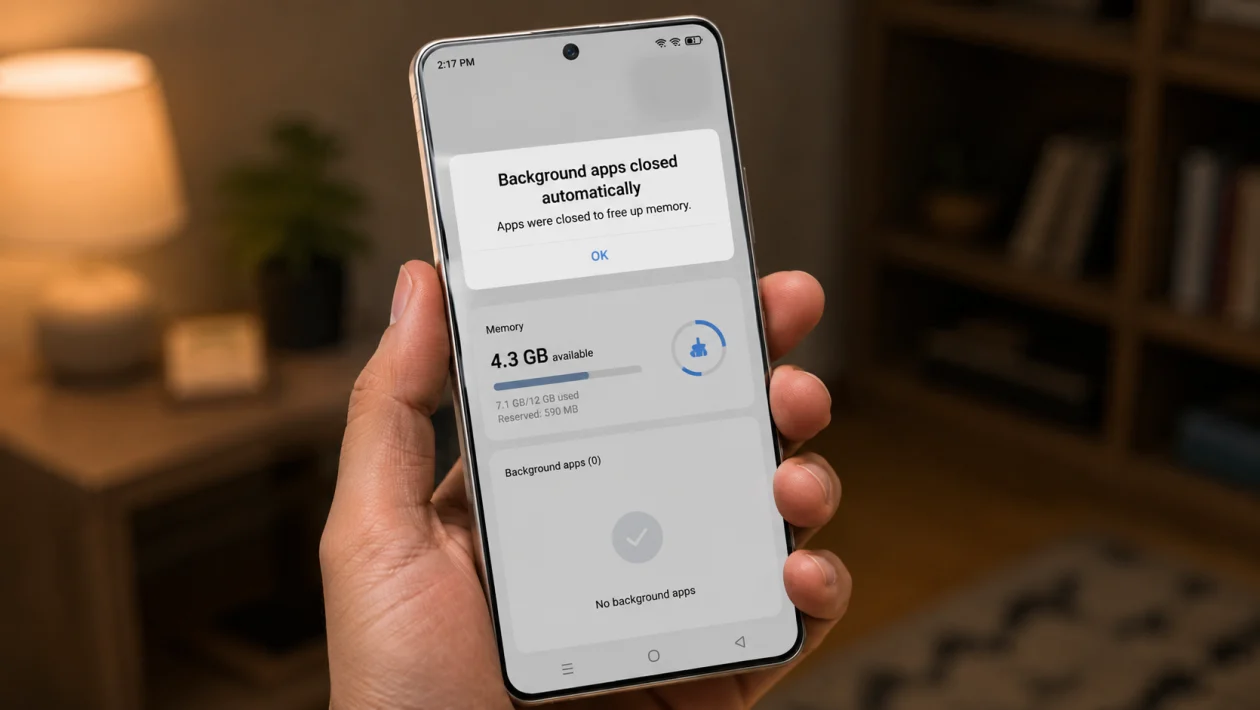
If your Infinix GT 50 Pro keeps closing apps in the background, the phone is probably trying too hard to save battery or free memory.
This can affect apps like Messenger, WhatsApp, Telegram, Gmail, Spotify, VPN apps, delivery apps, fitness trackers, smart home apps, and games that need to stay active. You leave the app, lock the phone, then come back later and find that it restarted, missed notifications, stopped syncing, or disconnected.
The Infinix GT 50 Pro runs on XOS 16 based on Android 16, so some menu names may vary slightly depending on your software version and region. Still, the fixes below cover the settings most likely to cause background apps to close.
Quick answer
To stop background apps from closing on the Infinix GT 50 Pro, start with the app’s battery settings. Go to Settings > Apps > App management, choose the affected app, then check its battery, notification, mobile data, and auto-start permissions.
For important apps, allow background activity, enable auto-start, turn off strict battery restrictions, lock the app in Recent Apps, and avoid using aggressive power-saving modes.
If only one app keeps closing, fix that app first. If many apps keep closing, check XOS battery settings, RAM cleanup, developer options, and system updates.
Infinix GT 50 Pro background apps closing diagnostic table
| Symptom | Likely cause | Check first |
|---|---|---|
| Messaging apps close in the background | Battery restriction or auto-start blocked | App battery settings |
| Notifications arrive late | Background data, notification permission, or battery control | Notifications and battery usage |
| Music stops when screen is off | App background activity restricted | App battery usage |
| VPN disconnects after locking phone | XOS battery management is closing it | Auto-start and unrestricted battery |
| Game restarts after switching apps | RAM cleanup or memory pressure | Recent Apps lock |
| Apps close when battery is low | Power saving mode | Battery settings |
| Apps close after an update | Software bug or reset permissions | Update apps and restart |
| All apps reload often | Developer option or RAM cleanup setting | Background process limit |
| App works only when opened manually | Auto-start disabled | Auto-start management |
| Issue started after installing cleaner app | Third-party cleaner killing apps | Remove cleaner apps |
Why does the Infinix GT 50 Pro close background apps?
The Infinix GT 50 Pro may close background apps because XOS is trying to extend battery life, reduce heat, or free RAM for games and active apps.
This is common on gaming-focused Android phones because the system often prioritizes performance and battery control. The GT 50 Pro has a large battery, high-refresh display, gaming features, and performance-focused hardware, so XOS may still manage background apps aggressively to keep the phone smooth.
Common causes include:
Battery optimization
Power saving mode
Auto-start restrictions
Background data limits
Notification restrictions
RAM cleanup
Developer options
Third-party cleaner apps
Software bugs
Apps that are not updated for the latest Android version
Start with the first solution and work down. Do not change everything at once unless many apps are affected.
1. Change the app battery setting
Start here because this is the most common reason background apps close.
- Open Settings.
- Tap Apps.
- Tap App management.
- Choose the app that keeps closing.
- Tap Battery usage or Battery.
- Choose an option that allows background activity.
- Avoid restricted or optimized modes for important apps.
Use this for apps that need to stay active, such as messaging apps, email apps, VPN apps, music apps, fitness trackers, and smart home apps.
For example, if WhatsApp or Messenger keeps missing messages, set the app to allow background use. If Spotify stops playing when the screen turns off, check its battery setting first.
2. Enable auto-start for the affected app
Auto-start lets an app restart itself after the phone reboots or after XOS closes it in the background.
- Open Settings.
- Tap App management.
- Look for Auto-start management.
- Find the affected app.
- Turn on auto-start.
This is especially useful for Messenger, WhatsApp, Telegram, Gmail, Outlook, Viber, banking alerts, ride-hailing apps, and delivery apps.
If auto-start is off, the app may not wake up properly until you open it manually. That is why notifications can arrive only after you unlock the phone and open the app.
3. Lock the app in Recent Apps
Locking an app in the Recent Apps screen can stop XOS from clearing it when you close all apps.
- Open the app you want to keep running.
- Swipe up and hold, or tap the Recent Apps button.
- Find the app card.
- Tap the app icon, menu, or lock option.
- Choose Lock if available.
Once locked, avoid swiping that app away manually.
This helps with music apps, VPN apps, messaging apps, and games that reload too often. It will not override every Android background limit, but it can reduce random app closures.
4. Turn off Power Saving or Power Marathon mode
Power saving features can close background apps more aggressively.
- Open Settings.
- Tap Battery.
- Turn off Power saving mode.
- Turn off Ultra power saving mode if it is enabled.
- Check for Power Marathon or similar battery-saving tools.
- Disable strict battery-saving modes while testing.
Use the phone normally for a few hours after turning these off.
If background apps stop closing, the issue was likely caused by aggressive battery saving. You can turn power saving back on later, but expect messaging, syncing, location, and background playback to be limited.
5. Allow background mobile data and Wi-Fi usage
Some apps do not fully close, but they stop syncing because background data is restricted.
- Open Settings.
- Tap Apps.
- Tap App management.
- Select the affected app.
- Tap Data usage.
- Allow background data.
- Allow Wi-Fi and mobile data if needed.
- Turn off data restriction for that app.
This matters for apps that need a constant internet connection, such as email, chat, cloud backup, maps, smart cameras, and VPN apps.
Also check Data Saver:
- Open Settings.
- Tap Network and internet, Connections, or SIM and network.
- Find Data Saver.
- Turn it off, or allow the affected app to use data in the background.
If your messages only arrive after opening the app, background data should be one of the first things you check.
6. Check notification permissions
Sometimes the app is still running, but notifications are blocked or delayed.
- Open Settings.
- Tap Notifications.
- Tap App notifications.
- Choose the affected app.
- Turn on notifications.
- Check notification categories.
- Allow lock screen notifications if needed.
- Turn off silent or minimized notification behavior for important alerts.
Also check the app’s own notification settings. For example, messaging apps may have separate settings for chats, groups, calls, reminders, and background services.
If the app is open in the background but alerts do not appear, the issue may be notification permission rather than app closing.
7. Remove third-party cleaner, booster, or battery saver apps
Cleaner apps often make this problem worse.
If you installed a RAM booster, phone cleaner, battery saver, antivirus cleaner, game booster, or task killer, it may be closing apps in the background even after you fix XOS settings.
- Open Settings.
- Tap Apps.
- Tap App management.
- Look for cleaner, booster, or battery apps.
- Uninstall them temporarily.
- Restart the phone.
- Test the affected app again.
The Infinix GT 50 Pro already has built-in memory and battery management. Adding another cleaner can create conflicts and make apps reload more often.
This is one of the easiest fixes if the issue started after installing a “speed booster” app.
8. Set Background process limit to Standard
Developer Options can make apps close immediately if the wrong setting is enabled.
Check this only if you or someone else changed developer settings.
- Open Settings.
- Tap About phone.
- Tap Build number several times if Developer Options is not already enabled.
- Go back to Settings.
- Open System or Additional settings.
- Tap Developer options.
- Find Background process limit.
- Set it to Standard limit.
- Make sure Don’t keep activities is turned off.
If Don’t keep activities is enabled, apps may close as soon as you leave them. That setting is useful for testing, but it is terrible for normal phone use.
After changing this, restart the phone and test again.
9. Update the app and XOS software
Background app problems can happen after a system update, app update, or Android version change.
Update your apps first:
- Open Google Play Store.
- Tap your profile icon.
- Tap Manage apps and device.
- Tap Update all.
Then check for system updates:
- Open Settings.
- Tap System.
- Tap System update, Software update, or XOS update.
- Download and install any available update.
Restart your phone after updating.
If the problem started right after a major update, give the phone a day or two of normal use. Android may still be re-optimizing apps in the background. But if the issue continues after updates and restarts, move to the next fix.
10. Reset app preferences
Use this if many apps are closing, notifications are broken, or you changed too many settings and cannot find the cause.
Resetting app preferences does not delete your photos, messages, apps, or personal files. It usually resets disabled apps, default apps, background restrictions, notification permissions, and app permission behavior.
- Open Settings.
- Tap Apps.
- Tap App management.
- Tap the three-dot menu if available.
- Tap Reset app preferences.
- Confirm the reset.
- Restart your phone.
After this, open your important apps again and allow the permissions they need.
For messaging apps, make sure notifications, background data, and battery access are allowed again.
Best settings for important background apps
For apps you never want XOS to close, use this setup:
| Setting | Recommended option |
|---|---|
| Battery usage | Allow background activity |
| Auto-start | On |
| Background data | On |
| Notifications | On |
| Power saving mode | Off while testing |
| Recent Apps | Locked |
| Developer background limit | Standard limit |
| Don’t keep activities | Off |
| Cleaner apps | Removed |
| App updates | Installed |
Use this setup only for important apps. Do not give every app unrestricted background access, or battery life may drop faster.
Which apps should you allow to run in the background?
Allow background access for apps that need real-time updates:
Messaging apps
Email apps
VPN apps
Password managers
Music and podcast apps
Navigation apps
Fitness trackers
Banking alerts
Smart home apps
Work apps
Calendar and reminder apps
Restrict background access for apps that do not need to run all day:
Shopping apps
Games you rarely play
Video apps
Photo editors
Old apps
Apps with too many ads
Apps you do not trust
The goal is not to keep every app running. The goal is to stop XOS from closing the apps that actually matter.
When should you contact Infinix support?
Contact Infinix support or visit an authorized service center if:
Apps still close after all 10 fixes
The phone restarts by itself
The phone gets very hot even when idle
System apps keep crashing
Notifications fail across all apps
The issue started after a failed update
Battery drops unusually fast after changing settings
You cannot access battery or app management settings
If only one app has the issue, contact the app developer first. If every app has the issue, it is more likely related to XOS settings or system software.
FAQ
Why does my Infinix GT 50 Pro keep closing apps?
Your Infinix GT 50 Pro may be closing apps because XOS battery management, auto-start settings, background data limits, RAM cleanup, or developer options are restricting background activity.
How do I stop Messenger or WhatsApp from closing on Infinix GT 50 Pro?
Go to Settings > Apps > App management, select Messenger or WhatsApp, then allow background battery use, enable notifications, allow background data, and turn on auto-start. You can also lock the app in Recent Apps.
Does locking an app in Recent Apps stop it from closing?
It can help, but it is not a perfect fix. You should also allow background activity, enable auto-start, and turn off strict battery-saving settings for that app.
