
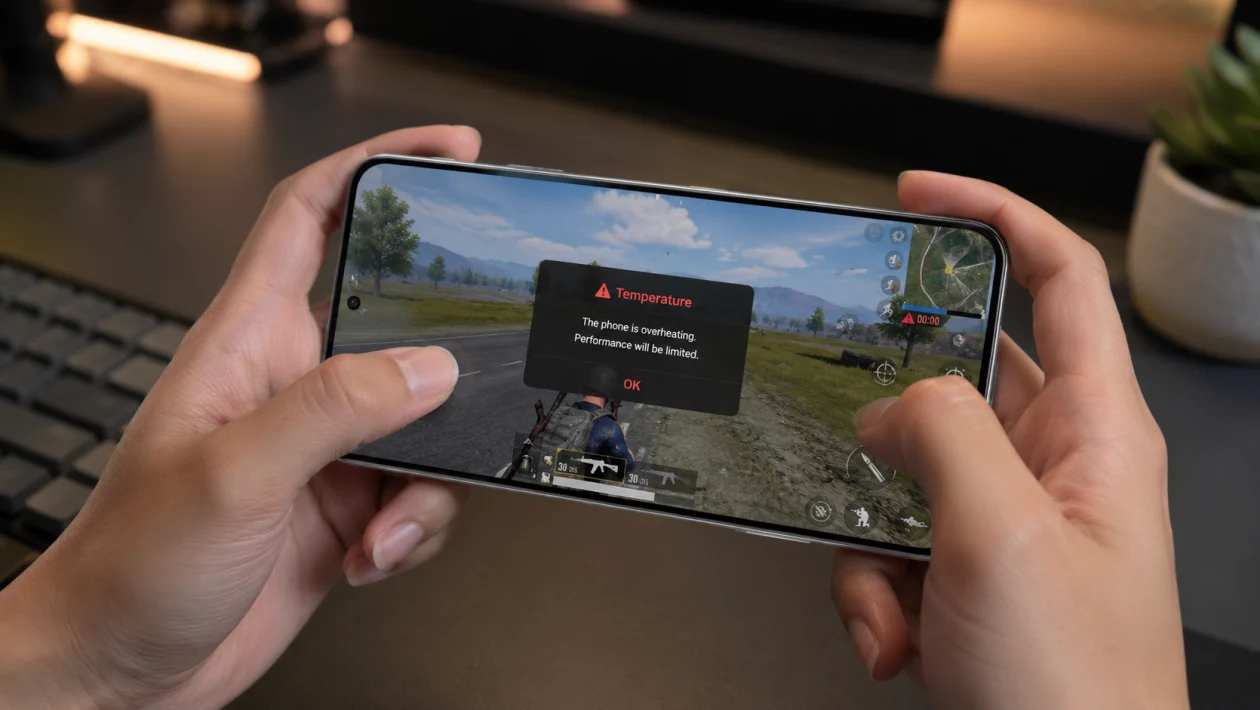
If your Infinix GT 50 Pro gets hot while gaming, start by lowering graphics settings, closing background apps, turning off charging during play, and checking the phone’s gaming mode settings. The phone is built for gaming, but long sessions in Mobile Legends, PUBG Mobile, COD Mobile, Genshin Impact, or Honor of Kings can still push the chipset, display, battery, network, and cooling system hard.
The Infinix GT 50 Pro launched as a gaming-focused phone with a Dimensity 8400 Ultimate chip, 144Hz AMOLED display, HydroFlow liquid cooling, GT triggers, and a large 6,500mAh battery. Those features help with gaming performance, but they do not make the phone immune to heat, especially if you play at high brightness, high FPS, mobile data, and while charging.
Quick answer
To fix Infinix GT 50 Pro overheating when gaming, reduce graphics and FPS settings first, then avoid gaming while charging unless you are using a supported bypass charging or cooling setup. Close background apps, lower screen brightness, remove the case, update XOS and your games, and use Wi-Fi instead of unstable mobile data when possible.
If the phone becomes too hot to hold, suddenly shuts down, shows a temperature warning, or keeps overheating even during light use, stop gaming and let it cool before using it again.
Infinix GT 50 Pro overheating diagnostic table
| Symptom | Likely cause | Check first |
|---|---|---|
| Phone gets hot after 10 to 20 minutes | High graphics, high FPS, high brightness | Game graphics settings |
| FPS drops during ranked matches | Thermal throttling | Lower FPS or graphics |
| Heat is worse while charging | Battery and charging heat | Use bypass charging or stop charging |
| Phone gets hot on mobile data | Weak 5G or unstable signal | Switch to Wi-Fi |
| Back panel feels very warm near the camera area | Chipset load | Reduce performance mode |
| Heat starts after an update | App or system optimization | Update apps and restart |
| Phone warms up even in the lobby | Background apps or downloads | Close apps and pause downloads |
| Phone overheats with a case on | Trapped heat | Remove the case |
| Touch feels delayed | Heat plus high screen load | Lower refresh rate or graphics |
| Phone shows warning or shuts down | Safety thermal limit | Stop using and cool down |
Why your Infinix GT 50 Pro overheats when gaming
The most common reason is simple: the phone is working too hard for too long.
Gaming uses the CPU, GPU, display, battery, speakers, network, storage, and touch system at the same time. If you add 144Hz refresh rate, high brightness, 5G, screen recording, voice chat, charging, and a thick phone case, heat builds faster.
The GT 50 Pro has advanced cooling hardware, including Infinix’s HydroFlow liquid cooling system and gaming-focused features, but cooling works best when the phone is not being overloaded from every direction at once.
1. Lower the game graphics settings first
Start inside the game. This is usually the fastest fix.
Open your game settings and reduce:
Graphics quality
Shadow quality
Texture quality
Anti-aliasing
Motion blur
HD resources
High frame rate mode
For games like PUBG Mobile, COD Mobile, Mobile Legends, Genshin Impact, or Honor of Kings, try this setup first:
Graphics: Medium or Smooth
Frame rate: High instead of Ultra or Extreme
Shadows: Off
Anti-aliasing: Off
Motion blur: Off
HD texture pack: Off if the phone still gets hot
This does not mean the Infinix GT 50 Pro is weak. It means you are reducing sustained heat so the phone can keep performance stable for longer.
2. Reduce FPS if the phone gets hot during long sessions
High FPS feels smoother, but it also increases heat. If the phone overheats after 20 to 30 minutes, reduce the frame rate by one level.
Try this order:
144 FPS only for short sessions
120 FPS if the game stays stable
90 FPS for better balance
60 FPS for long gaming sessions
For ranked matches, a stable 60 or 90 FPS can feel better than a higher FPS setting that drops after the phone heats up.
If your Infinix GT 50 Pro gets hot and then starts lagging, the phone may be reducing performance to control temperature. Lowering FPS early can prevent that drop.
3. Stop gaming while charging, or use supported bypass charging correctly
Gaming while charging is one of the biggest causes of heat. The phone is already producing heat from the game, then charging adds more heat through the battery and power system.
If you are playing a short match, unplug the charger.
If you are playing for a long session, use the phone’s supported gaming charging features only if they are available on your unit and software version. The GT 50 Pro has been reported with bypass charging support, and the GT Magcharge Cooler 2.0 accessory is described as adding wireless bypass charging to reduce heat during use.
To reduce heat:
Use the original charger and cable
Avoid cheap third-party chargers
Do not place the phone on a pillow or bed while charging
Keep battery between 30% and 80% during long sessions when possible
Use bypass charging only if XOS shows it is active
Stop charging if the phone becomes too hot
If bypass charging is not available, not working, or unclear on your software version, do not force long gaming sessions while plugged in.
4. Remove the phone case while gaming
A thick case traps heat. This is especially true for rugged cases, magnetic cases, leather-style cases, and cases with decorative backs.
Before gaming:
Remove the case
Place the phone on a cool, dry surface for a few minutes
Avoid gaming under direct sunlight
Do not cover the back of the phone with your hand for long periods
This small step can make a noticeable difference because the phone needs to release heat through its frame and back panel.
If the phone cools faster without the case, use a thinner case for daily use and remove it during gaming.
5. Lower screen brightness and refresh rate
The display can add a lot of heat during gaming. The Infinix GT 50 Pro has a bright 144Hz AMOLED display, which is great for gaming, but high brightness and high refresh rate can increase power use.
Try this:
Open Settings
Go to Display
Lower brightness manually
Turn off auto brightness if it keeps pushing brightness too high
Reduce refresh rate if available
Use 60Hz, 90Hz, or adaptive mode for longer sessions
Inside the game, also lower brightness if the game has its own brightness slider.
This fix helps most when you play indoors, at night, or in a room where max brightness is not needed.
6. Close background apps before opening the game
Background apps can keep the CPU, RAM, storage, GPS, and network active while you are gaming.
Before opening a heavy game:
Close recent apps
Pause downloads
Stop app updates
Close camera, social media, video, VPN, and browser apps
Turn off screen recording unless needed
Disable floating windows and overlays you do not use
Also check battery usage:
Open Settings
Go to Battery
Check Battery usage
Look for apps using power in the background
Restrict or close apps that are active while gaming
Apps like TikTok, Facebook, Instagram, Chrome, YouTube, VPN apps, cloud backup apps, and file-sharing apps can add heat if they keep running.
7. Use Wi-Fi instead of weak 5G or unstable mobile data
Mobile data can make the phone hotter than Wi-Fi, especially if the signal is weak. The phone has to work harder to stay connected, and online games also keep the network active constantly.
Use Wi-Fi when possible for:
Mobile Legends
PUBG Mobile
COD Mobile
Honor of Kings
Genshin Impact
Arena Breakout
Wuthering Waves
If you must use mobile data:
Avoid gaming in weak-signal areas
Move near a window
Switch from 5G to 4G/LTE if 5G is unstable
Turn off hotspot
Turn off background downloads
The GT 50 Pro includes gaming-focused connectivity features such as Infinix’s N1 network management chip, but a weak network can still increase heat and cause lag.
8. Update XOS, Game Mode, and your games
Overheating can happen after a software update, game patch, or driver-level optimization issue. Updates can also fix heat, frame drops, and battery drain.
Check phone updates:
Open Settings
Go to System or About phone
Tap System update
Install available updates
Restart the phone after updating
Update your games:
Open Google Play Store
Tap your profile icon
Tap Manage apps and device
Update your games
Also update Google Play services if available
If your phone started overheating after a recent update, restart it and monitor gaming performance for one or two days. The system may still be optimizing apps in the background.
9. Adjust XArena or Game Mode performance settings
If your Infinix GT 50 Pro uses XArena or a similar gaming mode, check the performance profile. Maximum performance modes can increase heat because they prioritize speed over temperature and battery life.
Open the gaming mode or game assistant panel and check:
Performance mode
Balanced mode
Temperature control
Network acceleration
Touch boost
Notification blocking
Charging protection
Bypass charging
Frame rate settings
For long sessions, use Balanced instead of the highest performance mode.
Use maximum performance only when you need it for short matches, tournaments, or demanding games. For casual grinding, farming, daily quests, or idle play, Balanced mode is usually the better choice.
10. Use an external cooler for long gaming sessions
If you play heavy games for one hour or more, an external cooler can help. This is especially useful if you play while streaming, recording, using voice chat, or playing in a warm room.
The GT 50 Pro is part of Infinix’s gaming ecosystem, and reports describe the GT Magcharge Cooler 2.0 as an optional accessory with thermoelectric cooling and wireless bypass charging support.
A cooler helps most when:
You play at high FPS
You play in hot weather
You use mobile data
You play while plugged in
You stream or record gameplay
You play demanding 3D games
For best results:
Attach the cooler before the phone gets too hot
Remove the phone case
Keep the cooler aligned properly
Use it on a flat, ventilated surface
Avoid covering the fan area
A cooler is not required for every user, but it is worth considering if you bought the Infinix GT 50 Pro mainly for long gaming sessions.
Best settings to reduce Infinix GT 50 Pro heat while gaming
| Setting | Recommended for cooler gaming |
|---|---|
| Graphics | Medium or Smooth |
| FPS | 60, 90, or 120 depending on game |
| Brightness | Manual, below maximum |
| Refresh rate | Adaptive or lower mode |
| Charging | Avoid while gaming or use supported bypass |
| Case | Remove during long sessions |
| Network | Wi-Fi preferred |
| Game Mode | Balanced for long play |
| Background apps | Closed |
| Cooler | Use for long heavy sessions |
When to stop gaming and let the phone cool
Stop gaming if:
The phone becomes uncomfortable to hold
The screen dims suddenly
The game starts stuttering badly
You see a temperature warning
Charging slows down or stops
The phone shuts down by itself
The back panel stays hot even after closing the game
Place the phone on a table in a cool room. Do not put it in a refrigerator or freezer. Sudden temperature changes can cause moisture problems.
When to contact Infinix support
Contact Infinix support or visit an authorized service center if the phone:
Overheats during basic tasks
Gets hot while idle
Shuts down during normal use
Swells near the battery area
Smells burnt
Shows repeated temperature warnings
Overheats even after updates and reset-level troubleshooting
Gaming heat is normal. Extreme heat during light use is not.
FAQ
Is it normal for the Infinix GT 50 Pro to get warm while gaming?
Yes. Warmth is normal during gaming because the CPU, GPU, display, battery, and network are active at the same time. It becomes a problem if the phone is too hot to hold, shows warnings, shuts down, or keeps dropping FPS because of heat.
Why does my Infinix GT 50 Pro heat up while playing Mobile Legends?
Mobile Legends can heat the phone if you use high FPS, high brightness, mobile data, voice chat, and background apps at the same time. Lower graphics, use Wi-Fi, and close other apps before playing ranked matches.
Why does the phone get hotter when I play while charging?
Charging adds battery heat on top of gaming heat. If supported bypass charging is available and active, it may reduce battery stress during long sessions. If not, unplug the charger while gaming.
