
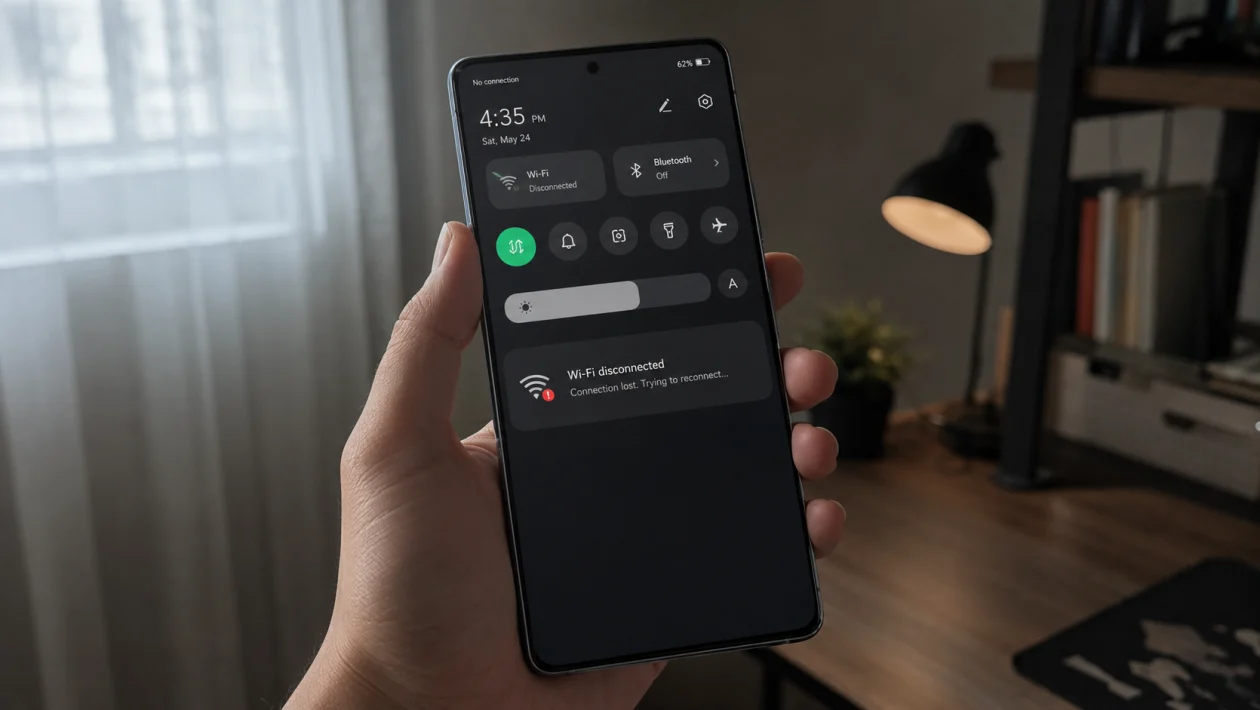
If your Infinix GT 50 Pro Wi-Fi keeps cutting off, reconnecting, or dropping internet while other devices stay connected, the problem is usually caused by router settings, weak signal, saved network data, battery restrictions, VPN apps, private DNS, or a software bug.
The Infinix GT 50 Pro supports modern Wi-Fi features, including Wi-Fi 6 and both 2.4GHz and 5GHz bands, so random Wi-Fi drops should not be treated as “normal” unless the router, signal, or software setup is causing instability. The phone was officially unveiled by Infinix on April 24, 2026.
Quick answer
To fix an Infinix GT 50 Pro with Wi-Fi cutting off, restart the phone and router first. Then forget and reconnect to the Wi-Fi network, turn off VPN or Private DNS, check whether the issue happens on both 2.4GHz and 5GHz, update your phone, and reset network settings if the problem continues.
Start with the easy fixes before doing anything drastic.
Infinix GT 50 Pro Wi-Fi cutting off diagnostic table
| Symptom | Likely cause | Try this first |
|---|---|---|
| Wi-Fi disconnects only at home | Router, band steering, weak signal | Restart router, test 2.4GHz and 5GHz |
| Wi-Fi drops on every network | Phone software or network settings | Restart phone, reset network settings |
| Wi-Fi cuts off when screen is off | Battery restriction or sleep behavior | Check battery and app background settings |
| Wi-Fi disconnects during gaming | Router congestion, 5GHz range, heat, VPN | Move closer, disable VPN, use 5GHz |
| Wi-Fi says connected but no internet | DNS, router, IP conflict | Turn off Private DNS, reconnect |
| Wi-Fi drops after update | XOS or app compatibility issue | Update system and apps, monitor |
| Wi-Fi works on 2.4GHz but not 5GHz | Range or router band issue | Stay closer or separate Wi-Fi bands |
| Wi-Fi keeps reconnecting randomly | Saved network corruption | Forget network and reconnect |
Why does my Infinix GT 50 Pro Wi-Fi keep cutting off?
Your Infinix GT 50 Pro Wi-Fi may keep cutting off because the phone is switching between bands, struggling with a weak 5GHz signal, dealing with router congestion, or using a saved Wi-Fi profile that has become unstable.
It can also happen after a software update, especially if network settings, app permissions, VPN profiles, or background services do not behave properly after the update.
The good news: most Wi-Fi drop problems can be fixed without factory resetting the phone.
1. Restart your Infinix GT 50 Pro and router
Start here. A restart clears temporary network glitches on both sides: your phone and your router.
- Press and hold the Power button.
- Tap Restart.
- Unplug your router from power.
- Wait 30 seconds.
- Plug the router back in.
- Wait until the Wi-Fi light becomes stable.
- Reconnect your Infinix GT 50 Pro.
Do not skip the router restart. If your phone disconnects only on your home Wi-Fi, the router is just as likely to be the problem as the phone.
2. Forget the Wi-Fi network and reconnect
If the saved Wi-Fi profile is corrupted, your phone may keep reconnecting even when the signal is fine.
- Open Settings.
- Tap Wi-Fi.
- Tap the connected network.
- Tap Forget.
- Restart your phone.
- Connect to the same Wi-Fi again.
- Enter the password carefully.
This fix is useful when your Infinix GT 50 Pro keeps saying “Saved,” “Connecting,” or “Connected without internet.”
3. Check if the problem happens on 2.4GHz or 5GHz
The Infinix GT 50 Pro supports both 2.4GHz and 5GHz Wi-Fi bands. 5GHz is usually faster, but it has shorter range. 2.4GHz is slower, but it reaches farther and handles walls better.
If your router uses one Wi-Fi name for both bands, your phone may switch between them. That can cause short dropouts.
Try this:
- Open your router settings.
- Separate the Wi-Fi names if possible.
- Use names like HomeWiFi_2.4G and HomeWiFi_5G.
- Connect your Infinix GT 50 Pro to 5GHz when close to the router.
- Use 2.4GHz if you are far from the router or behind walls.
For gaming, 5GHz is usually better when you are near the router. For bedrooms, upper floors, or areas with thick walls, 2.4GHz may be more stable.
4. Turn off VPN, Private DNS, and ad blocker apps
VPN apps, Private DNS, firewall apps, and ad blockers can make Wi-Fi look broken even when the connection is working. The phone may stay connected to Wi-Fi, but apps fail to load or the internet cuts in and out.
Check these settings:
- Open Settings.
- Search for VPN.
- Turn off any active VPN.
- Go back to Settings.
- Search for Private DNS.
- Set it to Off or Automatic.
- Restart the phone.
- Test Wi-Fi again.
Also disable third-party security, cleaner, firewall, or DNS apps temporarily.
If Wi-Fi works after this, the problem was probably not the Wi-Fi chip. It was the traffic route.
5. Turn Airplane Mode on and off
This is a quick way to refresh wireless connections without restarting the whole phone.
- Swipe down from the top of the screen.
- Turn on Airplane Mode.
- Wait 10 seconds.
- Turn Airplane Mode off.
- Reconnect to Wi-Fi.
This can help when Wi-Fi suddenly stops working after switching from mobile data, using hotspot, or moving between networks.
6. Update your Infinix GT 50 Pro software
Software updates can fix Wi-Fi stability problems, router compatibility issues, and background connection bugs.
- Open Settings.
- Tap System.
- Tap System update.
- Download and install any available update.
- Restart the phone after updating.
Also update your apps from the Google Play Store.
If the Wi-Fi issue started right after a system update, give the phone a short adjustment period, then check for another patch. Wi-Fi problems after updates are sometimes fixed by follow-up software builds.
7. Check battery saver and background restrictions
Battery saving features can sometimes interrupt background syncing or make apps act like the internet has disconnected.
Check this especially if Wi-Fi cuts off when the screen turns off.
- Open Settings.
- Tap Battery.
- Turn off Power Saving Mode temporarily.
- Go to App management or Apps.
- Choose the app that loses connection.
- Allow background data or unrestricted battery use if available.
- Test again.
This matters for apps like WhatsApp, Messenger, Telegram, Discord, games, cloud backup apps, and video call apps.
Do not leave every app unrestricted. Only adjust the apps that actually need constant connection.
8. Move closer to the router and remove signal blockers
If your Infinix GT 50 Pro disconnects in one room but works near the router, the issue is probably signal strength.
Try this:
- Move closer to the router.
- Keep the router in an open area.
- Avoid placing it behind a TV, cabinet, mirror, or thick wall.
- Keep it away from microwaves and Bluetooth-heavy areas.
- Test Wi-Fi again.
For online gaming, do not rely on a weak 5GHz connection from far away. A slightly slower but stable 2.4GHz connection can feel better than a fast 5GHz connection that keeps dropping.
9. Reset Wi-Fi, mobile, and Bluetooth settings
If nothing has worked yet, reset the phone’s network settings. This clears saved Wi-Fi networks, Bluetooth pairings, and mobile network preferences.
It does not delete your photos, apps, or personal files.
- Open Settings.
- Search for Reset options.
- Tap Reset Wi-Fi, mobile networks, and Bluetooth.
- Confirm the reset.
- Restart your phone.
- Reconnect to Wi-Fi.
Use this before factory reset. It is much safer and often fixes stubborn connection problems.
10. Test another Wi-Fi network or contact Infinix support
Now check whether the problem follows the phone or stays with your router.
Test your Infinix GT 50 Pro on:
A friend’s Wi-Fi
Office Wi-Fi
Mobile hotspot from another phone
Public Wi-Fi, if safe and trusted
If the phone only disconnects on your home network, update your router firmware, change the Wi-Fi channel, separate 2.4GHz and 5GHz, or contact your internet provider.
If the phone disconnects from every Wi-Fi network, the problem may be software or hardware related. At that point, contact Infinix support or visit an authorized service center.
Do this especially if:
The Wi-Fi toggle turns off by itself
The phone cannot detect any Wi-Fi network
Bluetooth also behaves strangely
Wi-Fi drops even after a network reset
The phone was dropped or exposed to water
The problem started right after repair work
Should you factory reset your Infinix GT 50 Pro?
Only factory reset the phone after trying the 10 fixes above.
A factory reset may help if the issue comes from a serious software conflict, but it also deletes your data. Back up your photos, videos, files, contacts, and chat history first.
To factory reset:
- Open Settings.
- Tap System.
- Tap Reset options.
- Choose Erase all data.
- Follow the on-screen instructions.
Do not factory reset just because Wi-Fi dropped once or twice. Random Wi-Fi drops are often caused by the router, band switching, DNS settings, or saved network data.
FAQ
Why does my Infinix GT 50 Pro Wi-Fi disconnect when gaming?
It may be caused by weak 5GHz signal, router congestion, VPN delay, overheating, or background network switching. Use 5GHz near the router, turn off VPN, restart the router, and keep the phone close to the Wi-Fi source.
Why does Wi-Fi disconnect when my Infinix GT 50 Pro screen turns off?
Battery saver or app background restrictions may be interrupting app activity. Turn off power saving temporarily and allow background activity for the affected app.
Is the Infinix GT 50 Pro Wi-Fi problem caused by Android 16?
Not always. The Infinix GT 50 Pro is associated with Android 16 in certification and listing reports, but Wi-Fi drops can also come from router settings, DNS, saved networks, VPN apps, or weak signal.
