
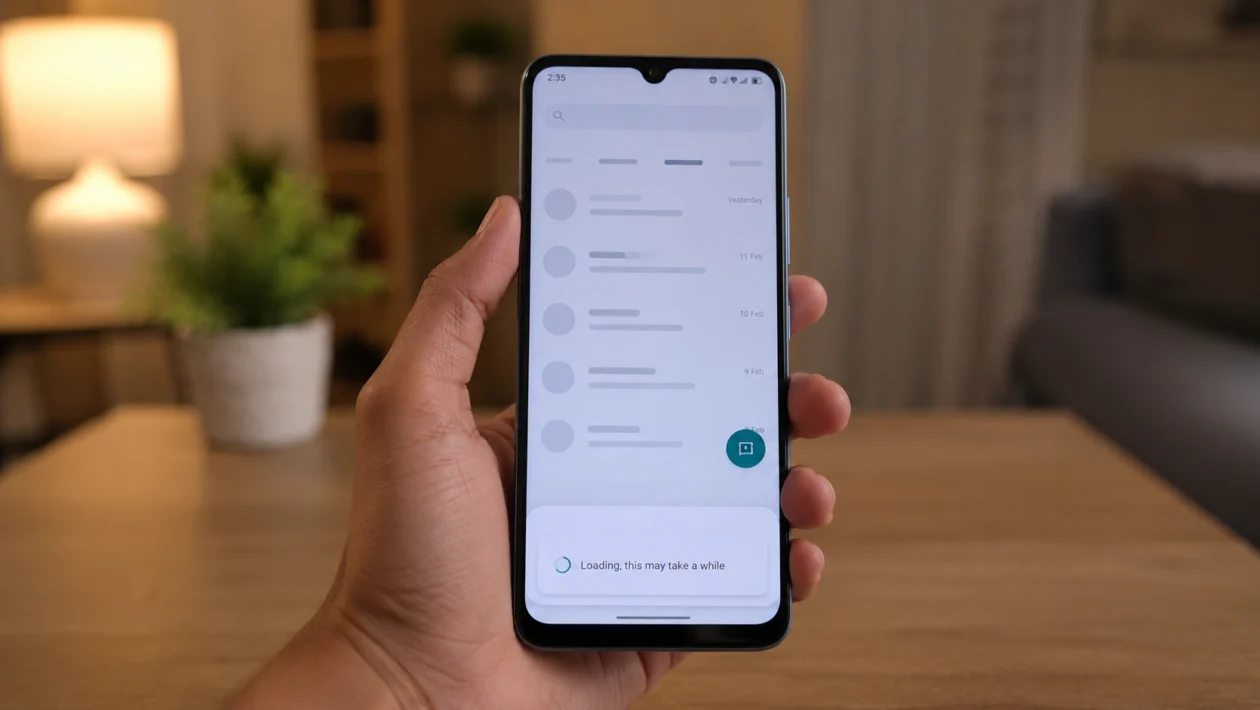
If your Xiaomi Poco C81 Pro feels slow, freezes between apps, or takes too long to respond, the problem is usually caused by background apps, low storage, outdated software, heavy animations, or too many system services running at once.
The Poco C81 Pro is built as an entry-level phone, so it can lag if the system is overloaded. Xiaomi lists the Poco C81 Pro with Xiaomi HyperOS 3 and a 6.9-inch display with up to 120Hz adaptive refresh rate, but feature availability can vary by region, software version, and model. That means some menu names may look slightly different on your phone.
Quick answer
To fix a Xiaomi Poco C81 Pro with system lagging, restart the phone first, then check storage, update HyperOS, remove unused apps, limit background activity, reduce animations, and scan for apps that are using too much memory or battery.
Start with the simple fixes before resetting anything. Most lag problems can be fixed without deleting your files.
Xiaomi Poco C81 Pro lagging diagnostic table
| Symptom | Likely cause | What to check first |
|---|---|---|
| Phone lags after unlocking | Too many background apps | Recent apps and Battery settings |
| Apps open slowly | Low storage or app cache | Storage and app cache |
| Phone lags after update | System still optimizing | Restart and update apps |
| Keyboard delay | App cache or low memory | Keyboard app and background apps |
| Scrolling feels choppy | Refresh rate or animations | Display and developer animation settings |
| Games lag | Low RAM, heat, or background apps | Game Turbo and battery mode |
| Phone freezes often | Problem app or system bug | Safe Mode or software update |
| Lag happens only in one app | App issue | Update, clear cache, or reinstall the app |
1. Restart the Poco C81 Pro
Start here because it is the fastest fix. A restart clears temporary system glitches, closes stuck background processes, and refreshes memory.
- Press and hold the Power button.
- Tap Restart.
- Wait for the phone to turn back on.
- Use it normally for a few minutes.
- Check if the lag improves.
This will not delete your photos, apps, messages, or files.
2. Free up storage space
Low storage can make the Poco C81 Pro feel slow. Android phones need free space for app updates, cache, system files, and temporary data.
- Open Settings.
- Tap About phone.
- Tap Storage.
- Check how much free space is left.
- Delete large videos, duplicate photos, old downloads, and unused files.
Try to keep at least 10% to 20% of your storage free. If the phone is almost full, even basic actions like opening the camera, switching apps, or typing can feel delayed.
You can also move photos and videos to cloud storage or a computer if you do not want to delete them.
3. Clear cache from laggy apps
If the Poco C81 Pro only lags when using one app, that app may have too much cache or corrupted temporary data.
- Open Settings.
- Tap Apps.
- Tap Manage apps.
- Choose the app that feels slow.
- Tap Storage.
- Tap Clear cache.
Do not tap Clear data unless you are ready to reset that app. Clearing data may remove app settings, saved logins, or offline files.
Start with apps that usually build up cache quickly, such as TikTok, Facebook, Instagram, Chrome, YouTube, Shopee, Lazada, games, and messaging apps.
4. Update HyperOS and your apps
A system bug or outdated app can cause lag. Updates often include stability fixes, performance improvements, and compatibility patches.
To update HyperOS:
- Open Settings.
- Tap About phone.
- Tap Xiaomi HyperOS version.
- Tap Check for updates.
- Install any available update.
To update apps:
- Open Google Play Store.
- Tap your profile icon.
- Tap Manage apps and device.
- Tap Update all.
Also check Xiaomi’s system app updater if available:
- Open Settings.
- Tap System apps updater.
- Install available updates.
If the lag started right after a major HyperOS update, restart the phone, update your apps, and monitor it for 24 to 48 hours. Some phones feel slower right after an update because apps and system services are still adjusting in the background.
5. Uninstall apps you do not use
Too many apps can slow the phone down, especially if they run in the background, send notifications, sync data, or track location.
- Open Settings.
- Tap Apps.
- Tap Manage apps.
- Sort by size or recently used, if available.
- Uninstall apps you no longer need.
Focus on removing:
Shopping apps you rarely open
Old games
Cleaner or booster apps
Duplicate browsers
Unused launchers
Apps installed from unknown sources
Battery saver apps that fight with HyperOS battery controls
Be careful with random “phone booster” apps. Many of them add more background activity instead of making the phone faster.
6. Limit background activity for heavy apps
Some apps keep running even when you are not using them. This can cause system lag, battery drain, and delayed response.
- Open Settings.
- Tap Battery.
- Tap Battery usage.
- Look for apps using more power than expected.
- Tap the app.
- Restrict background activity if you do not need it running all the time.
You can also check:
Settings > Apps > Manage apps > Select app > Battery saver
Choose a stricter battery option for apps you rarely use. Do not restrict important apps like banking apps, messaging apps, delivery apps, Gmail, or WhatsApp if you need instant notifications.
7. Reduce animations
Animations make the phone look smoother, but they can also make an entry-level phone feel slower. Reducing them can make the Poco C81 Pro feel more responsive.
First, enable Developer options:
- Open Settings.
- Tap About phone.
- Tap OS version several times until Developer options are enabled.
- Go back to Settings.
- Tap Additional settings.
- Tap Developer options.
Then change these settings:
- Find Window animation scale.
- Set it to 0.5x or Off.
- Find Transition animation scale.
- Set it to 0.5x or Off.
- Find Animator duration scale.
- Set it to 0.5x or Off.
Do not change other Developer options unless you know what they do.
This fix does not increase the phone’s hardware power, but it can make taps, app switching, and menus feel faster.
8. Change refresh rate settings
The Poco C81 Pro supports a high refresh rate display, but using higher refresh rate settings may affect smoothness, battery use, and heat depending on what the phone is doing.
- Open Settings.
- Tap Display.
- Tap Refresh rate.
- Choose Default or a lower refresh rate option if available.
- Restart the phone and test again.
If the phone lags during scrolling, try switching between the available refresh rate options. Some users may prefer the smoother feel of a higher refresh rate, while others may get more stable performance with a lower or default setting.
9. Check for overheating
Heat can make the Poco C81 Pro slow down. When a phone gets too warm, the system may reduce performance to protect the battery and internal parts.
Common causes include:
Gaming for long sessions
Using the phone while charging
Recording video for a long time
Using mobile data in weak signal areas
Leaving hotspot on
Using the phone under direct sunlight
Running too many apps at once
To cool it down:
- Remove the case.
- Stop gaming or recording video.
- Turn off hotspot if it is on.
- Move the phone away from direct sunlight.
- Let it rest for 10 to 15 minutes.
- Restart it once it cools down.
Do not put the phone in a refrigerator or freezer. Sudden temperature changes can cause moisture problems.
10. Reset the phone only if lag continues
If none of the fixes work, a factory reset may help. This should be the last option because it deletes your apps, settings, photos, videos, and local files.
Before resetting:
- Back up your photos and videos.
- Sync your contacts.
- Save important files.
- Remember your Google account password.
- Back up WhatsApp or other messaging apps.
To factory reset:
- Open Settings.
- Tap About phone.
- Tap Factory reset.
- Choose Erase all data.
- Follow the on-screen instructions.
After the reset, install only the apps you really need first. Test the phone before reinstalling every old app. If the lag returns after installing a specific app, that app may be the cause.
When should you contact Xiaomi or POCO support?
Contact support if the Poco C81 Pro still lags badly after a factory reset, freezes even with no extra apps installed, restarts on its own, overheats during basic use, or becomes too slow to unlock and navigate.
You should also get help if the phone was dropped, exposed to water, or started lagging after a failed update.
FAQs
Why is my Xiaomi Poco C81 Pro lagging?
Your Xiaomi Poco C81 Pro may be lagging because of low storage, too many background apps, outdated software, app cache, overheating, heavy animations, or a problem app running in the background.
Will clearing cache delete my files?
No. Clearing app cache removes temporary files only. It should not delete photos, messages, or personal documents. Clearing app data is different and can reset the app.
Does factory reset fix lag on Poco C81 Pro?
A factory reset can fix lag caused by software problems, corrupted settings, or bad apps. It will not fix hardware damage, weak storage health, or overheating caused by physical issues.
