
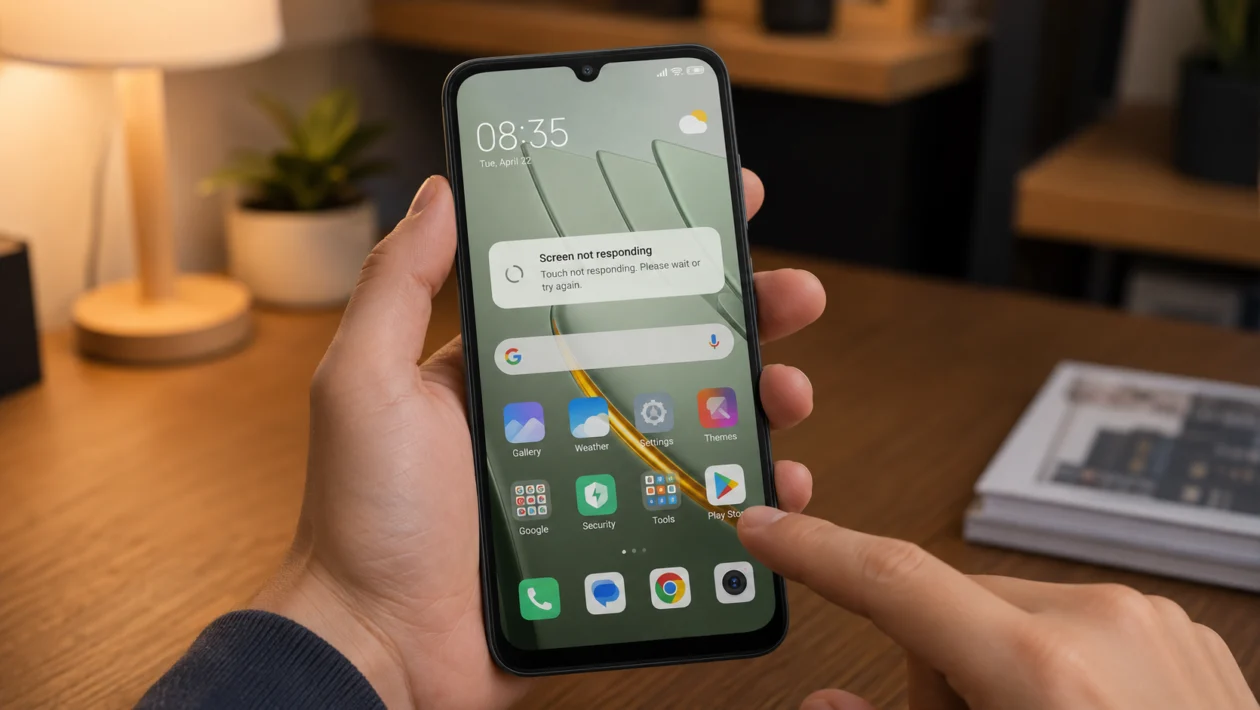
If your Xiaomi POCO C81 Pro screen is not responding, do not assume the display is broken right away. A frozen screen can happen because of low battery, a temporary system glitch, a thick screen protector, an overheating phone, a buggy app, wet fingers, storage issues, or a damaged touch panel.
The POCO C81 Pro uses a large 6.9-inch LCD display with up to 120Hz refresh rate and capacitive multi-touch support, so the screen should respond smoothly during normal use. If it suddenly stops reacting, start with the simple checks below before trying a reset or visiting a repair center.
Quick answer
To fix a Xiaomi POCO C81 Pro with an unresponsive screen, force restart the phone first. Press and hold the Power button for about 10 to 15 seconds until the phone restarts. Then remove the case and screen protector, clean the display, charge the phone, update the system, and check if one app is causing the issue.
If the screen still does not respond after these steps, the problem may be hardware-related.
Xiaomi POCO C81 Pro unresponsive screen diagnostic table
| Symptom | Likely cause | What to try first |
|---|---|---|
| Screen is frozen completely | System glitch | Force restart |
| Touch works sometimes | Case, screen protector, dirt, moisture | Clean screen and remove accessories |
| Screen stops responding while gaming | Heat or memory load | Cool the phone and close apps |
| Only one app freezes | App bug | Force stop or update the app |
| Screen lags after update | Software optimization or bug | Restart, update apps, check system update |
| Ghost touches happen | Screen protector, moisture, damaged panel | Remove protector and clean screen |
| Touch stopped after a drop | Hardware damage | Inspect screen and visit service center |
| Touch does not work while charging | Charger or cable issue | Try another charger |
Why your Xiaomi POCO C81 Pro screen is not responding
Your POCO C81 Pro screen may become unresponsive when the phone is overloaded, too warm, low on power, affected by a bad app, or blocked by a thick screen protector. Xiaomi support pages also point to cracked screens, water damage, third-party cases, protective films, and wet fingers as possible causes of touchscreen problems.
Start with the safest fixes first. Do not factory reset the phone until you have tried the easier steps.
1. Force restart your POCO C81 Pro
Start here if the screen is frozen and you cannot tap anything.
A force restart can clear a temporary software freeze without deleting your files.
- Press and hold the Power button.
- Keep holding it for about 10 to 15 seconds.
- Wait until the phone turns off or restarts.
- Release the button when the POCO logo appears.
- Test the touchscreen again.
If the screen responds after the restart, the issue was probably a temporary system glitch.
2. Charge the phone for at least 20 minutes
A very low battery can make the phone behave strangely. The screen may light up but ignore touches, lag badly, or freeze during startup.
- Plug the phone into its charger.
- Leave it charging for at least 20 minutes.
- Avoid using the phone while it charges.
- Restart it after charging.
- Check if the screen responds normally.
Use the original charger and cable if you have them. If the screen only becomes unresponsive while charging, test another cable, charger, or wall outlet.
3. Remove the case and screen protector
This is one of the most common causes of touch problems on budget and mid-range phones.
A thick screen protector can reduce touch sensitivity. A tight case can press against the edges of the display and make the phone register touches badly.
- Remove the phone case.
- Remove the screen protector if it is cracked, thick, lifted, or bubbling.
- Wipe the screen.
- Restart the phone.
- Test tapping, swiping, scrolling, and typing.
This is especially worth trying if the screen becomes unresponsive near the edges or during gesture navigation.
4. Clean and dry the display
The POCO C81 Pro supports wet touch features, but that does not mean every wet or dirty screen will work perfectly. Oil, sweat, dust, lotion, and water can still confuse touch input.
- Turn off the phone if possible.
- Wipe the screen with a clean microfiber cloth.
- Dry your fingers.
- Remove any water, sweat, or oil from the display.
- Turn the phone back on.
Do not use metal tools, sharp objects, or strong cleaning chemicals on the screen.
5. Let the phone cool down
If the screen becomes unresponsive while gaming, charging, recording video, using mobile data, or staying under direct sunlight, heat may be part of the problem.
- Stop using heavy apps.
- Remove the case.
- Unplug the charger.
- Move the phone away from sunlight.
- Let it cool for 10 to 15 minutes.
- Restart the phone.
Do not put the phone in a freezer or directly in front of an air conditioner. Sudden temperature changes can cause moisture problems.
6. Check if one app is causing the problem
If the screen only freezes inside one app, the display is probably not the main issue. The app may be crashing, lagging, or using too much memory.
Try this:
- Open Settings.
- Tap Apps.
- Tap Manage apps.
- Select the app that keeps freezing.
- Tap Force stop.
- Open the app again.
Then update the app through the Google Play Store.
If the problem continues, uninstall the app temporarily and test the phone for a day.
7. Turn off extra background apps
The POCO C81 Pro is an entry-level phone, so heavy multitasking can make the interface feel slow or stuck. If too many apps are open, touch response can lag.
- Open Recent apps.
- Close apps you are not using.
- Restart the phone.
- Avoid opening many heavy apps at once.
- Delete apps you no longer need.
Also check storage. If the phone storage is almost full, clear unused files, videos, downloads, and duplicate photos.
Go to:
Settings > About phone > Storage
Try to keep several gigabytes free so the system has room to work.
8. Update HyperOS, Android, and your apps
Software bugs can affect touch response, gestures, keyboard input, and app stability. If the issue started after an update, another patch or app update may fix it.
To update the phone:
- Open Settings.
- Tap About phone.
- Tap the HyperOS or system update section.
- Check for updates.
- Install any available update.
To update apps:
- Open Google Play Store.
- Tap your profile icon.
- Tap Manage apps and device.
- Tap Update all.
Restart the phone after updating.
9. Test the screen in Safe Mode
Safe Mode helps you check if a downloaded app is causing the unresponsive screen issue. In Safe Mode, third-party apps are disabled temporarily.
The exact steps can vary by HyperOS version, but try this method:
- Press and hold the Power button.
- When the power menu appears, press and hold Power off.
- Tap Safe Mode if it appears.
- Test the touchscreen.
If the screen works normally in Safe Mode, a downloaded app is likely causing the problem. Uninstall recently installed apps one by one, especially launchers, screen filters, battery savers, cleaners, floating button apps, and gesture apps.
Restart the phone to exit Safe Mode.
10. Back up your data and reset the phone
Use this only after the earlier fixes fail. A factory reset can fix deeper software problems, but it deletes your apps, settings, photos, videos, and files from the phone.
Before resetting, back up your data.
Then go to:
Settings > About phone > Factory reset
After the reset, test the screen before reinstalling all your apps. If the screen works at first but becomes unresponsive again after restoring apps, one of the apps or settings may be causing the problem.
When to visit a Xiaomi or POCO service center
Get the phone checked by a technician if:
The screen stopped responding after a drop
The display has cracks, dents, black spots, or lines
The phone had water or moisture exposure
Only part of the screen responds
Ghost touches continue after removing the screen protector
The screen does not respond even after a reset
The phone works with buttons but not with touch
If the touch panel or display connector is damaged, software fixes will not solve it.
FAQ
Why is my Xiaomi POCO C81 Pro screen frozen?
The screen may be frozen because of a system glitch, low battery, overheating, a bad app, or overloaded memory. Force restart the phone first, then charge it and test the screen again.
Can a screen protector make the POCO C81 Pro screen unresponsive?
Yes. A thick, cracked, dirty, or poorly fitted screen protector can reduce touch sensitivity. Remove it and test the display directly.
Will force restarting delete my files?
No. A force restart only reboots the phone. It does not delete your photos, apps, messages, or settings.
