
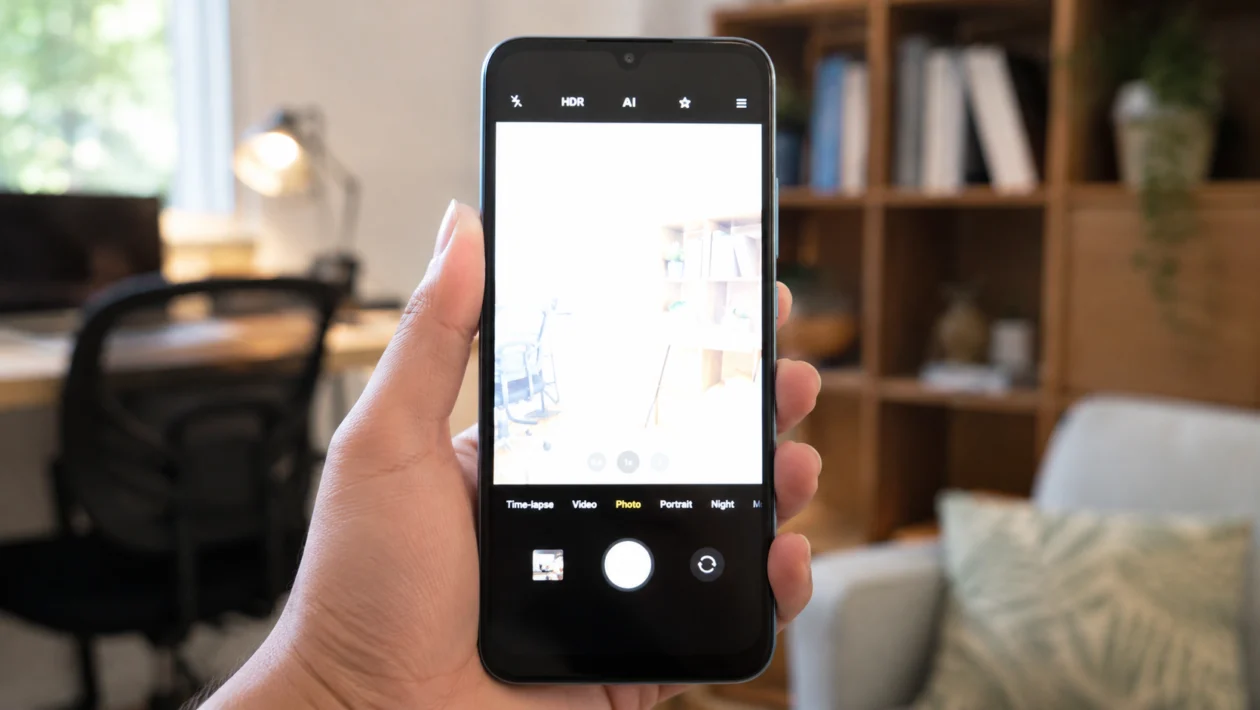
If your POCO C81 Pro camera looks too bright, washed out, or blown out in daylight, the problem is usually exposure control, HDR behavior, AI scene detection, lens glare, or a temporary camera app issue.
The POCO C81 Pro has a basic rear camera setup led by a 13MP main camera, so it may struggle more in harsh sunlight, backlit scenes, white walls, bright skies, or indoor lights pointed directly at the lens. That does not always mean the camera is broken. In many cases, you can fix the issue by adjusting how the camera measures light before taking the shot.
Start with the simple camera checks first. Tap to focus, lower the exposure slider, turn on HDR, clean the lens, then reset the camera app if the problem continues.
Quick answer
To fix POCO C81 Pro camera overexposure, open the Camera app, tap the subject before taking the photo, then drag the brightness or sun icon down to reduce exposure. Turn on HDR when shooting bright skies, windows, or backlit subjects.
If photos still look too bright, turn off AI camera, clean the lens, restart the phone, clear the Camera app cache, and reset camera settings.
POCO C81 Pro camera overexposure diagnostic table
| Symptom | Likely cause | What to check first |
|---|---|---|
| Photos look white or washed out | Exposure is too high | Tap the subject and lower exposure |
| Sky looks white with no detail | Bright background or weak HDR | Turn on HDR |
| Face looks dark but background is too bright | Backlighting | Move the subject or use HDR |
| Photo looks hazy | Dirty lens or lens flare | Clean the camera lens |
| Camera preview is bright for a few seconds | Previous exposure setting carried over | Close and reopen Camera or restart |
| Overexposure happens only in AI mode | Scene detection is adjusting brightness | Turn off AI camera |
| Photos look bright after update | Camera app bug or settings change | Update apps and reset camera settings |
| Only third-party camera apps overexpose | App processing issue | Test the stock Camera app |
| Bright spots appear near lights | Lens flare or direct light | Change shooting angle |
| Every photo is overexposed | Camera app or sensor issue | Reset camera settings or get support |
Why is my POCO C81 Pro camera overexposing photos?
Your POCO C81 Pro camera may overexpose photos because the camera is allowing too much light into the image. This can happen when the phone focuses on a dark subject, shoots against a bright window, keeps a previous exposure value, uses aggressive AI scene detection, or fails to balance highlights with HDR.
It is also more noticeable on budget camera hardware because the sensor has less room to preserve bright and dark details at the same time. This is why a bright sky can turn white while the subject still looks normal.
Use these fixes in order.
1. Tap the subject before taking the photo
Start here. The POCO C81 Pro camera decides brightness based on what it thinks the main subject is. If it meters the wrong area, the whole photo can become too bright.
Open the Camera app.
Point the camera at your subject.
Tap the part of the image you want properly exposed.
Wait for the focus box to appear.
Take the photo.
This helps the camera expose for the subject instead of the brightest or darkest part of the scene.
For example, if you are taking a photo of a person near a window, tap the person’s face. If you tap a dark shirt or shadow, the phone may brighten the whole image and blow out the background.
2. Lower the exposure manually
If tapping the subject is not enough, adjust exposure before taking the shot.
Open Camera.
Tap the subject.
Look for the brightness or sun icon beside the focus box.
Drag it down slightly.
Take another photo.
Do not drag it too far down unless the entire scene is too bright. A small adjustment is usually enough.
This is the best fix when the image looks almost right but the highlights are too strong. It works well for outdoor portraits, bright walls, food photos near windows, and photos with white backgrounds.
3. Turn on HDR for bright backgrounds
HDR helps the camera balance bright and dark areas in the same photo. It is useful when the sky, window, or background is much brighter than your subject.
Open Camera.
Look for HDR at the top of the camera screen.
Set it to On or Auto.
Take the same photo again.
Use HDR when shooting:
Outdoor scenes with bright sky
People standing in front of windows
Buildings under harsh sunlight
Landscapes with shadows and highlights
Objects on white tables or bright backgrounds
Do not use HDR for every shot. It can sometimes make moving subjects look unnatural or create a processed look. But for overexposed skies and backlit scenes, it is one of the first settings to try.
4. Turn off AI camera or scene detection
AI camera can change color, contrast, saturation, and exposure based on what it thinks you are shooting. Sometimes it helps. Sometimes it pushes the image too bright.
Open Camera.
Look for AI, AI Camera, or scene detection.
Turn it off.
Take another photo in the same lighting.
Compare the result.
If the photo looks more natural with AI off, leave it off for tricky lighting. You can turn it back on later for simple daylight shots.
This fix is worth trying if photos look too bright, too colorful, too smooth, or too processed.
5. Clean the camera lens
A dirty lens can make photos look foggy, bright, or low contrast. Fingerprints are especially bad because they scatter light across the lens.
Turn the phone around.
Check the rear camera glass under light.
Wipe it with a clean microfiber cloth.
Avoid tissue, rough fabric, or alcohol unless Xiaomi specifically recommends it for your device.
Open Camera and test again.
This sounds basic, but it fixes a lot of “camera overexposure” complaints that are actually glare or smudging.
If bright lights create a white haze across the photo, clean the lens first before changing deeper settings.
6. Change your shooting angle
Sometimes the camera is not the problem. The light is.
If sunlight, a lamp, or a bright window is hitting the camera lens directly, the image can look washed out even when exposure is correct.
Try this:
Move slightly left or right.
Tilt the phone downward.
Keep the light source behind you instead of in front of the camera.
Shade the lens with your hand without covering the camera.
Avoid shooting directly into sunlight.
This is especially useful for outdoor photos at noon, indoor shots near windows, and night photos with strong lamps or streetlights.
A small angle change can bring back contrast immediately.
7. Restart the Camera app and the phone
Xiaomi notes that a camera preview can appear overexposed when the Camera app reuses exposure parameters from the last session, especially if the camera was last used in a dark place and then opened in a bright area.
Close the Camera app.
Remove it from recent apps.
Open Camera again.
Test the same scene.
If that does not help:
Press and hold the Power button.
Tap Restart.
Wait for the phone to turn back on.
Open Camera and test again.
This will not delete your photos or personal files.
Use this fix if the camera preview looks extremely bright for the first few seconds, then slowly adjusts.
8. Clear the Camera app cache
If the Camera app keeps applying bad behavior, clear its cache. This removes temporary app files without deleting your photos.
Open Settings.
Tap Apps.
Tap Manage apps.
Find Camera.
Tap Storage.
Tap Clear cache.
Reopen Camera and test again.
The exact menu names may vary depending on your HyperOS version or region.
Do not tap Clear all data unless you are comfortable resetting camera preferences. Clearing cache is the safer first step.
9. Reset Camera settings
If exposure, HDR, AI, filters, or saved camera preferences are causing the issue, reset the Camera app settings.
Open Camera.
Tap the menu icon.
Open Settings.
Scroll down and tap Restore default settings or Reset settings.
Confirm the reset.
Take a test photo.
After resetting, check these settings again:
HDR
AI camera
Filters
Beauty mode
Aspect ratio
Exposure behavior
Night mode or portrait mode
This is a good fix if the problem started after changing several camera settings and you cannot remember what changed.
10. Update the phone, then test another camera app
Software updates can fix camera bugs, image processing issues, and app stability problems.
Open Settings.
Tap About phone.
Tap Xiaomi HyperOS or System update.
Install any available update.
Restart the phone.
Then update your apps through the Google Play Store.
After that, test both the stock Camera app and another trusted camera app. If the stock Camera app overexposes but another app looks normal, the issue may be camera processing or settings. If every app overexposes badly, there may be a deeper software or hardware issue.
When should you contact Xiaomi or POCO support?
Contact support if the POCO C81 Pro camera stays overexposed after trying all 10 fixes, especially if:
Every photo is white or washed out
The camera cannot focus
The issue happens in every camera app
The lens glass looks damaged
The problem started after a drop or water exposure
Photos have strange bright patches even in normal light
Resetting camera settings does not help
If the phone is still under warranty, avoid opening the device or using repair tools yourself. Camera module issues should be checked by an authorized service center.
FAQ
Why does my POCO C81 Pro camera make the sky look white?
The sky is much brighter than most subjects, so the camera may expose for the person, building, or object instead of the sky. Turn on HDR, tap the sky or subject carefully, and lower the exposure slightly before taking the shot.
Should I keep HDR on all the time?
Use HDR when there is a big difference between bright and dark areas. For normal indoor shots, moving subjects, or quick photos, Auto HDR is usually better than forcing HDR on all the time.
Does AI camera cause overexposure?
It can. AI camera may adjust brightness, color, and contrast based on the scene. If your photos look too bright or unnatural, turn AI camera off and compare the result.
