
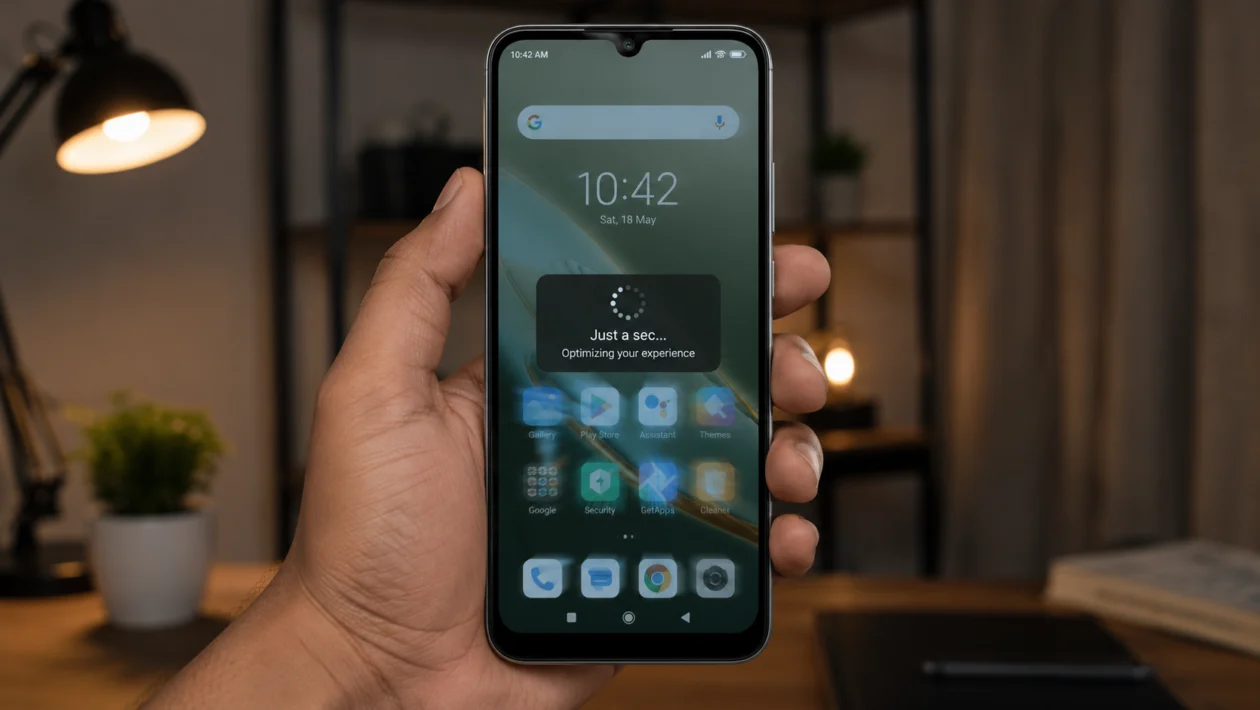
If your Xiaomi Poco C81 Pro feels slow, there is a good chance the phone is not broken. A slow UI can come from background apps, low storage, heavy animations, outdated apps, system updates, or too many services running at once.
The Poco C81 Pro is a budget-focused phone with a large 6.9-inch display, 6000mAh battery, and Xiaomi HyperOS 3.0, so performance depends a lot on how many apps, widgets, animations, and background tasks are active. Xiaomi’s own support advice for POCO lag also recommends clearing cached data, closing background apps, and keeping the system updated.
Start with the easy fixes first. Do not reset the phone unless the lag continues after trying the safer steps below.
Quick answer
To fix a Xiaomi Poco C81 Pro with slow UI, restart the phone, close background apps, free up storage, clear app cache, update HyperOS and your apps, reduce animations, remove unused apps, and check for apps using too much battery or memory.
If the phone became slow after a HyperOS update, give it 24 to 48 hours to finish background optimization, then update your apps and restart the phone again.
Xiaomi Poco C81 Pro slow UI diagnostic table
| Symptom | Likely cause | What to check first |
|---|---|---|
| Home screen feels laggy | Too many widgets, animations, background apps | Recent apps and home screen layout |
| Apps open slowly | Low storage or app cache buildup | Storage and app cache |
| Phone lags after update | System optimization still running | Restart and wait 24 to 48 hours |
| Keyboard feels delayed | Heavy background apps or low memory | Background apps |
| Scrolling stutters | Refresh rate, animations, or app issue | Display and animation settings |
| Phone freezes often | Buggy app or storage pressure | Battery usage and storage |
| Lag happens only in one app | App-specific cache or bug | Clear that app’s cache |
| UI slows while gaming | Processor load, heat, or game settings | Game settings and background apps |
Why is my Xiaomi Poco C81 Pro UI slow?
Your Xiaomi Poco C81 Pro may feel slow because the phone is trying to handle too many tasks at once. This is common on budget Android phones, especially after installing many apps, leaving storage nearly full, or using heavy widgets and animations.
Common causes include:
Too many apps running in the background
Low internal storage
Cached files building up
Outdated apps
A recent HyperOS update
Heavy animations
Live wallpapers or too many widgets
Apps syncing too often
Battery saver limiting performance
A buggy app using memory in the background
The goal is not to change every setting at once. Try the fixes below in order and test the phone after each one.
1. Restart your Poco C81 Pro
Start with a restart. It sounds too simple, but it can clear temporary system lag, stop stuck apps, and refresh the phone’s memory.
- Press and hold the Power button.
- Tap Restart.
- Wait for the phone to turn back on.
- Use it normally for a few minutes.
- Check if the UI feels smoother.
This will not delete your files, apps, photos, or messages.
Try this first if the phone suddenly became slow after using many apps, charging overnight, gaming, or updating software.
2. Close background apps
If many apps are open in the background, the Poco C81 Pro may feel slow when switching screens, opening the keyboard, or returning to the home screen.
- Swipe up from the bottom and hold to open Recent apps.
- Swipe away apps you are not using.
- Tap the clear button if available.
- Reopen only the app you need.
Do not keep games, shopping apps, social media apps, video apps, and browser tabs open if you are not using them. These can keep memory busy and make the UI feel delayed.
This is one of the first things Xiaomi recommends for POCO lag because closing unused background apps can free memory for smoother performance.
3. Free up internal storage
Low storage can make Android phones feel slow. If your Poco C81 Pro has very little free space, apps may open slowly, screenshots may take longer to save, and the UI may stutter.
Check your storage:
- Open Settings.
- Tap About phone.
- Tap Storage.
- Check how much space is free.
Delete or move:
Unused apps
Old screenshots
Downloaded videos
Duplicate photos
Large files from messaging apps
Offline music or movies you no longer need
A good rule is to keep at least 10% to 15% of your internal storage free. If your phone is almost full, freeing space may make the biggest difference.
You can also move photos and videos to a microSD card or cloud backup if you use one.
4. Clear cache from heavy apps
App cache helps apps load faster, but too much cached data can cause lag, bugs, or slow app launches. Start with apps that you use often.
Good apps to check include:
TikTok
Facebook
Instagram
Chrome
YouTube
Shopee or Lazada
Messaging apps
Games
Streaming apps
To clear cache:
- Open Settings.
- Tap Apps.
- Tap Manage apps.
- Choose the app that feels slow.
- Tap Storage.
- Tap Clear cache.
Do not tap Clear data unless you know what it does. Clearing data can sign you out, remove app settings, or delete local app files.
Xiaomi’s support guidance also recommends clearing cached data to reduce unnecessary app usage when POCO phones experience lag.
5. Update HyperOS and your apps
A slow UI can happen because of software bugs. Updating HyperOS and your apps can fix performance issues, app crashes, and animation problems.
To update HyperOS:
- Open Settings.
- Tap About phone.
- Tap Xiaomi HyperOS.
- Tap Check for updates.
- Install any available update.
To update apps:
- Open Google Play Store.
- Tap your profile icon.
- Tap Manage apps and device.
- Tap Update all.
Also check GetApps if you use Xiaomi system apps.
If the Poco C81 Pro became slow right after a system update, do not panic immediately. The phone may still be optimizing apps and background services. Xiaomi’s support advice says the phone may run more smoothly after optimization completes.
Give it 24 to 48 hours, then restart the phone again.
6. Reduce animation speed
Animations can make the phone look smooth, but they can also make a budget phone feel slower. Reducing animation speed makes the UI feel more responsive.
First, enable Developer options:
- Open Settings.
- Tap About phone.
- Tap Xiaomi HyperOS version several times.
- Enter your lock screen password if asked.
- You should see a message that Developer options are enabled.
Then reduce animations:
- Go back to Settings.
- Tap Additional settings.
- Tap Developer options.
- Find Window animation scale.
- Set it to 0.5x or Off.
- Find Transition animation scale.
- Set it to 0.5x or Off.
- Find Animator duration scale.
- Set it to 0.5x or Off.
If Off feels too abrupt, use 0.5x. That usually gives the best balance between speed and comfort.
This does not make the processor faster, but it can make the Poco C81 Pro feel faster because menus, app switching, and screen transitions finish sooner.
7. Remove unused apps and games
Unused apps can still run services, send notifications, sync data, and take storage. On a budget phone, that extra background activity can make the UI feel heavier.
- Open Settings.
- Tap Apps.
- Tap Manage apps.
- Look for apps you do not use.
- Tap Uninstall.
Focus on apps like:
Old games
Duplicate browsers
Cleaner apps
Battery booster apps
Shopping apps you rarely use
Social media apps you no longer open
Preinstalled apps you do not need, if uninstall is allowed
Be careful with system apps. If you are not sure what an app does, do not remove it. Disable it only if the phone allows it and you know it is not needed.
8. Turn off live wallpapers and reduce widgets
Live wallpapers, animated themes, and too many widgets can make the home screen slower. This is especially noticeable when swiping between screens or returning to the launcher.
Try this:
- Long-press an empty area on the home screen.
- Remove widgets you do not need.
- Use a normal static wallpaper.
- Avoid heavy animated themes.
- Restart the phone.
Keep only useful widgets, such as clock, weather, or calendar. Remove duplicate widgets, large news widgets, and widgets from apps you rarely open.
If the lag mostly happens on the home screen, this fix can help more than clearing random apps.
9. Check battery and performance settings
Battery saver can sometimes limit background activity or performance to extend battery life. That is useful when the battery is low, but it may make the UI feel less responsive.
Check battery mode:
- Open Settings.
- Tap Battery.
- Turn off Battery saver if it is not needed.
- Check if performance improves.
Also check app battery restrictions:
- Open Settings.
- Tap Battery.
- Tap Battery usage.
- Look for apps using too much power.
- Limit or uninstall apps that are draining battery in the background.
If one app is always near the top even when you barely use it, that app may be causing the lag.
Do not leave Battery saver on all day unless you really need longer battery life. For normal use, the phone usually feels better when it can manage performance automatically.
10. Reset the phone only if nothing else works
A factory reset should be the last option. It can fix deep software problems, but it deletes your apps, accounts, settings, photos, downloads, and local files.
Before resetting:
Back up your photos and videos
Back up WhatsApp or other chat apps
Save important files
Remember your Google account and Xiaomi account passwords
Charge the phone
To reset:
- Open Settings.
- Tap About phone.
- Tap Factory reset.
- Read the warning carefully.
- Follow the on-screen instructions.
After the reset, install only the apps you really need. Do not restore every old app immediately. If you reinstall everything at once, the same lag may return.
Use the phone for a day with only your important apps. Then add other apps slowly.
When should you get the Poco C81 Pro checked?
Get support if the phone is still slow after a reset or if you also notice:
The phone freezes every few minutes
It restarts by itself
The screen becomes unresponsive
Apps crash constantly
The phone gets hot even when idle
The UI lags during basic tasks after a clean reset
At that point, the issue may be deeper than normal software lag.
FAQs
Why is my Poco C81 Pro slow after an update?
It may still be optimizing apps and system files after the update. Restart the phone, update your apps, and use it normally for 24 to 48 hours before trying a reset.
Will clearing cache delete my photos?
No. Clearing app cache usually removes temporary files only. It should not delete your photos, videos, or messages. Avoid Clear data unless you know what it removes.
Does reducing animations really make the phone faster?
It does not increase the processor speed, but it makes the UI feel faster because menus and transitions take less time to appear.
