
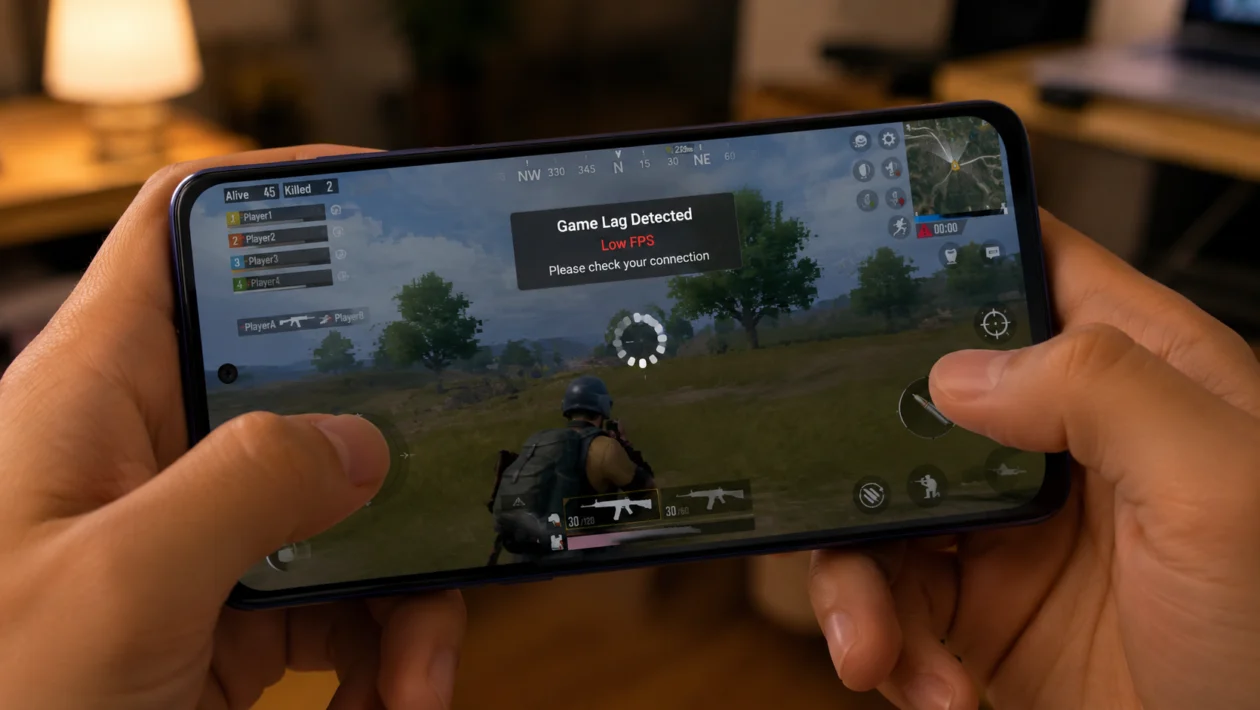
If your vivo Y60 starts lagging when gaming, the problem is usually not one single thing. It can come from low storage, too many background apps, high graphics settings, poor signal, overheating, battery saver mode, or a game update that is not running well on your phone yet.
The vivo Y60 is expected to handle casual and mid-range gaming well, but heavy games can still push the phone if the graphics are too high or the phone is running too many tasks at once. Start with the simple fixes first before resetting anything.
Quick answer
To fix vivo Y60 lagging when gaming, close background apps, restart the phone, lower the game graphics, clear game cache, free up storage, update the game, update your phone software, turn off battery saver, use Game Mode, and check whether the phone is overheating.
If the lag only happens in one game, the game is likely the problem. If every game lags, check storage, temperature, software updates, and background activity.
vivo Y60 gaming lag diagnostic table
| Problem | Likely cause | What to check first |
|---|---|---|
| Game freezes after a few minutes | Overheating or high graphics | Lower graphics and let the phone cool |
| Lag happens in online games only | Weak Wi-Fi or mobile data | Check signal and switch networks |
| Game stutters when opening | Low RAM or background apps | Close apps and restart phone |
| FPS drops during fights or effects | Graphics too high | Reduce frame rate and visual quality |
| Lag started after update | App or system bug | Update game and phone software |
| Phone feels hot while gaming | Heat buildup | Remove case and pause gaming |
| Game loads slowly | Low storage | Free up internal storage |
| Touch response feels delayed | Game mode or performance issue | Enable Game Mode |
| All games lag | System-wide performance issue | Check storage, updates, and battery mode |
| Only one game lags | Game optimization problem | Clear cache or reinstall that game |
Why is my vivo Y60 lagging when gaming?
Your vivo Y60 may lag when gaming because the game is using more processing power, memory, storage, or network stability than the phone can comfortably provide at that moment.
Common causes include:
Background apps using RAM
High graphics settings
Low internal storage
Weak Wi-Fi or mobile signal
Overheating
Battery saver mode
Outdated game version
Outdated phone software
Corrupted game cache
A game that is not optimized well
The fixes below are arranged from easiest to more serious.
1. Close background apps before gaming
Start here. Games need free memory to run smoothly. If many apps are open in the background, your vivo Y60 may struggle to keep the game stable.
- Swipe up from the bottom of the screen and hold to open recent apps.
- Close apps you are not using.
- Keep only the game open.
- Launch the game again.
- Check if the lag improves.
This helps if the game lags when opening, switching screens, loading maps, or entering matches.
Also close apps that often run in the background, such as social media apps, video apps, shopping apps, browsers, and messaging apps with floating windows.
2. Restart your vivo Y60
A restart can clear temporary system issues that make games lag. It also closes stuck background processes that may be using memory or battery.
- Press and hold the Power button.
- Tap Restart.
- Wait for the phone to turn back on.
- Open the game again.
- Play for a few minutes and check performance.
This will not delete your files, apps, photos, or game data.
Try this especially if the lag started suddenly even though the game was running fine before.
3. Lower the game graphics settings
If the game is set to high graphics, high frame rate, shadows, anti-aliasing, or HD textures, your vivo Y60 may lag during fights, driving scenes, explosions, or crowded areas.
Open the game settings and lower these options:
Graphics quality: Low or Medium
Frame rate: Medium or Balanced
Shadows: Off
Anti-aliasing: Off
Texture quality: Medium or Low
Effects quality: Low
Resolution: Standard
For games like Mobile Legends, PUBG Mobile, Call of Duty Mobile, Free Fire, or Genshin Impact, the smoothest setting is usually better than the best-looking setting.
If you want stable gameplay, choose performance over visuals.
4. Turn on Game Mode or Ultra Game Mode
vivo phones usually include gaming features through Game Mode, Ultra Game Mode, or Game Space, depending on the software version. This can help reduce interruptions and improve gaming focus.
- Open Settings.
- Search for Game Mode, Ultra Game Mode, or Game Space.
- Add your game to the list.
- Turn on performance or gaming optimization options if available.
- Disable floating notifications if they interrupt gameplay.
The exact name may vary by region or Funtouch OS version.
Game Mode can help by reducing distractions, managing calls, limiting notifications, and keeping more resources focused on the game.
5. Free up internal storage
Low storage can make games lag, load slowly, or freeze. Games need extra space for updates, maps, temporary files, shaders, and cache.
Try to keep at least 10GB to 15GB of free storage if you play large games.
- Open Settings.
- Tap Storage.
- Check available space.
- Delete large videos, duplicate photos, unused apps, and old downloads.
- Move files to cloud storage or a computer if needed.
You should also remove old game files from games you no longer play.
Do not fill the phone almost to 100%. When storage is nearly full, the whole phone can feel slower, not just games.
6. Clear the game cache
A corrupted or overloaded cache can cause lag, freezing, login issues, or slow loading. Clearing the cache can refresh the game without deleting the app itself.
- Open Settings.
- Tap Apps.
- Select the game that is lagging.
- Tap Storage.
- Tap Clear cache.
- Restart the phone.
- Open the game again.
Do not tap Clear data unless you know your game progress is backed up to an account.
This fix is useful if only one game lags while other games run normally.
7. Update the game and your vivo Y60 software
Game updates often fix bugs, lag, crashes, and compatibility problems. Phone software updates can also improve system stability.
To update the game:
- Open Google Play Store.
- Search for the game.
- Tap Update if available.
To update your vivo Y60:
- Open Settings.
- Tap System update.
- Check for updates.
- Install any available update.
- Restart the phone after updating.
If the lag started after a game update, check the game’s recent reviews. Other players may be reporting the same problem. In that case, you may need to wait for the next game patch.
8. Turn off battery saver while gaming
Battery saver can limit performance to extend battery life. That is useful when your battery is low, but it can make games feel slower.
- Open Settings.
- Tap Battery.
- Turn off Battery Saver or Low Power Mode.
- Charge your phone if the battery is low.
- Open the game again.
Also avoid gaming while the phone is below 15% battery. Some phones reduce performance when the battery is low to prevent sudden shutdowns.
For better gaming, play with enough charge and keep battery saver off.
9. Keep the phone cool while gaming
Heat is one of the biggest reasons a phone starts lagging after a few minutes of gaming. When the phone gets too hot, it may reduce performance to protect the battery and internal components.
Try these cooling steps:
Remove the phone case while gaming
Avoid playing under direct sunlight
Do not play while charging if the phone gets hot
Lower screen brightness
Take a 5-minute break between long sessions
Keep the phone on a flat surface after gaming
Close the game if the phone feels unusually hot
If your vivo Y60 runs smoothly at first but lags after 10 to 20 minutes, heat is probably part of the problem.
10. Reinstall the game if nothing else works
If only one game keeps lagging after updates, cache clearing, storage cleanup, and graphics changes, reinstalling the game may help.
Before doing this, make sure your progress is saved to a game account, Google Play Games, Facebook, or the game’s own login system.
- Open Settings.
- Tap Apps.
- Select the game.
- Tap Uninstall.
- Restart your vivo Y60.
- Open Google Play Store.
- Install the game again.
- Log back into your account.
This can fix corrupted files, broken updates, and missing game resources.
Do not reinstall the game if you are not sure your progress is backed up.
Best gaming settings for vivo Y60
For smoother gaming, use balanced settings instead of maximum graphics.
Recommended settings:
Graphics: Low or Medium
Frame rate: Medium or High, depending on stability
Shadows: Off
Anti-aliasing: Off
Brightness: 40% to 60%
Battery saver: Off
Game Mode: On
Background apps: Closed
Storage: At least 10GB free
If the game still lags, lower the frame rate first. A stable medium frame rate is better than a high frame rate that keeps dropping.
Should you reset your vivo Y60?
A factory reset should be the last option, not the first fix.
Only consider it if:
All games lag
The whole phone is slow
Storage cleanup did not help
Updates did not help
The phone started lagging after many app changes
You already backed up your files
To reset:
- Back up your photos, videos, contacts, and files.
- Open Settings.
- Tap System management.
- Tap Backup & reset.
- Choose Erase all data only if you are ready.
A reset deletes your personal data, so avoid it unless the lag is happening across the whole phone.
When to contact vivo support
Contact vivo support if your vivo Y60 still lags badly after trying the fixes above, especially if the phone also overheats, shuts down, freezes outside games, or restarts by itself.
You should also get help if:
The phone becomes too hot to hold
Games crash every time you open them
The screen freezes even in normal apps
The phone lags after a factory reset
Battery drains unusually fast while gaming
The phone shuts down during gameplay
At that point, the issue may be related to hardware, battery health, or a deeper software problem.
FAQs
Why does my vivo Y60 lag only when playing games?
Games need more power than normal apps. If your vivo Y60 only lags during games, the cause is usually graphics settings, heat, low storage, background apps, or game optimization.
Why does my vivo Y60 lag after 10 minutes of gaming?
If the phone runs well at first but slows down later, it may be getting hot. Remove the case, lower graphics, reduce brightness, and avoid gaming while charging.
Does clearing cache delete my game account?
Clearing cache usually does not delete your game account. Clearing data can delete local files and settings, so only do that if your game progress is backed up.
