
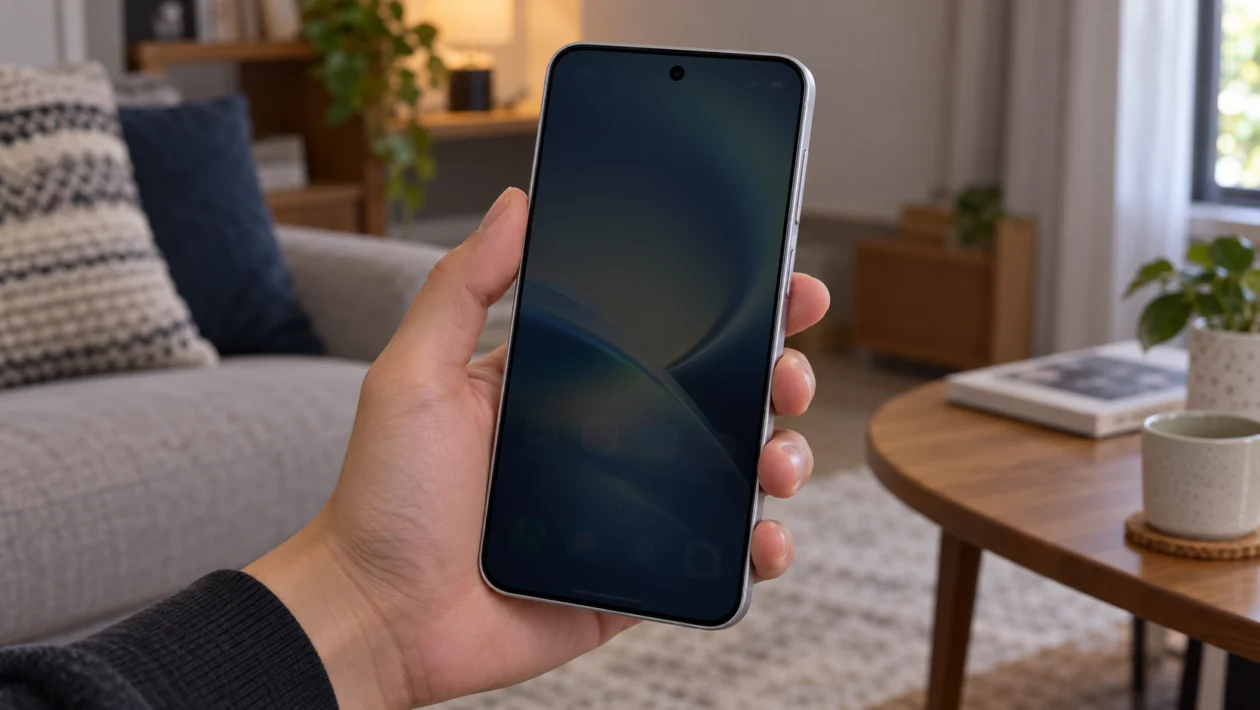
If your vivo X500 Pro screen keeps dimming by itself, it can make the phone annoying to use. You raise the brightness, open an app, start watching a video, or play a game, then the display suddenly gets darker again.
This does not always mean the screen is faulty. In most cases, screen dimming happens because of auto brightness, eye protection settings, battery saver, heat protection, app-specific brightness behavior, or display features trying to reduce power use and eye strain.
Start with the simple checks first. Adjust the brightness settings, turn off automatic controls, check battery saver, then test whether the issue happens in all apps or only in certain situations.
Quick answer
If your vivo X500 Pro screen keeps dimming, go to Settings > Display & brightness and turn off Auto brightness. Then manually raise the brightness slider and check if the screen still dims.
If it still happens, check Eye Protection, Dark mode, Battery Saver, Ultra Game Mode, phone temperature, and app-specific brightness behavior. If the screen dims only when the phone gets warm, the phone may be lowering brightness to protect the display and battery.
vivo X500 Pro screen dimming diagnostic table
| Symptom | Likely cause | What to check first |
|---|---|---|
| Screen dims indoors or outdoors | Auto brightness | Settings > Display & brightness |
| Screen dims at night | Eye Protection or scheduled display mode | Eye Protection schedule |
| Screen dims while gaming | Game mode or heat | Ultra Game Mode and phone temperature |
| Screen dims while watching videos | App brightness or adaptive display behavior | Video app brightness settings |
| Screen dims when battery is low | Battery Saver | Battery settings |
| Screen dims after a few minutes | Screen timeout or power saving | Display and battery settings |
| Screen dims while charging | Heat protection | Remove case and let phone cool |
| Screen dims only in one app | App-specific brightness | App settings and permissions |
| Brightness slider moves by itself | Auto brightness | Turn off auto brightness |
| Screen stays dim even at full brightness | Software or hardware issue | Restart, update, or contact vivo support |
Why does my vivo X500 Pro screen keep dimming?
Your vivo X500 Pro screen may dim because the phone is automatically adjusting brightness based on light conditions, battery level, heat, eye comfort, or app behavior.
Common causes include:
Auto brightness is turned on
Eye Protection is scheduled
Dark mode or extra dim settings are active
Battery Saver is limiting brightness
The phone is getting warm
A game or video app is controlling brightness
The ambient light sensor is blocked
The system needs a restart
A software update changed display behavior
There may be a display or sensor issue
Use the fixes below in order.
1. Turn off Auto brightness
Auto brightness is the first setting to check. When it is enabled, your vivo X500 Pro uses the ambient light sensor to adjust the screen based on the light around you.
That sounds helpful, but it can feel annoying if the brightness drops too aggressively.
- Open Settings.
- Tap Display & brightness.
- Turn off Auto brightness.
- Move the brightness slider higher manually.
- Use the phone for a few minutes and check if the screen still dims.
If the brightness slider stops moving by itself, Auto brightness was probably the cause.
This is the best first fix if the screen dims when you move between bright and dark places, use the phone near a window, or cover the top part of the display by accident.
2. Clean the top sensor area
The vivo X500 Pro uses sensors near the top of the phone to detect surrounding light. If that area is blocked, dirty, or covered by a badly fitted screen protector, the phone may think you are in a darker place than you really are.
Try this:
- Remove the phone case temporarily.
- Wipe the top part of the screen with a clean microfiber cloth.
- Check if your screen protector is covering any sensor area.
- Restart the phone.
- Test brightness again in normal lighting.
This is worth checking if the brightness changes when you hold the phone differently, place your hand near the top edge, or use a privacy screen protector.
3. Turn off Eye Protection
Eye Protection can make the screen look warmer, softer, or less bright. It is useful at night, but it can also make the display look dim during the day.
- Open Settings.
- Tap Display & brightness.
- Tap Eye Protection.
- Turn it off temporarily.
- Also check if it has a schedule enabled.
Use the phone again after turning it off.
If the display looks brighter and more normal, Eye Protection was making the screen appear dim. You can keep it off during the day, or set it to run only at night.
4. Check Dark mode and extra dim display settings
Dark mode does not always lower actual brightness, but it can make some apps and menus look less bright. On some phones, display comfort settings can also reduce glare or make the screen look darker than expected.
- Open Settings.
- Tap Display & brightness.
- Turn off Dark mode for testing.
- Check for any extra dim, bedtime, sleep, or eye comfort options.
- Disable them temporarily.
Now open the app where the dimming happens most often.
If the display looks normal again, the issue was likely caused by a visual comfort setting rather than a screen problem.
5. Turn off Battery Saver
Battery Saver can reduce screen brightness, limit background activity, lower performance, and change how the phone behaves when the battery is low.
If your vivo X500 Pro dims more often when the battery drops below a certain level, check this setting.
- Open Settings.
- Tap Battery.
- Turn off Battery Saver or Low power mode.
- Charge the phone above 50%.
- Test the screen again.
If screen dimming stops after turning Battery Saver off, the phone was likely reducing display power to extend battery life.
You can still use Battery Saver when needed, but turn it off when you want full brightness for gaming, navigation, video, or outdoor use.
6. Let the phone cool down
Phones can lower brightness when they get hot. This can happen during gaming, video recording, charging, hotspot use, outdoor use, or long camera sessions.
If your vivo X500 Pro dims and feels warm at the same time, do this:
- Stop gaming, recording, or using heavy apps.
- Remove the case.
- Unplug the charger.
- Move the phone away from direct sunlight.
- Leave it idle for 10 to 15 minutes.
- Check if brightness returns to normal.
Do not put the phone in a refrigerator or freezer. Sudden temperature changes can cause moisture problems.
If dimming only happens when the phone is hot, the phone is probably protecting itself. The fix is to reduce heat, not force brightness higher.
7. Check Ultra Game Mode settings
If the screen dims while gaming, the cause may be game mode, power optimization, temperature control, or in-game brightness behavior.
- Open Settings.
- Go to Ultra Game Mode.
- Check performance, battery, and display-related options.
- Turn off any setting that reduces power use during games.
- Open the game and check its own brightness settings.
Some games also have separate brightness sliders inside the game menu. If only one game looks dark, the issue may be inside that game, not the phone display.
You should also test the same game while the phone is cool and charged. If dimming happens only after long gaming sessions, heat is probably involved.
8. Check video app brightness settings
Some video apps can control brightness separately from the system brightness slider. This can make the phone look normal on the home screen, then suddenly dim inside YouTube, Netflix, TikTok, a gallery app, or a video player.
Try this:
- Open the app where the screen dims.
- Play a video.
- Swipe up or down on the left or right side of the video screen if the app supports brightness gestures.
- Open the app’s settings.
- Look for playback, display, brightness, HDR, or battery options.
If the issue happens only inside one app, update that app first. Then clear its cache or reinstall it if the dimming continues.
9. Restart and update your vivo X500 Pro
A restart can fix temporary display glitches, stuck brightness behavior, and app conflicts.
- Press and hold the Power button.
- Tap Restart.
- Wait for the phone to turn back on.
- Test brightness again.
Then check for software updates:
- Open Settings.
- Tap System update.
- Install any available update.
- Restart the phone after updating.
Also update your apps from the Play Store or vivo’s app store if available.
If the dimming started after a recent update, give the phone some time after restarting. Updates can change battery, display, and app behavior, especially after a major system upgrade.
10. Reset display settings or contact vivo support
If none of the fixes work, the problem may be caused by a system setting, software bug, ambient light sensor issue, or display hardware problem.
Before contacting support, try resetting display-related settings if your vivo software version offers that option. If not, you can reset all settings without deleting your personal files.
- Open Settings.
- Go to System management or More settings.
- Tap Backup & reset.
- Choose a settings reset option if available.
- Avoid factory reset unless you have backed up your data.
Contact vivo support if:
The screen stays dim even at maximum brightness
The brightness slider does not work
The screen flickers, turns green, or shows lines
The phone dims even when it is cool
The issue started after a drop or water exposure
The display is unreadable outdoors
The screen randomly changes brightness with Auto brightness off
If the phone is still under warranty, do not open the device yourself. A service center can check the display, ambient light sensor, battery, and motherboard safely.
FAQ
Why does my vivo X500 Pro screen dim even when brightness is full?
If brightness is already full but the screen still looks dim, check Eye Protection, Dark mode, Battery Saver, app brightness, and phone temperature. If the phone is hot, it may lower brightness automatically.
Why does my vivo X500 Pro screen dim while gaming?
Gaming can make the phone warm. When that happens, the phone may reduce brightness to control heat and power use. Check Ultra Game Mode, Battery Saver, and the game’s own brightness settings.
Why does my vivo X500 Pro dim when I watch videos?
Some video apps have their own brightness controls. Open the video app, check playback settings, and test other apps. If only one app is affected, update or reinstall that app.
