
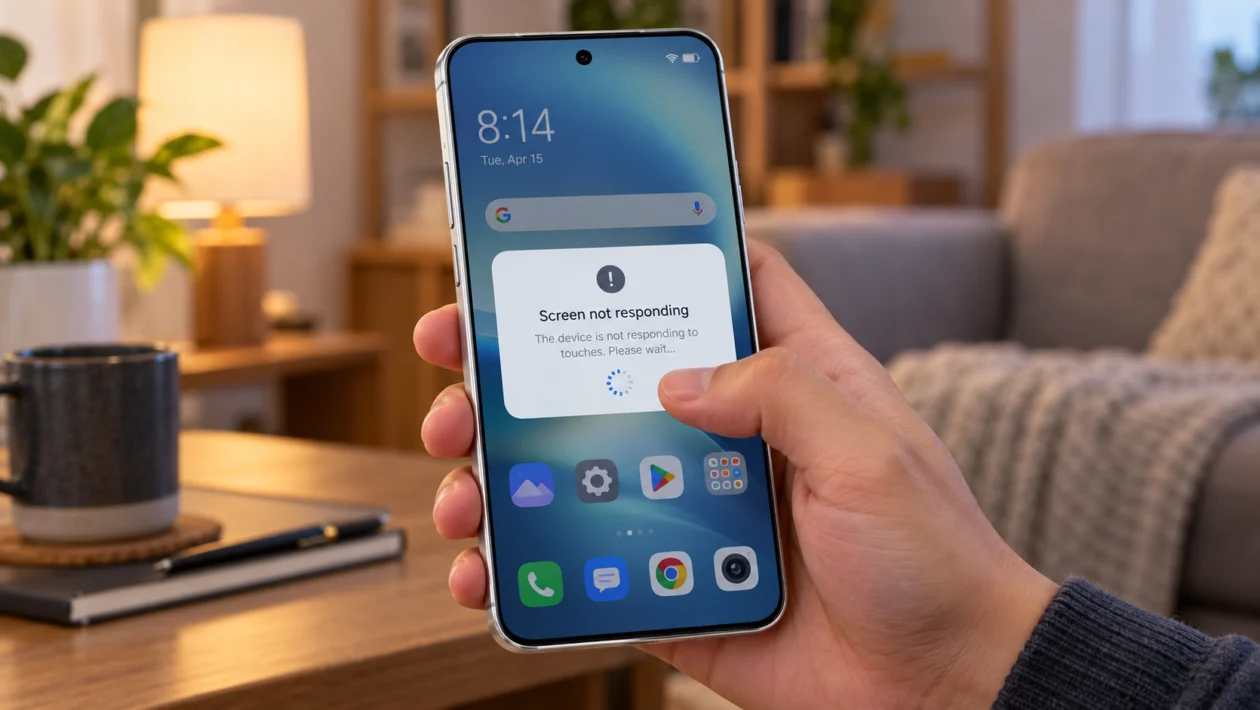
If your vivo X500 Pro screen is not responding, delayed, frozen, or only working in some areas, do not assume the display is broken right away. Screen unresponsiveness can come from a temporary software glitch, a bad app, a dirty screen, a thick screen protector, low storage, overheating, moisture, or a recent system update.
Start with the simple checks first. Clean the screen, restart the phone, remove accessories, then check whether the problem happens everywhere or only inside one app.
If the screen is completely frozen and you cannot tap anything, use the physical buttons to restart the phone before trying deeper fixes.
Quick answer
To fix a vivo X500 Pro with screen unresponsiveness, force restart the phone first. Press and hold the Power button and Volume Down button until the phone restarts. Then remove the case or screen protector, clean the screen, update your apps, check for a system update, and test the phone in Safe Mode.
If the touch screen works in Safe Mode, a third-party app is likely causing the issue. If the screen stays unresponsive after updates, reset settings or contact vivo support for a hardware check.
vivo X500 Pro screen unresponsiveness diagnostic table
| Symptom | Likely cause | What to check first |
|---|---|---|
| Screen is fully frozen | Temporary system glitch | Force restart |
| Touch works after restart then fails again | App conflict or software bug | Safe Mode and app updates |
| Screen only fails in one app | App issue | Update or reinstall that app |
| Some areas do not respond | Screen protector, damage, or display fault | Remove protector and test touch |
| Ghost touch happens | Moisture, dirty screen, charger issue, or display fault | Clean screen and remove charger |
| Touch is slow or delayed | Low storage, heavy apps, heat, or system lag | Storage, background apps, temperature |
| Screen stops responding while charging | Bad charger, cable, or power source | Try original charger |
| Screen fails after an update | App compatibility or system cache issue | Restart, update apps, monitor |
| Screen fails after a drop | Possible hardware damage | vivo service center |
| Touch works only sometimes | Case pressure, moisture, or failing digitizer | Remove accessories and test |
Why is my vivo X500 Pro screen not responding?
Your vivo X500 Pro screen may stop responding if the phone is overloaded, too hot, wet, blocked by a screen protector, affected by a buggy app, or stuck after a system process. It can also happen if the display digitizer is damaged after a drop or pressure on the screen.
Common causes include:
- Temporary software freeze
- Dirty or wet screen
- Thick or damaged screen protector
- Tight case pressing the display edges
- Buggy app running in the background
- Low storage or heavy multitasking
- Overheating
- Faulty charger or cable
- Recent system update
- Hardware damage
Use the fixes below in order. Do not jump straight to a factory reset unless you have already backed up your files.
1. Force restart your vivo X500 Pro
Start with a force restart if the screen is frozen or taps are not working.
This is different from a normal restart because you can do it with the physical buttons. It helps when the phone is stuck on one screen, the touch panel does not react, or the system has stopped responding.
- Press and hold the Power button and Volume Down button.
- Keep holding both buttons until the vivo logo appears.
- Release the buttons.
- Wait for the phone to restart.
- Test the screen again.
This will not delete your photos, apps, contacts, or files.
If the screen works after restarting, use the phone normally for a few minutes. If the issue comes back, move to the next fixes.
2. Clean the screen and dry your hands
Touch screens can become unreliable when there is oil, sweat, dust, water, or lotion on the glass. Even a small amount of moisture can cause delayed taps or ghost touch.
- Turn off the screen.
- Remove the phone from the charger.
- Wipe the screen with a clean microfiber cloth.
- Dry your hands.
- Remove any moisture around the edges of the display.
- Turn the screen back on and test touch response.
Do not use sharp tools, metal objects, strong cleaners, or too much liquid on the screen.
This fix is especially worth trying if the screen became unresponsive after rain, workout use, beach use, cooking, or using the phone with wet hands.
3. Remove the screen protector and case
A screen protector can interfere with touch if it is too thick, cracked, misaligned, dirty underneath, or not made for the vivo X500 Pro. A tight case can also press on the screen edges and cause random touch issues.
- Remove the case first.
- Test the screen without the case.
- If the problem continues, remove the screen protector.
- Clean the screen again.
- Test typing, swiping, scrolling, and edge gestures.
Look for these signs:
- Touch fails near the edges
- The fingerprint area does not respond properly
- Ghost touches happen near a crack
- Swipes stop halfway
- The screen works better after pressing harder
If removing the protector fixes the issue, replace it with a thinner protector made for the vivo X500 Pro.
4. Check if the issue happens in one app only
If the screen works on the home screen but becomes unresponsive inside one app, the app may be the problem. This is common with games, camera apps, browsers, video editors, launchers, shopping apps, or apps that recently updated.
Test this first:
- Go back to the home screen.
- Open another app.
- Try typing, scrolling, and tapping.
- Open Settings and test the screen there.
- Return to the problem app.
If only one app is affected:
- Open Google Play Store.
- Search for the app.
- Tap Update if available.
- If updating does not help, uninstall and reinstall the app.
- If the app is from vivo App Store, check for updates there too.
You can also clear the app cache:
- Open Settings.
- Tap Apps.
- Tap App management.
- Select the problem app.
- Tap Storage.
- Tap Clear cache.
Do not tap Clear data unless you understand what the app will delete. Clearing data may remove saved logins, settings, downloads, or local files inside that app.
5. Update your apps and system software
App bugs and system bugs can both cause touch delays, freezes, and random screen behavior. Updating is one of the safest fixes before you reset anything.
To update apps:
- Open Google Play Store.
- Tap your profile icon.
- Tap Manage apps and device.
- Tap Update all.
- Open vivo App Store if you use it.
- Update vivo system apps too.
To update the phone software:
- Open Settings.
- Tap System update.
- Check for updates.
- Download and install any available update.
If your vivo X500 Pro started having screen problems right after a system update, restart the phone again after updating your apps. Sometimes apps need time to adjust after a major update.
Use the phone normally for 24 to 48 hours. If the problem keeps happening, continue with the next fixes.
6. Free up storage and close heavy apps
A slow or overloaded phone can feel like the screen is broken when the real problem is lag. If the phone has very little free storage, too many apps running, or a heavy game in the background, taps may register late or not at all.
Check storage first:
- Open Settings.
- Tap Storage.
- Check how much free space is left.
- Delete files you no longer need.
- Move photos and videos to cloud storage or a computer if needed.
Then close heavy apps:
- Open Recent apps.
- Close apps you are not using.
- Restart the phone.
- Test the touch screen again.
Pay attention to apps that use a lot of memory, such as games, video editors, camera apps, screen recorders, social media apps, and navigation apps.
If the screen becomes responsive after freeing space, the display was probably not the problem. The phone was struggling to keep up.
7. Let the phone cool down
Heat can make a phone slow, laggy, or temporarily unresponsive. This can happen during gaming, charging, hotspot use, camera recording, video calls, or using mobile data in a weak signal area.
If the vivo X500 Pro feels warm:
- Stop gaming, recording, or video calling.
- Remove the case.
- Unplug the charger.
- Turn off hotspot if it is on.
- Place the phone somewhere cool and shaded.
- Wait until it returns to a normal temperature.
- Test the screen again.
Do not put the phone in a freezer or in front of direct cold air. Sudden temperature changes can create moisture inside the device.
If the screen only becomes unresponsive when the phone is hot, the issue may be related to performance throttling, a heavy app, poor signal, charging heat, or a hardware problem.
8. Test the phone in Safe Mode
Safe Mode helps you check whether a third-party app is causing the screen problem. In Safe Mode, downloaded apps are temporarily disabled, while the phone’s basic system apps still work.
Use this if the screen works sometimes but becomes unresponsive after opening apps, unlocking the phone, or using it for a few minutes.
- Press and hold the Power button.
- Touch and hold Power off on the screen.
- Tap Safe Mode if the option appears.
- Wait for the phone to restart.
- Test the screen.
If your vivo X500 Pro screen works normally in Safe Mode, a downloaded app is likely causing the issue.
Start by removing apps that were installed or updated shortly before the problem started. Focus on:
- Launchers
- Screen filters
- Gesture apps
- Battery saver apps
- Cleaner apps
- Game boosters
- Keyboard apps
- Apps downloaded outside Google Play Store
After uninstalling a suspicious app, restart the phone normally and test again.
9. Reset all settings
If the screen still responds but behaves strangely, reset all settings before doing a factory reset. This can fix problems caused by display settings, accessibility settings, gestures, app permissions, or system configuration changes.
A settings reset does not erase your personal files, but it may reset Wi-Fi, Bluetooth, app preferences, and other system settings.
- Open Settings.
- Tap System management.
- Tap Backup & Reset.
- Tap Reset all settings.
- Confirm the reset.
- Restart the phone.
- Test the screen again.
The exact menu names may vary depending on your vivo software version or whether your unit uses Funtouch OS or OriginOS.
If you use accessibility features, custom gestures, display adjustments, or third-party keyboards, check them again after the reset.
10. Back up your data and contact vivo support
If none of the fixes work, the problem may be hardware-related. The touch digitizer, display connector, screen panel, or internal components may need inspection.
Contact vivo support or visit an authorized vivo service center if:
- The screen stopped responding after a drop
- There are cracks, lines, black spots, or flickering
- Only one section of the screen responds
- The phone has water or moisture exposure
- Ghost touch happens even after removing the protector
- The screen does not respond in Safe Mode
- The issue comes back after every restart
- The phone is still under warranty
Before service, back up your data if possible.
You can back up photos, videos, contacts, and files using Google backup, vivoCloud if available in your region, or a computer. If the screen barely works, connect a mouse with a compatible USB-C OTG adapter and see if you can unlock the phone long enough to back up important files.
Do not open the phone yourself if it is under warranty. Unauthorized repair can make warranty service harder.
Should you factory reset your vivo X500 Pro?
A factory reset should be one of the last options. It erases apps, photos, settings, accounts, and local files from the phone.
Only consider a factory reset if:
- You already backed up your data
- The screen works well enough to complete the reset
- Safe Mode did not fix the issue
- Reset all settings did not help
- vivo support recommends it
To factory reset:
- Open Settings.
- Tap System management.
- Tap Backup & Reset.
- Tap Erase all data.
- Follow the on-screen instructions.
If the screen is physically damaged, a factory reset will not repair it. In that case, service is the better next step.
How to prevent vivo X500 Pro screen unresponsiveness
You can reduce the chance of this issue happening again by keeping the phone clean, updated, and protected.
Try these habits:
- Use a screen protector made for the vivo X500 Pro
- Avoid using the phone with wet hands
- Keep apps updated
- Do not install unknown APK files unless you trust the source
- Keep enough free storage
- Avoid overheating during gaming or charging
- Use a reliable charger and cable
- Restart the phone occasionally
- Remove apps that cause freezes or ghost touch
Most screen unresponsiveness problems are software-related or accessory-related. If the issue continues after these checks, treat it as a possible hardware problem.
FAQ
Why is my vivo X500 Pro touch screen not working?
Your vivo X500 Pro touch screen may not be working because of a software freeze, dirty screen, wet hands, bad screen protector, buggy app, overheating, low storage, or hardware damage. Start with a force restart, then remove the case and screen protector.
How do I restart my vivo X500 Pro if the screen is frozen?
Press and hold the Power button and Volume Down button until the vivo logo appears. This forces the phone to restart without using the touch screen.
Can a screen protector cause vivo X500 Pro touch problems?
Yes. A thick, cracked, dirty, or misaligned screen protector can make touch response worse. Remove the protector and test the screen directly.
